
Overview
Before an AI assistant can retrieve information from Softools, the relevant Apps and Views must be configured for Model Context Protocol (MCP).
Softools uses published Views to make information available to connected AI assistants. App Builders can control which Fields are exposed, provide descriptions to help the AI understand the information and enable Data Lens for more flexible searching.
For example, you could prepare a Projects View containing Project Name, RAG Status, Priority, Delivery Date and Project Lead, allowing users to ask:
- Which Projects have the highest priority?
- Which Red Projects have the earliest Delivery Dates?
- Which Projects am I responsible for?
- What delivery issues or resource shortages need attention?
You can also expose related Apps, such as Actions and Risks, allowing AI assistants to retrieve information across multiple Apps.
This article explains how to create and configure MCP-enabled Views, improve the information available to AI assistants and publish the changes.
Note: Enabling MCP on a View does not automatically authorise an external AI assistant. An Advanced App Builder must separately approve the AI assistant connection in Softools.
Contents
- Create a View from a Table Report
- Expose the View through MCP
- Choose Fields and Describe the Data
- Enable Data Lens
- Work Across Related Apps
- Include Direct Record Links
- Include Document Fields
- Publish and Test
- Troubleshooting
Create a View from a Table Report
A convenient way to prepare information for MCP is to create a View from an existing Table Report.
This allows you to start with a familiar set of Fields rather than configuring the View from scratch.
For example, a Projects Table Report might contain Project Name, RAG Status, Priority, Delivery Date and Project Lead.
To create the View:
- Open the App in App Studio.
- Go to Reports > Lists / Tables.
- Open the Table Report containing the information you want to make available.
- Select the dropdown arrow beside Save.
- Select Create a View from this Table.
Enter a View Title and View Identifier, then select Create.
For example:
- View Title: Projects View Report for MCP
- View Identifier: ProjectsViewReport
Softools creates the View using the Table Report configuration as its starting point.
You can then review the included Fields and configure how the View will be made available to AI assistants.
Tip: Include only the information that users need the AI assistant to access. A View created from a Table Report does not necessarily need to expose every Field from the original report.
Expose the View through MCP
Once the View has been created, enable it for MCP access.
- Open the View in App Studio.
- Expand API Access.
- Enable Expose this published View as an MCP tool.
- Add a description explaining the purpose of the View.
- Save the View.
- Publish the App to make the changes available.
Describe the View
The View description helps AI assistants understand when and why to use the information.
For example, a Projects View could use:
Contains Projects, delivery RAG Status, Priority, Delivery Date, Project Lead and Summary. Use this View to report on Project delivery and identify Projects needing attention.
A clear description helps the assistant select the appropriate MCP tool when answering a question.
Important: Changes saved in App Studio are not available through MCP until the App has been published.
Choose Fields and Describe the Data
The Fields included in an MCP-enabled View determine which information an AI assistant can retrieve.
When preparing a Projects View, useful Fields might include:
- Project Name — Identifies the Project.
- Summary — Provides background and context.
- RAG Status — Indicates delivery health.
- Status — Identifies the current workflow stage.
- Priority — Indicates the relative importance of the Project.
- Delivery Date — Shows the expected completion date.
- Project Lead — Identifies the person responsible.
It is important to distinguish between Fields that may appear similar.
For example, RAG Status might contain Red, Amber and Green, while Status could contain In Progress, On Hold and Complete.
These Fields describe different aspects of the Project and should not be treated as interchangeable.
Add Clear Field Descriptions
Field descriptions provide valuable context that helps an AI assistant interpret information correctly.
For example, a RAG Status Field could have the following description:
- Red — Significant issues are threatening successful delivery and require immediate attention.
- Amber — Issues or Risks may affect delivery and require active management.
- Green — Delivery is progressing as planned, with no significant issues requiring escalation.
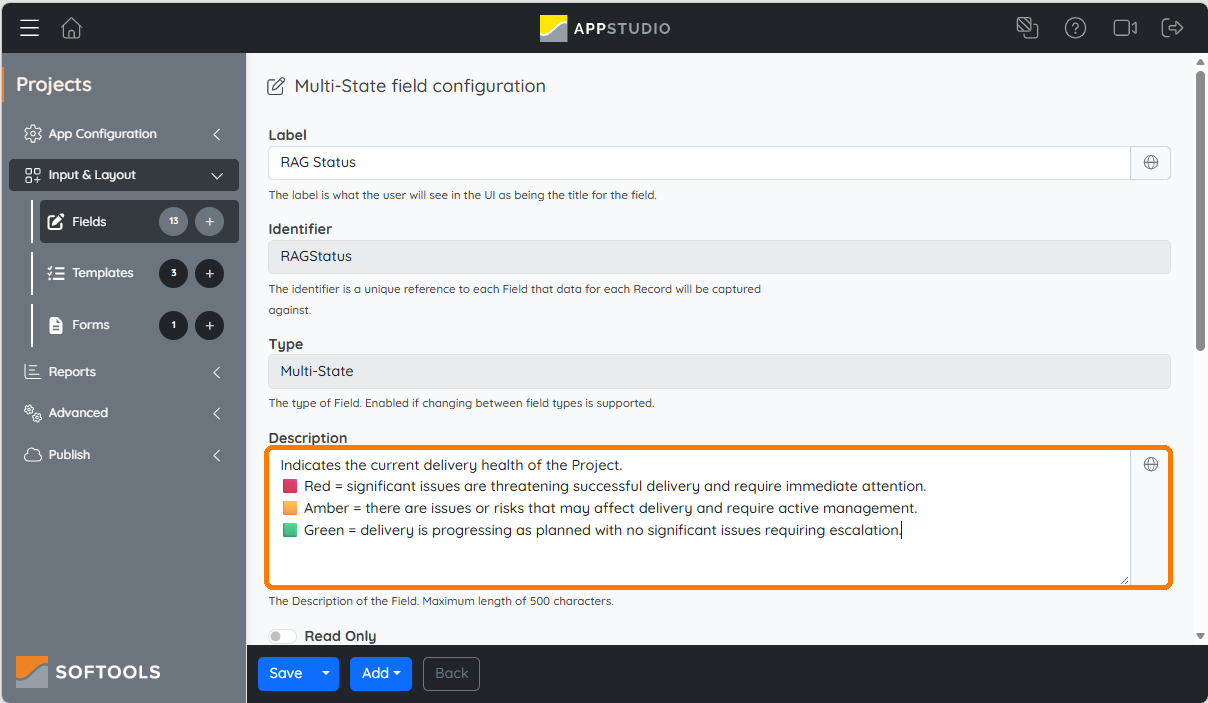
Descriptions are particularly useful where Field values might otherwise be ambiguous.
For example, if a Priority Field contains values from Level 1 to Level 5, explain whether Level 1 represents the highest priority or the lowest.
Without that context, an AI assistant may make an incorrect assumption or need to ask for clarification.
Selection & Person Fields
When including Person Fields, consider whether the View provides values that the AI assistant can interpret easily.
Where supported, use an appropriate _Text representation to expose a readable value.
For related Apps, include the parent reference so the assistant can identify which Project a Risk or Action belongs to.
Avoid exposing confidential Fields that are not required for the intended questions.
Enable Data Lens
Data Lens allows AI assistants to search information based on meaning rather than only exact Field values.
For example, a user might ask:
Search my Projects for delivery delays, resource shortages or other significant Risks.
Data Lens can identify relevant Records based on the information included in its searchable Fields.
Configure Data Lens
- Open the App in App Studio.
- Go to App Configuration > Advanced Config > Data Lens.
- Enable Data Lens.
- Select the Fields to include in searches.
- Configure Data Lens Translation if required.
- Save and publish the App.
You can select up to 10 Fields for Data Lens.
Choose Fields that provide meaningful context, such as Project Name, Summary, Delivery Date, Risks and other descriptive information.
Query and Data Lens Search
Where Data Lens is enabled, an additional Search tool is available.
| Query | Data Lens Search |
|---|---|
| Uses structured Fields and filters | Searches based on meaning |
| Suitable for exact reporting and sorting | Suitable for finding relevant information |
| Supports pagination | Returns up to 40 ranked matches |
| Can retrieve complete matching datasets | Does not provide an exhaustive list of matches |
An MCP-enabled View provides a Query tool for structured retrieval. Where Data Lens is enabled, a separate Search tool is also available for meaning-based searches.
Choosing the Right Fields
The Fields selected for Data Lens determine which information is used when searching for relevant Records.
For example, selecting a Summary Field allows Data Lens to find Projects based on descriptions of supplier delays, resource shortages and other delivery concerns, even when the user's search uses different wording.
When configuring Data Lens:
- Include descriptive Fields that contain useful information, rather than relying only on Status, Priority or Date Fields.
- Select up to 10 Fields for Data Lens.
- Ensure the MCP-enabled View includes the Fields the assistant needs to return and explain its findings.
- Use clear Field descriptions so the assistant can interpret the returned information correctly.
Note: Data Lens searches the selected Fields, but MCP search results contain only the Fields included in the published View. A Field can therefore contribute to finding a Record without necessarily appearing in the information returned to the assistant.
For example, if Summary is selected for Data Lens but omitted from the MCP View, the assistant may identify a relevant Project without being able to explain the issue described in its Summary.
For this reason, include the relevant descriptive Fields in both configurations when you want the AI assistant to provide evidence alongside its findings.
Data Lens returns up to 40 ranked matches, rather than a complete paginated dataset. Use structured Query tools for exact reporting, complete lists and totals.
Work Across Related Apps
AI assistants can retrieve information from multiple Softools Apps when each has an appropriate MCP-enabled View.
For example, you might prepare:
- Projects — Project status, priority, delivery dates and ownership.
- Actions — Outstanding tasks linked to Projects.
- Risks — Risks linked to Projects, including scores and mitigation information.
- Resources — Available resources, roles and capacity.
If Actions and Risks are Child Apps of Projects, include the relevant parent Project reference in their Views.
This allows the AI assistant to associate related Records.
For example, a user could ask:
Show the Red Projects and summarise their outstanding Actions and biggest Risks.
The assistant can retrieve the relevant Projects, identify linked Actions and Risks, and combine the information into a single response.
A standalone Resources App can also provide useful context when assessing resource availability, provided the required Fields are included in its published View.
Tip: Each App needs its own MCP-enabled View. Publishing a Projects View does not automatically expose all Records and Fields from its Child Apps.
Include Direct Record Links
AI assistants can provide links that allow users to open the relevant Records directly in Softools.
To enable this, include a URL Field containing the Record's direct link in the MCP-enabled View.
Step 1: Create a Record Link Field
In the App, create a URL Field to hold the Record link.
Configure its expression using the Softools site address, the App ID and the id() function.
For example, in a demonstration Projects App:
'https://demo.on.softools.net/Projects/' + id()
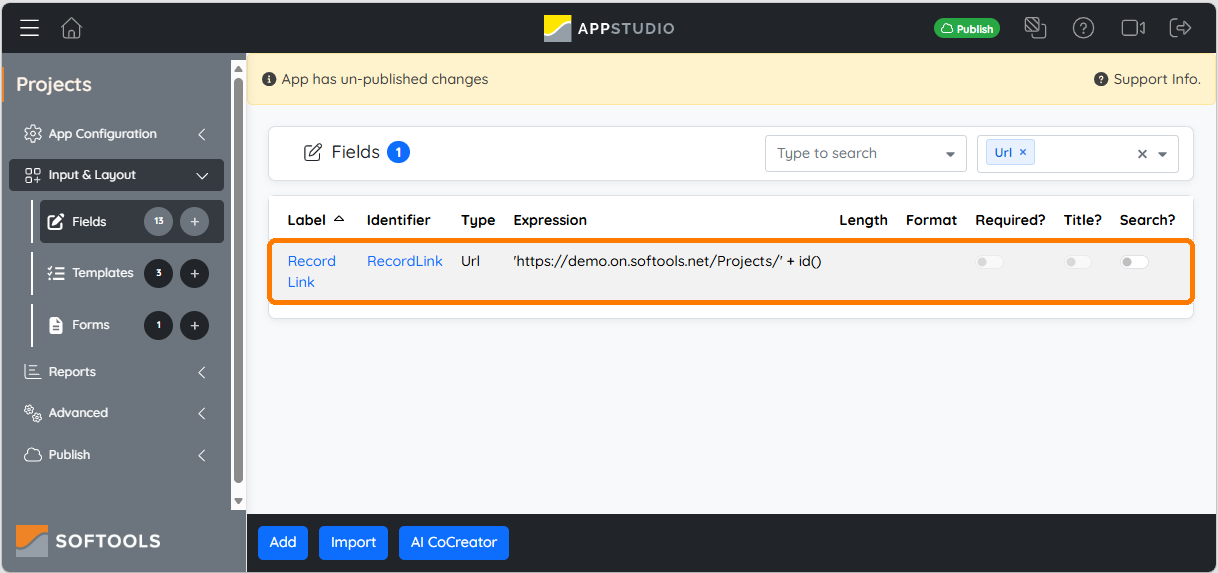
The id() function adds the current Record ID to the URL.
Replace the demonstration site address and App ID with the values for your own Softools App.
Note: The App ID is the identifier used in the App's URL and may differ from its display name.
Step 2: Include the Field in the View
- Open the MCP-enabled View.
- Add the Record Link URL Field to the View Fields.
- Save and publish the App.
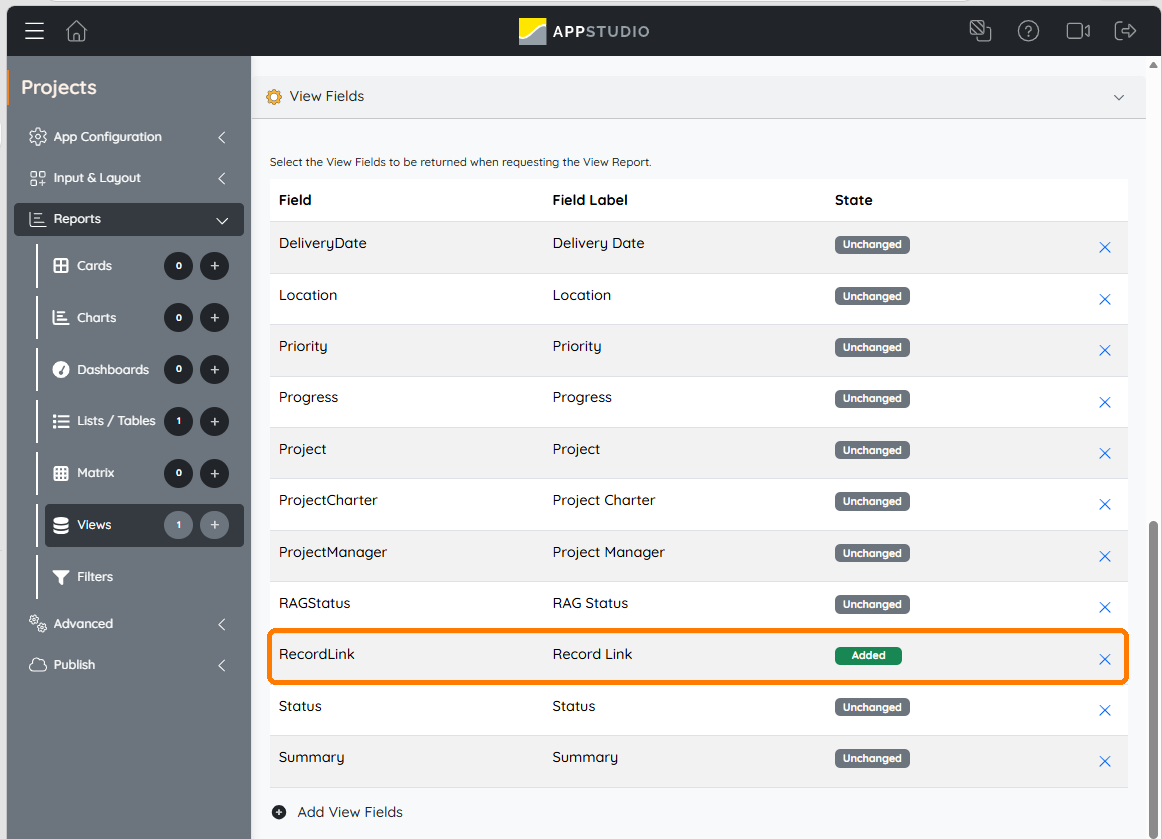
Once available through MCP, an AI assistant can retrieve the URL and include it in its response.
For example:
Show my Red Projects and include a link to each Project Record.
Users can then open the relevant Records in Softools directly from the AI-generated response.
Important: The assistant should use the URL returned by Softools rather than construct or guess Record links from internal identifiers. Existing Softools permissions still apply when a user opens a link.
Include Document Fields
You can also include Document Fields in MCP-enabled Views.
Where a document exists, the MCP response can provide information such as:
- The document filename.
- A temporary link to the document.
- Information about when the link expires.
This allows an AI assistant to identify documents associated with a Record and potentially provide links to them.
However, the assistant may not always be able to retrieve and read the document itself.
For example, some AI platforms restrict access to external document storage domains.
In these cases, users may be able to open the temporary link themselves and, where permitted by their organisation, upload the document directly to the AI conversation for analysis.
Note: Document links may expire. Do not treat them as permanent Record links or publish example signed document URLs.
Publish and Test
Once the Views and Fields have been configured, publish the relevant Apps and check that the information is available through MCP.
A useful test process is:
- Publish the App containing the MCP-enabled View.
- Refresh the Softools connection in an approved AI assistant if required.
- Ask the assistant to list its available Softools MCP tools.
- Confirm that the expected Query tools are available.
- Confirm that Search tools are available for Views with Data Lens enabled.
- Run a simple Query and inspect the returned Fields.
- Test any parent-child references, Record links and Document Fields.
- Run a Data Lens search where configured.
For example, four MCP-enabled Views with Data Lens enabled can provide:
- Four Query tools.
- Four Search tools.
- One Current Softools User tool.
This gives nine tools in total.
The exact number depends on the Views and features enabled.
Example Test Questions
List the Softools MCP tools currently available to you, grouped by App.
Show the first five Projects, including their Status, Priority and Delivery Date.
Find Projects where I am the Project Lead.
For a selected Project, retrieve its linked Risks and Actions.
Show the direct Softools Record links for my Red Projects.
Important: A tool appearing in the available tools list does not necessarily confirm that it can retrieve information successfully. Always run a Query to confirm that it works.
Troubleshooting
A newly published View is missing
Confirm that the View has been enabled for MCP and that the App has been published.
Refresh or reconnect the AI assistant if it is still using an older set of tool definitions.
The assistant reports an unknown or unavailable tool
The assistant may have an outdated tool definition.
Refresh the connection, start a new conversation and execute a simple Query to confirm that the tool works.
Some Records or Fields are missing
Check the Fields included in the View and the signed-in user's Softools permissions.
For complete lists, use Query pagination rather than relying on Data Lens Search.
Data Lens Search is unavailable
Confirm that Data Lens is enabled and configured in the App, and that the App has been published.
Also check that the relevant View is exposed through MCP.
The assistant cannot relate Actions or Risks to Projects
Check that the Child App Views include the appropriate parent Project reference.
Record links do not work
Check that the URL Field expression uses the correct site address and App ID.
Confirm that the Field is included in the published View and that the returned URL opens the expected Record.
Document links cannot be opened
The temporary link may have expired, or the AI platform may restrict access to the document storage domain.
Users may need to open the document directly in Softools or use a newly generated link.
The assistant misinterprets Field values
Review the Field descriptions in the published View.
Explain ambiguous values such as priority levels, RAG Status and workflow stages so the assistant can interpret them correctly.
Related Articles
- Connecting AI Assistants to Softools Using MCP — Overview of the available connection methods.
- Approving Claude for Softools MCP — Approving Claude as an AI assistant.
- Connecting Claude to Softools — Connecting a Softools account to Claude.
- Connecting Microsoft Copilot Studio to Softools — Configuring a Copilot Studio agent.
- Using AI Assistants with Softools Data — Practical examples of querying and analysing Softools information.
- Security Considerations When Connecting AI Assistants to Softools — Authentication, permissions and revoking access.
Comments
0 comments
Article is closed for comments.