Map Suppliers to a Google Map Report based on Long Address via Webhook to GET Lat and Long

Tracking where your suppliers are located is incredibly valuable — whether for logistics, field planning, regional insights, or simply visualising coverage on a map. In this guide, we’ll show you how to build a complete, production-ready solution in Softools that:
-
Takes long-form supplier addresses
-
Geocodes them into latitude & longitude
-
Stores the coordinates back into the Supplier App
-
Displays all suppliers on a Softools Map Report
This guide uses the OpenCage Geocoding API — a robust, safe-for-production service with a generous free tier. To generate an API Key that will be required for this demo go to https://opencagedata.com, create a free account and copy your API Key to use in the Softools Webhook.
Step 1: Add Fields to your Supplier App
In order to set up this geocoding, we will need to have the following Fields in our App
- Address - Long Text where the Supplier address is entered manually
- Lat - Number - Initially blank and filled by the Webhook
- Long - Number - Initially blank and filled by the Webhook
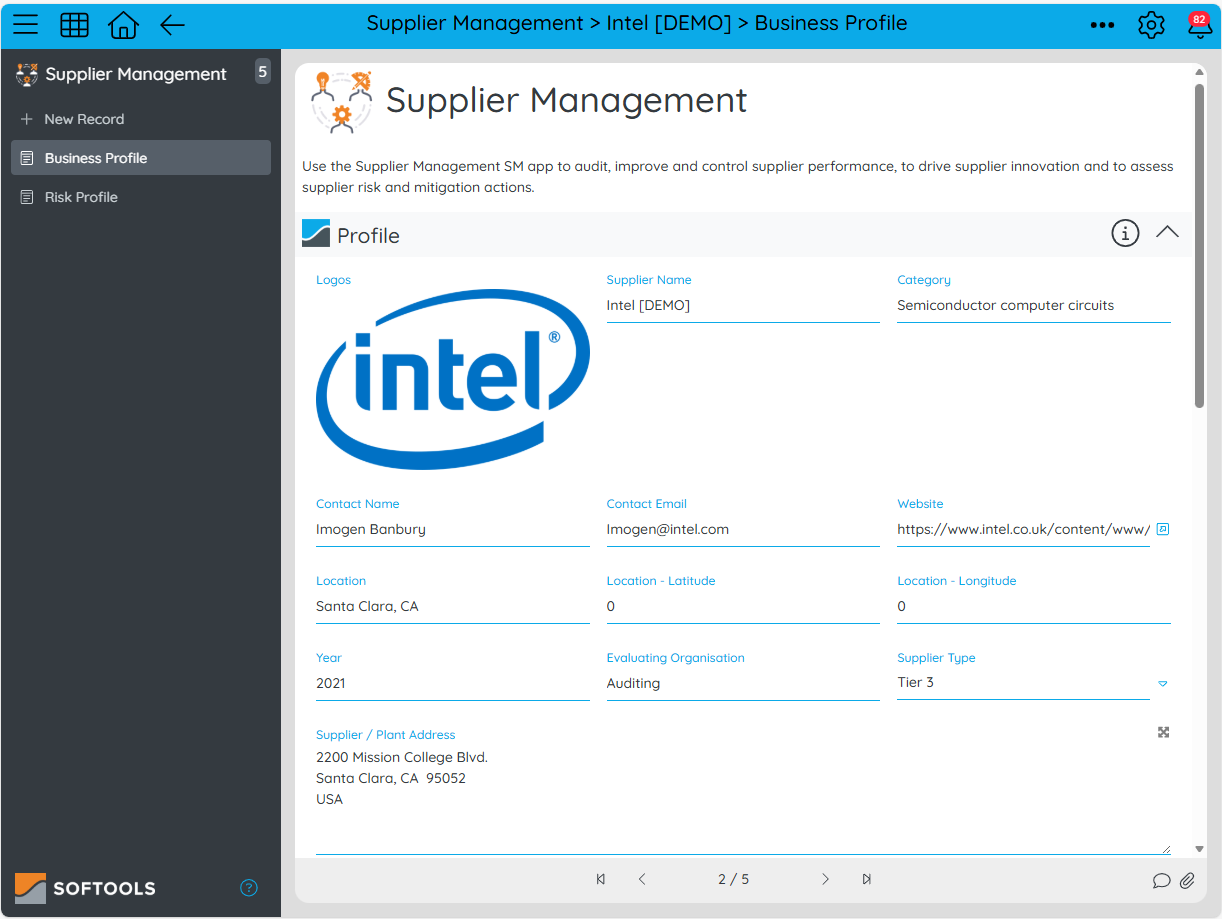
Step 2: Add a Webhook to get the Lat and Long values
The workflow to get the Latitude and Longitude will be structured as follows:
- Trigger - Button Clicked so we manually run the webhook from the Supplier Record
- Webhook - This will be a GET call to get the latitude and longitude
- Action - We will then place the values back from the API Call to set lat and long in the Supplier Record
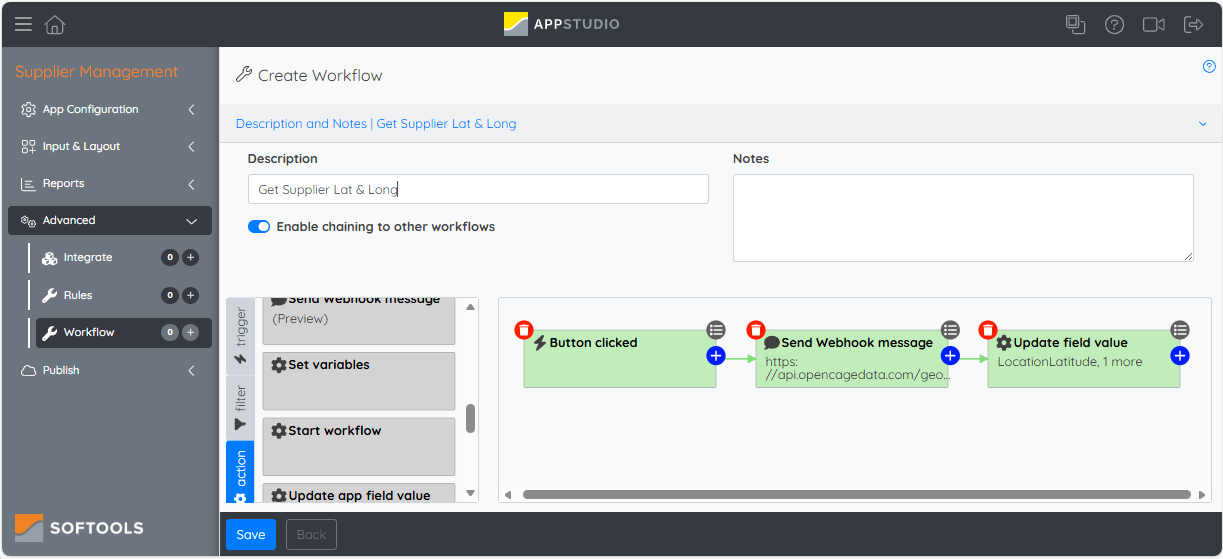
The Webhook node will look like this:
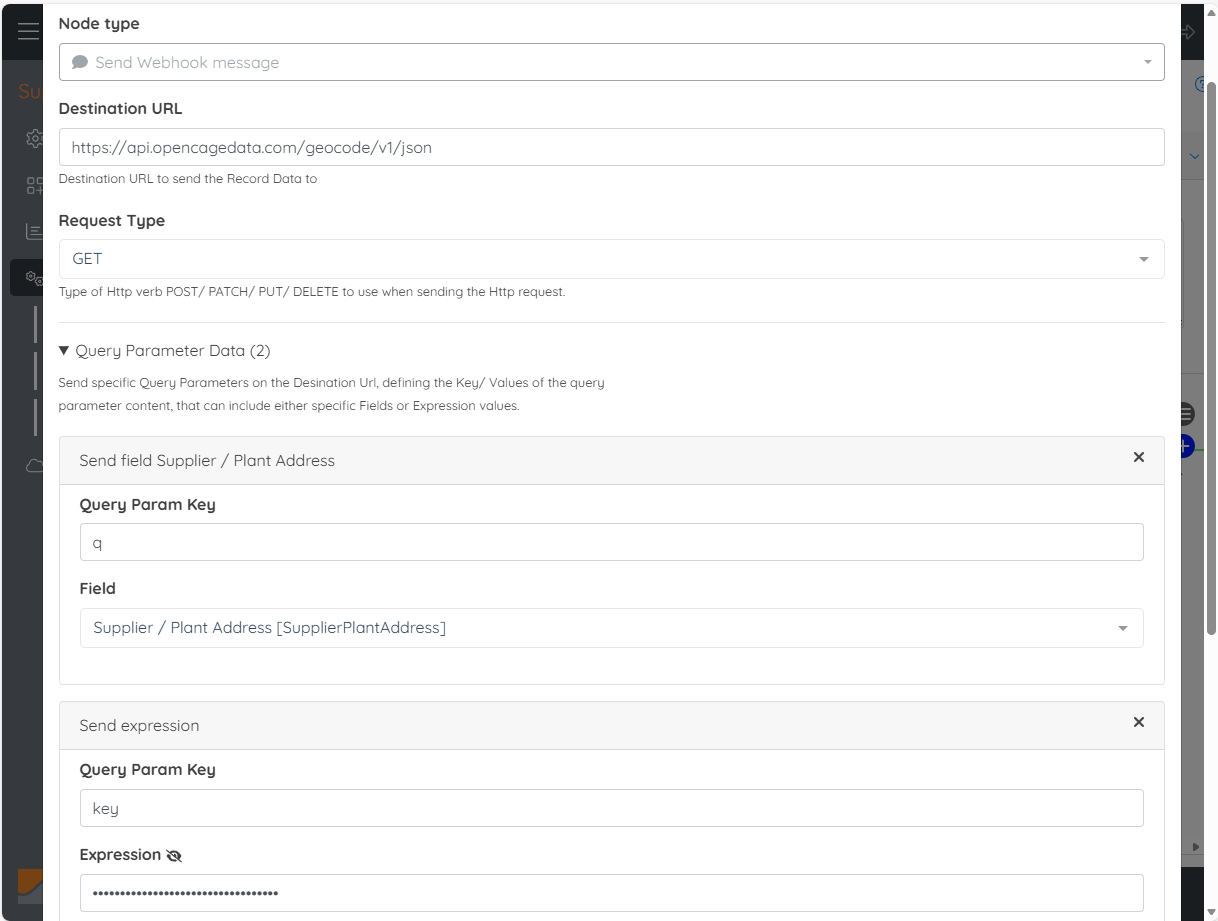
We are making a GET call to the destination URL, which is the OpenCage geocoding API Endpoint. This is supplemented with two Query Parameters.
- q: The value from the Supplier Address Field
- key: Your API Key from Open Cage in the form 'xxxxxxxxxxxxxxxxx'
This will return the latitude and longitude of the Supplier Location in the form:
{
  "results": [
    {
      "geometry": {
        "lat": 37.387699,
        "lng": -121.963501
      }
    }
  ]
}
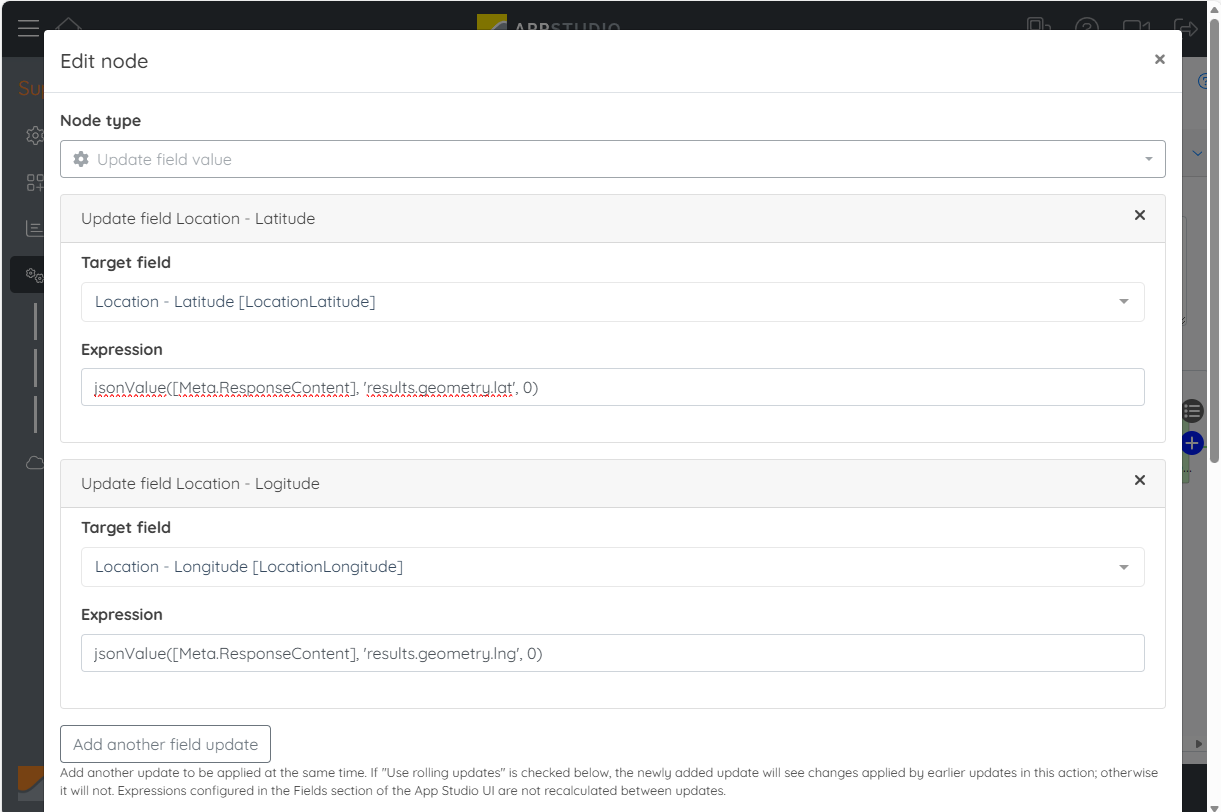
So in order to take the values we use the function jsonValue() on the [Meta.ResponseContent]. We use these two expressions:
- Lat: jsonValue([Meta.ResponseContent], 'results[0].geometry.lat', 0)
- Long: jsonValue([Meta.ResponseContent], 'results[0].geometry.lng', 0)
These will be placed into the Supplier Record via an Update Field Value node as follows:
Step 3: Add a Button to run the Workflow
Now that we have the webhook workflow configured we can add an Action Field to run the workflow. Add a new Action button and make sure that the Action Configuration is to run a workflow and then select the workflow that we configured in Step 2.
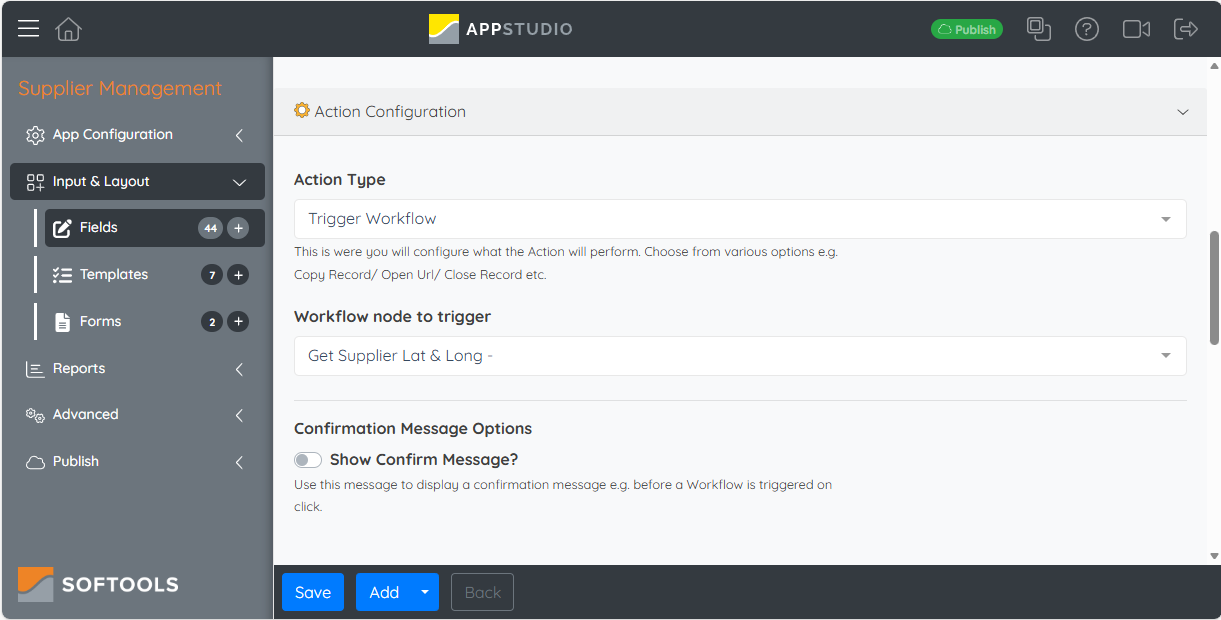
By adding this Button to our Supplier Profile template we are now able to run the workflow and get the Lat and Long for our Suppliers location based on the Supplier Address
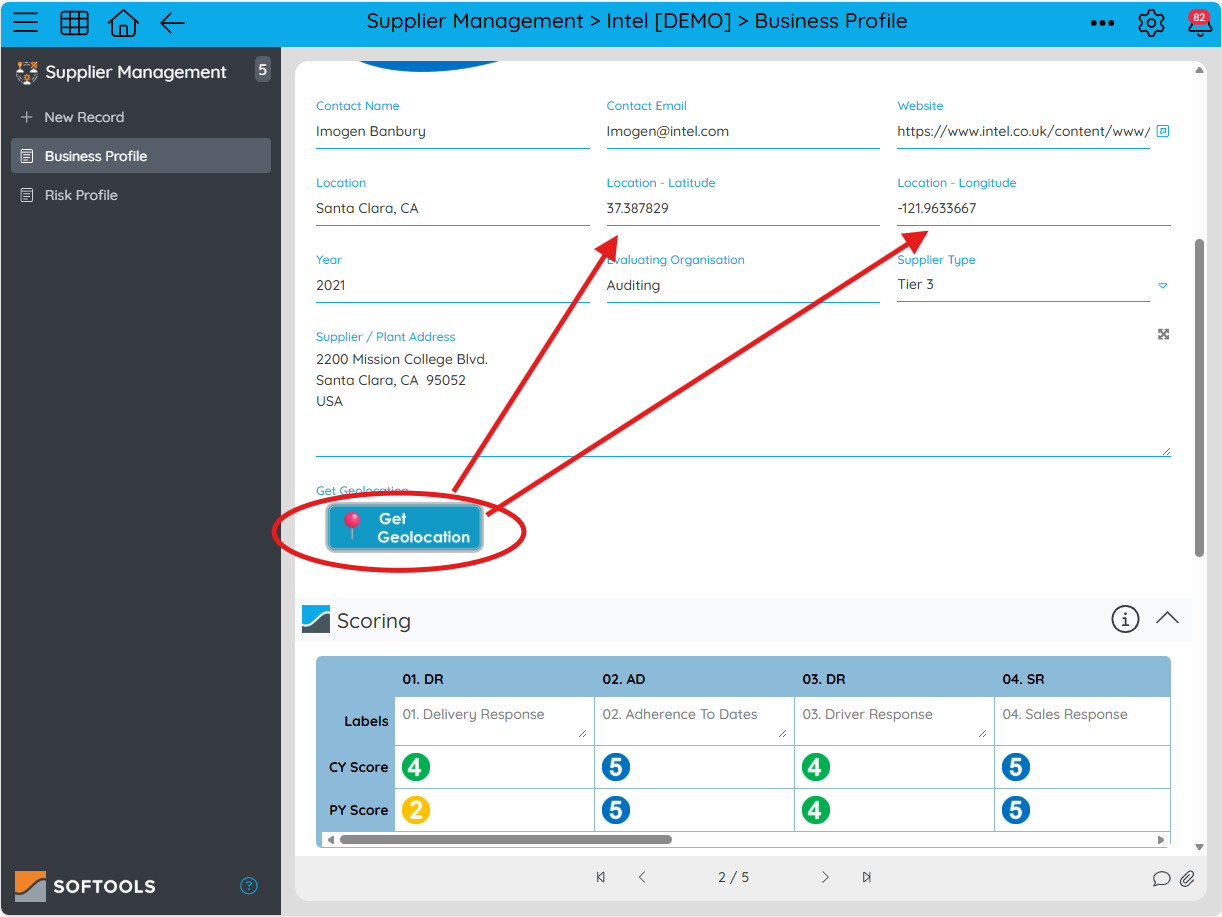
Step 4: Add a Google Map Report to display Suppliers
Now that we can attain the longitude and latitude for each Supplier it'll be nice to display these on a Google Map to graphically visualise the Supplier locations. Add a New Google Map report and make sure that the following properties are set:
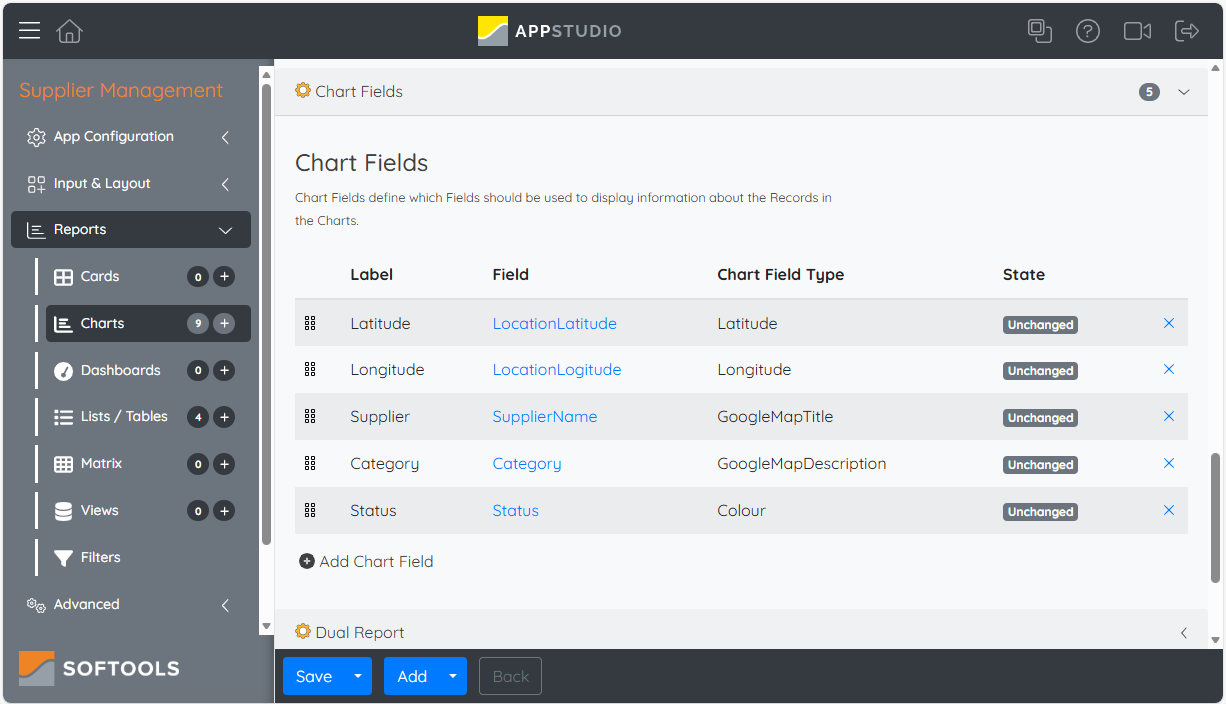
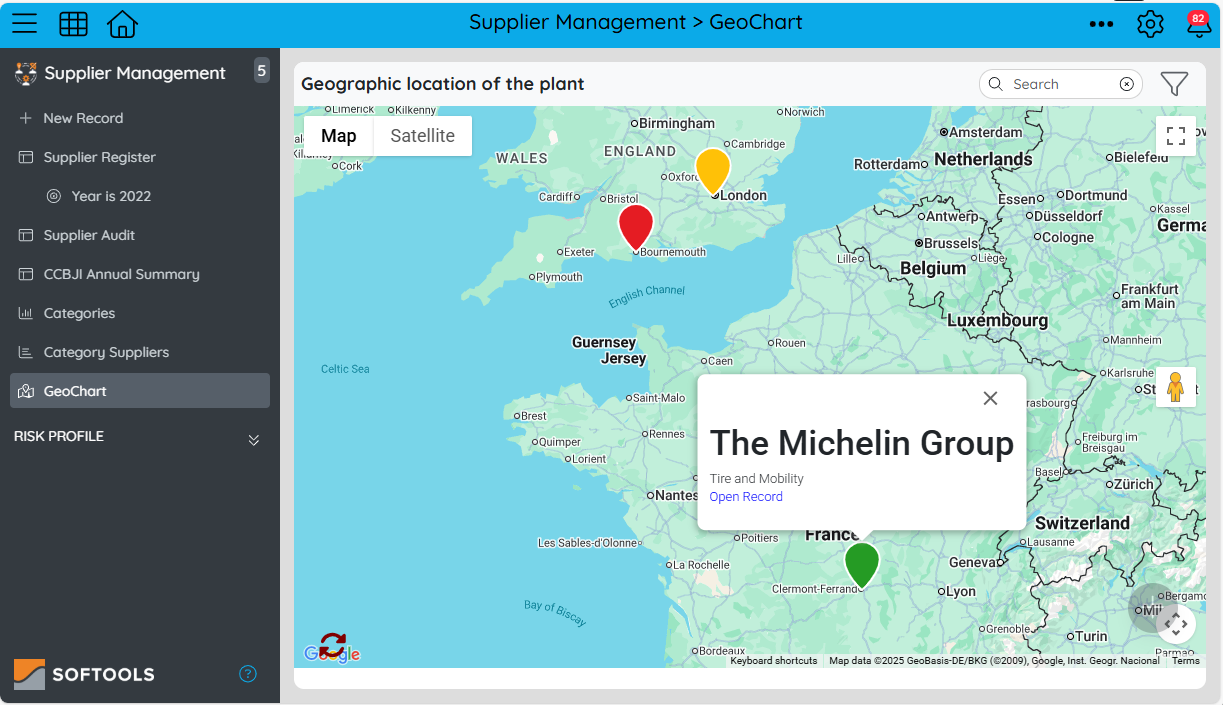
A couple of nice additions here are to take a status colour which will be the colour of the map pins and add in the supplier description so it can be surfaced from the Map. The end result is a nice visual like below:
Please sign in to leave a comment.
Comments
0 comments