AI Assistant: What if AI didn’t replace expertise but amplified it?

AI is embedded across Softools Apps in many ways. But one of the most powerful (and underutilised) roles it plays is as an In-App Assistant.
Imagine you’re users are running a Root Cause Analysis. You’ve defined the problem statement and now what? Instead of staring at a blank screen, the AI Assistant proposes potential causes based on context.
Or you’re managing a project. The AI suggests possible risks. Recommended actions. Gaps you may have overlooked.
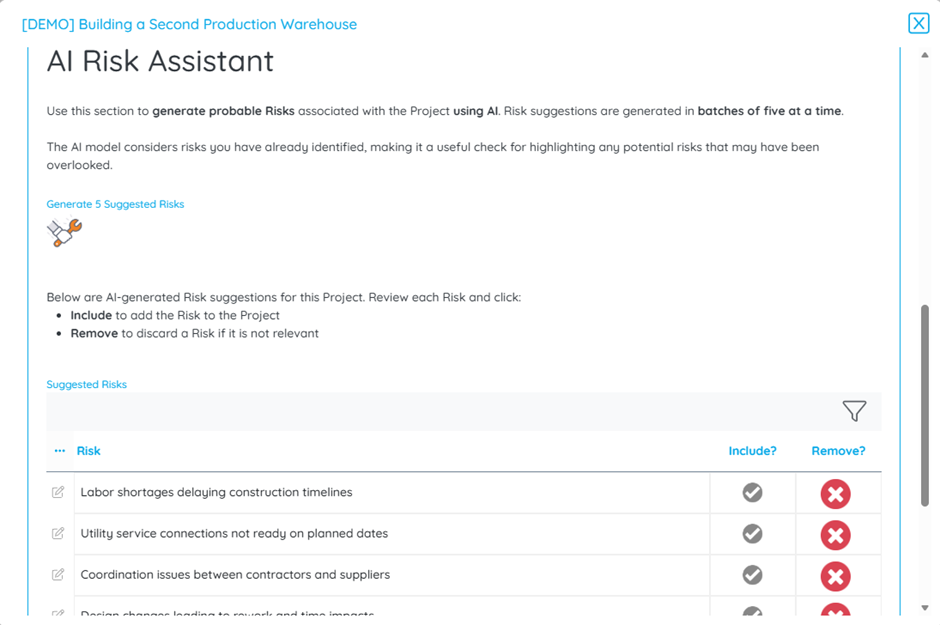
But here’s the important part: It doesn’t decide for you!
In this community post, we walk through a UX best practice that keeps the expert in control:
- AI generates structured suggestions
- Each suggestion is clearly listed
- You review them one by one
- With a single click, you accept or disregard
No automation black box and no blind trust Just intelligent support, with human judgement at the centre.
This approach blends SME expertise with smart, contextual insight and the implementation detail is where it gets interesting.
Scenario: Project AI Risk Assistant
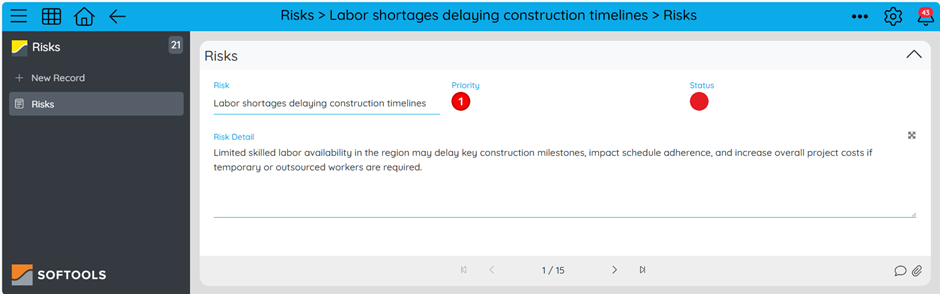
Taking the scenario of an AI Risk Assistant for Projects, to set this up we have a Parent and Child App. We’ll use a Project App as our Parent, and the Child will be for Risk Management to log the Risks that are associated to the Project.
The Child Risk App Record will capture the Risk, Risk Description, Priority & Status
Pre-Work: Creating Fields which we will need later on in the configuration.
Project App Pre-Work
Field 1: We will need to have the Record ID of the Project Record in a Field in the Project App when linking suggested Risks so create a Field for this:
[RecordID] = id()
Risk App Pre-Work
Field 1: We will also need to have the Record ID of the Project Record in a Field in the Risk App when linking suggested Risks so create a Field for this
[ParentRecordID] =
*default value as expression* isnull([Parent.RecordID], 'No Parent')
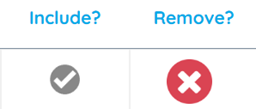
Field 2: We will need a Field to be able to distinguish between which Records are suggestions and Records which are included in the Risk Assessment so what we do is create an Image Field for ‘Include?’ with two values
Image-Green Tick --- Value-'Ticked'
Image-Grey Tick --- Value-'Not Ticked'
Set the default value here to be 'Ticked'
Field 3: We will also want to be able to dismiss suggestions so create an Action Field called ‘Remove?’ with the image of a red cross and then have this Action Button run a workflow to Archive the Record.
Step 1: Create Two Embedded Reports for Included and Suggested Risks
In the Project Record we will have two Embedded Risk Reports.
Embedded Report 1: The list of Risks included for the Project
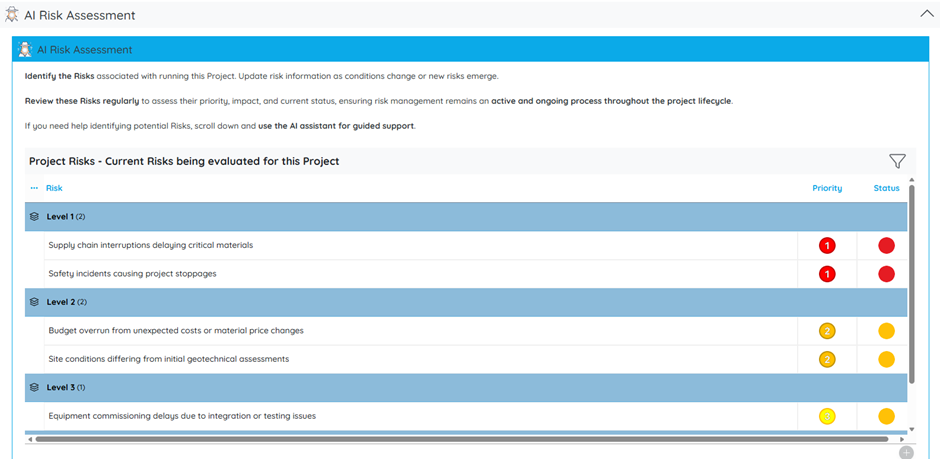
Embedded Report 2: The suggested Risks that the AI will generate
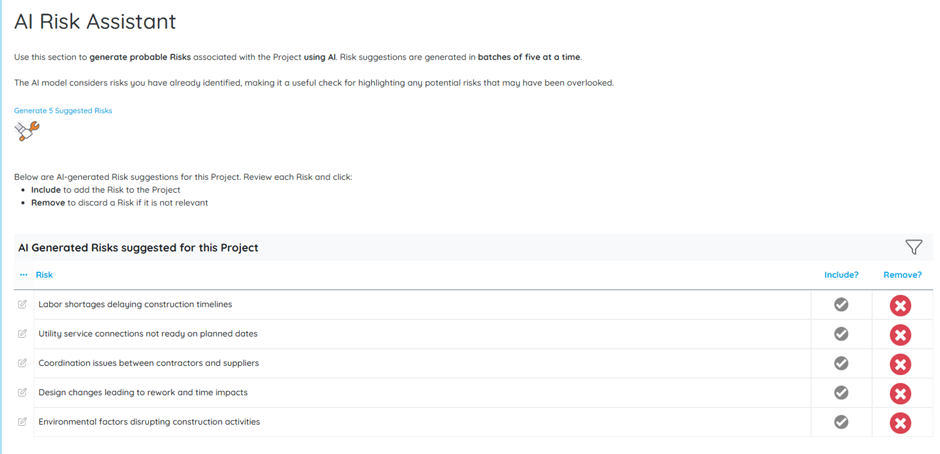
How the Reports work together
We’re able to distinguish between which records are suggestions and which are included in the risk assessment with our Image Field for ‘Include?’ that we created at the start of this post.
Set base filters on the Embedded Reports:
Project Risks: [Included] = 'Ticked'
Suggested Risks: [Included] = 'Not Ticked'
This Field has a default value of ‘Ticked’ so Risks created by a User are automatically included. When we get to creating the AI suggested Risks later in this post we will set the value to ‘Unticked’ when they are created.
If the User wants to include a suggested Risk then as the ‘Include?’ Field is in the Suggested Risks Report, when they click it, it will then have a value if ‘Ticked’ and move into the Project Risks.
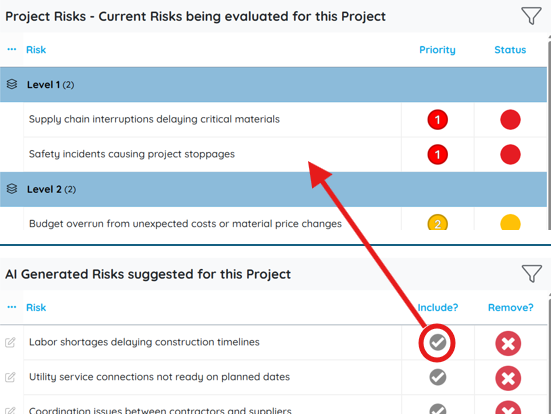
The other Field in the Suggested Risks Report is ‘Remove?’. When the User clicks this from the Suggested Risks report, it disregards that Risk by archiving it, so it no longer appears in the suggestions.
Step 2: Creating the AI Suggested Risks
To create the suggested Risks, we use the Managed AI prompt node.
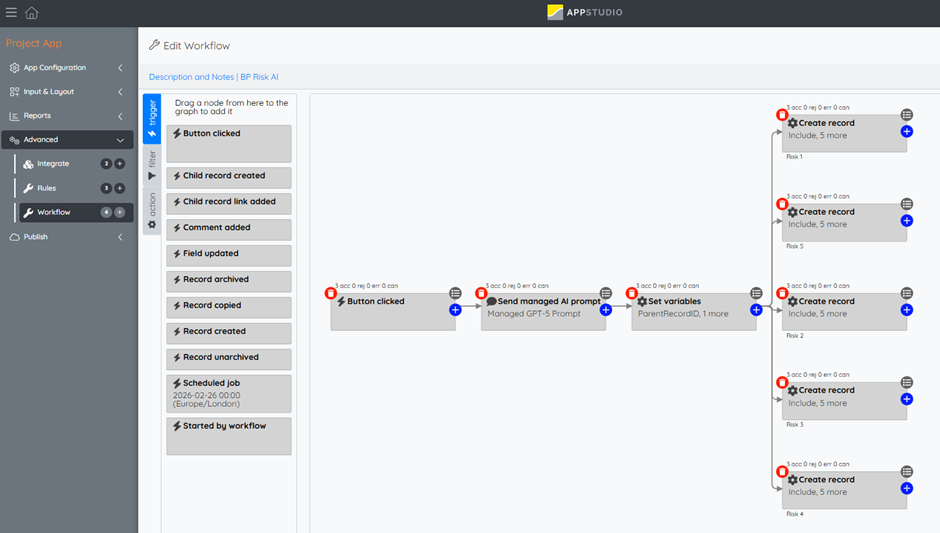
Node 1: We set up the trigger to be from a button click and then add the managed AI Prompt Node to generate some suggested Risks.
Node 2: The AI Prompt Node needs three components: System, User and Assistant
System - The System tells the AI what role it is taking:
'You are responsible for evaluating risks
across projects your company runs'
User - The User is the task that we are asking the System to do:
'What are the top 5 Risks for my project: ' + [ProjectName]
Note: We can make this more accurate by including Project Description, a List of Actions, Resource Allocation, Location, …. in the User Prompt.
Assistant - The Assistant part here is key. We are going to tell the AI to return the Risks in a very specific JSON format that we can then use to generate our suggested Risks
'Return the 5 risks as a JSON array.
The JSON schema should be:
{
"Risk1": {"Risk": "Text", "RiskDetail":"LongText", "Priority":"1/2/3/4/5", "Status":"Green"},
"Risk2": {"Risk": "Text", "RiskDetail":"LongText", "Priority":"1/2/3/4/5", "Status":"Green"},
"Risk3": {"Risk": "Text", "RiskDetail":"LongText", "Priority":"1/2/3/4/5", "Status":"Green"},
"Risk4": {"Risk": "Text", "RiskDetail":"LongText", "Priority":"1/2/3/4/5", "Status":"Green"},
"Risk5": {"Risk": "Text", "RiskDetail":"LongText", "Priority":"1/2/3/4/5", "Status":"Green"}
}.
Just print the schema.
Do not add anything before the first { or after the last }.
For Priority 1 is high and 5 is low.
Risk should be a short sentence of around 50-70 characters.'
Node 3: Now that we have the suggested Risks, we create two variables with the Set Variable Node so that we can use them in the subsequent nodes to create the Risks.
[Var.ParentRecordID] = id() (we will use this later to link the suggested risks to the project they are created from)
[Var.Risks] = [Var.RiskJSON] (This is the variable name we set in the AI Prompt Node to capture the response)
Nodes 4-8: Now we can add 5 Record Create Nodes, one for each of the suggested Risks. We tell it to create a Record in the Child Risks App and set the values we have in the variables we created
[Include] = ‘Not Ticked’
[ParentRecordID] = sourcevar('ParentRecordID','No Parent')
(Create this field in the Risk App if it does not yet exist)
[Priority] = jsonValue(sourcevar('Risks', '{}'), 'Risk1.Priority', '')
[Risk] = jsonValue(sourcevar('Risks', '{}'), 'Risk1.Risk', '')
[RiskDetails] = jsonValue(sourcevar('Risks', '{}'), 'Risk1.RiskDetail', '')
[Status] = jsonValue(sourcevar('Risks', '{}'), 'Risk1.Status', '')
Add in an Action Field to run this workflow and place it into the AI Risk Assistant part of the Project Record.
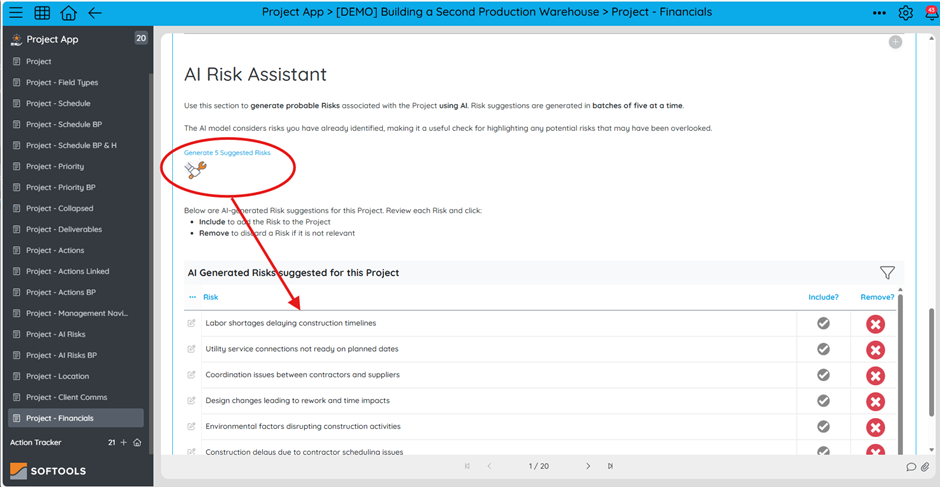
Step 3: Link suggested Risks to the Project they are created from
As the Workflow creates the Record in the Risk App, we will need to add a link to parent on the Risk being created.
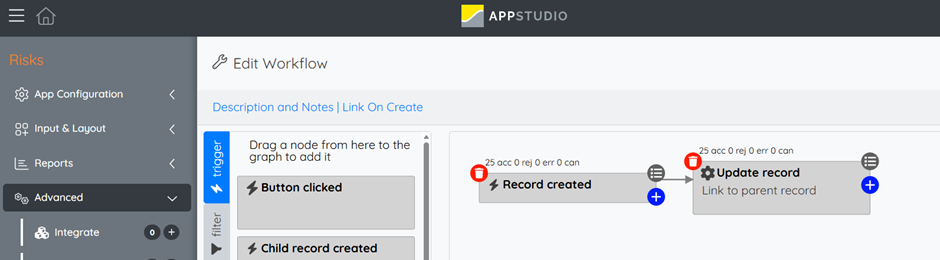
We need to make sure that we have a unique value match between Parent and Child. The easiest way to do this is to use the ID of the Project Record which we set up at the start of this community post.
In our Project App, we have a Field for the Record ID
[RecordID] = id()
In our Risk App, we also have a Field for the Project Record ID
[ParentRecordID] =
*default value as expression* isnull([Parent.RecordID], ‘No Parent’)
For Risks created directly in the Project, they will have the Project Record ID via the default value as expression.
The Risks that are created via the AI workflow have the Project Record ID put in when they are created.
So we can add a Link To Parent Workflow in the Risk App that on creation of a Risk it links to a Parent with the filter:
$filter={{ParentRecordID}} eq [RecordID]
Remember to add on screen guidance alongside the Embedded Reports and Generate Suggested Risks Action Button so that the User has clear guidance on how these components interact with each other.
Please sign in to leave a comment.
Comments
0 comments