Extracting Invoice Data in Softools Using the Document Intelligence Connector in Logic Apps

Extracting Invoice Data in Softools Using the Document Intelligence Connector in Logic Apps
📽️ If you'd like to see this integration in a video tutorial, then click here.
Automating data extraction from invoices can significantly reduce manual effort and improve accuracy. In this post, we’ll walk through how to integrate Softools with Microsoft Azure Document Intelligence using Azure Logic Apps to automatically extract key values from invoice documents and populate them back into a Softools record.
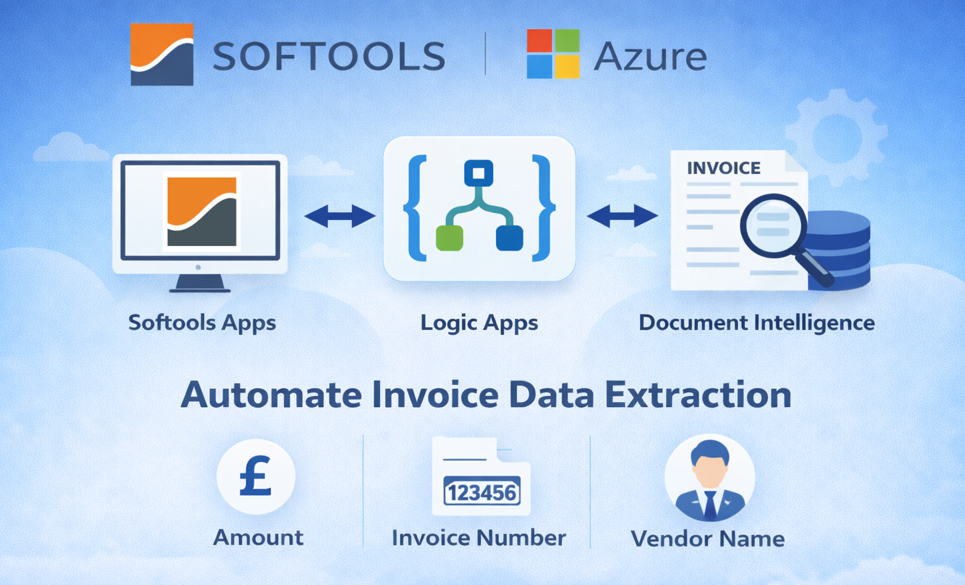
This approach uses the pre-built invoice model in Document Intelligence to identify and extract common invoice fields such as vendor details, totals, and invoice dates.
Overview of the Process
The solution consists of three main components:
-
Softools Template – Stores the document and fields for extracted values
-
Softools Workflow – Triggers the integration via webhook
-
Logic App – Retrieves the document and runs the Document Intelligence model
The final result is that invoice values are automatically extracted and written back into the Softools record.
Step 1: Create the Softools Template
Start by creating a Softools app template that allows users to upload an invoice.
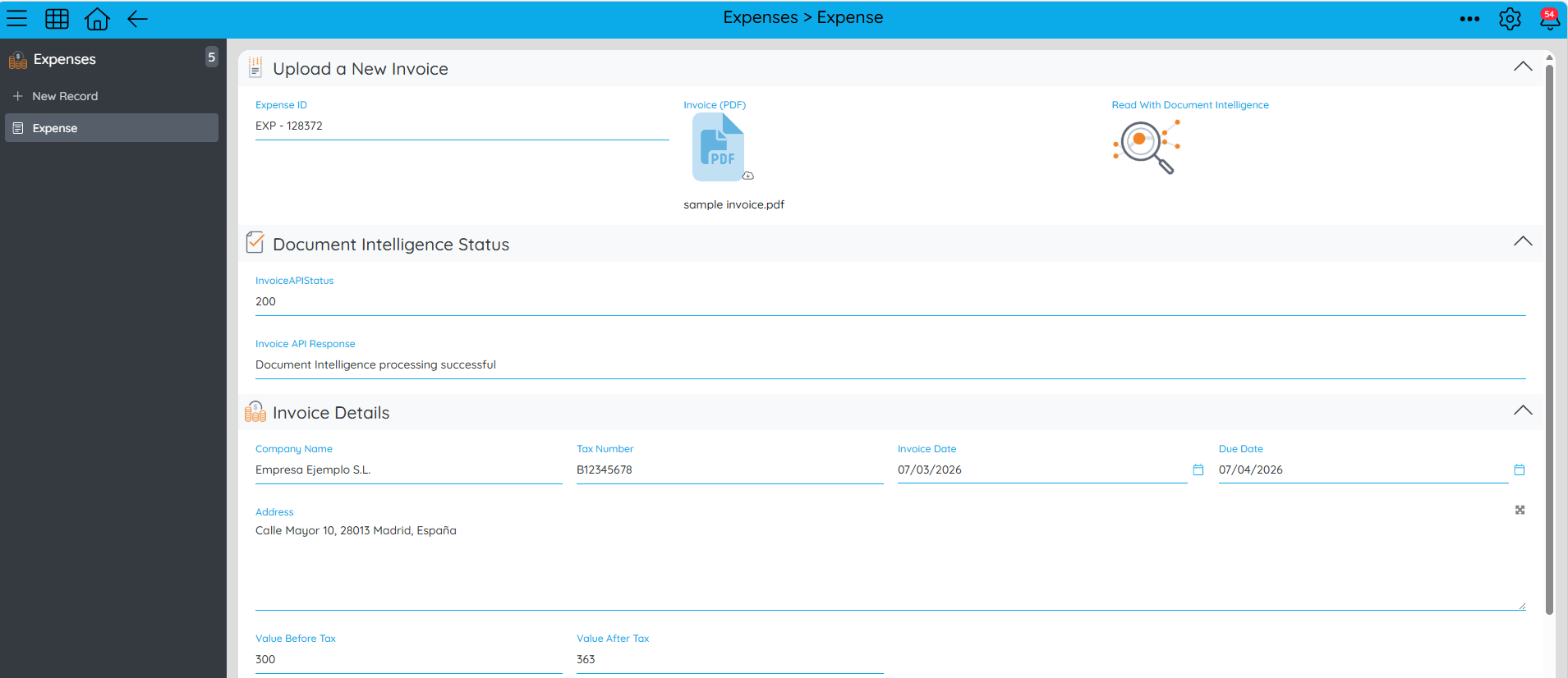
Add the following fields:
-
Document upload field (Invoice Document)
-
Vendor Name
-
Vendor Address
-
Invoice Date
-
Payment Due Date
-
Invoice Subtotal
-
Invoice Total
-
API Status Code
-
API Message
The uploaded document will later be passed to the Logic App for analysis.
Step 2: Create the Workflow in Softools
Next, create a workflow that will trigger the document processing.

Workflow Trigger
Use an Action Button Clicked trigger.
This button will allow users to manually run the extraction process when a document has been uploaded.
Workflow Node: Update Field Value
Add an Update Field Value node to set the API Status to "Running". This gives feedback to the User that their document is being processed, and the invoice value will return shortly.
Workflow Node: Set Variables (Optional)
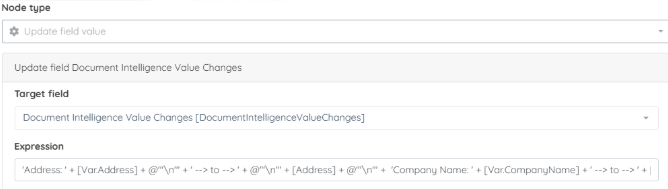
If you would like to show a change set of what the invoice values were before the run to what they are after the run, then set the initial values are variables here so we can reference them later on.
Workflow Node: Webhook
Add a Webhook node that calls the Logic App endpoint.
The webhook sends the Softools record information so the Logic App can retrieve the document.
The Logic App will then return the extracted values in the webhook response.
Step 3: Retrieve the Document in the Logic App
Inside the Logic App, the first step is to obtain access to the uploaded document.
Use the Softools View API to generate a temporary document link.
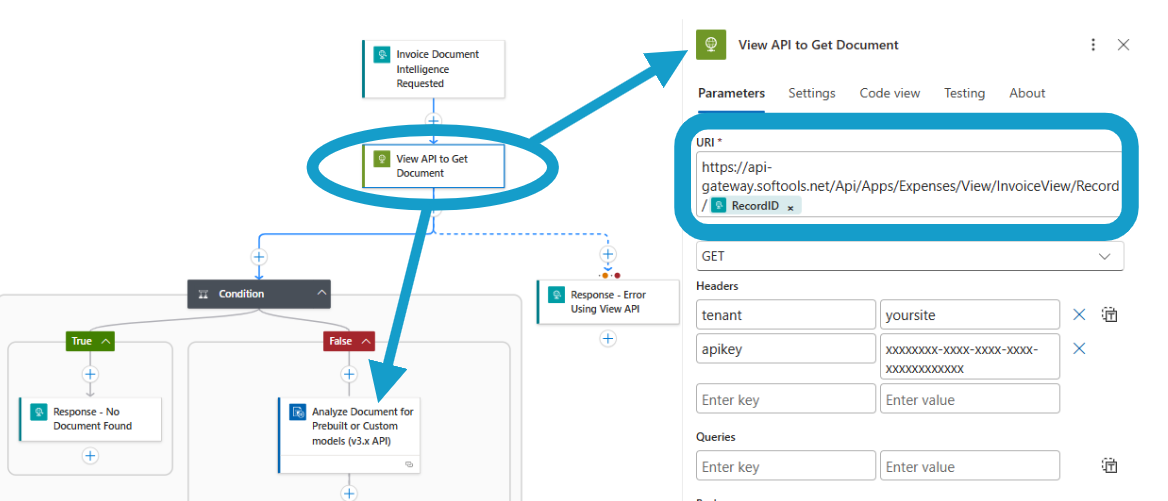
This link is required because the Document Intelligence connector processes documents via URL.
Step 4: Process the Invoice with Document Intelligence
Once the document URL is available, use the Document Intelligence connector.
Select the Prebuilt Invoice Model, which is designed specifically to detect invoice structures and extract standard financial fields.
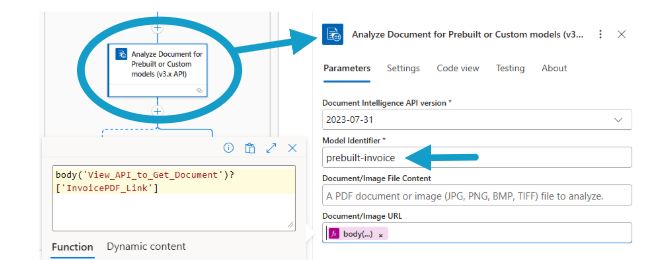
The model returns structured data such as:
-
Vendor Name
-
Vendor Address
-
Invoice Date
-
Due Date
-
Invoice Subtotal
-
Invoice Total (including tax)
These values can then be mapped within the Logic App for the response payload.
Step 5: Return Extracted Values to Softools
After extracting the data, configure the Logic App to return the values to the webhook response.
The webhook node in the Softools workflow will then receive this response.
Using a Field Update workflow node, you can map the returned values to the fields in the Softools record.

This automatically populates the invoice details without manual entry.
Enhancement: Capture Changes in Values
A useful enhancement is tracking when invoice values change.
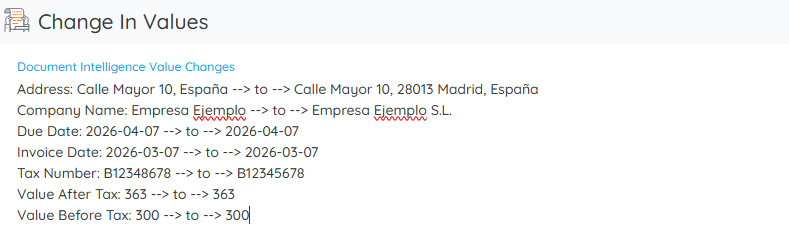
At the start of the workflow:
-
Use a Set Variable node to capture the current values of the invoice fields.
-
Run the Document Intelligence extraction.
-
Compare the returned values with the stored values.
This allows the record to capture “changed from → changed to” information for audit or tracking purposes.
Enhancement: Improved Error Handling
Error handling can also be built into the Logic App.
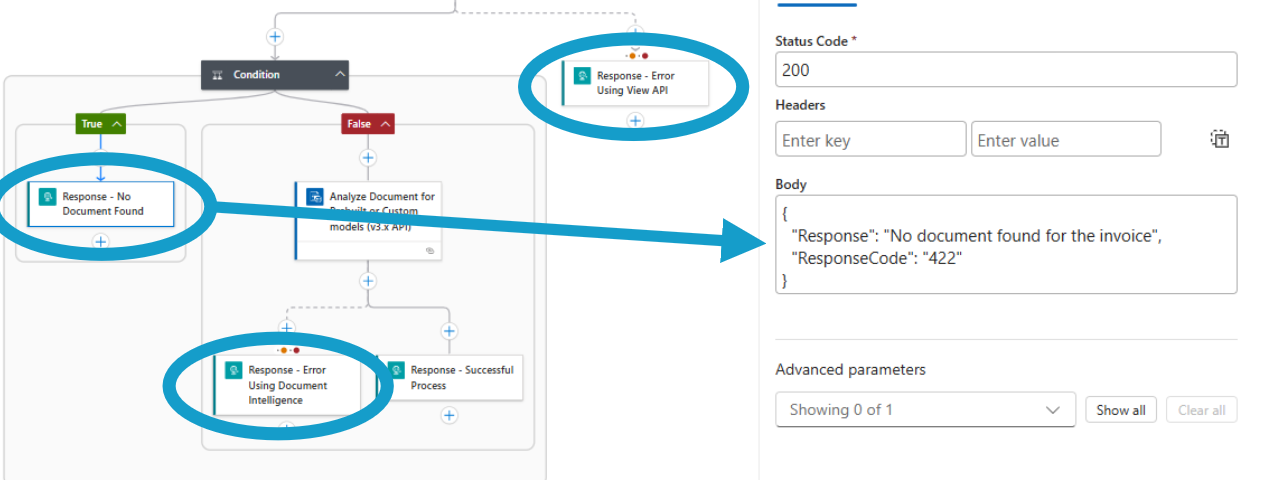
For example, the Logic App can return meaningful responses if:
-
No document is uploaded
-
The document cannot be accessed
-
Document Intelligence fails to process the file
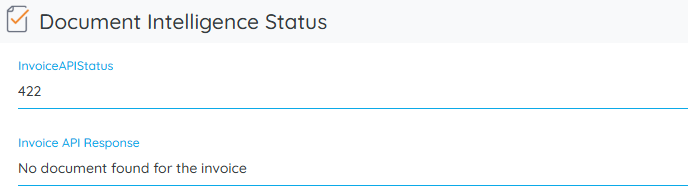
These errors can be returned to the webhook response and written into:
-
API Status Code
-
API Message
This ensures users understand why the extraction failed rather than receiving a silent error.
Benefits of This Approach
Using Softools with Document Intelligence provides several advantages:
-
Automated invoice data extraction
-
Reduced manual data entry
-
Improved accuracy
-
Built-in error handling
-
Auditable data changes
By combining Softools workflows, Logic Apps, and Azure Document Intelligence, you can create a scalable and reliable document processing workflow for invoice management.
If you’re already using Azure Services, this integration is a great way to introduce AI-powered document processing into your applications.
Please sign in to leave a comment.
Comments
0 comments