Sending Reminder Emails Efficiently Using Days Until Due

📽️ If you would like to watch this community post as a video tutorial, then click here.
Automated reminders are a common requirement in many apps. A typical example is ensuring that Audits are completed before their due date. Rather than relying on multiple fields or frequent record updates, we can use a simple workflow pattern that calculates a value dynamically and uses it to trigger reminder emails.
This approach keeps the workflow efficient, easier to maintain, and clearer to understand.
The Use Case
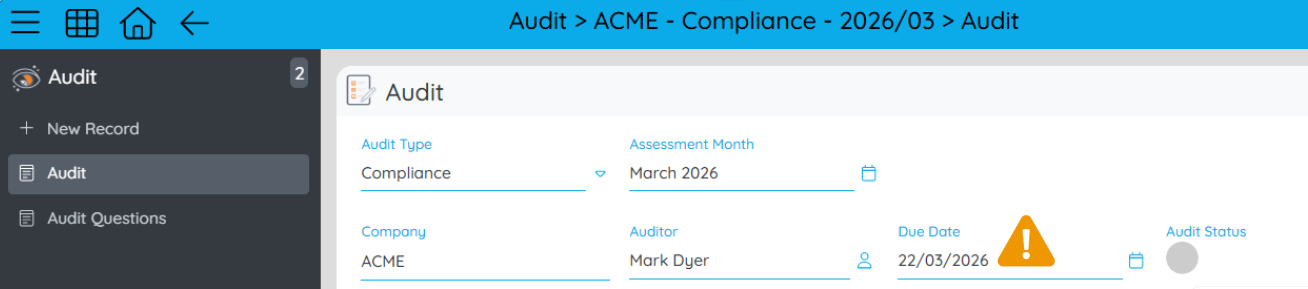
In this scenario, each Audit record has a Due Date, and reminder emails should be sent if the Audit is still incomplete:
-
3 days before the due date
-
On the due date
-
3 days after the due date
A Less Efficient Approach
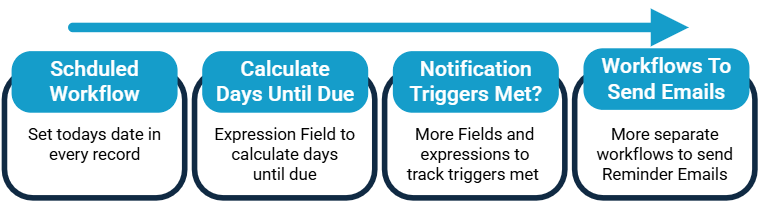
One way to implement this would involve multiple fields and record updates:
-
A scheduled workflow runs daily and writes the current date to a field in every Audit record.
-
A formula field calculates how many days remain until the due date.
-
Another status field determines whether a reminder should be sent.
-
A workflow triggers the email when the status changes.
While this works, it introduces unnecessary complexity:
-
Every Audit record is updated daily.
-
Multiple fields are required purely for automation logic.
-
Date-based filters can become difficult to manage.
A More Efficient Solution Using Set Variable
A cleaner approach is to calculate the number of days until the due date during the workflow run itself, using a variable. This avoids modifying records and keeps the logic contained within the workflow.
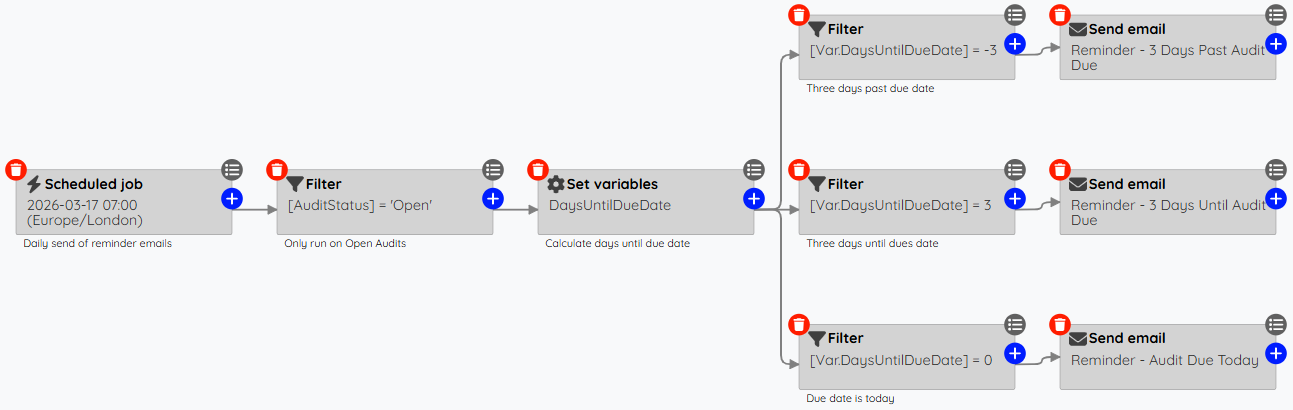
Step 1 — Schedule the Workflow
Create a scheduled workflow that runs once per day. This ensures reminders are evaluated daily.
Step 2 — Filter for Relevant Records
Add a filter so the workflow only processes Audits that are still open. This keeps the workflow focused and avoids unnecessary processing.
Step 3 — Calculate Days Until Due
Use a Set Variable step to calculate the number of whole days remaining until the Audit due date.
[Var.DaysUntilDue] = if(isValidDate([DueDate]), floor(dateDiff([DueDate],dateNow())), 999)
This produces a simple numeric value representing how many days remain until the due date.
Step 4 — Add Reminder Conditions
From the variable step, add filter nodes that check whether the calculated value matches the reminder timing.
3 Days Before Due - [Var.DaysUntilDue] = 3
On the Due Date - [Var.DaysUntilDue] = 0
3 Days After Due - [Var.DaysUntilDue] = -3
If any of these conditions are met, the workflow continues to a Send Email step.
Why This Pattern Works Well
Reduced Record Processing
The Audit records themselves do not need to be updated. The workflow calculates the value dynamically using a temporary variable.
Simpler Filter Logic
Date comparisons can become complex in workflow filters. Converting the calculation into a single numeric value makes the conditions much easier to build and read.
Single Calculation, Multiple Uses
The Days Until Due variable is calculated once and then referenced across multiple filters. This improves efficiency and keeps the workflow easier to maintain.
A Flexible Pattern
One of the biggest advantages of this approach is how easily it can scale. For example, you can add additional reminders such as:
-
7 days before the due date
-
1 day before the due date
-
7 days after the due date
All without changing the core logic—simply add another filter that references the same variable.
By using a daily scheduled workflow combined with a dynamic variable, you can build a reminder system that is efficient, scalable, and easy to maintain, while keeping your Audit records clean and free of unnecessary automation fields.
Please sign in to leave a comment.
Comments
0 comments