Using Create Record - An App Highlighting Key Activities as a Live Feed

What if you had one place to see everything that matters across your business—both the wins and the risks?
Not just another dashboard or another report. A live, real-time feed of key activity across every process.
- What needs attention
- What’s progressing
- What’s at risk
- What’s going well
A place where your team can instantly understand. The real value is seeing the full story.
The Idea: "A Key Activity Feed"
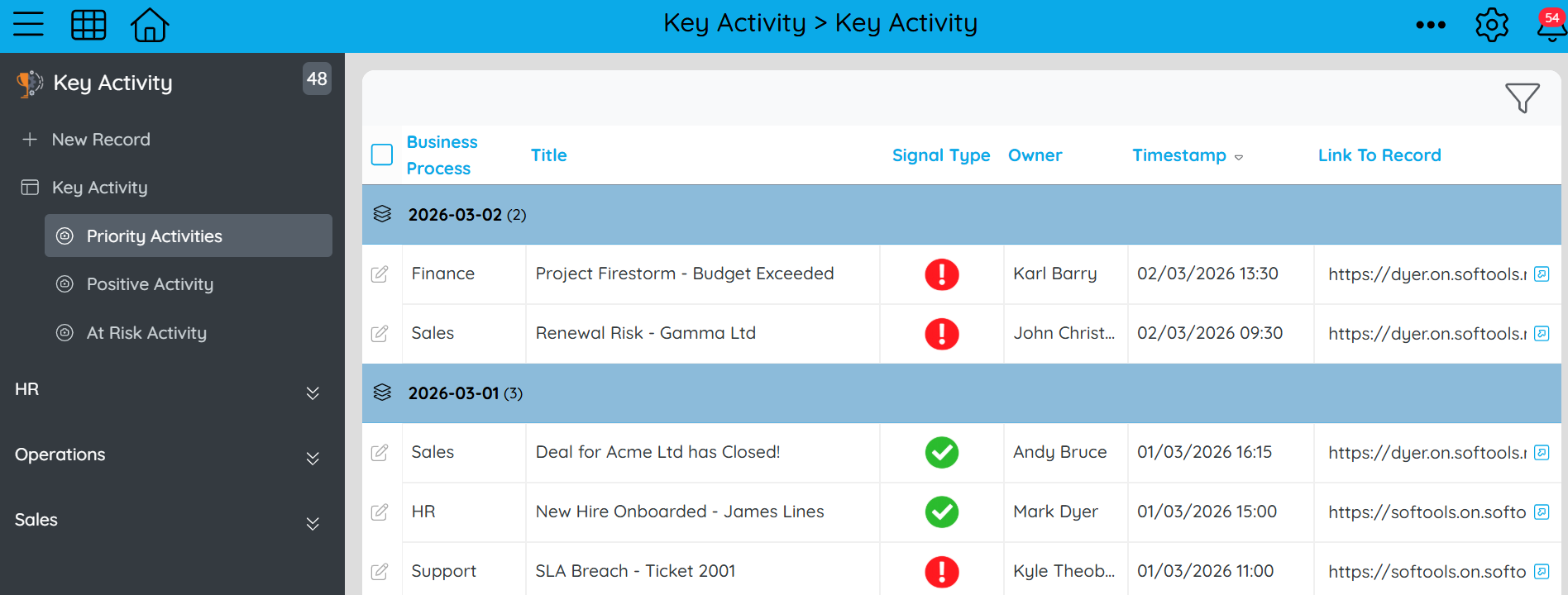
Instead of jumping between tools, you get a single narrative of your operations. Imagine a central feed that surfaces signals like:
🚨 Needs attention
- A compliance audit goes overdue
- A support ticket breaches SLA
- A project milestone is missed
- A deal stalls late in the pipeline
✅ Worth highlighting
- A deal is successfully closed
- A customer renews early
- A milestone is delivered on time
- A ticket is resolved quickly
How You Could Actually Build This
This isn’t as complex as it sounds. You can start simple.
Step 1: Create the “Key Activity” App
At its core, this is just a structured log of important events.
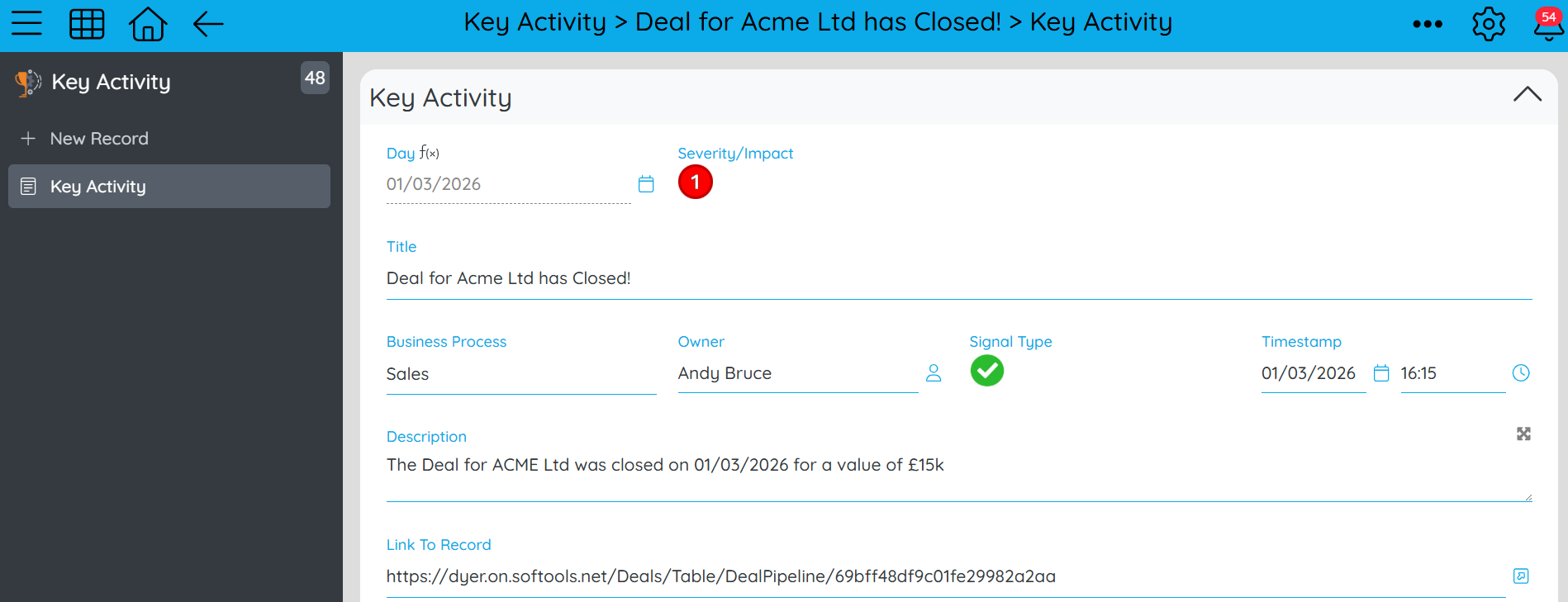
You’ll need fields like:
- Business Process (e.g. Sales, Compliance, Support, Delivery)
- Link to Record (URL back to the source system)
- Signal Type (Positive / Negative)
- Title (short headline: “Deal Closed – ACME Ltd”)
- Timestamp (when it happened)
Then extend it slightly to make it truly useful:
- Description (what happened and why it matters)
- Severity / Impact (Low, Medium, High)
- Owner (who should care or act)
This becomes your single source of truth for activity signals.
Step 2: Define your triggers
Now decide what events should create records.
Start with high-value signals only:
- CRM → Deal closed, deal stalled, renewal approaching
- Support → SLA breach, high-priority ticket resolved
- Compliance → Audit failed/passed, overdue actions
- Projects → Milestone hit/missed
The key is quality over quantity. If everything is important, nothing is.
Step 3: Create workflows
Create workflows that fire when the identified triggers in Step 2 are met. The workflows are created in the Apps for each respective Business Process. Each workflow should include two key Action Nodes. We’ll look at this in the context of a Deal being Closed.

Part 1 - Set Variables
This step dynamically captures key values from the record that triggered the workflow. They will be different depending on the progress.
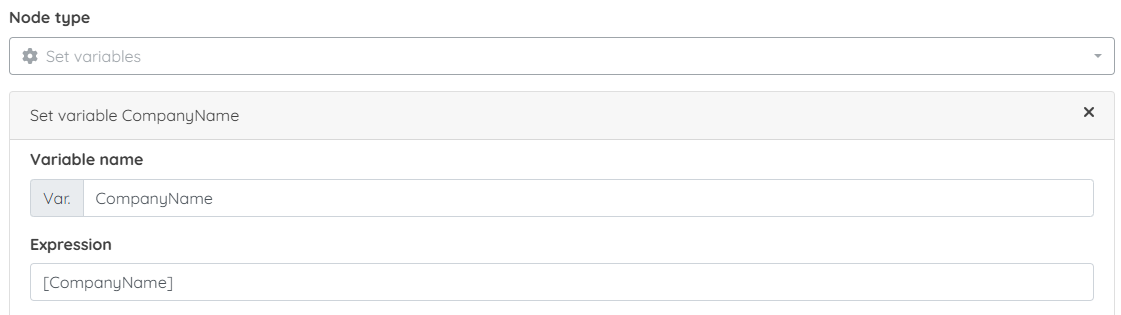
Example: When our deal closes. The activity highlight will want to include
- [Var.CompanyName] = [CompanyName]
- [Var.AccountOwner] = [AccountOwner]
- [Var.DealAmount] = [DealAmount]
- [Var.DealDescription] = [DealDescription]
- [Var.DateClosed] = [DateClosed]
- [Var.LinkToRecord] = 'https://dyer.on.softools.net/Deals/Table/DealPipeline/' + id()
These variables allow us to be able to reference this information when we use the Create Record node.
Part 2 - Create Record (Key Activity App)
This step creates a new entry in your Key Activity App. We can add the values from our variables that we created by referencing the values in the form sourceVar('variablename', 'fallback value if not found')
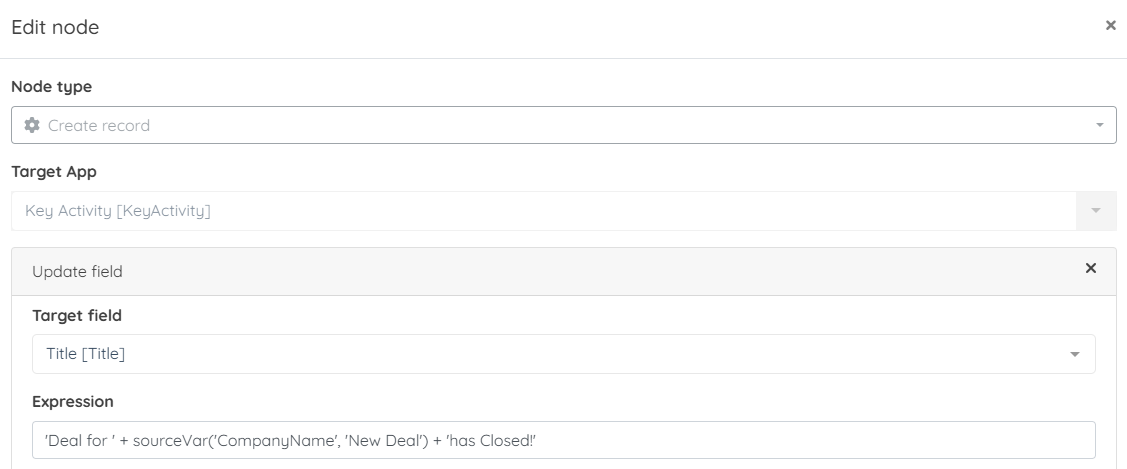
Note: We use sourceVar('variablename', 'fallback value if not found') not [Var.VariableName] as the Create Record node is for an external App to the workflow.
Example: We then take the variables from Part 1 and turn them into the standardised form required for all entries in the Key Activities App.
- Title → 'Deal for ' + sourceVar('CompanyName', 'New Deal') + 'has Closed!'
- Owner → sourceVar('AccountOwner', 'Unassigned')
- Description → 'The Deal for ' + sourceVar('CompanyName', 'New Deal') + ' was closed on ' + sourceVar('DateClosed', '') + ' for a value of ' + sourceVar('DealAmount', 0)
- Link → sourceVar('LinkToRecord', '')
Each workflow turns a real-world event into a structured, visible signal.
Step 4: Build the feed experience
Now make it visible and useful:
- A chronological feed (like a news timeline) by using a default sort order on the date the activities are added
- Filters by team, process, or signal type to allow drilling down into the feed.
- Highlight high-severity items, this will also filter noise from lesser important items when just wanting to see the key headlines.
- Separate or tag Positive vs Negative signals
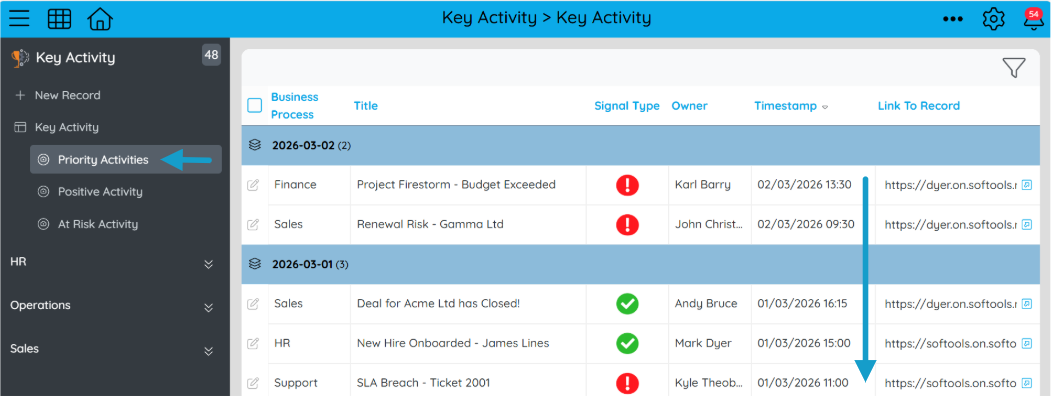
Think “Company Newsfeed” rather than “Data Table”
Step 5: Add intelligence over time
Once the basics are working, you can layer in:
- Prioritisation (what shows up first)
- Personalisation (what each role sees)
- Weekly summaries (“Here’s what mattered this week”)
Why This Works
Because it solves a real problem. Right now, many organisations are:
- Drowning in tools
- Missing important signals
- Reacting too late
This flips the model from “Go find the information” to “The right information finds you”
This isn’t just monitoring. It’s shared operational awareness. A living, breathing view of your business—showing both the risks and the momentum.
Please sign in to leave a comment.
Comments
0 comments