Updating Watchers Workflow

In this post, I'll be going through how to add a technique to make sure you are aware of any updates to support tickets, RAID Items or developments tickets. This is useful for managers to keep track of ticket progress that doesn't just checkpoint the start to finish of the ticket. It is also good for operators to centralize any issues in one place to keep an audit of and locate easily to be answered by there managers.
The first step is to set up your watcher fields, for me, I tend to make 5 fields, this can be for you, your manager and 3 spare for who may be involved with the ticket and whats to be kept in the loop. These will need to be person fields as the workflow will be sent to the email associated with the account in the field. When adding these to the form I like to keep them in their own template either at the top of the page or the bottom of the page that is defaulted close, this is because the information is not needed all the time and does not need to be shown on the page at all times.

Next is to select your trigger for the workflow, I would suggest using a bit field that is labelled 'Update watchers' this is clear and easy to understand. Now we can move onto adding the workflow that will update the watchers. This can be easily customised to your process if you would prefer to.
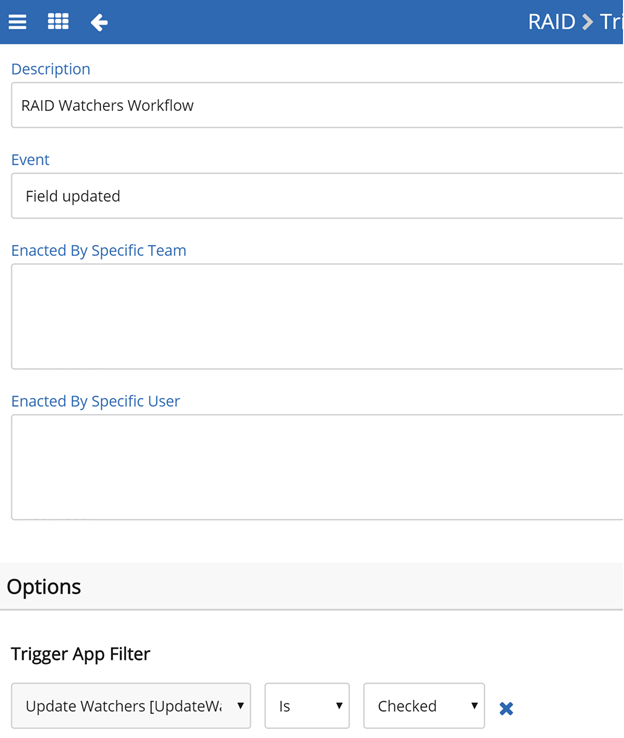
When creating your workflow I would advise adding an appropriate description, then select the event to be field updated and the trigger field (bit field) as the filter and the trigger to be on check.
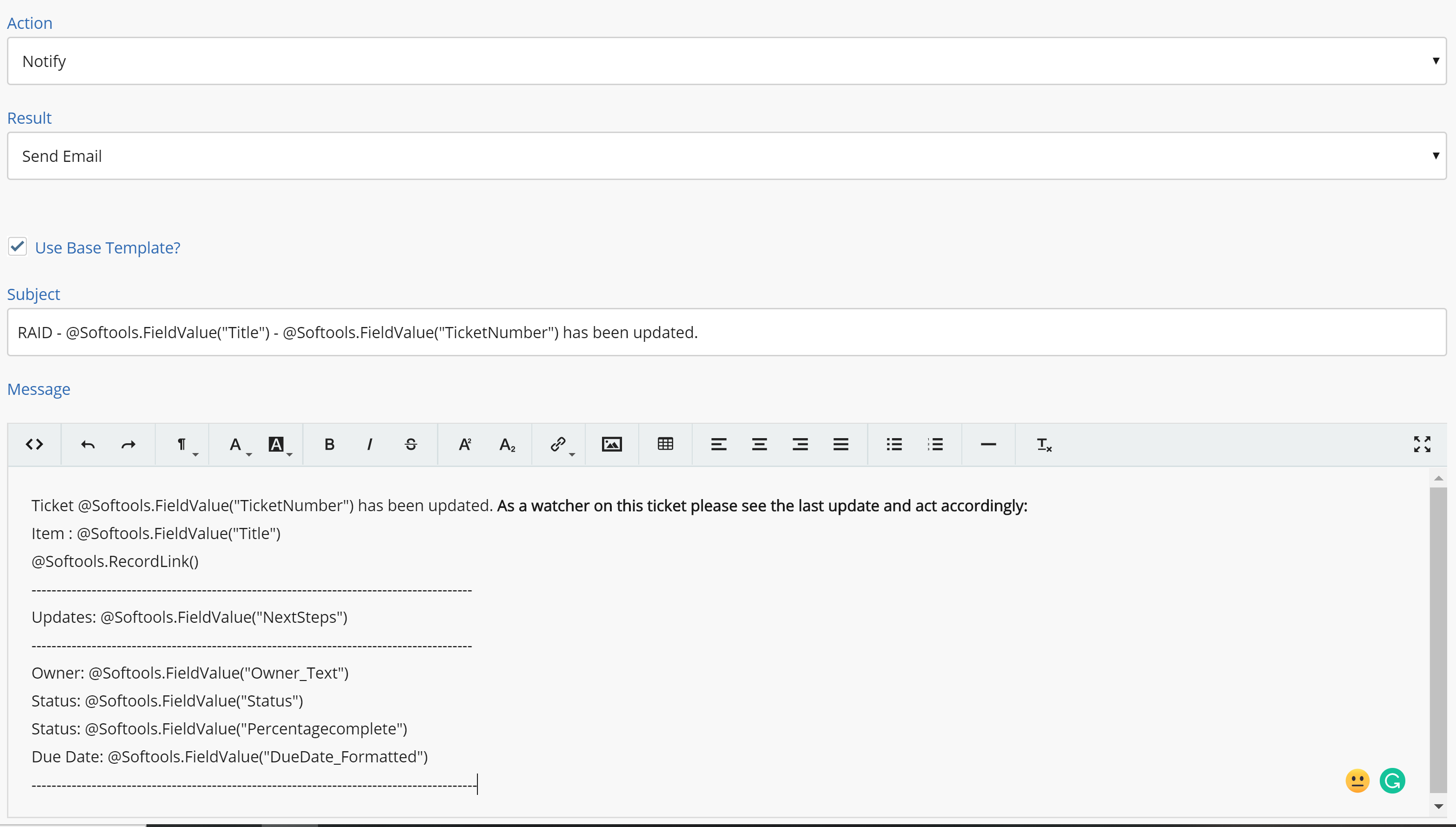
Next will be choosing the action, this will be to notify and send an email to the watchers. This email can include a variety of information that is important to include. The main information I would say to include is the title, link, description and the update on the ticket that you want the watcher to see.
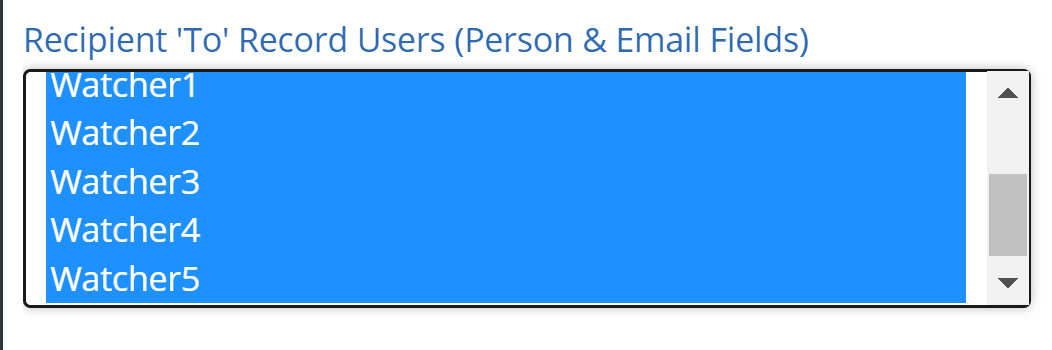
Once you have added the content you want in the email you can then choose who to send it to, this would be the watcher fields you added, you can also add the owner (field) of the ticket (You) as a CC so you know that the email was sent.
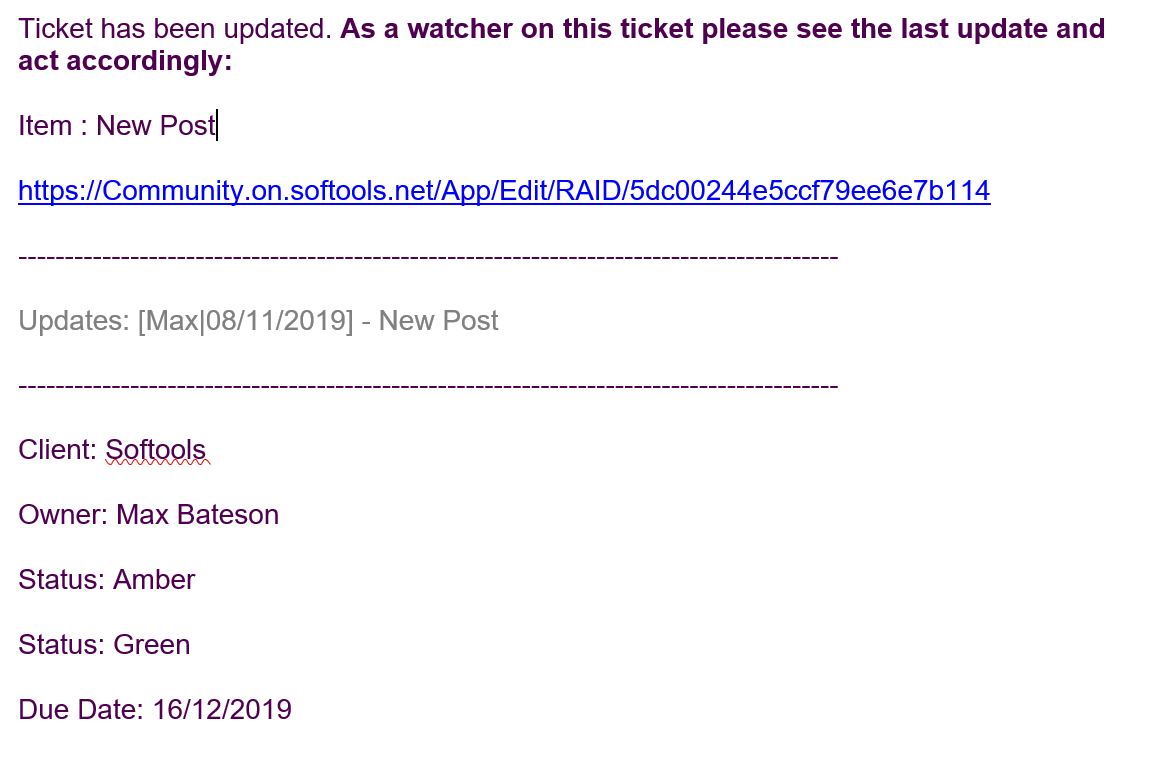
Here is an example of what would be show in the email.
Please sign in to leave a comment.
Comments
0 comments