Adding a Button to your Website

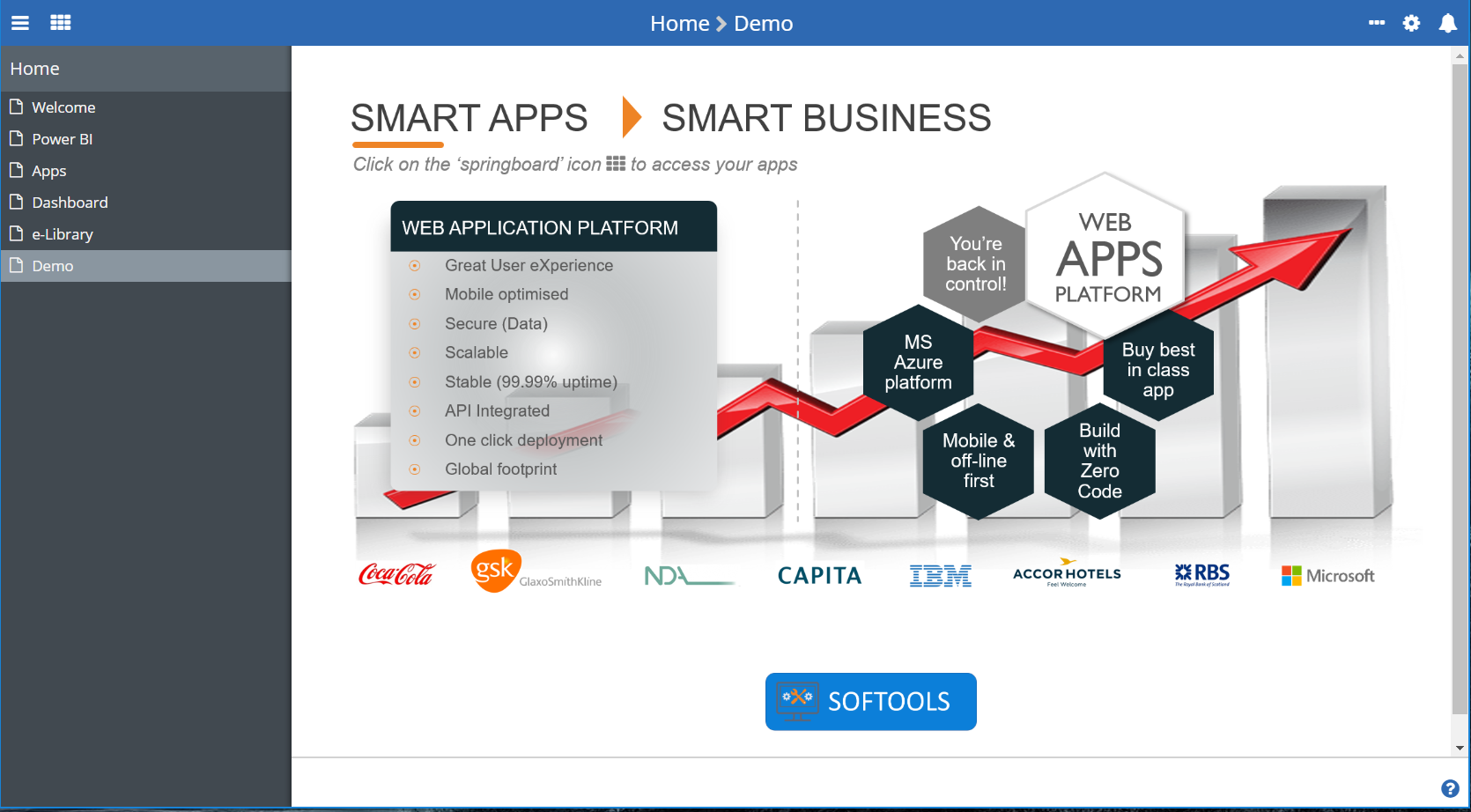
This post will be going through how to create an image action button that takes you to your website, this can be on a homepage, app dashboard or record. Reasons for this is if you want to have an easy navigation option to your website for users when accessing your site.
To add a button to your website, you need to create an image action button field:
- When creating the button I would advise not having a label, if your button visually represents what it will do as it will just be repeating it
- Then add a relevant identifier and the right field type
- You then want to select the size of the button (this may change after you've seen what it looks like)
- Next, select what type of button it is, this will be an open URL button type
- Then you need to enter in the URL field you want to be taken too, https://www.softools.net - best to copy the link straight from the website
- (Open image action button URL in a new tab will open a separate tab once the button is clicked and take you to the URL)
- After that, you need to select the image you want the button to have (if this is already uploaded as an asset you can search for it) if not you can upload a new asset.

Please sign in to leave a comment.
Comments
0 comments