Adding a Navigation Button

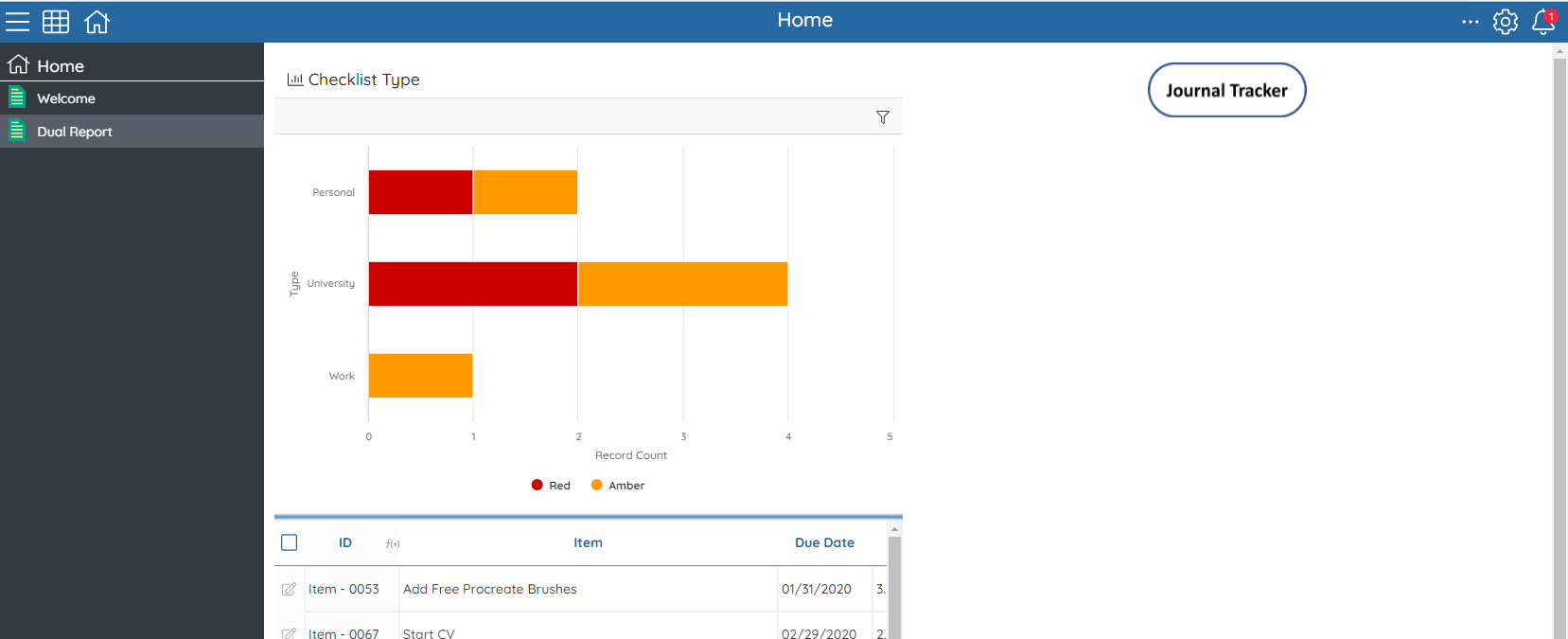
This post will be showing you how to add a button to take you to a report, this can be useful if you have a report/app that is in heavy use by users across your site. This button allows quick and easy navigation for users who may find it more difficult to find the right location on the site. The best place for this would be on the default homepage as its the first page they will see. This is not advised though if this app is hidden from some users as they will still see the button which can cause confusion.
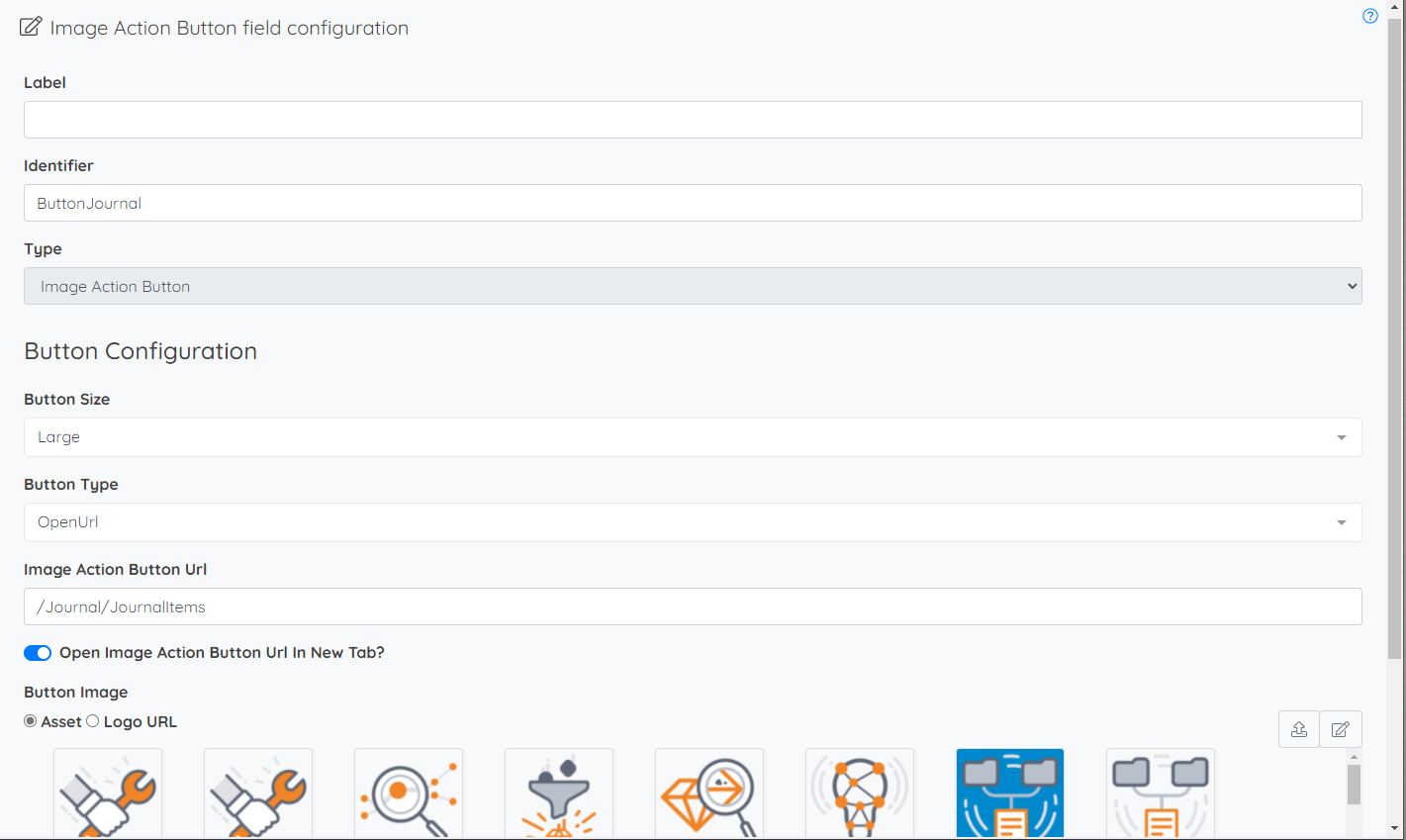
To add an image action button, you need to first create an image action field:
- When creating the button, I would advise not having a label, if your button visually represents what it will do, it will just be repeating it. For now, give it a label so when you search for it you can see it.
- Then add a relevant identifier and select the right field type - Image Action Button
- Then select the size of the button (this may change after you've seen what it looks like)
- Next, select what type of button it is, this will be an open URL button type
- Then you need to enter in the URL field you want to be taken too, say you wanted to take the User to The Work Plan Register report, using /Journal/JournalItems would mean if there are additional hostnames then the navigation will still work. The first part being the app id and the second being the id of the report
- (Open image action button URL in a new tab will open a separate tab once the button is clicked and take you to the URL)
- After that you need to select the image you want the button to have, if this is already uploaded as an asset you can search for it, if not you can upload a new asset
Adding the button to a Dashboard:
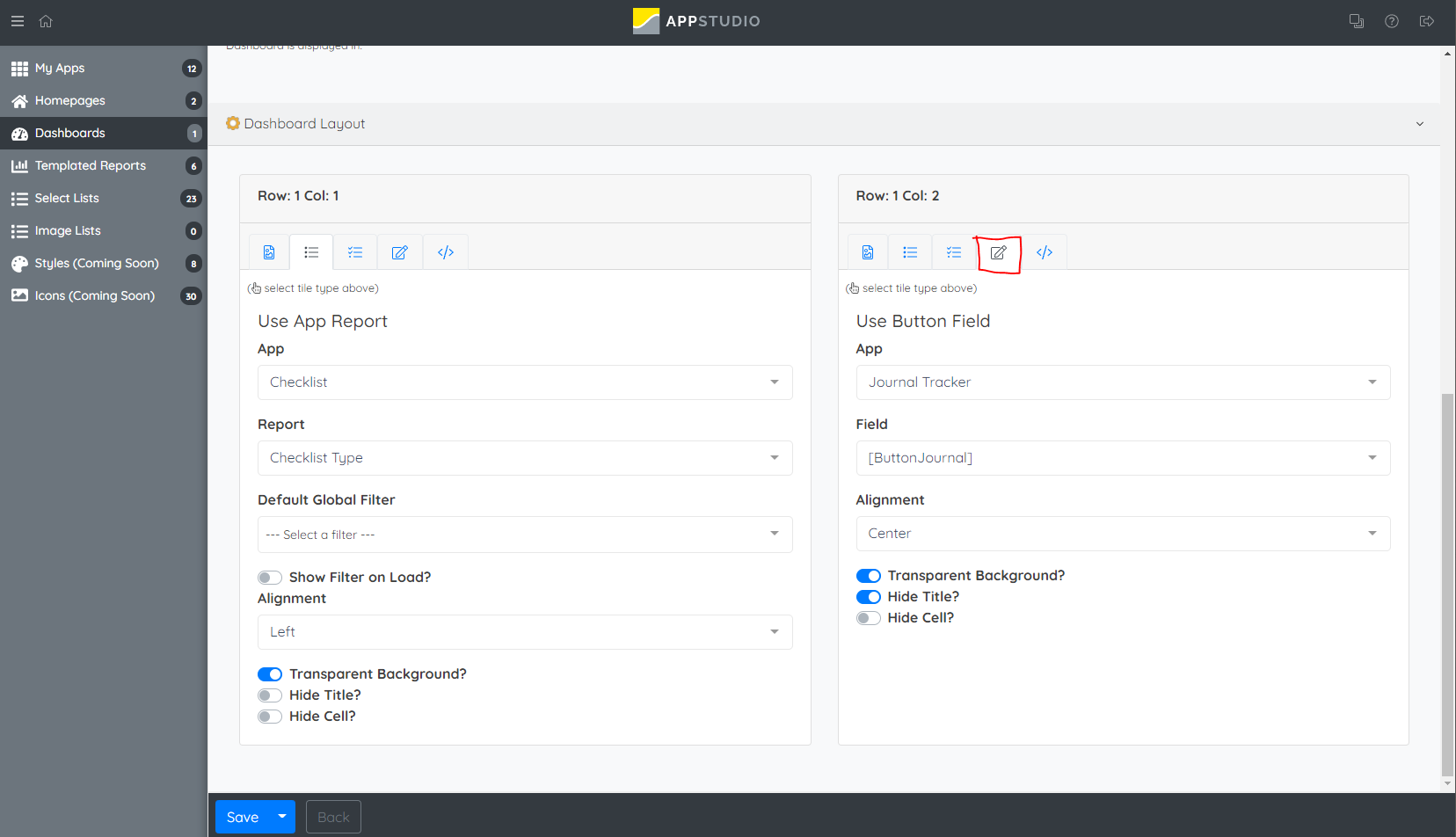
- First, you need to create a dashboard, this depending on how many buttons you have will dictate on the size of the dashboard, the biggest it can go is 3 by 3.
- Once you have selected the size you need to tick Is Global? So it can be added to a homepage, then you need to go to your selected cell you want the button to be in
- Next, circled in red at the top of the cell is the cell type you want to select – this is the Button Field
- After that, the next thing you want to select is the app you made the button in
- Then select the image action button you made
- Then you can choose how you want it to be aligned to the cell, to have a transparent background or a hidden title (field label)
Adding the Dashboard to a Homepage:
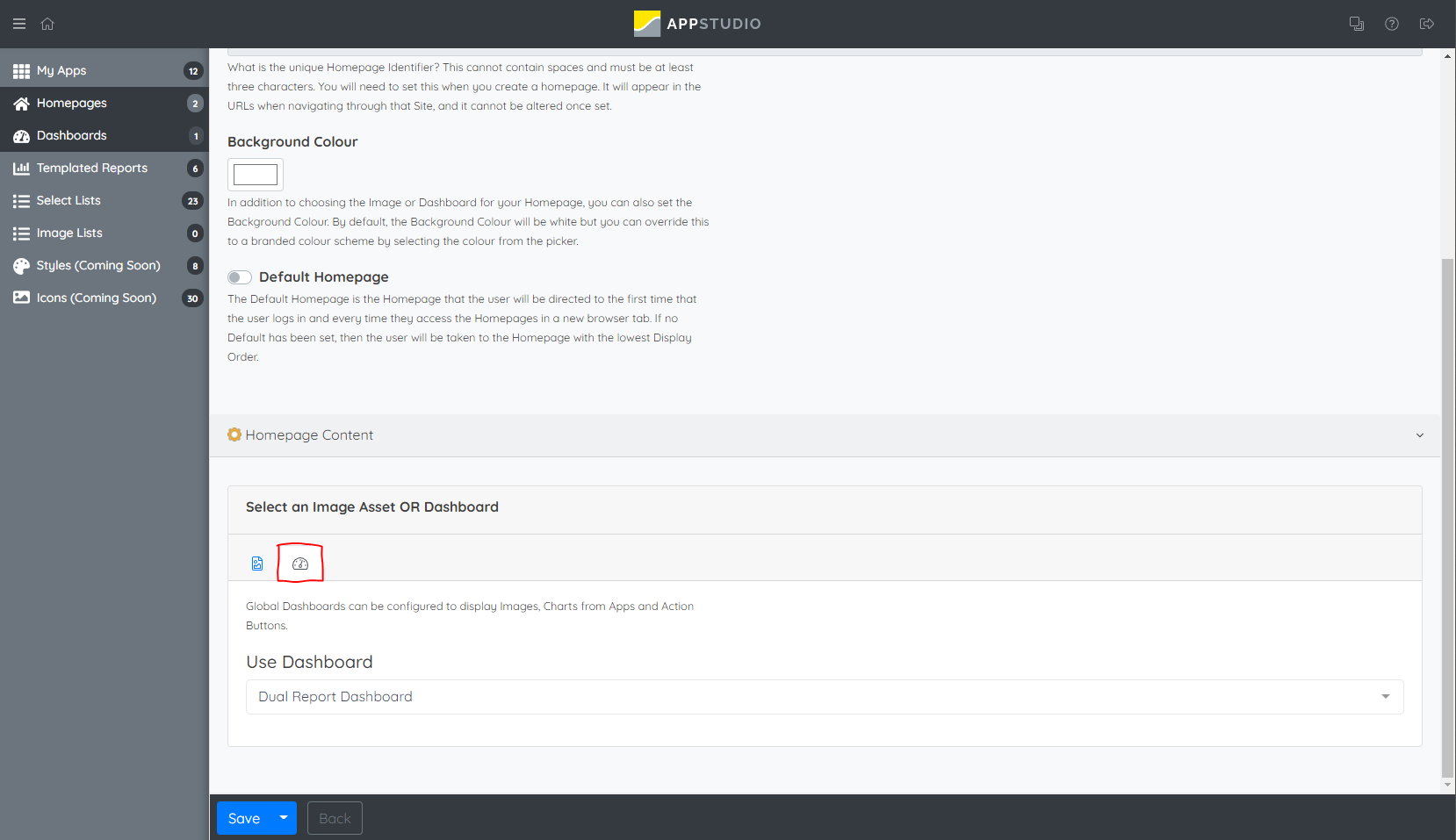
- Once you have made the dashboard you can then create the homepage to add it to
- Label this how you want, to add the dashboard you just need to go to the tab highlighted in red that you see below and select the dashboard
Please sign in to leave a comment.
Comments
0 comments