Keeping Your Launchpad Organised: Best Practices for better UX

A well-organised launchpad makes it easier for users to find the tools they need and creates a more consistent experience as new apps are added over time. While every launchpad will evolve differently, following a few simple best practices can help keep it intuitive, easy to navigate, and visually consistent.
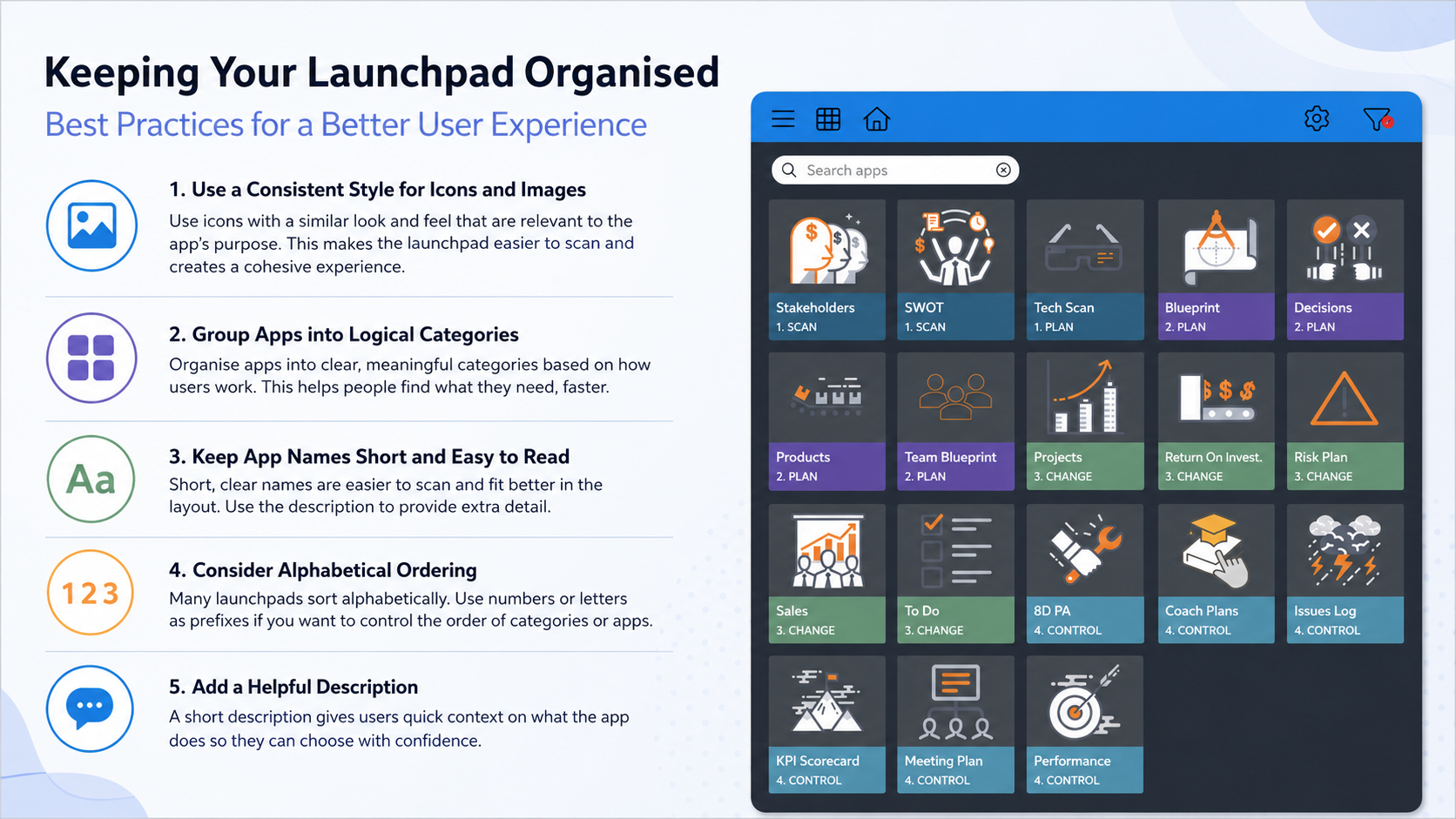
Use a Consistent Style for Icons and Images
A consistent visual style gives the launchpad a more polished appearance and makes it easier for users to scan the available apps. Where possible, use icons or images with a similar look and feel so that no single app stands out unnecessarily.

It's also worth choosing an image that clearly represents the purpose of the app. A relevant, recognisable icon helps users quickly understand what the app is for, making it easier to find the right tool at a glance.
As new apps are introduced, matching the existing icon style and selecting meaningful imagery helps maintain a cohesive and intuitive experience.
Group Apps into Logical Categories
Categories make it easier for users to browse and discover apps, particularly as the launchpad grows.

When deciding where an app belongs, consider how users are likely to think about the task rather than how the underlying systems are organised. Grouping related apps together creates a more natural navigation experience and helps users find what they need more quickly.
Keep App Names Short and Easy to Read
Short, concise app names are generally easier to scan and fit more comfortably within the available space.
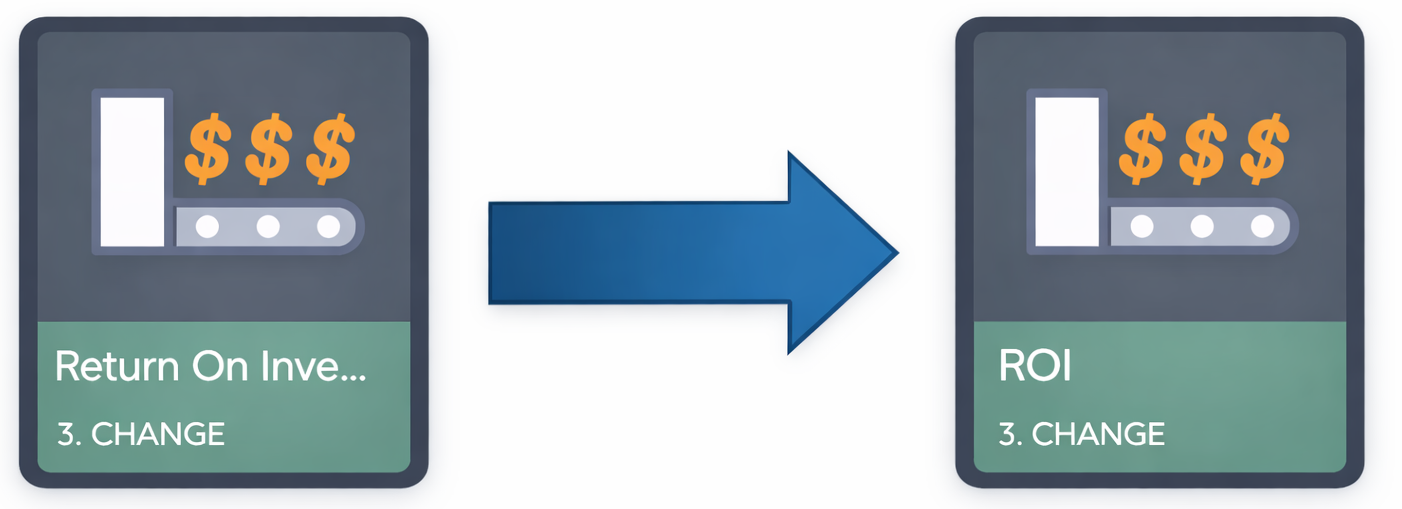
If a longer title is needed to explain the purpose of an app, consider keeping the display name brief and using the description to provide additional context.
Consider Alphabetical Ordering
Many launchpads display categories and app names alphabetically. If you'd like apps or categories to appear in a particular order, consider using numeric or alphabetic prefixes as part of the name.
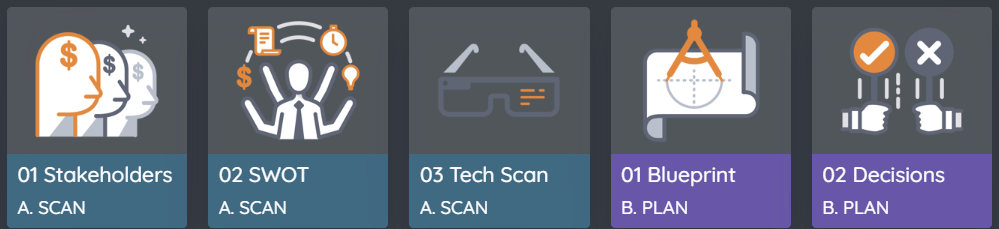
A simple convention such as 01, 02, 03, or A, B, C can help maintain a logical sequence while still working with alphabetical sorting.
Add a Helpful Description
Providing a short description for each app gives users a little more context before they open it. This can be particularly useful for new users or where app names are similar.
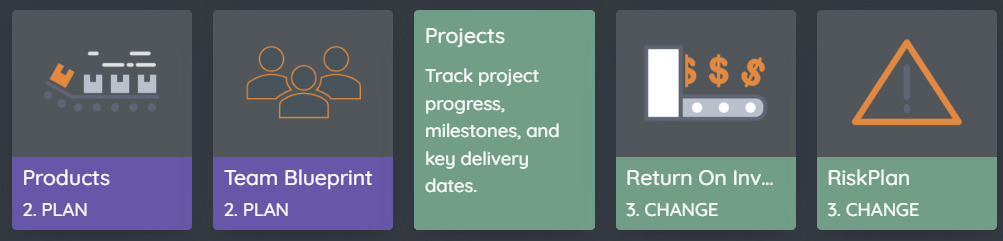
A brief sentence describing the app's purpose or intended use is often enough to help users understand what they can expect.
For example:
Project Tracker
Track project progress, milestones, and key delivery dates.
Descriptions don't need to be lengthy—just enough to help users choose the right app with confidence.
A Few Small Touches Go a Long Way
None of these practices are mandatory, but together they help create a launchpad that feels organised, consistent, and easy to use. As your library of apps grows, these small considerations can make it easier for everyone to navigate the launchpad and quickly find the tools they're looking for.
Please sign in to leave a comment.
Comments
0 comments