Navigator Homepages in Softools: Streamlined Access to Core Apps

We’re sharing a simple and widely used pattern in Softools: Navigator Homepages.
This approach turns the homepage into a direct navigation layer, allowing users to jump straight into key Apps and Reports without needing to use the Launchpad.
It is particularly useful for new users to Softools, helping them become familiar with navigation by providing clear, visual entry points into the platform.
🎯 What is a Navigator Homepage?
A Navigator Homepage is a standard Softools Homepage built using Action Buttons as navigation tiles.
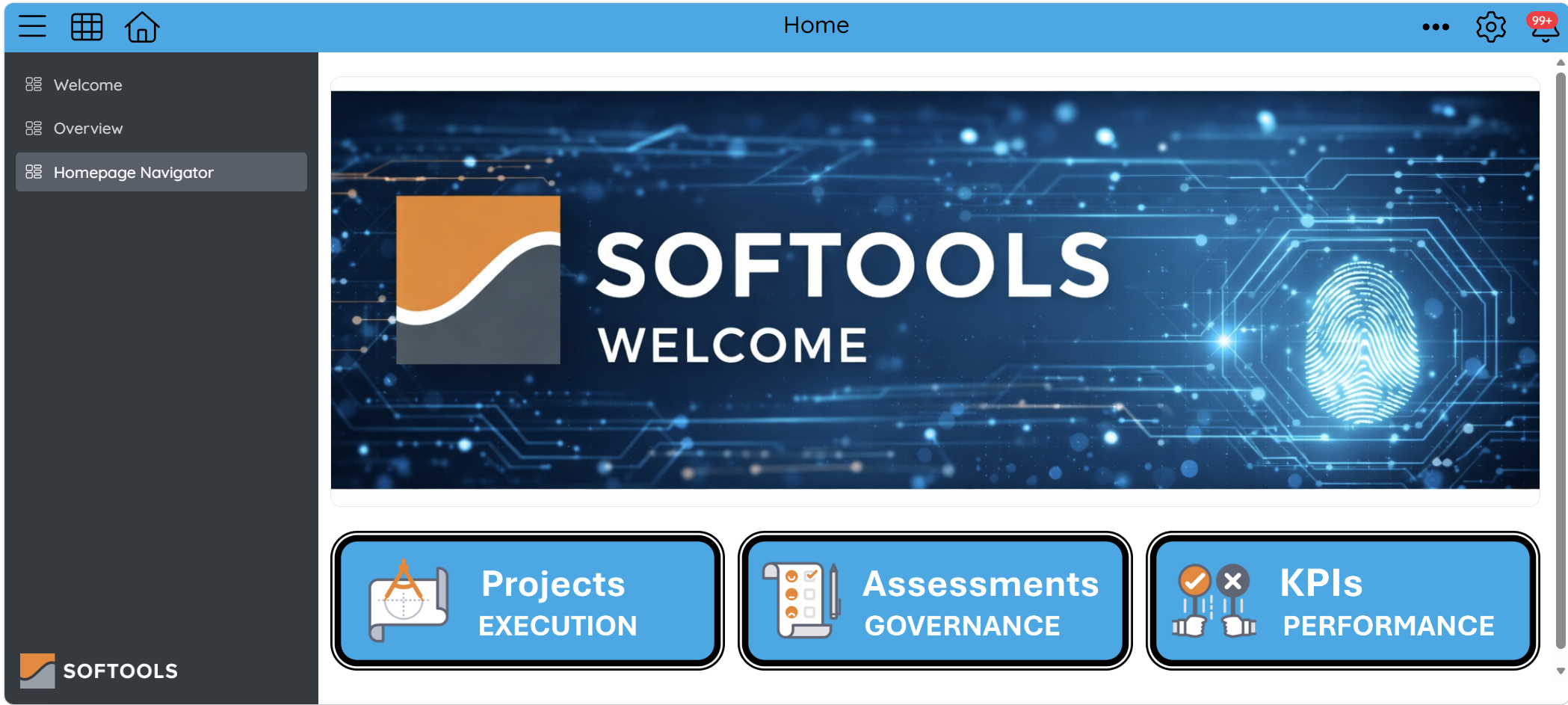
These tiles act as direct links to Apps and Reports, allowing users to:
- Click a visual tile (Action Button)
- Open the App immediately
- Land directly on a relevant Report or view
This reduces navigation complexity and improves overall usability.
🧭 Step 1: Identify Key Apps
Select the three most commonly used or strategically important Apps for the user group.
Example set:
- 📁 Projects
- 📊 Assessments
- 📈 KPIs
These should reflect high-frequency usage, or core business processes.
🎨 Step 2: Create Consistent App Icons
To support a clear and intuitive experience. Create icons in PowerPoint (or similar tool) and include:
App name, Simple visual representation and Slight raised/shadow effect to indicate clickability.

Keep the source file so the same style can be reused when adding future Apps, ensuring consistency across Navigator Homepages.
🔗 Step 3: Add App-Level Action Buttons
Within each App, configure an Action Button that routes users directly to the most relevant Report.
Use a relative URL format:
/AppID/ReportID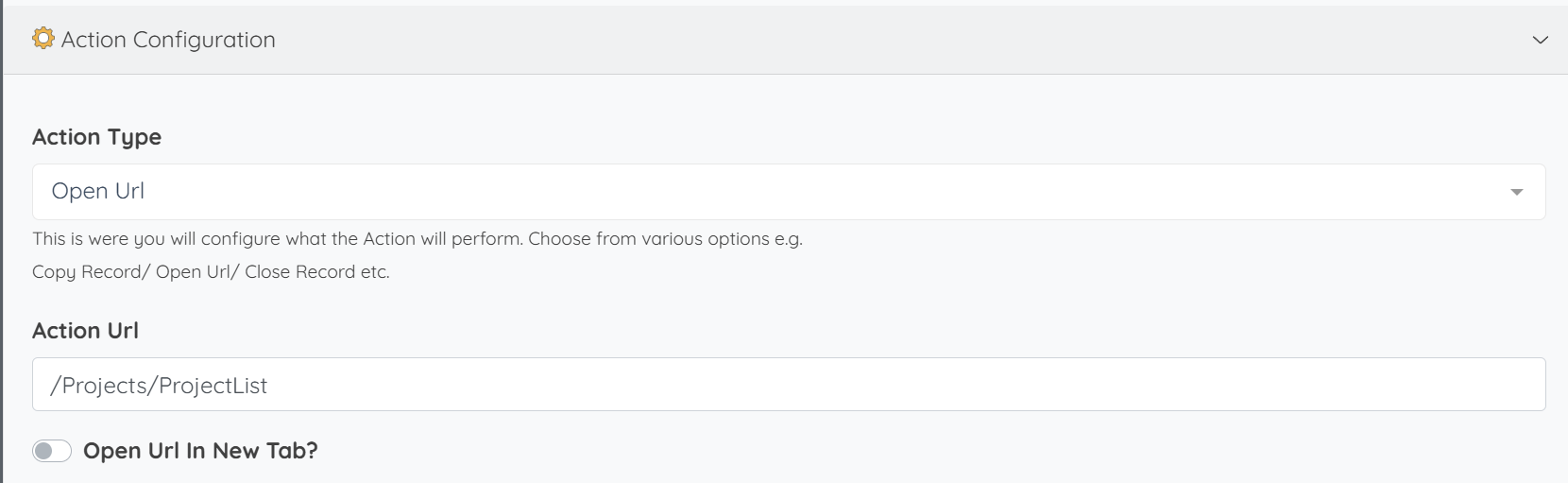
This ensures users can move directly from the App entry point into the correct working view.
Tip: Use image size full when assigning the images created in Step 2 to the Action Fields
🧱 Step 4: Build the Navigator Dashboard
Create a Dashboard to act as the Navigator Homepage
Sample layout
Row 1
- Column 1: Banner or image (visual header)
- Columns 2–3: Hidden so the banner spans the entire row
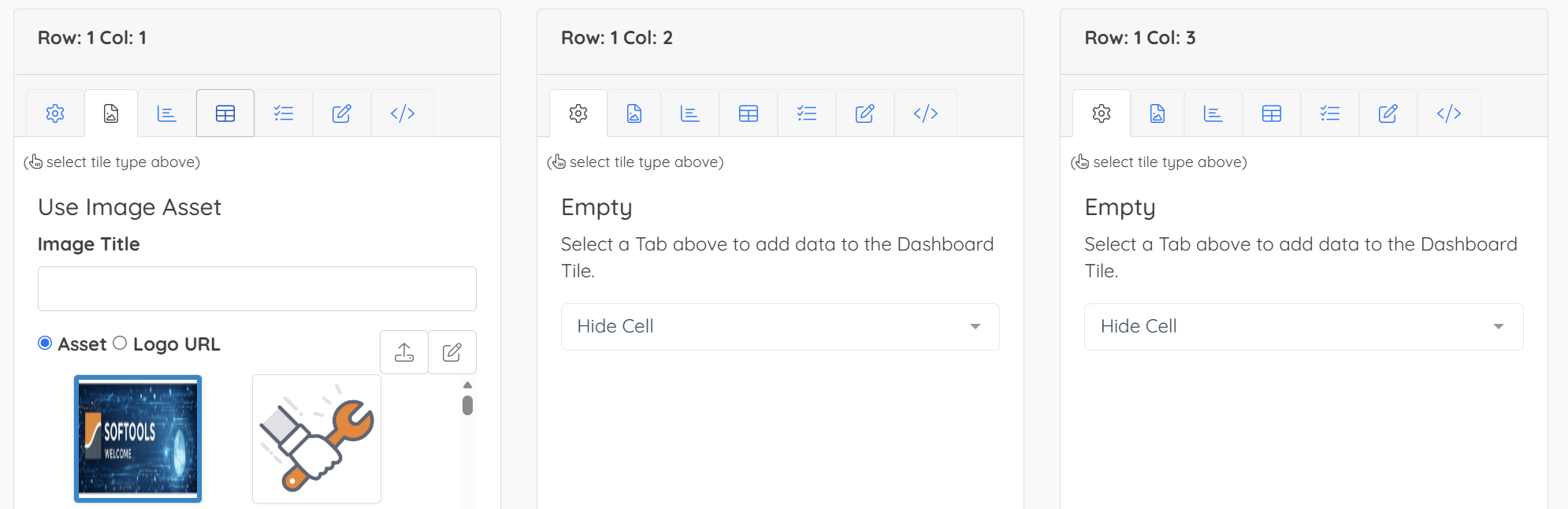
Row 2
- Column 1: Action Button (Navigator Tile) → Projects
- Column 2: Action Button (Navigator Tile) → Assessments
- Column 3: Action Button (Navigator Tile) → KPIs
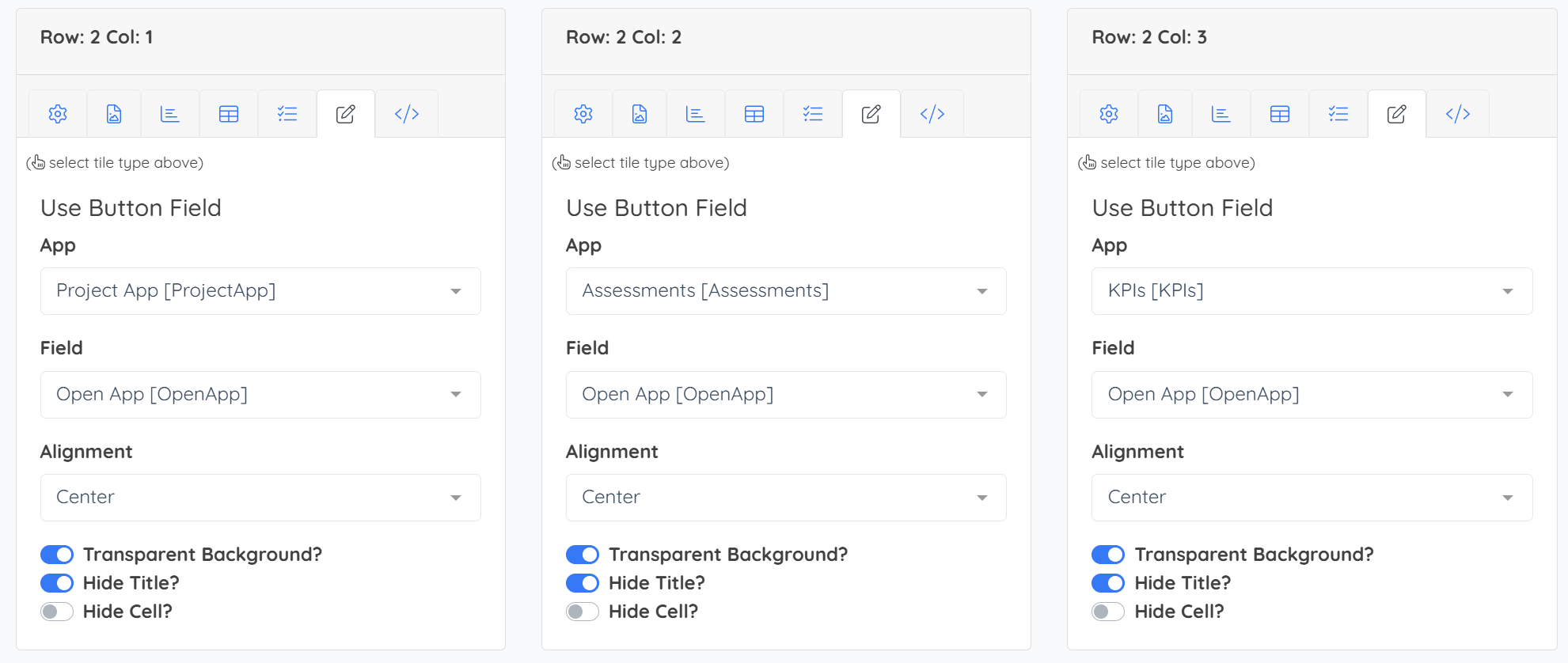
Each Action Button links directly to its respective App or Report.
🏠 Step 5: Assign as a Homepage
Once configured:
- Assign the Dashboard as a Homepage in Softools
- Set visibility for the relevant user group(s)
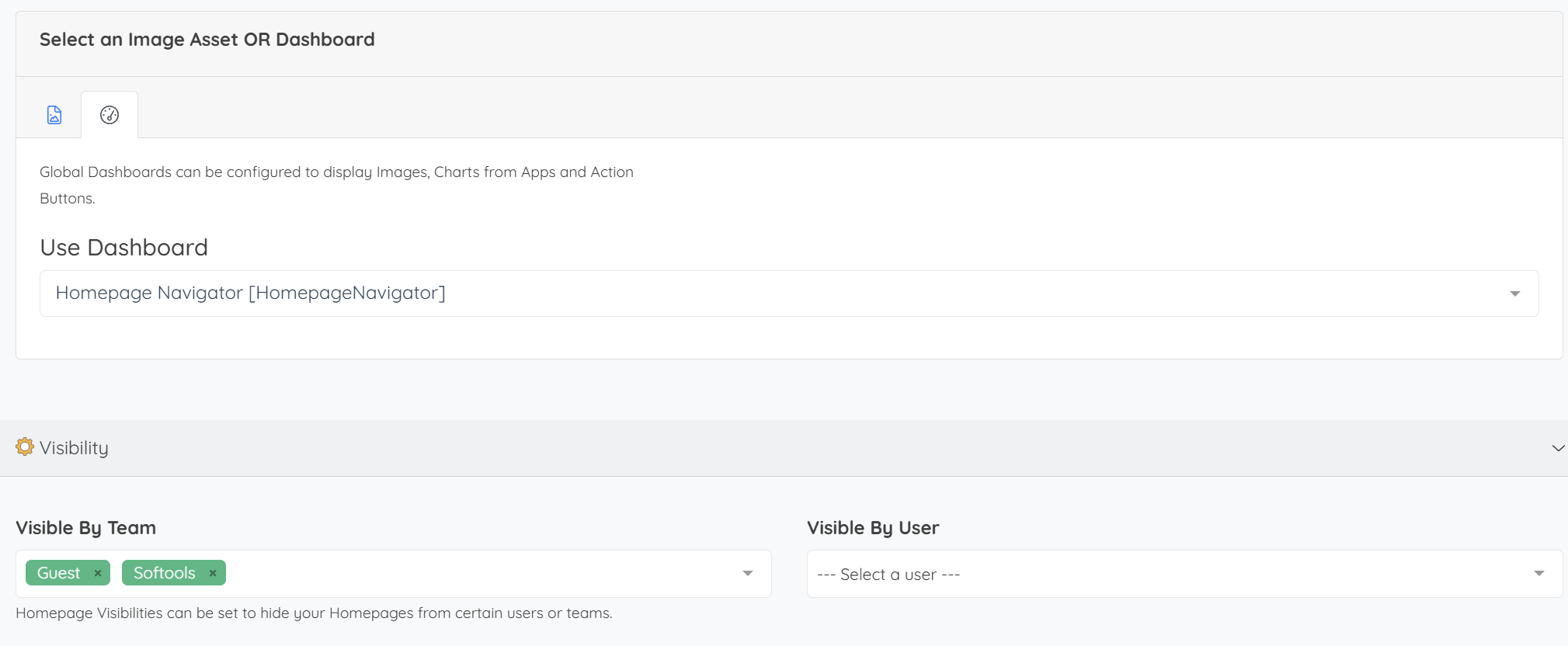
Users will have access to the Navigator experience and land directly on it when logging in if set to their default homepage.
👶 Why This is Especially Useful for New Users
Navigator Homepages are particularly effective for users new to Softools, because they:
- Reduce reliance on the Launchpad during onboarding
- Provide clear, visual navigation via Action Buttons
- Help users understand where to go next without prior platform knowledge
- Create a structured, guided first experience
- Build confidence while learning how Apps are organised
🔄 Extending the Pattern
This approach can be scaled across the platform by creating:
- 🧭 Sales Navigator Homepage
- 🧭 Operations Navigator Homepage
- 🧭 HR Navigator Homepage
You can also implement a tiered structure:
- Top-level homepage for business units
- Sub-level Navigator Homepages for Apps within each unit
Please sign in to leave a comment.
Comments
0 comments