'Set It To Me' / 'Send It To Me',... Recognising the Current User in Your Workflows

Many workflow automations deliver much greater benefit when your application knows who clicked the button.
By using UpdatedBy() in an Update Field Value node to populate a Person field with the current user, you create a dynamic reference that can be reused throughout the rest of the workflow.
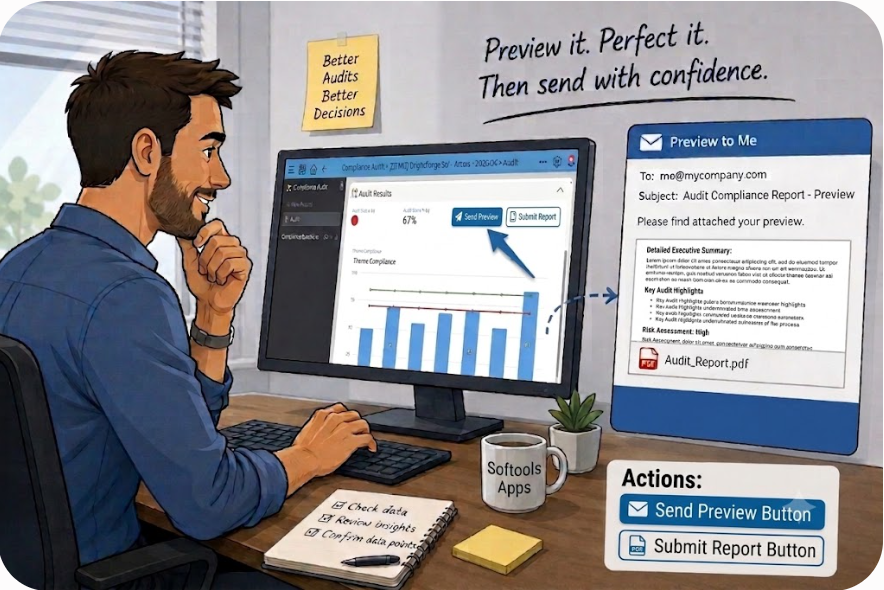
Once the current user is stored in a Person field, that dynamic reference can be reused in later workflow steps, for example to assign actions, dynamically set email recipients and support many other workflow patterns. It's a simple technique that can be applied in many different scenarios.
Here are three examples that build on the same idea, progressing from a simple 'Set it to Me' workflow to more advanced workflow automation.
Scenario 1: Set it to Me
A common requirement is allowing users to quickly assign work to themselves.
Imagine you have an Actions App with an Assigned To Person field. Rather than asking users to search for themselves in a Person field every time they want to take ownership of an action, add an Assign to Me button.
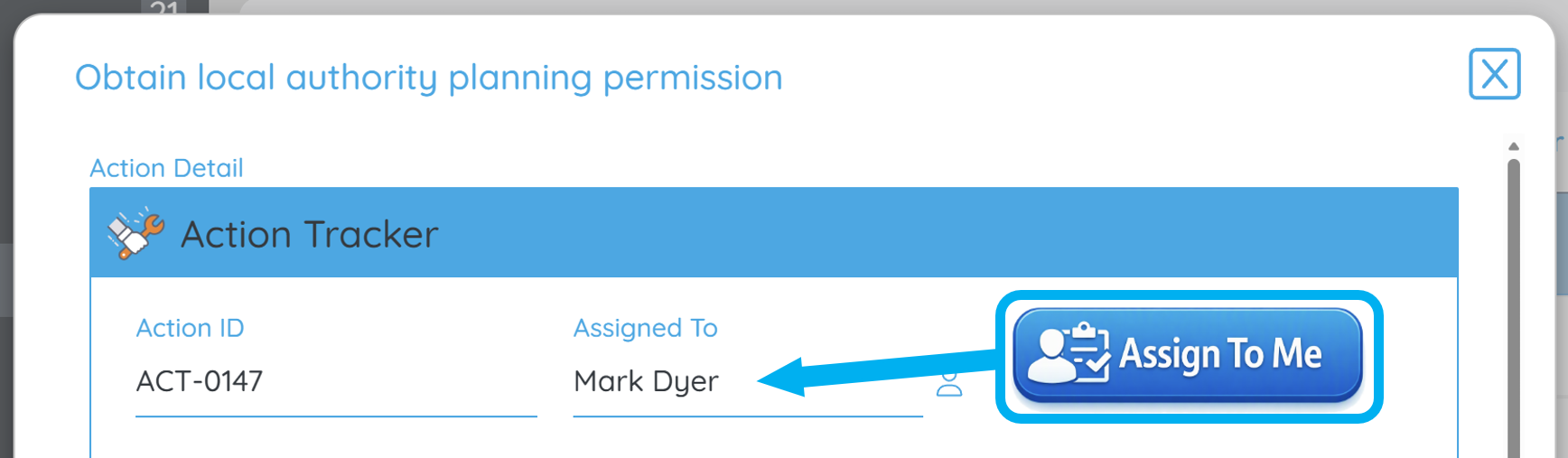
When the button is clicked, the workflow simply:
- Uses an Update Field Value node.
- Sets Assigned To =
UpdatedBy().
The workflow records the user who clicked the button in the Assigned To field and the action is immediately assigned to them.
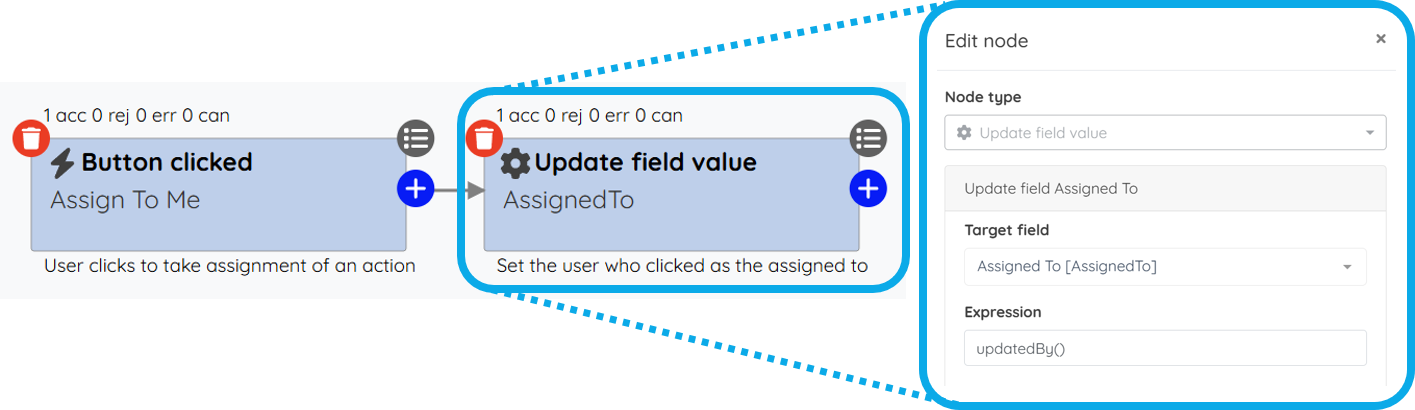
This has two key advantages over allowing users to edit the Person field directly.
Firstly, it improves the user experience. Users simply click Assign to Me rather than opening a Person field and searching for their own name every time they want to take ownership of an action.
Secondly, it gives you greater control over how assignments are made. For example, you could make the Assigned To field editable only by Administrators, while standard users only have access to the Assign to Me button. Standard users can only assign work to themselves, while Administrators retain the flexibility to assign work to anyone.
Scenario 2: Capture the Requester
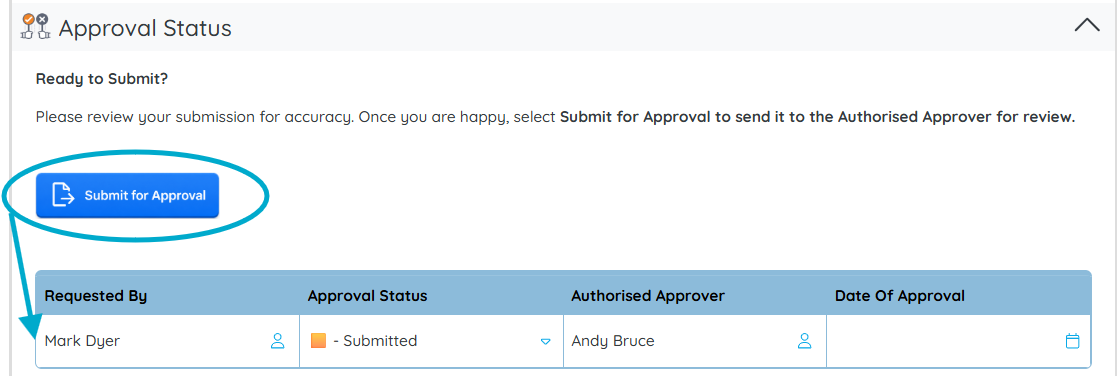
The same technique becomes even more useful when the Person field is referenced later in the workflow.
Imagine users submit records for approval.
Your record contains two Person fields:
- Approver
- Requested By
When the user clicks Submit for Approval, the workflow:
- Uses an Update Field Value node to set Requested By =
UpdatedBy(). - Sends the approval request to the Approver.
- Uses the Requested By field as the CC recipient on the email.
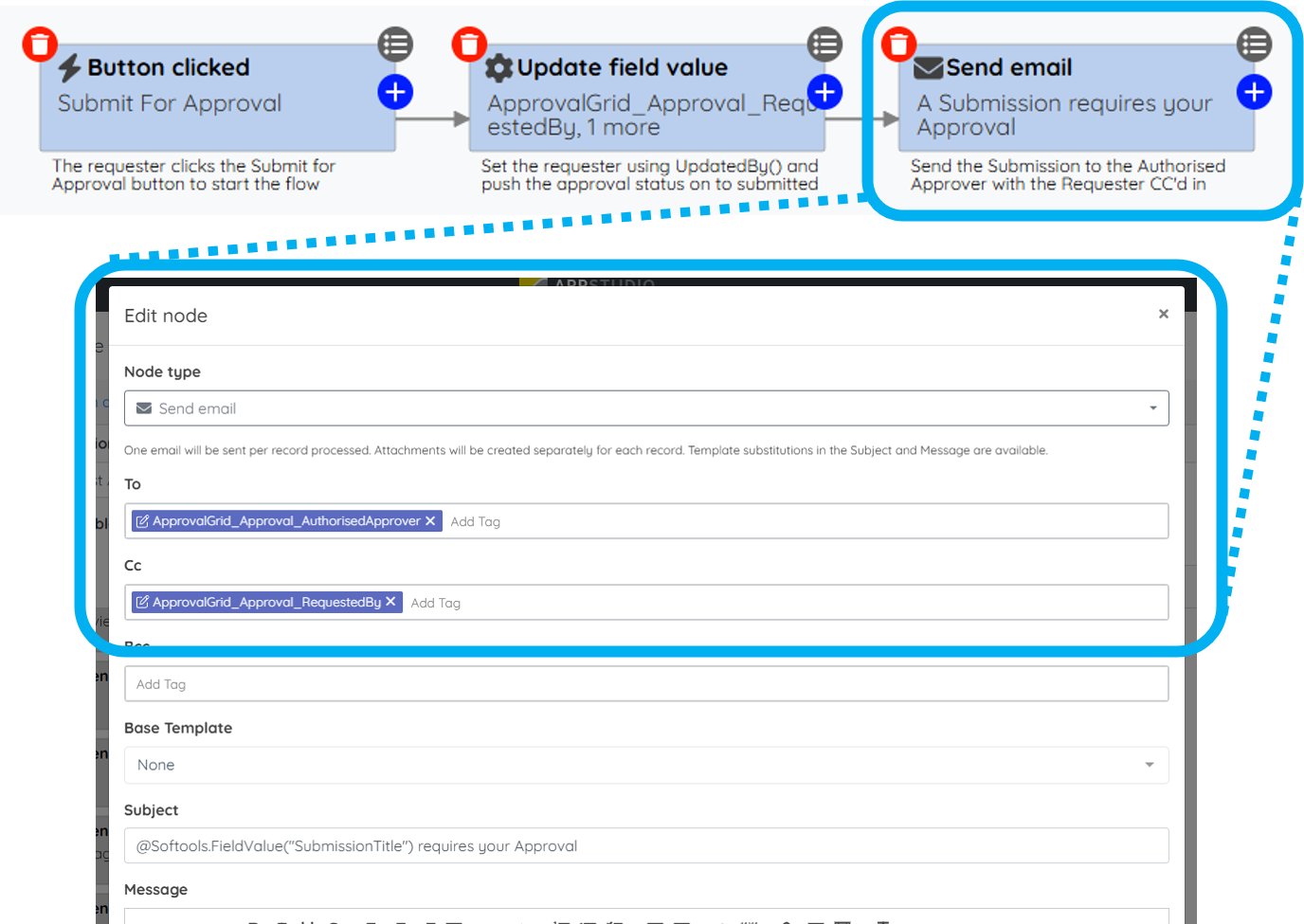
Capturing the requester in this way provides benefits for everyone involved.
The requester receives confirmation that the approval request has been sent and has a copy of exactly what was submitted.
The approver can immediately see who raised the request and, if they need to ask a question or request further information, the requester is already included in the email conversation.
Compared to the first scenario, the only difference is that the current user is now being captured for use later in the workflow rather than simply updating the record.
Scenario 3: Create a 'Send Me' Workflow
Once you're comfortable storing the current user in a Person field, the same approach can be used to create a Send To Me workflow which can be valuable for previewing critical reports before they are sent to their intended recipient.
For example, imagine an Audit App where completed audits are submitted to the Compliance Lead for review.
The live workflow sends an email containing audit-specific information together with a generated PDF Audit Report.
Alongside the Submit for Review button, add a Send Preview button.
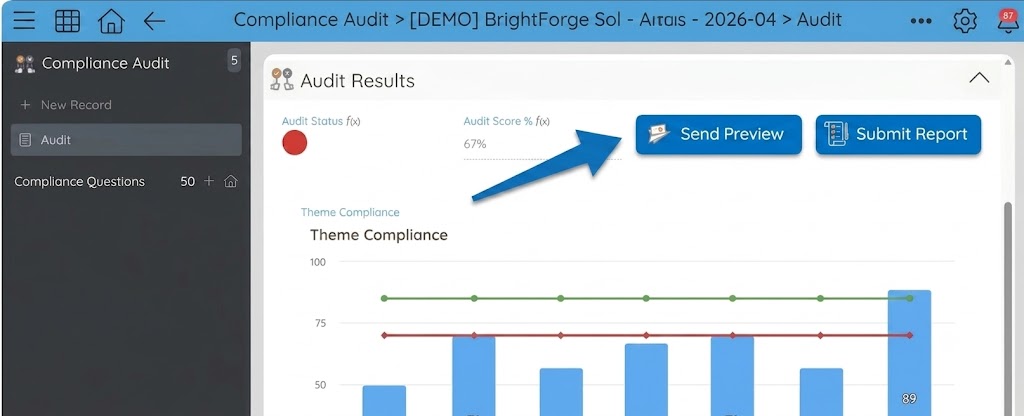
Create a Person Field called Send To.
When the user clicks a Send Preview button, the workflow:
- Uses an Update Field Value node to set Send To =
UpdatedBy(). - Generates the email and any document attachments.
- Uses the Send To field as the recipient in the Send Email node.
Clicking Send Preview runs the same workflow, generates the same email and attaches the same PDF report. The only difference is that the email is sent back to the user who clicked the button instead of the Compliance Lead.
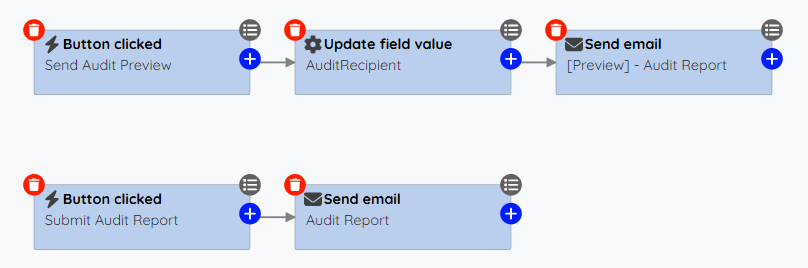
Advanced: If you combined the two button click triggers with start workflow and started by workflow nodes passing current user or intended final recipient into the flow, you could then use the exact same actions rather than maintaining preview and final recipient send email nodes.
This gives the user the opportunity to:
- Review the email content.
- Check that merge fields have populated correctly.
- Verify the generated PDF report.
- Confirm the attachments are correct.
- Make any final changes before submitting the audit for formal review.
Summary
Each of these examples follows the same pattern:
- Capture the current user with
UpdatedBy(). - Store them in a Person field.
- Reuse that dynamic reference later in the workflow.
The first scenario improves the user experience and gives you more control over how actions are
assigned.
The second uses the same pattern to improve communication during an approval process.
The third extends the idea further by making the email recipient dynamic, allowing the same workflow to support both live emails and preview emails.
Once you start thinking of a Person field as a dynamic reference rather than simply somewhere to store a person's name, you'll find many opportunities to reuse this pattern throughout your Softools applications.
Please sign in to leave a comment.
Comments
0 comments