Upsert: Create or Update Records in a Single Workflow Step

What if your workflow could simply say: “Make sure this record exists and has the latest information”?
That's exactly what the Upsert Record node is designed for.
Upsert lets you check for a matching record using a filter and then automatically takes the appropriate action:
- Record exists? Update it.
- No matching record? Create it.
This makes it particularly useful for processes where the same information can arrive more than once, or where you need to maintain a single record as a business process progresses.
It is important to define a filter that uniquely identifies the record to update. Upsert works best when only one record can match the filter.
A simple example: Event Attendees → Contacts
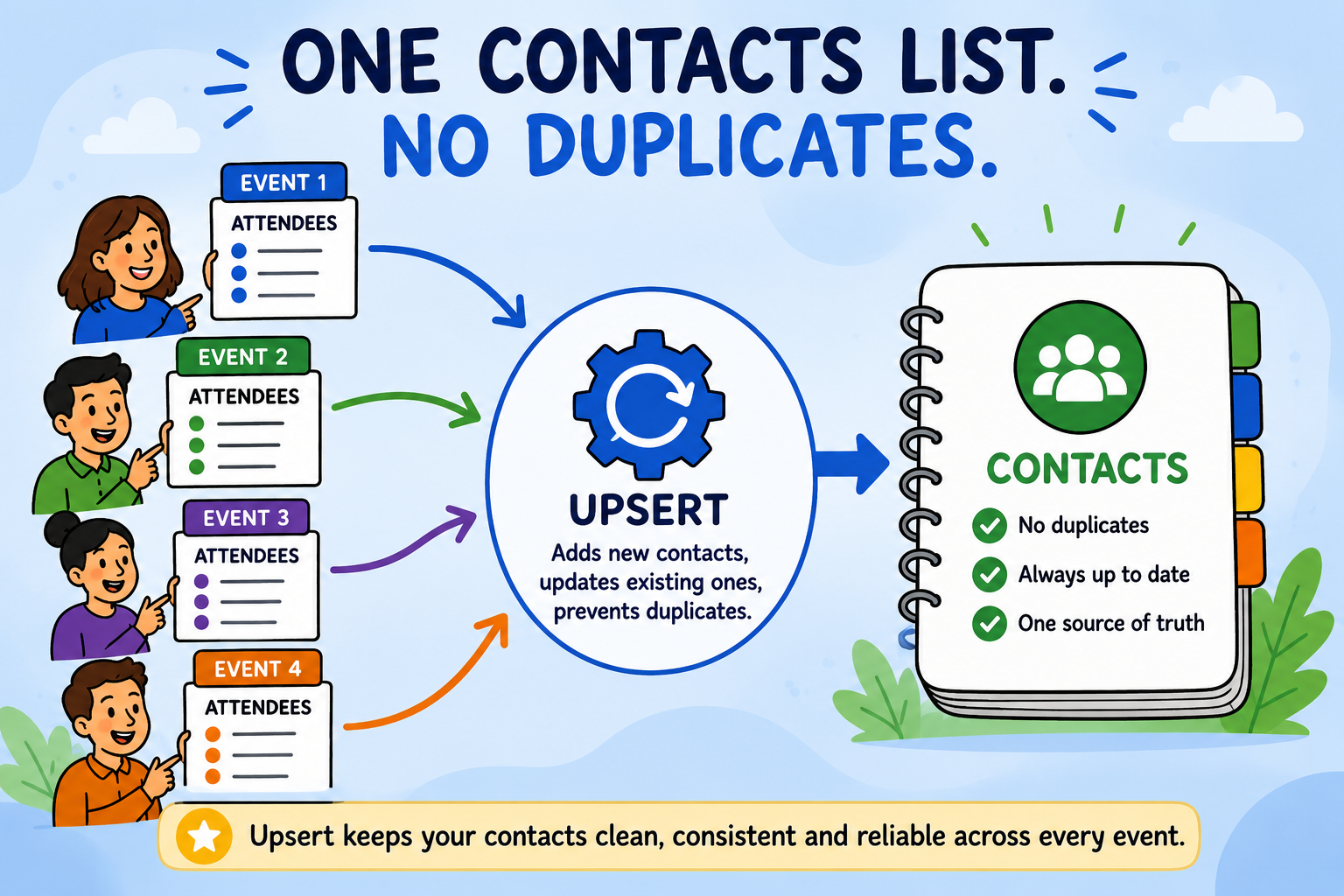
Imagine you have an Events app and an Attendees app embedded to show who is attending the event.
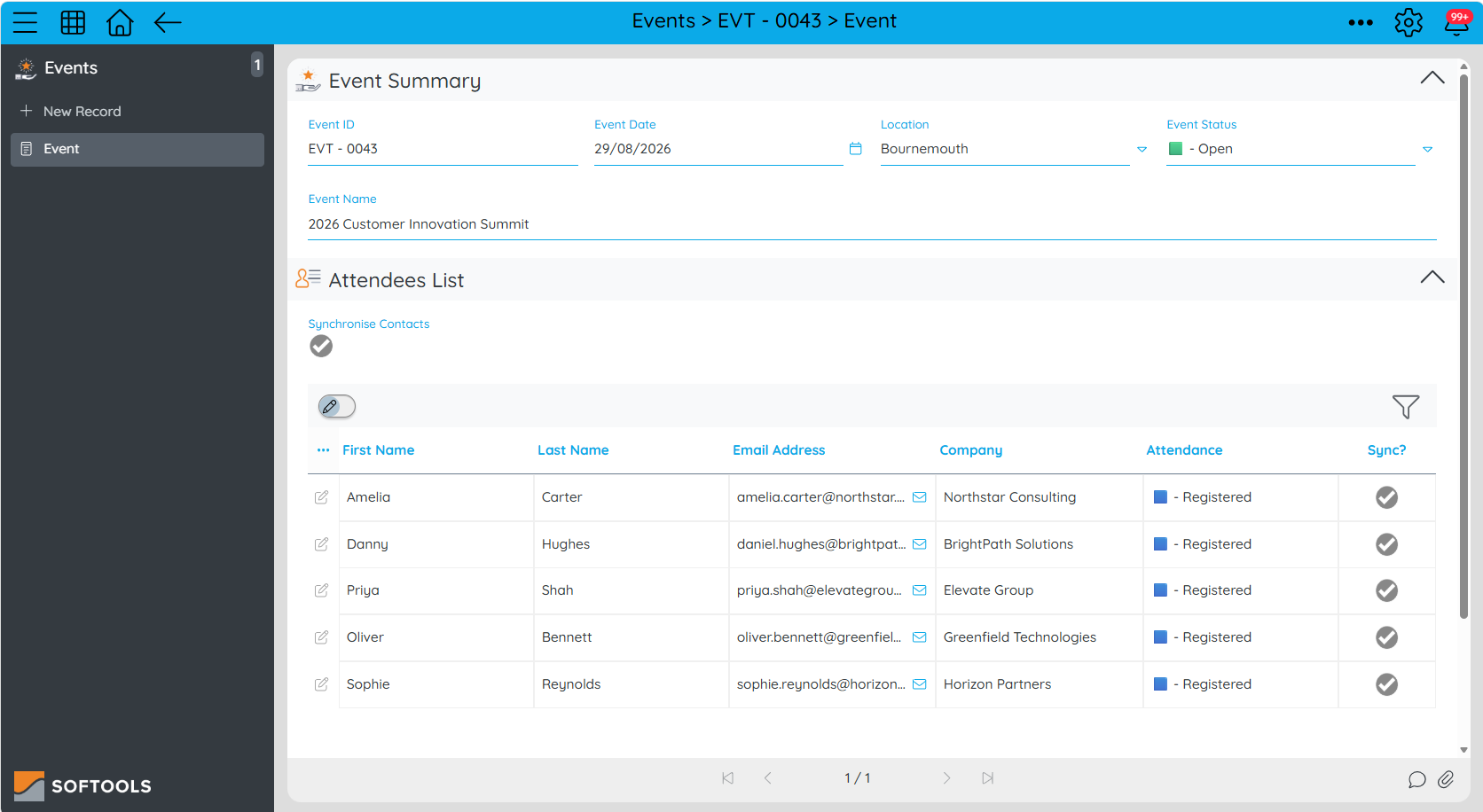
After an event, you want to make sure everyone who attended has a record in your Contacts app. We can trigger a Sync from the Event that will pass a value of Sync equals 'Yes' down to the attendee records.
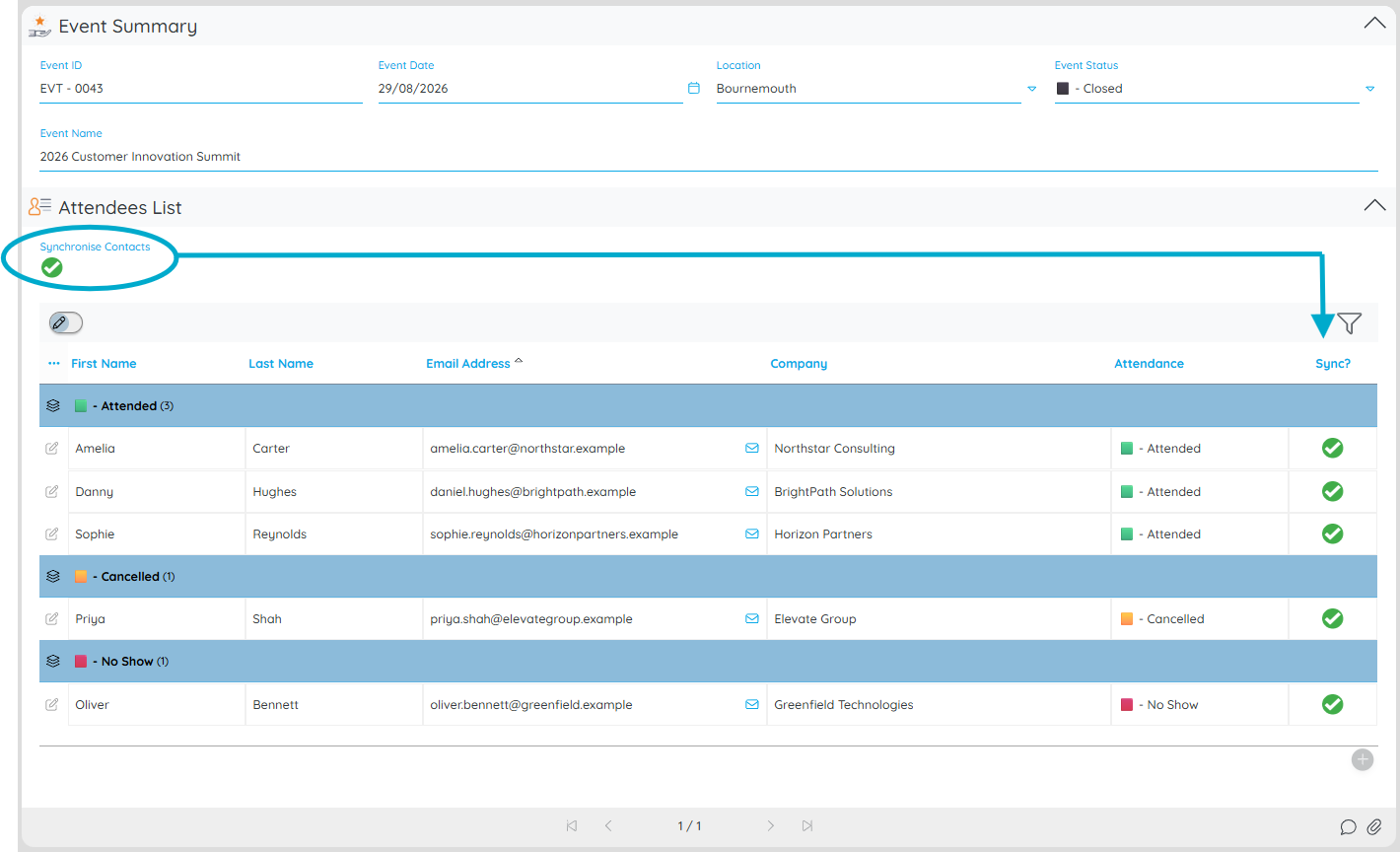
Your Attendee records contain their email address, name and company.
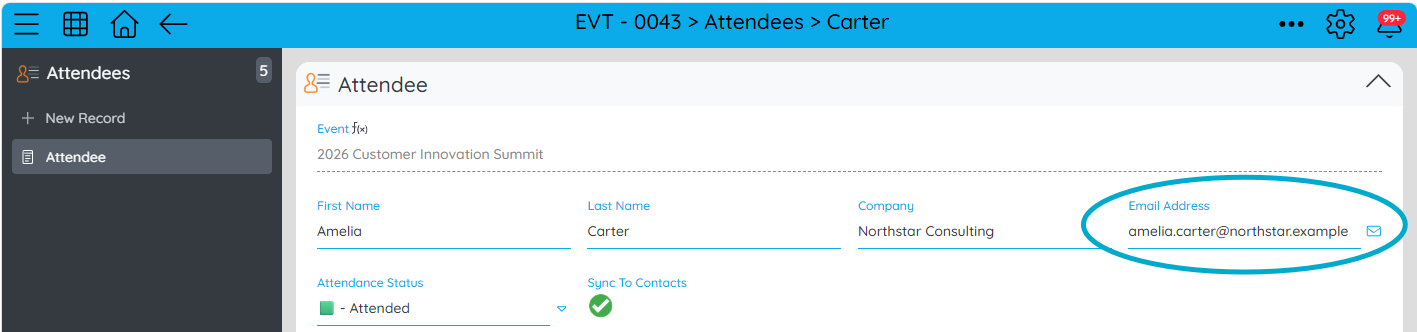
Your workflow can use the email address to Upsert the Contact.

If a Contact with that email address already exists, their details are updated. If they don't exist, a new Contact is created. This is done by first looking to see if there is a match based on the email address.
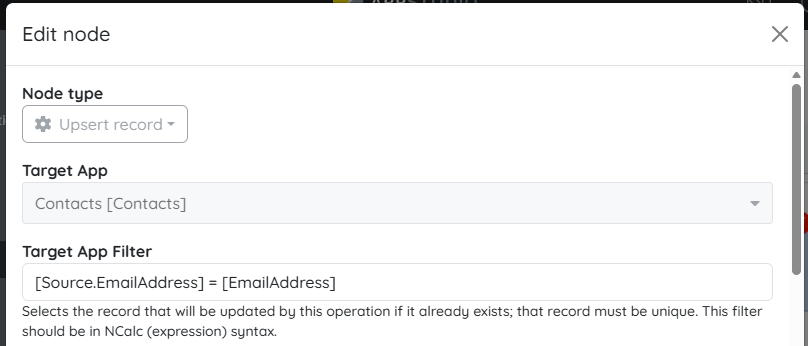
[Source.EmailAddress] is the email address from the Attendee app that triggered the upsert and [EmailAddress] is the Field in the Contacts App to find a value match if one exists.
There are a few different types of updates we can make.
1. Add Values only when they are missing
Suppose we only want to add a value if it is a new Contact or if the Contact does not already contain a value. We can use expressions in the form:
if([FirstName] <> '', [FirstName], [Source.FirstName])
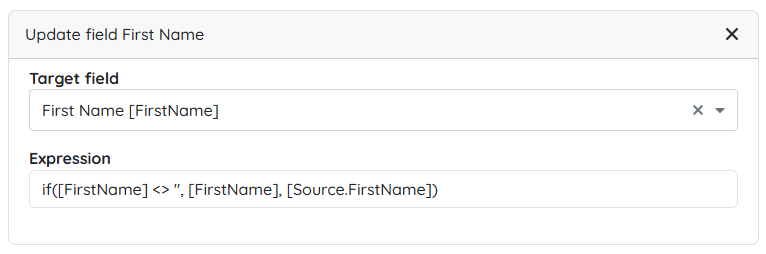
[FirstName] is the current value in the Contact record. If it already contains a value, that value is retained. If it is blank, including when a new Contact is created, the value from [Source.FirstName] is used instead.
Make sure to add the Field value for the unique reference. In this case the Email Address so that the Contact will be upserted after the next event.
2. Record the latest Event activity
Alongside Contact details, you can also update the latest event attendance information such as what the last event they attended was, when it was and what their attendance status was for it.
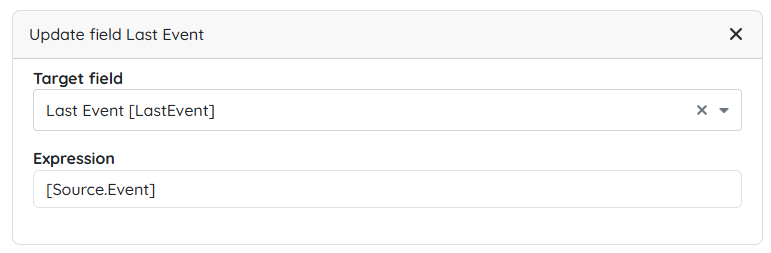
3. Use an incremental expression to count event attendances
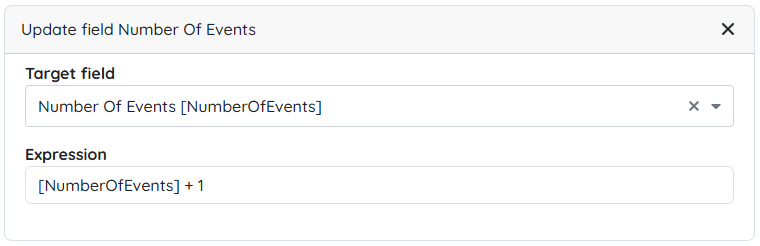
Each time an Attendee is synced it adds one to their attendance count. For new Contacts this would be one but for existing Contacts it will increase by one from their current count.
Note: This assumes that each event is synced only once and that the Sync option is then locked. If users can run the sync again, additional logic will be needed to prevent the same attendance from being counted twice.
For each attendee, we ensure we have a Contact and their latest event attendance information.
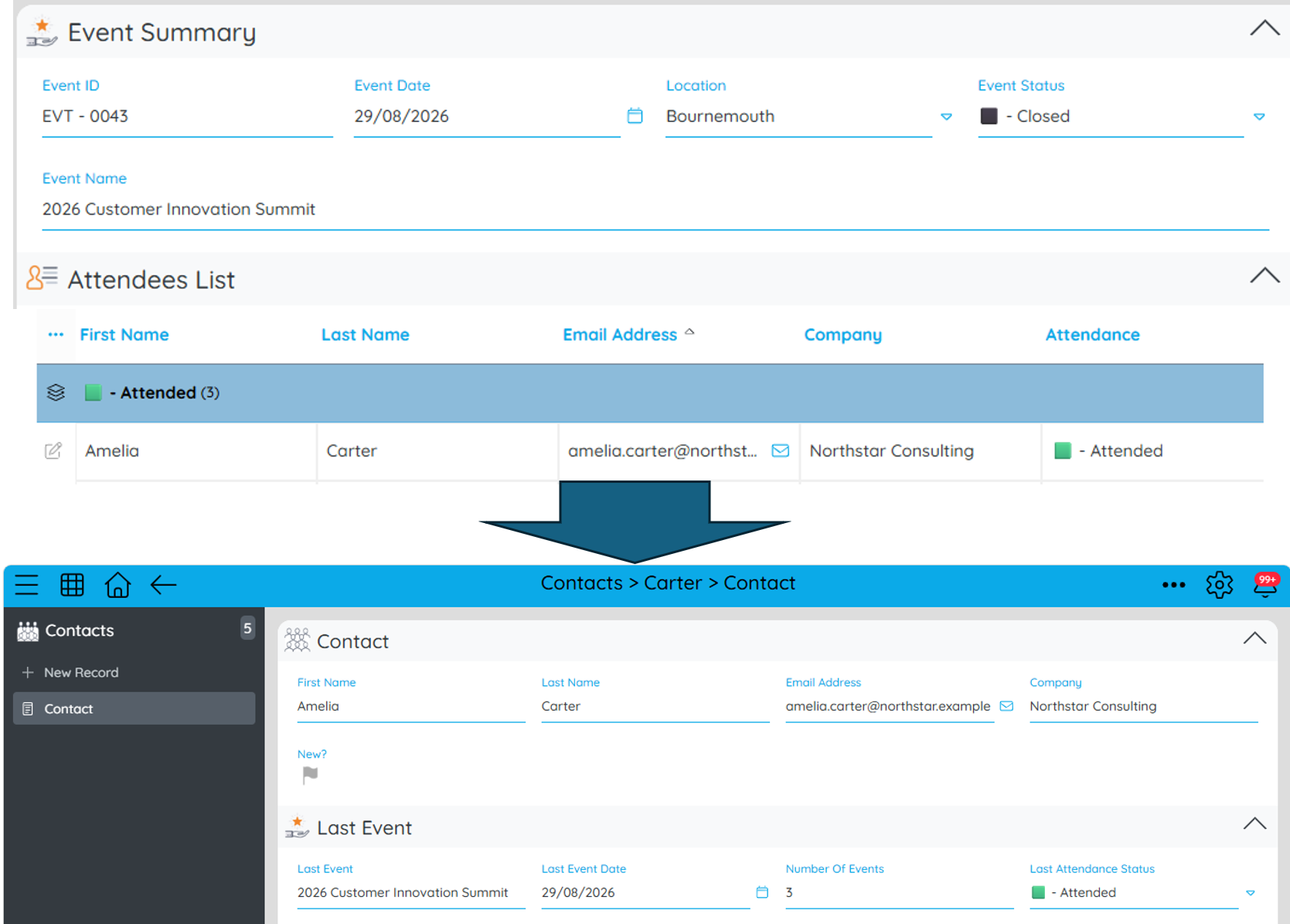
For the 2026 Customer Innovation Summit event attendee list
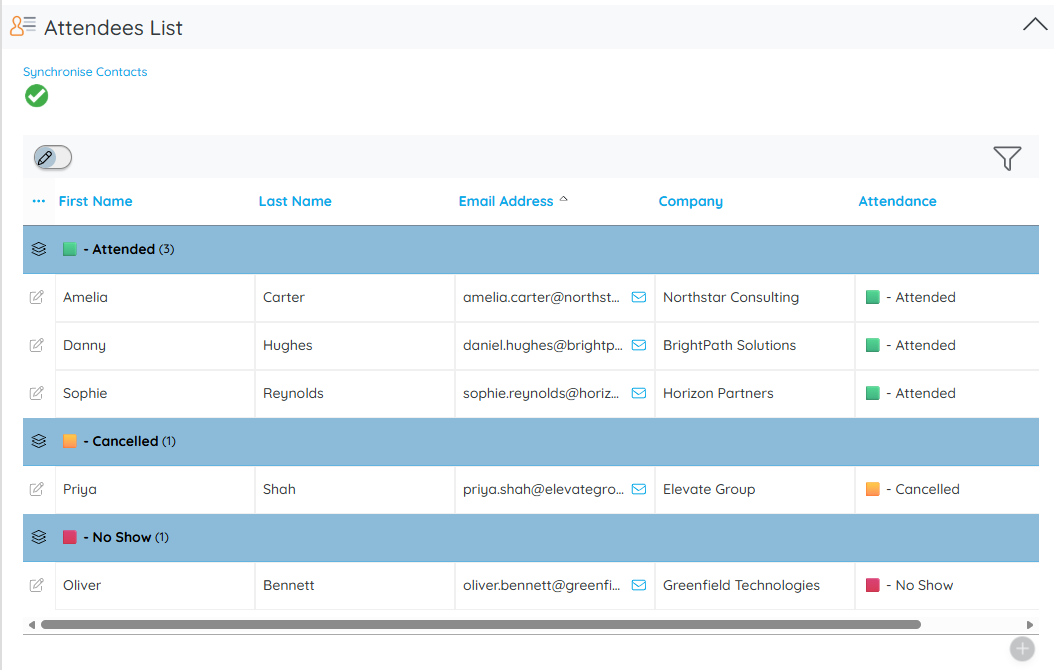
We can see that this has created 2 new Contacts and also updated the latest event information against existing Contact records for the other 5 attendees.
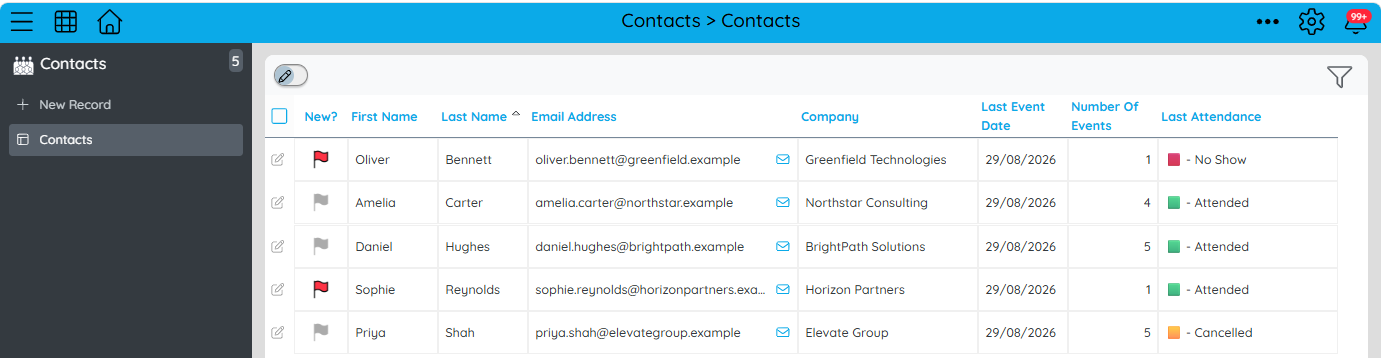
Where it gets really interesting: Tracking Findings from Compliance Audits
Upsert becomes even more useful when you're maintaining an ongoing business process rather than simply avoiding duplicate records.
Consider a compliance audit where a company is assessed against a set of Questions. Each Question is a requirement and has a unique Question ID.
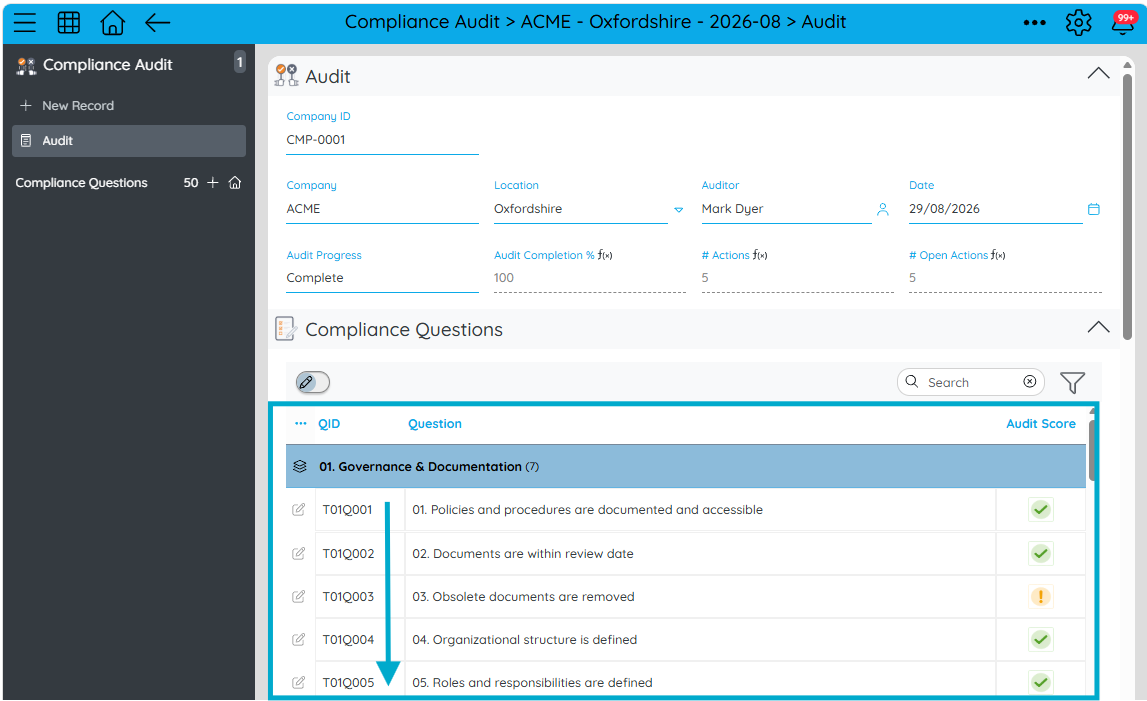
When a requirement fails, you need to raise a Finding and track the remediation.
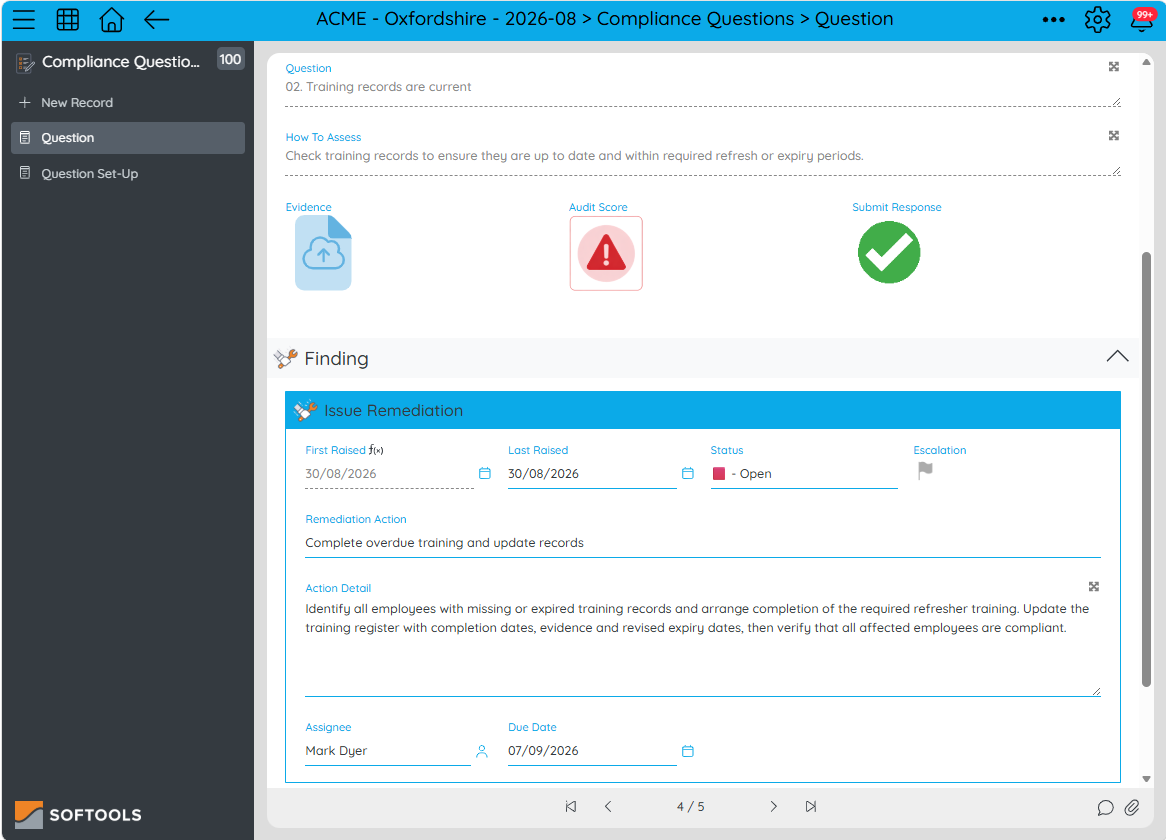
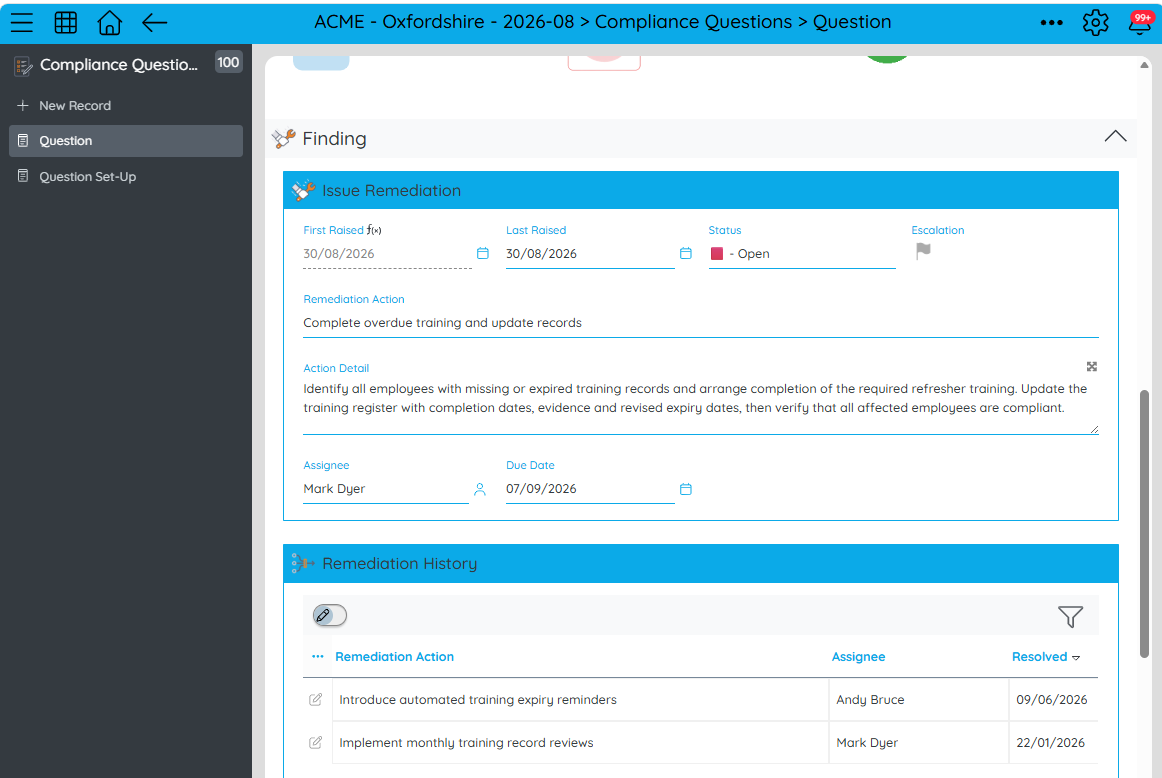
Rather than creating a separate Finding beneath every failed Audit Question, resulting in duplicate Findings across Audits, we can use Upsert to create and maintain a single Finding in a dedicated Findings app. That Finding can then be referenced and displayed within each relevant Audit Question using an Embedded Template.
Remediation History can also be exposed to see how this Finding was remedied if there have been previous failures already resolved before.
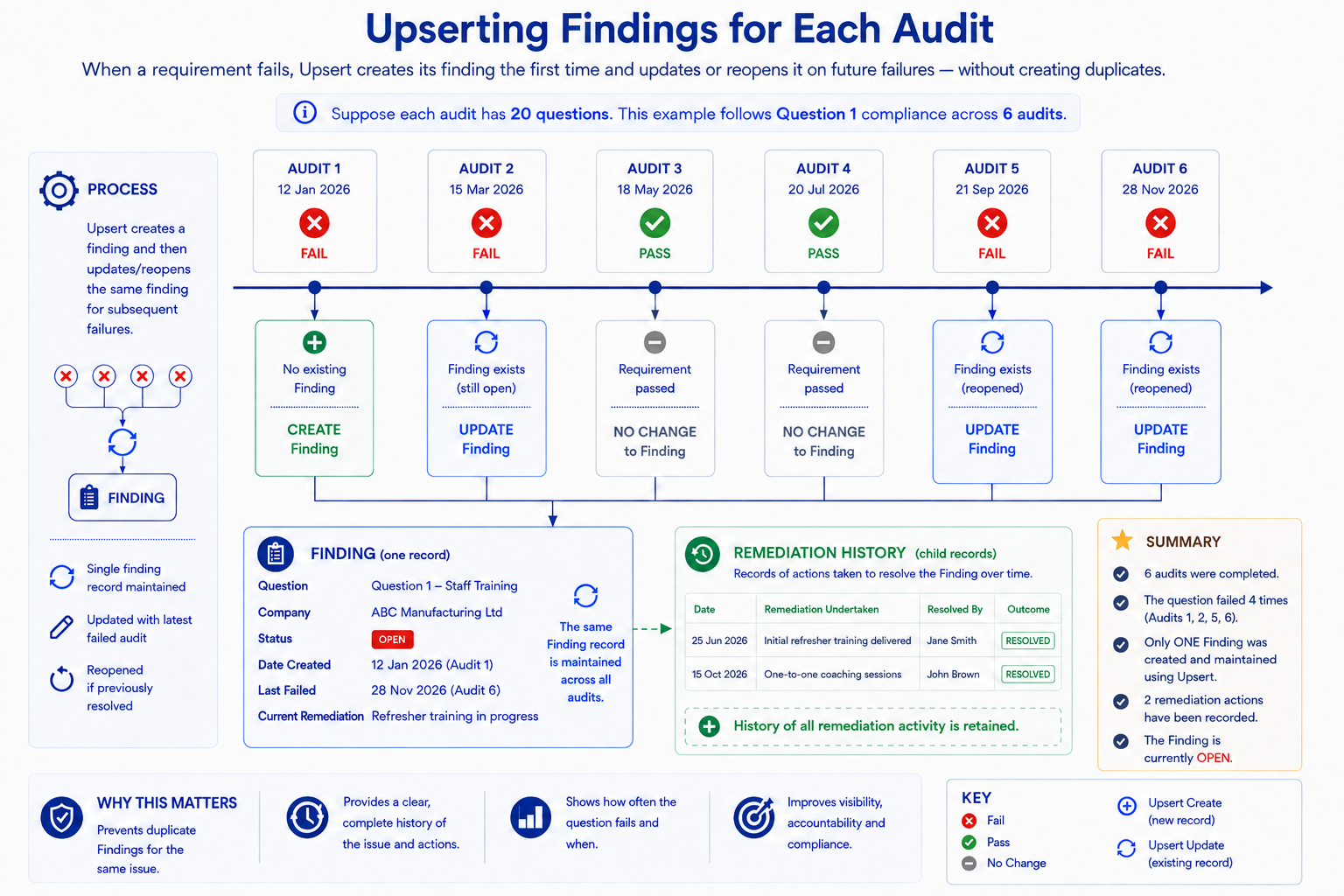
The following diagram explains the Finding upsert logic which we will then break down in this article.
The Finding is held in a separate app and referenced from the requirement.
The Audit's First Failure for the Question
We are completing an Audit and we get to a Question where we score a critical fail. We record it and submit the compliance failure.
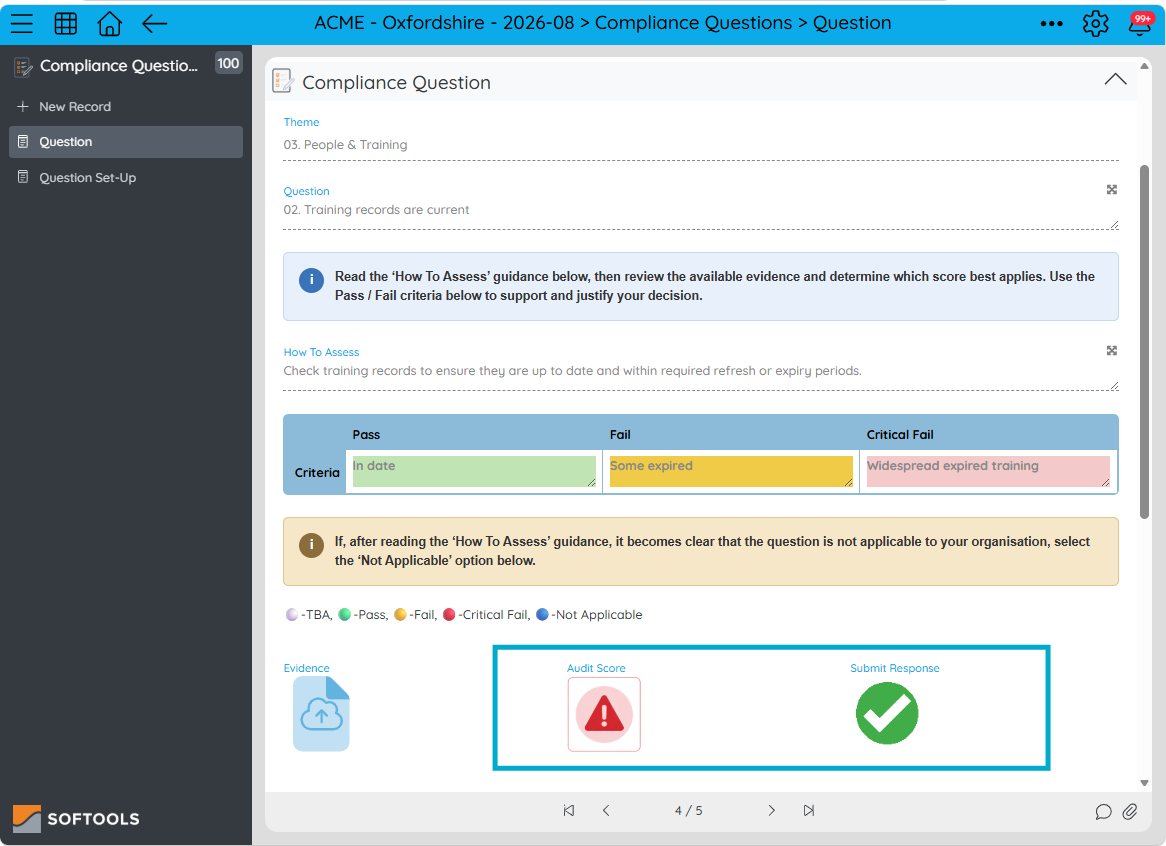
This triggers a workflow to upsert a Finding. We can do this because we have a unique reference for Compliance Audit Findings, which is a combination of the Company ID and the Question ID.
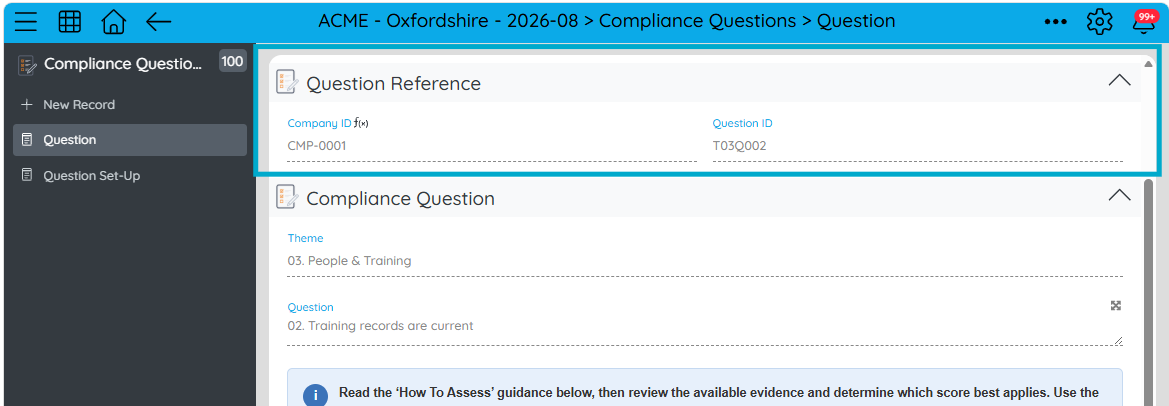
The logic for the upsert workflow is as follows:

Once the Critical Fail is submitted, we run the upsert node. This first checks for an existing Finding based on Company ID and Question ID matching.
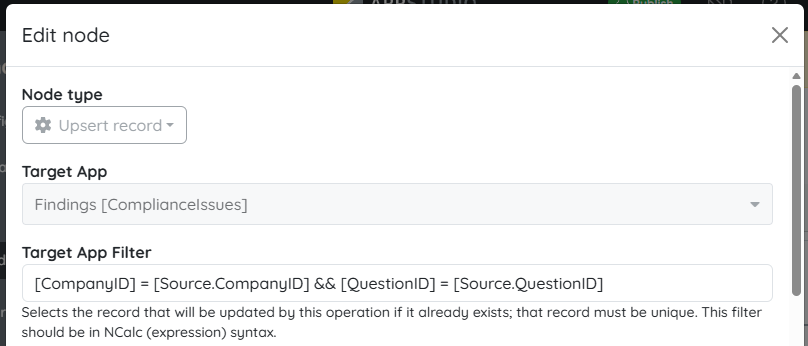
[CompanyID] = [Source.CompanyID] && [QuestionID] = [Source.QuestionID]
Here, [Source.CompanyID] and [Source.QuestionID] are the values from the compliance Question that triggered the upsert and the values in the [CompanyID] and [QuestionID] fields in the Finding records are the values it attempts to match.
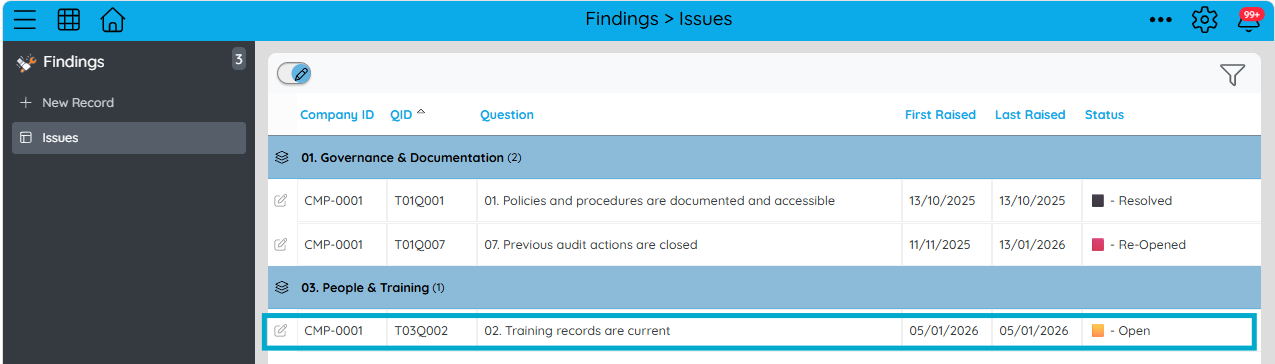
In this case, as there has not been a previous Finding it will create a new one with status open.
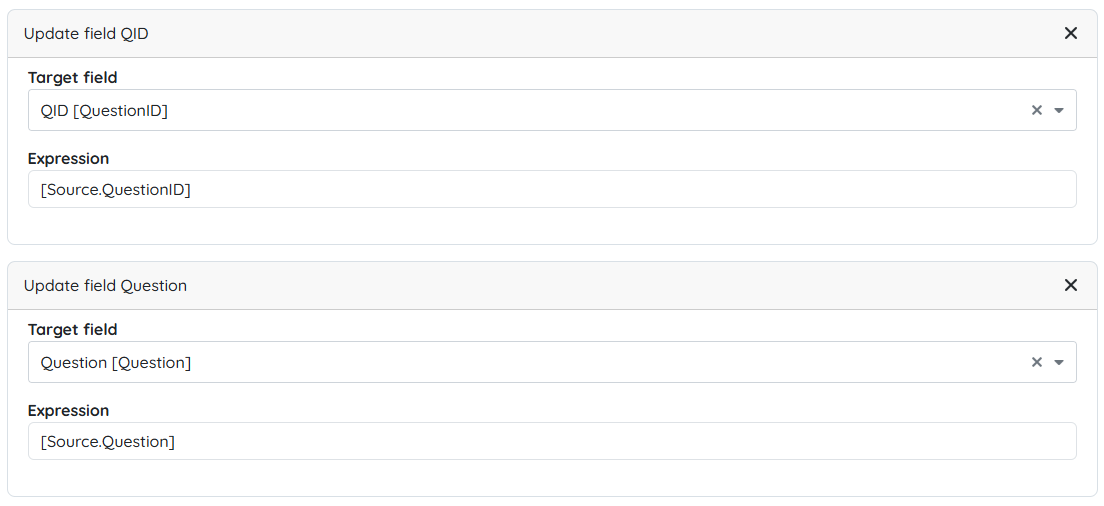
It does this by writing in the Question source data including Company ID, Company, Question ID & Question using [Source.FieldID] references.
We also set the latest date this Finding was made.
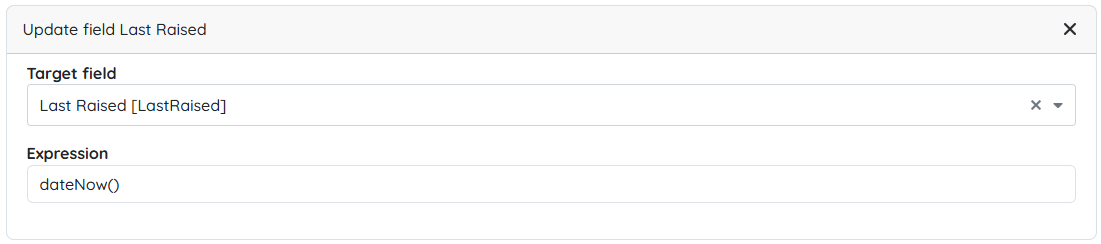
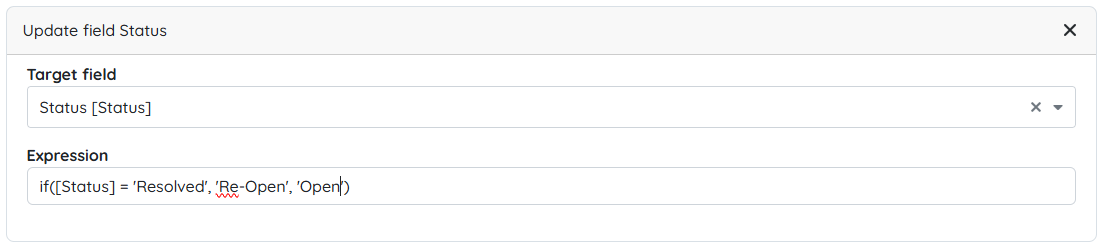
The status could be one of three states. Either the Record is new and so the Status should be Open, the Finding is already open in which case it remains open or it was previously resolved and so should be re-opened. Therefore we can use the following:
The Question fails again in another Audit
The same requirement fails again. This time, the Finding already exists when using the matching filter:
[CompanyID] = [Source.CompanyID] && [QuestionID] = [Source.QuestionID]
Rather than creating another Finding for the same underlying issue, Upsert finds the existing record and updates it. If it is still open from the first time it was raised it will retain its 'Open' Status. If it was resolved and this is a new failure then it will be marked as re-opened.
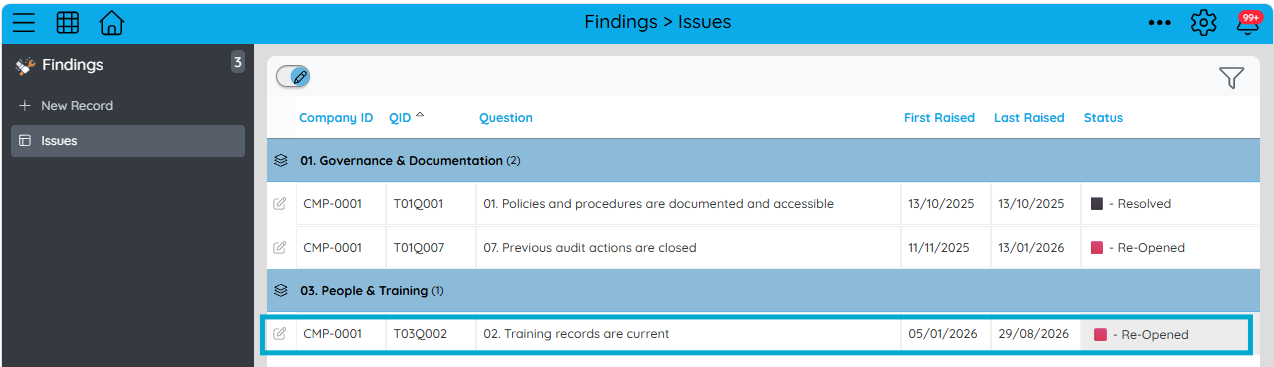
The latest audit can therefore continue to reference the same Finding, keeping the remediation in one place.
And if the requirement passes the next five audits before failing again?
The workflow can still find that original Finding and re-open it.
Viewing the Finding within the Audit Questions
But if the Findings are in a separate App, how do we see them from the Audit Question?
The answer to this is by using an Embedded Template.
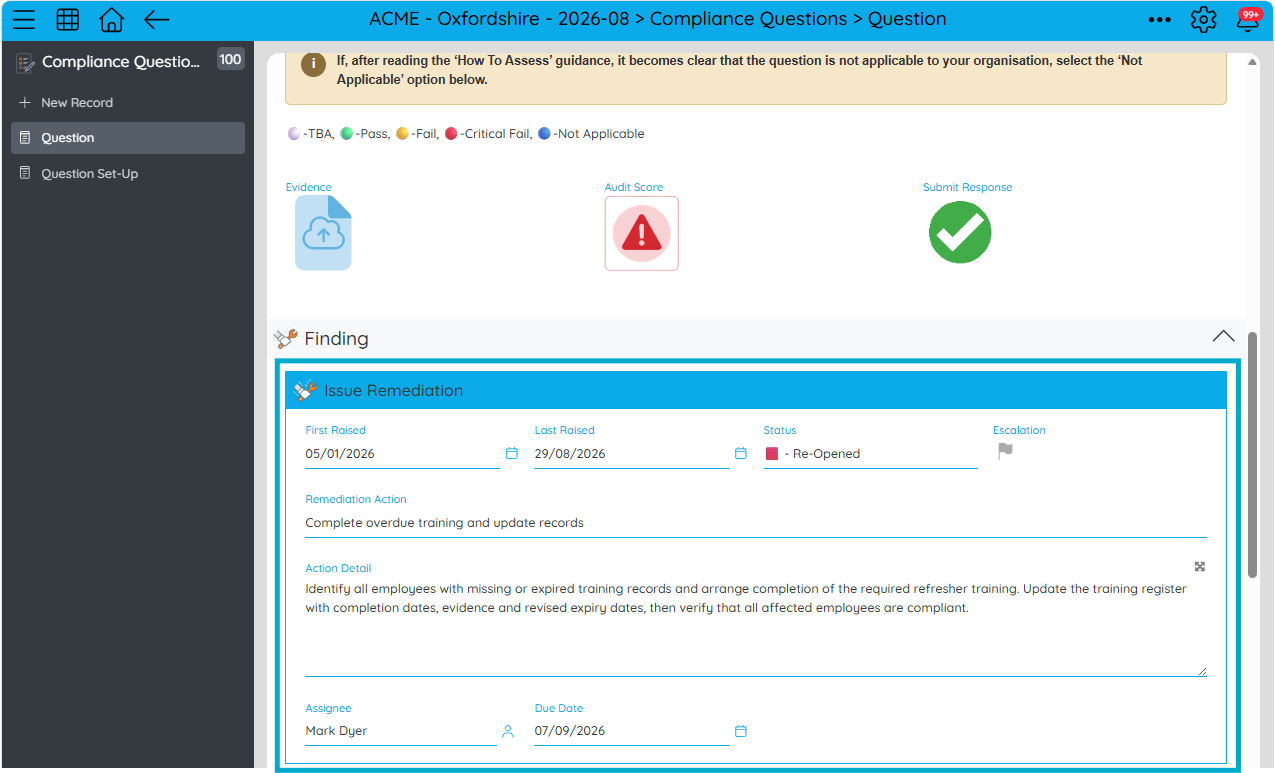
Set up a reference Field in the Questions App that references the records in the Findings App. You can then configure an embedded template based on the relevant Finding Record being selected.
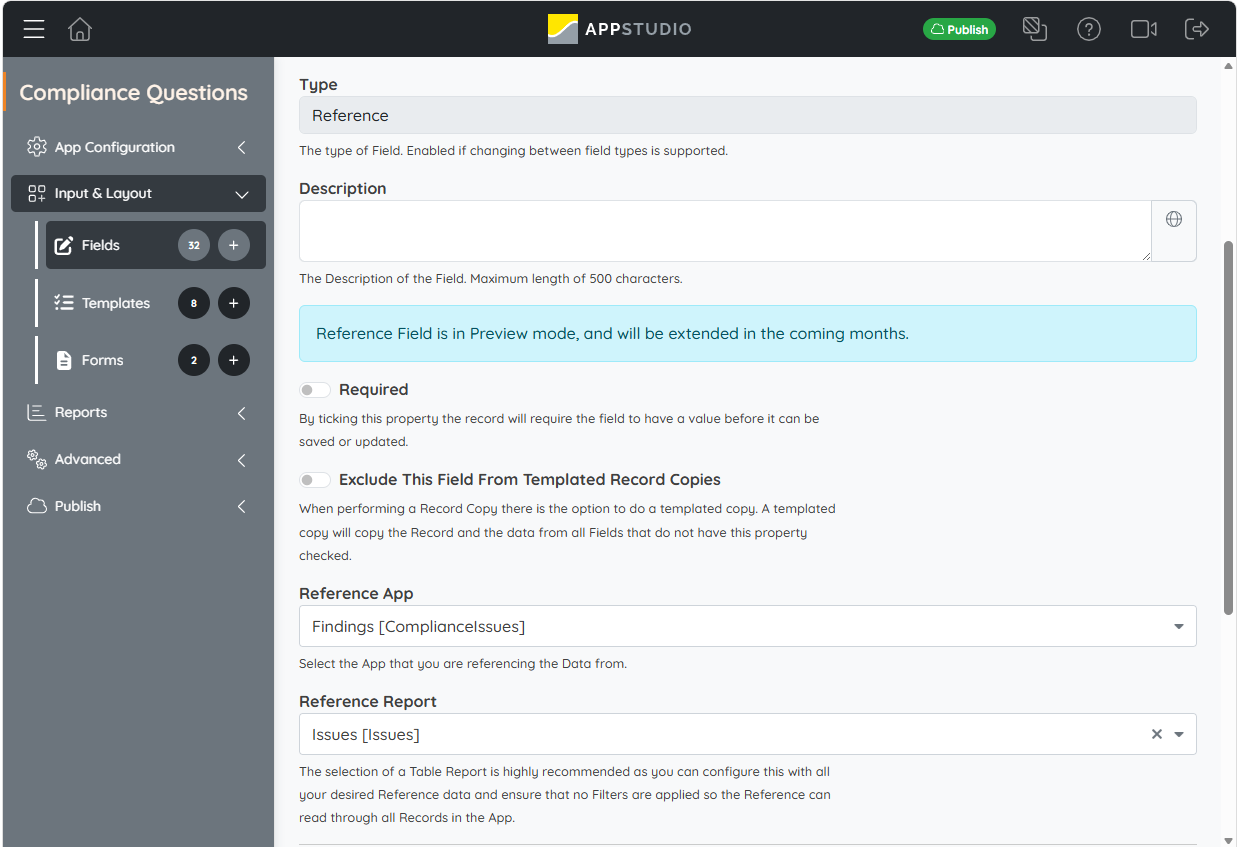
Add a Field in the Findings App to capture the Softools Record ID
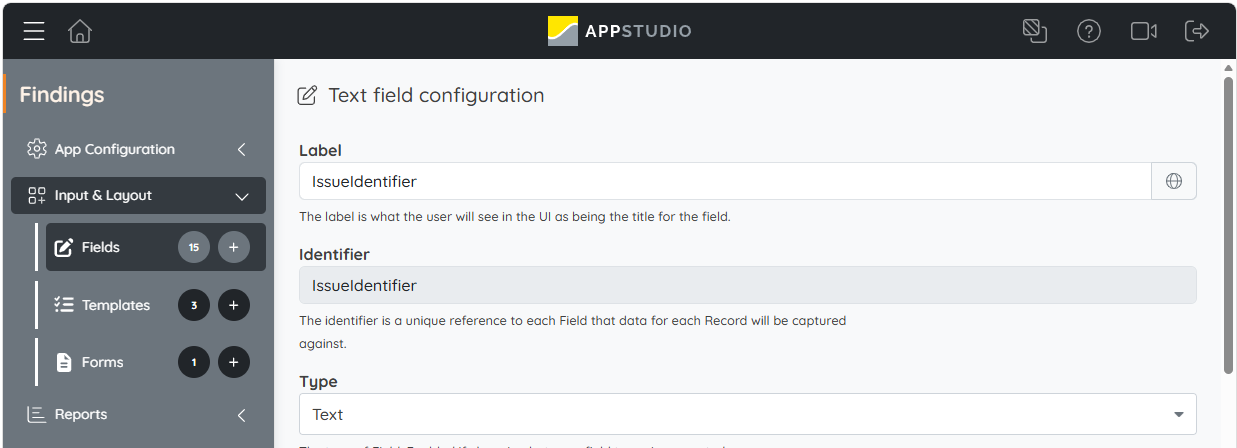
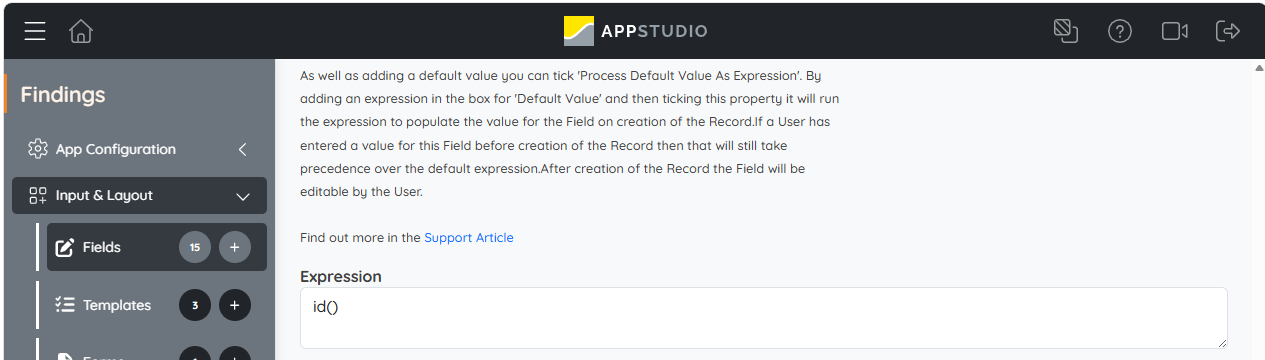
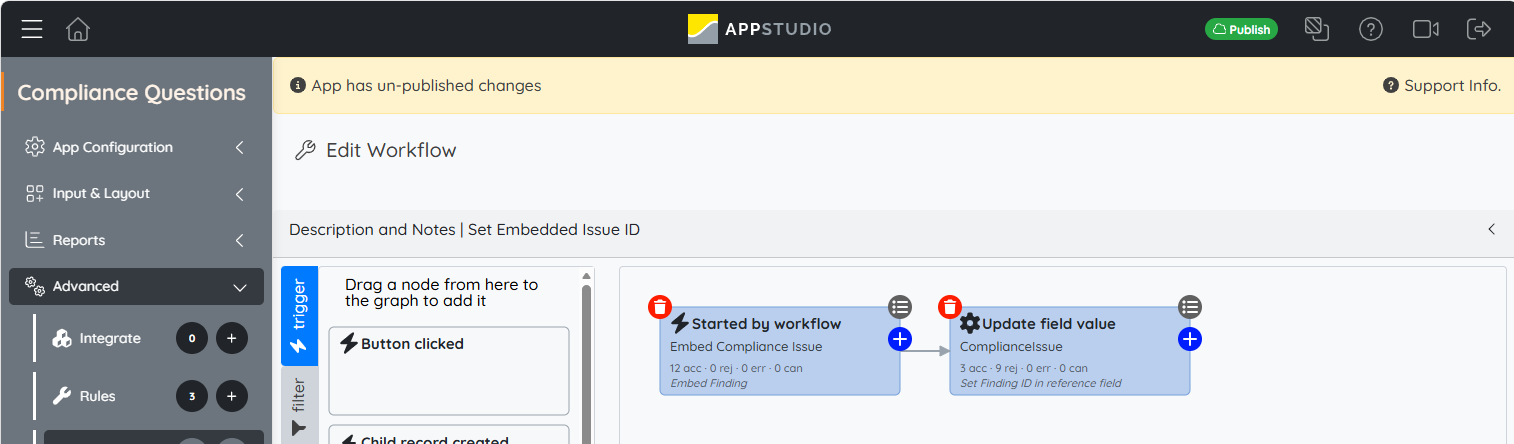
Add a workflow in Findings, so that when the Finding is upserted (i.e. the Last Raised Date changes), it finds the records in the Question App and puts the Finding ID into the Question Records. This then means the embedded template will display the latest status of the Finding in the Question.
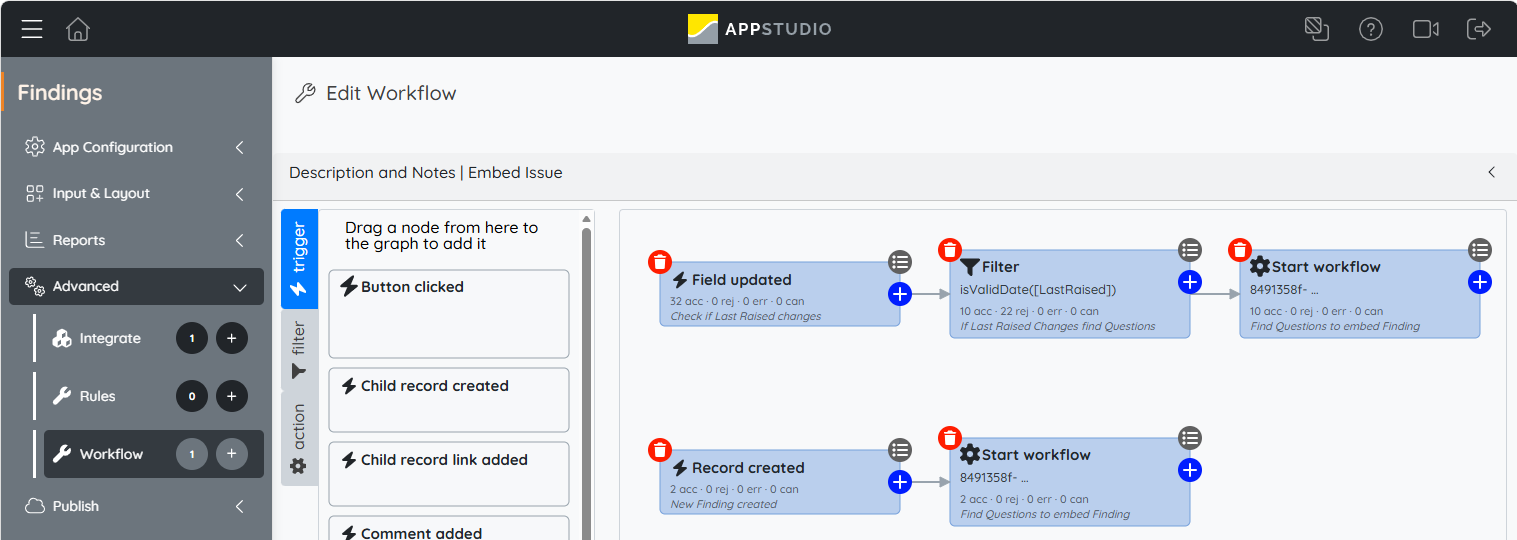
The key is to filter to the Questions where again Company ID and Question ID match.
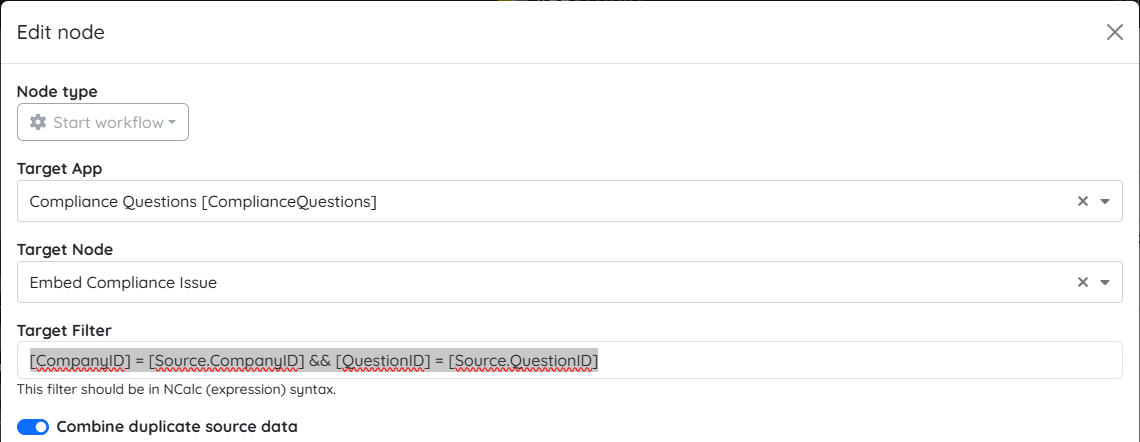
[CompanyID] = [Source.CompanyID] && [QuestionID] = [Source.QuestionID]
Then match this to a Started by Workflow process in the Compliance Questions App to set the Finding ID in the reference field in the related Question Records.
Keep the history
The Finding can represent the current state of the compliance issue, while a child Remediation History app records each completed remedy.
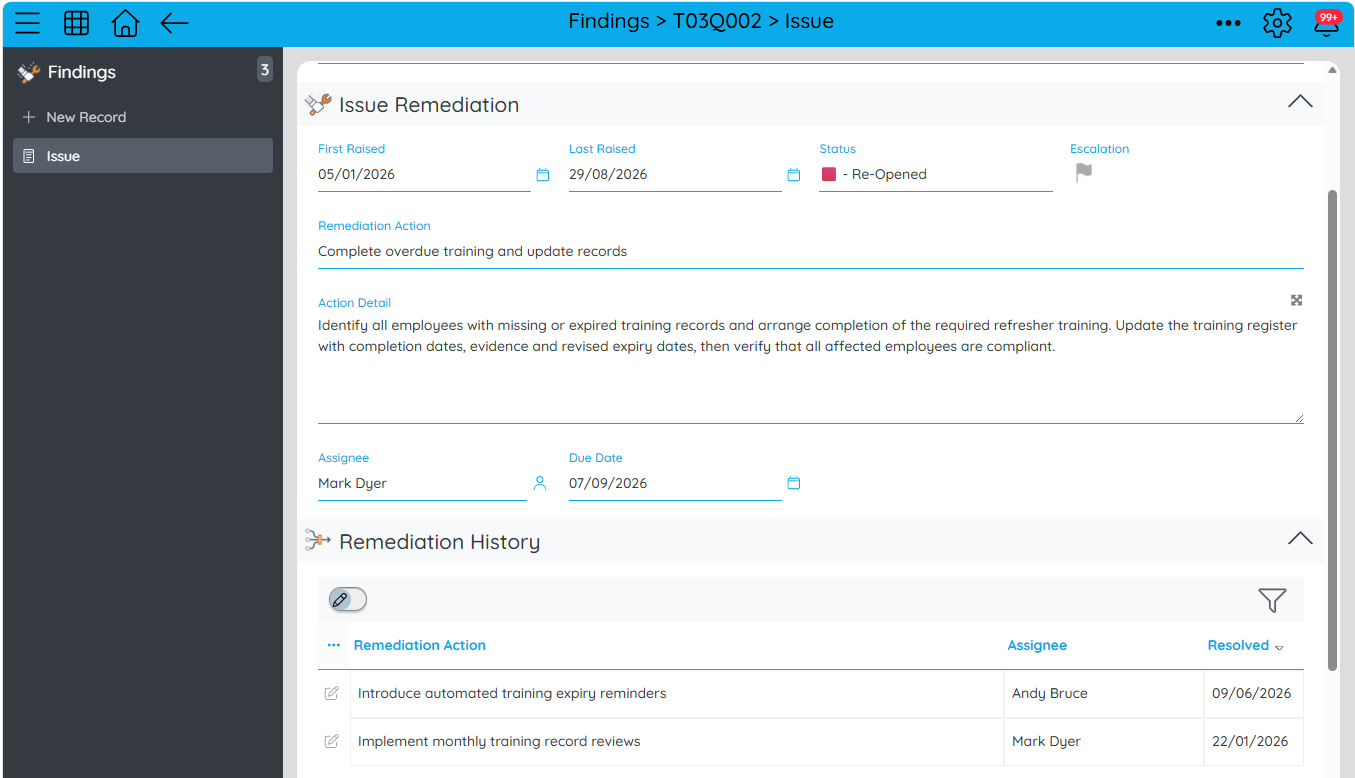
When the issue is resolved again, another Remediation History record can be created. This can be automated using the Record Create Node and passing down the information into the child Remediation History App.
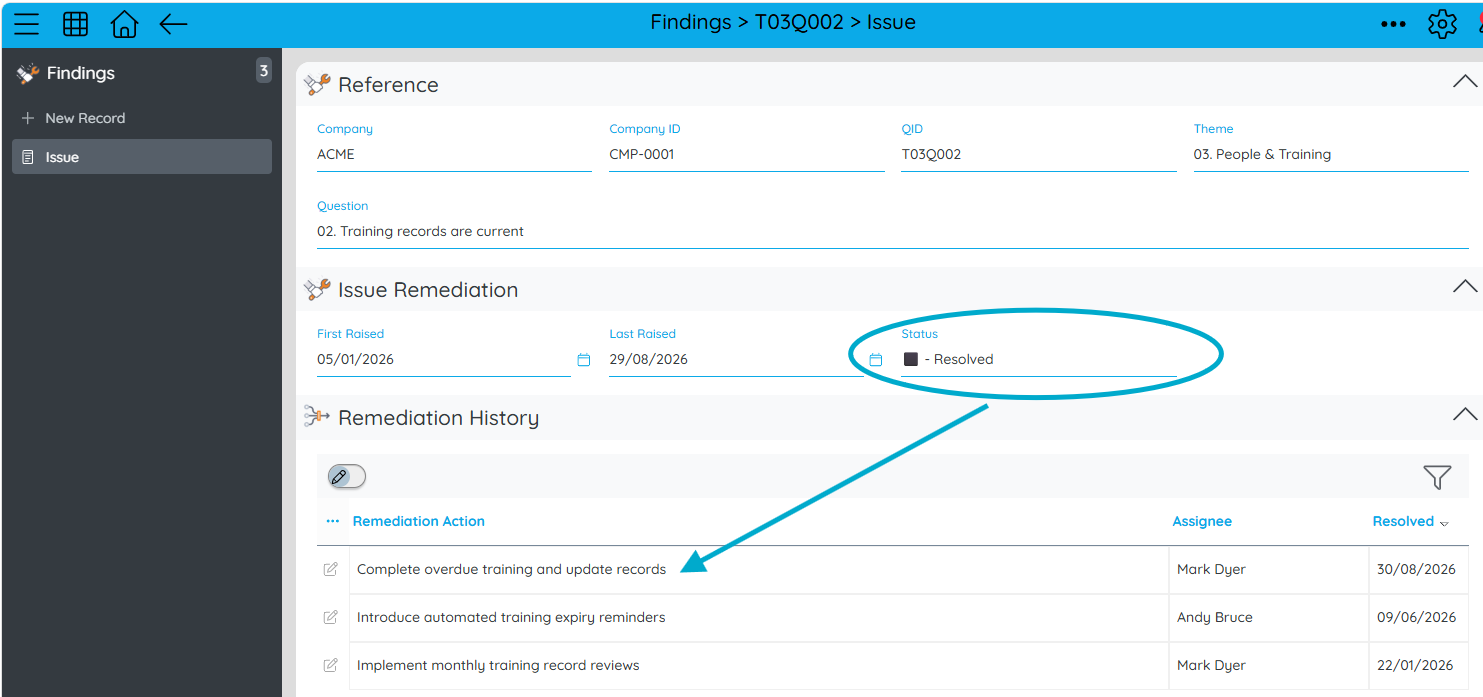
If it subsequently fails again, the Finding is simply re-opened with blank fields to start a new remediation with the history of previous remediations still available.
It can also be embedded within the Question with the current remediation status using an embedded reference template.
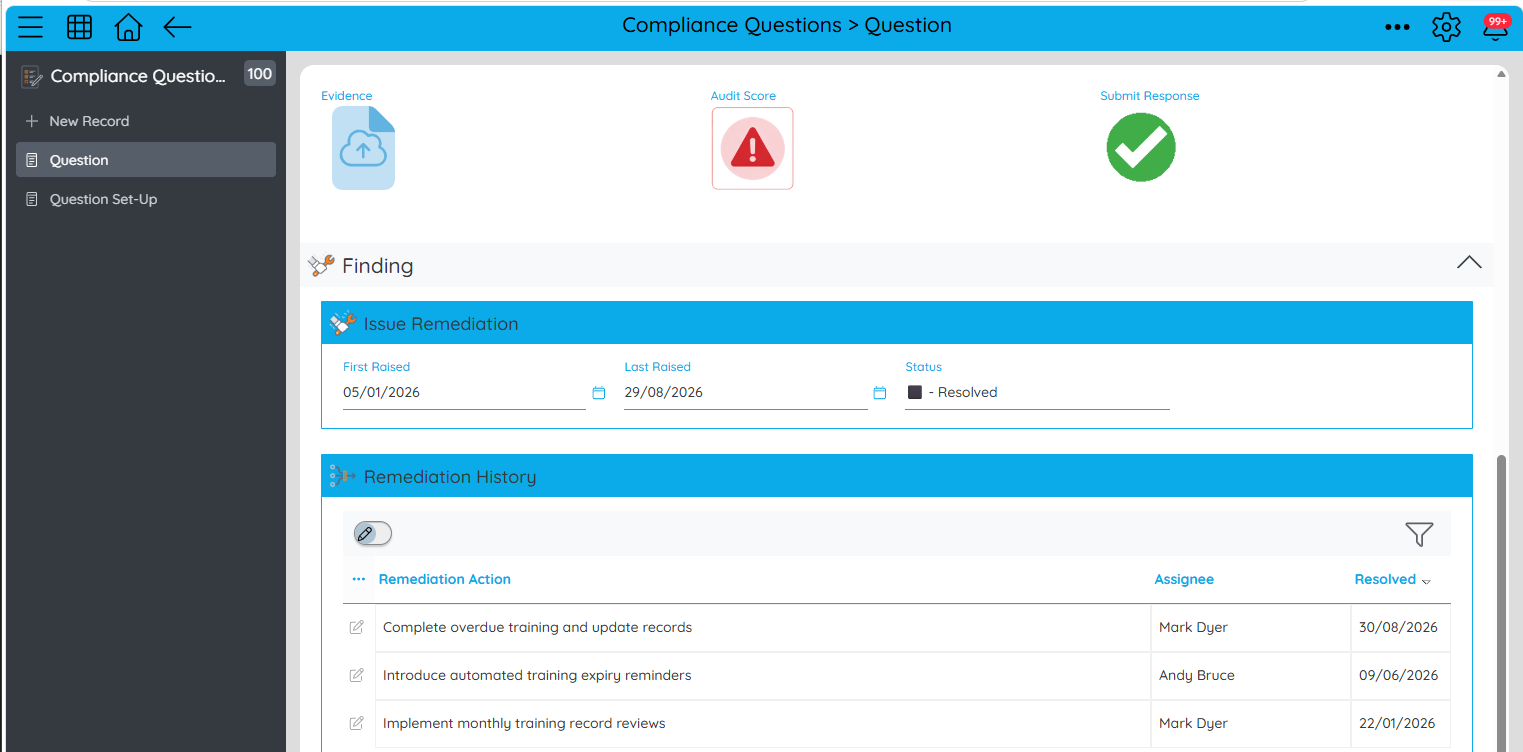
This gives the business a much richer view of the issue:
- The Audit records what happened during each assessment.
- The Finding represents the ongoing issue.
- Remediation History records what has been done to resolve it.
And Upsert keeps those pieces connected without creating a new Finding every time the same requirement fails.
A simple pattern with powerful possibilities
The value of Upsert is that your workflow doesn't need to decide whether it's dealing with something new.
You define what makes the record unique, and Upsert takes care of the rest.
- Match found → Update
- No match → Create
From keeping Contacts up to date after events to maintaining recurring compliance Findings, it's a useful pattern whenever your business process needs to create something the first time and maintain it thereafter.
Please sign in to leave a comment.
Comments
0 comments