Bring Data from Multiple Apps into One Word Report

We'll start with a simple Project export, then build a reusable Pillar report containing Projects, Actions and Benefits from across a project portfolio solution.
Export Template Reports can do more than populate a Word document with Fields from a single Record. They can also bring together related information held across multiple Apps.
This walkthrough starts with a straightforward Project report and then develops the same idea into a broader report generated from a Digital Pillar Record.
Key concepts we will cover are:
- Exporting Record level data using the @Field() keyword
- Exporting Child App Data
- Exporting Data from Apps further down the Hierarchy
- Exporting related data from standalone Apps outside the Hierarchy
- Using dynamic filters and IgnoreHierarchy? in @Report() keywords
- The use of the @ChildAppTemplatedReport() keyword
Start with a Project and its linked Actions
A Project report is the simplest place to begin.
The selected Project Record contains the Project details, while its Actions are held as linked Records beneath it.
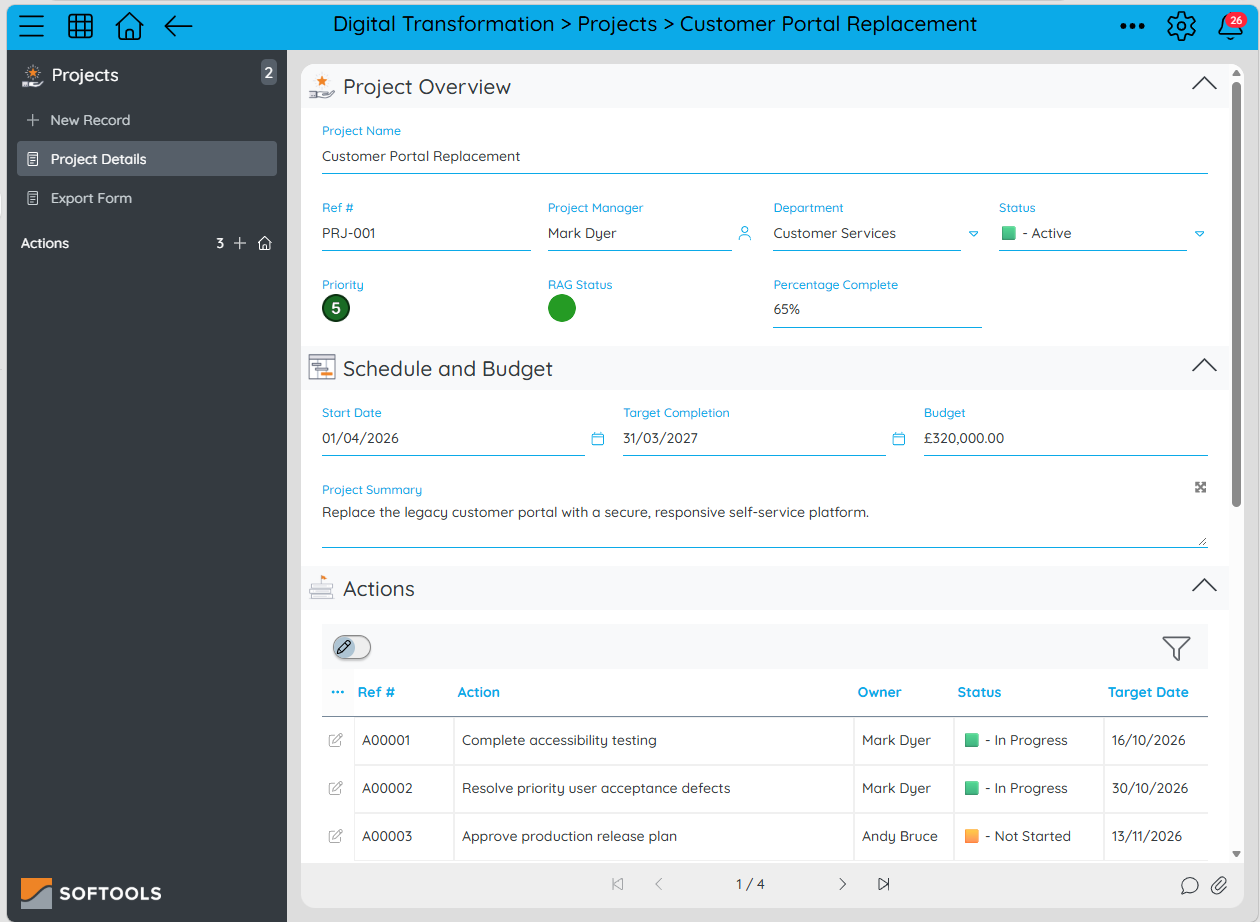
The source information is held across the Projects and Actions Apps.
This allows us to produce a reusable Project report containing information from two Apps:
- The selected Record being exported from the Projects App
- Its linked Records from the child Actions App
The Word template uses Field keywords for the Project information and a List Report keyword for the linked Actions.
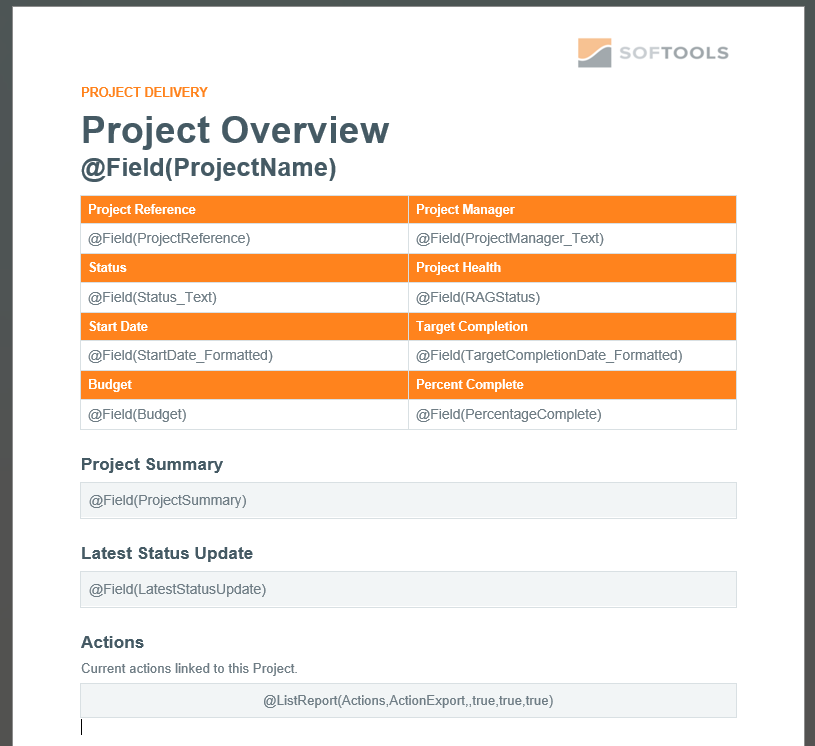
Field keywords populate the Project overview. The List Report inserts the Actions linked to that Project.
For example, the template uses @Field(ProjectName) for the Project name and the following keyword for the Actions table:
@ListReport(Actions,ActionExport,,true,true,true)
When the export is run from the Customer Portal Replacement Project, Softools replaces those keywords with information from that Project and its linked Actions.
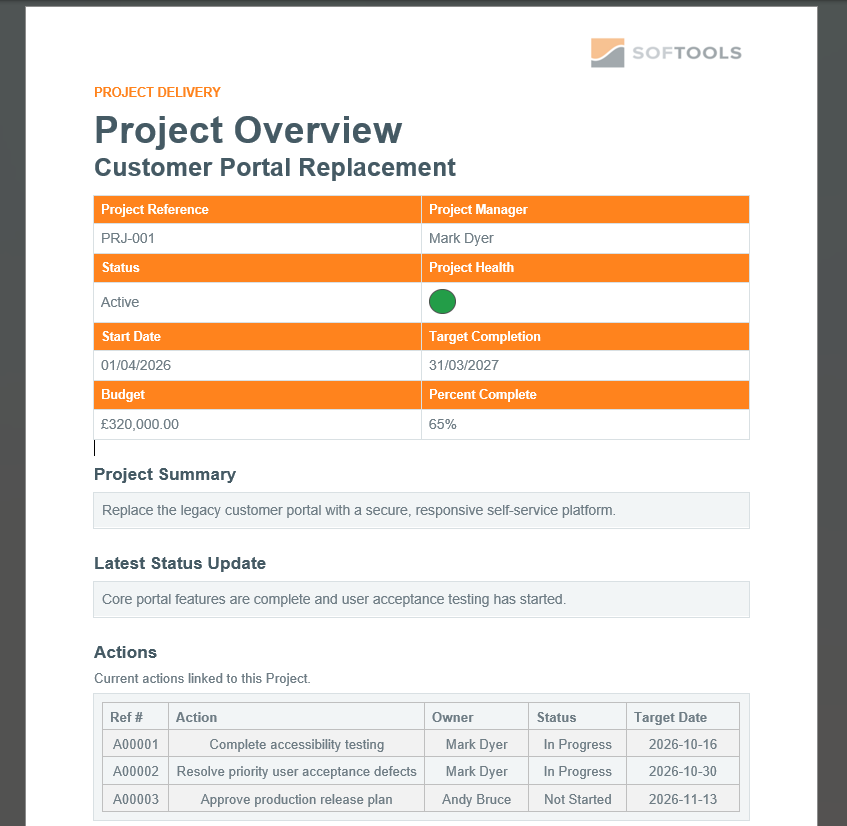
The finished Word report combines the selected Project Record with its linked Actions.
This is the starting pattern: export one Record and include information from an App linked directly beneath it. The Pillar example extends that pattern across a wider App structure.
Develop the same idea into a Pillar report
A Pillar sits at a higher level to projects. Consider generating the report from a Digital Pillar Record instead.
The Digital Pillar has several Projects linked beneath it, and each Project has its own linked Actions. Expected Benefits are held separately in a standalone Benefits App.
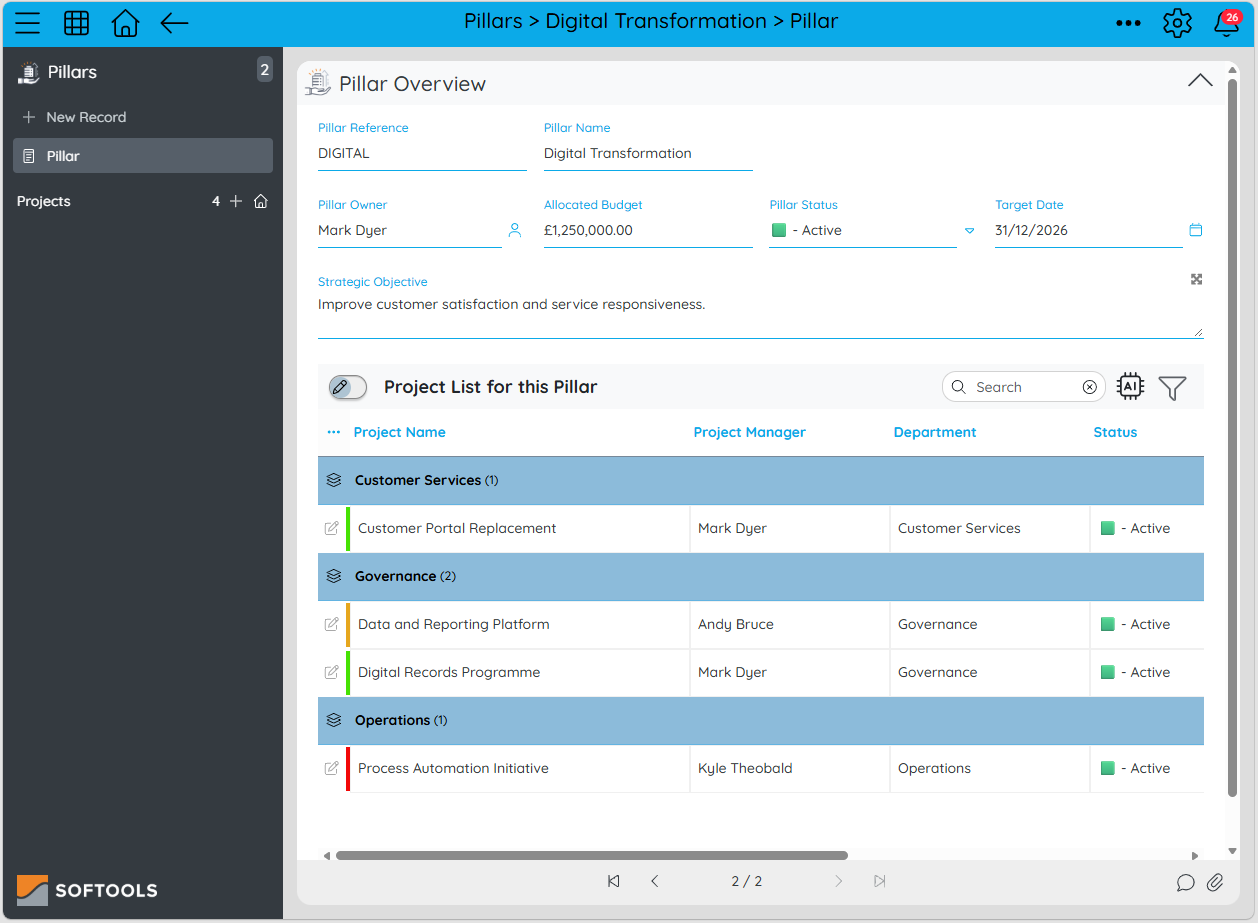
The export is run from the Digital Transformation Pillar Record, which already has four Projects linked directly beneath it.
The Benefits are different. They are held in a separate Benefits App rather than linked beneath the Pillar. Each Benefit carries a Pillar Reference, allowing the export to select the Benefits that match the Pillar Record being exported.
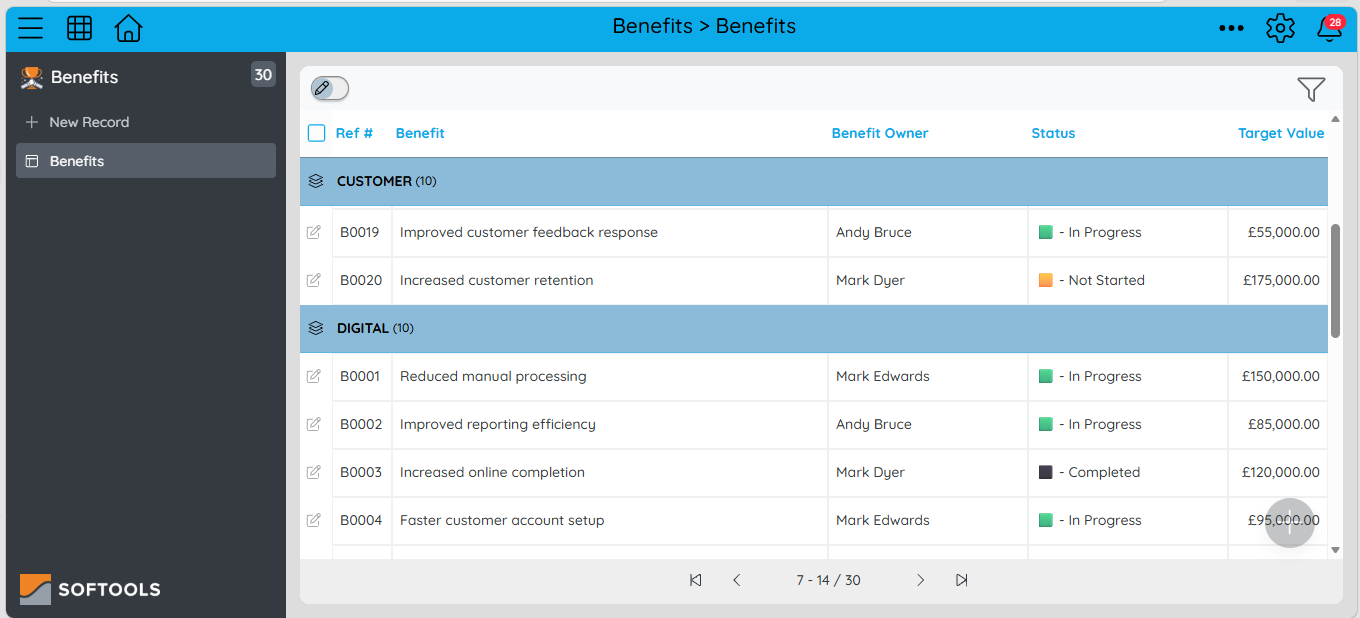
The Benefits App is separate from the Pillar hierarchy. The Pillar Reference identifies which Benefits belong in each Pillar report.
The Pillar export needs to combine:
- Digital Pillar overview: The selected Pillar Record
- Projects: Records linked directly to the Pillar
- Actions: Records linked beneath those Projects
- Expected Benefits: Matching Records in the standalone Benefits App
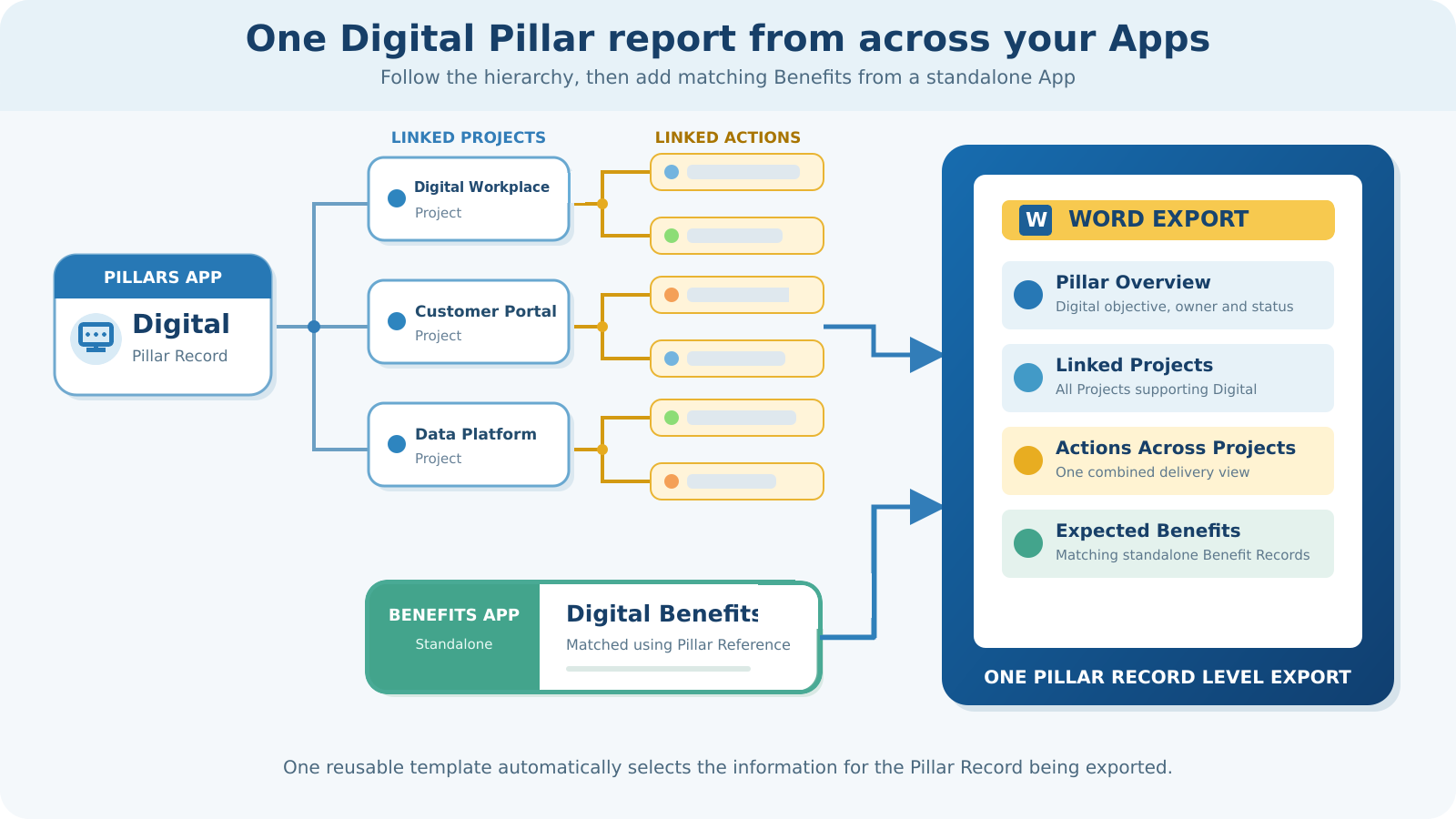
One export from the Digital Pillar Record can bring together information held across the Pillars, Projects, Actions and Benefits Apps.
Choose how to organise the finished report
The same Pillar information can be presented in two different ways. Both options start with the same Digital Pillar and use the same Projects, Actions and Benefits. The difference is how Projects and Actions are organised in the finished Word document.
Option 1: A separate section for each Project
In the first design, each linked Project becomes its own report section. Its Actions stay with that Project, while matching Benefits are consolidated at the end.
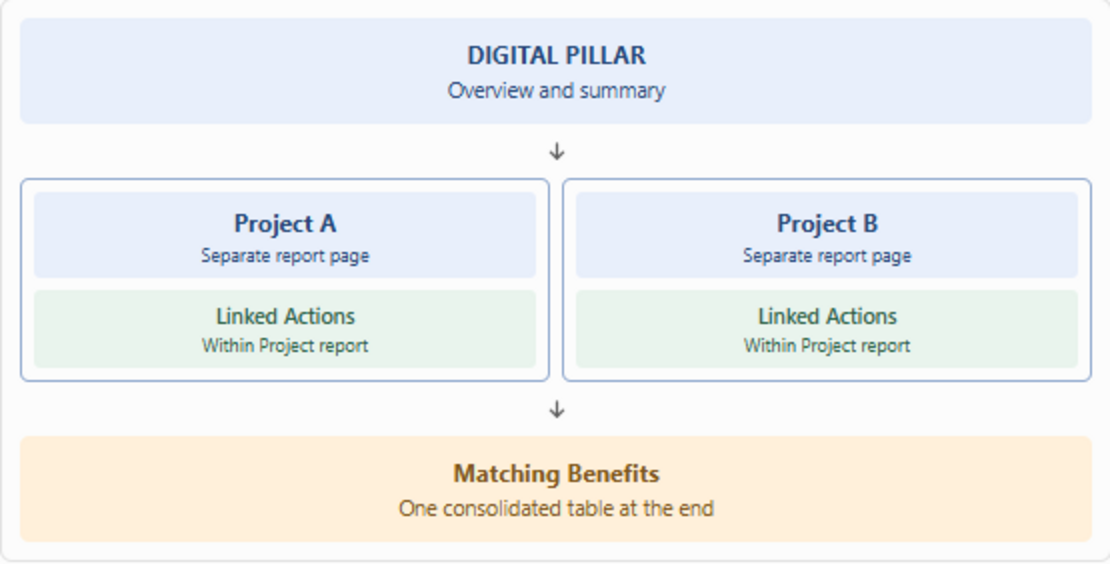
Each Project has its own report section and linked Actions. Matching Benefits appear once at the end.
Use a Child App Templated Report to generate a separate report for every Project linked to the Pillar. The main template begins with the Pillar overview.
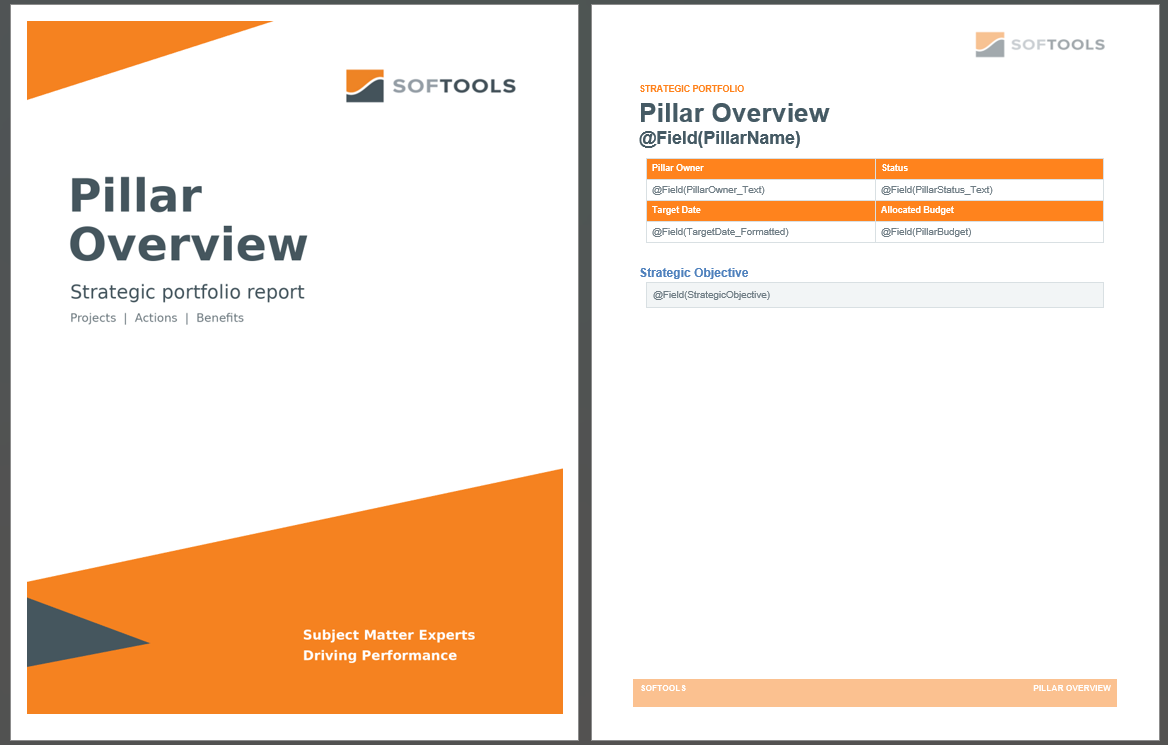
The next section contains the Child App Templated Report keyword. It also includes a dynamically filtered Actions by Status Report to create one Pillar-wide progress chart.
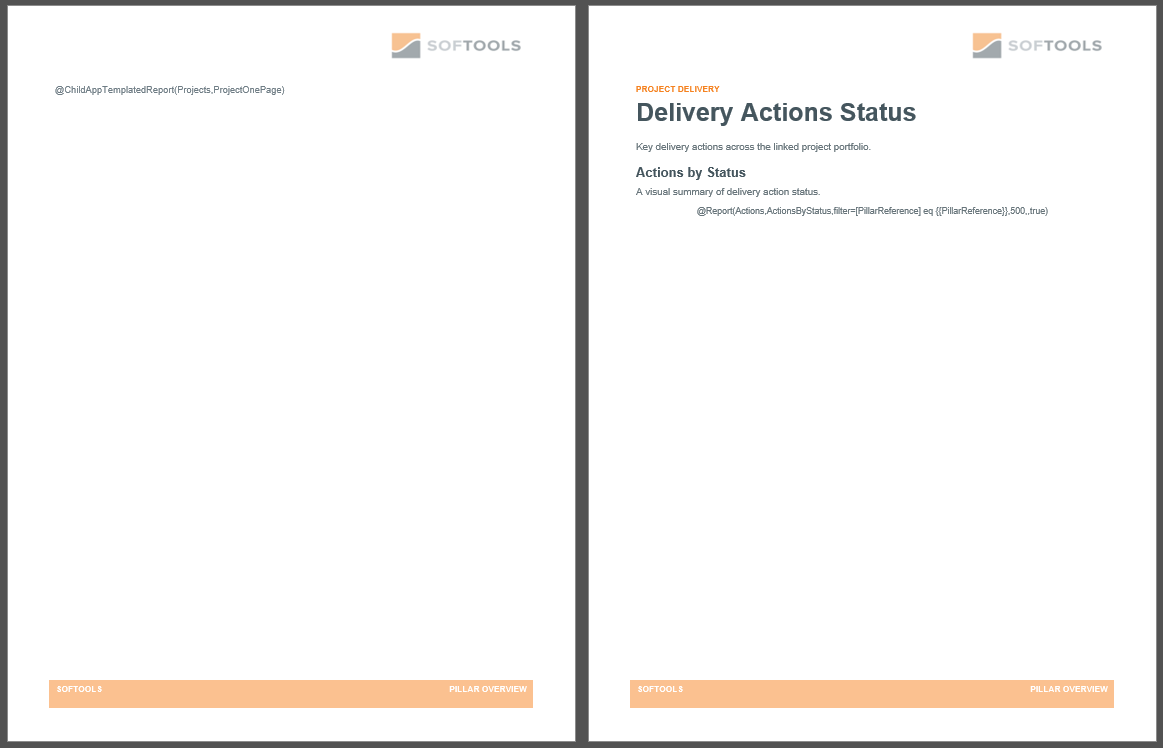
The template finishes with a dynamically filtered Benefits Report.
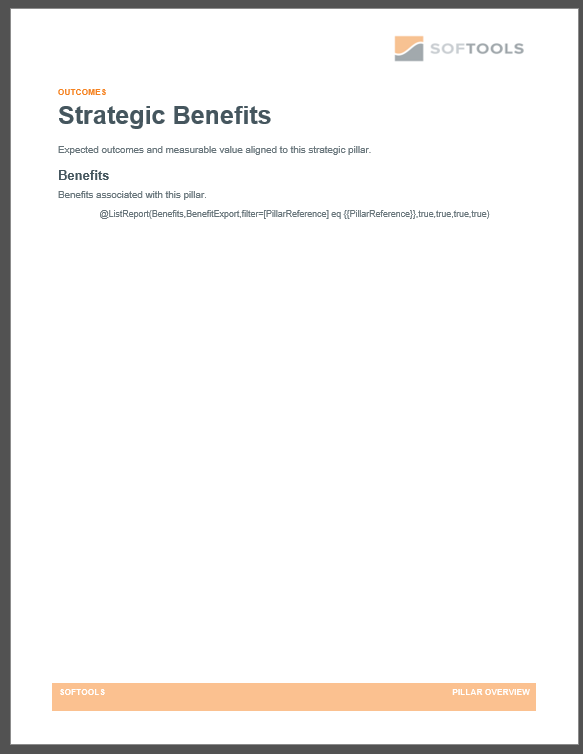
The Project pages provide the detail. The consolidated Action Report is retained only to create the overall status chart.
The Child App Templated Report keyword is:
@ChildAppTemplatedReport(Projects,ProjectOnePage)
Each Project's ProjectOnePage template contains:
- The Project overview
- The Actions linked directly to that Project
Because the detailed Actions are included from within each Project template, they remain grouped with the Project they belong to. The Pillar template also adds one consolidated Benefits table at the end:
@ListReport(Benefits,BenefitExport,filter=[PillarReference] eq {{PillarReference}},true,true,true,true)
The dynamic filter selects Benefits carrying the same Pillar Reference as the Pillar Record being exported. Ignore Hierarchy allows the export to include those matching Records even though the Benefits App is not linked beneath the Pillar.
This layout works well when each Project needs its own detailed section and readers need to see Actions in their Project context, while still retaining a quick visual summary of progress across the Pillar.
Layout note: Place
@ChildAppTemplatedReport()outside a Word table to begin each Project on a new page. Place it inside a single-cell table when the Project sections should flow continuously.
When exported from the Digital Transformation Pillar, the report begins with the Pillar overview.
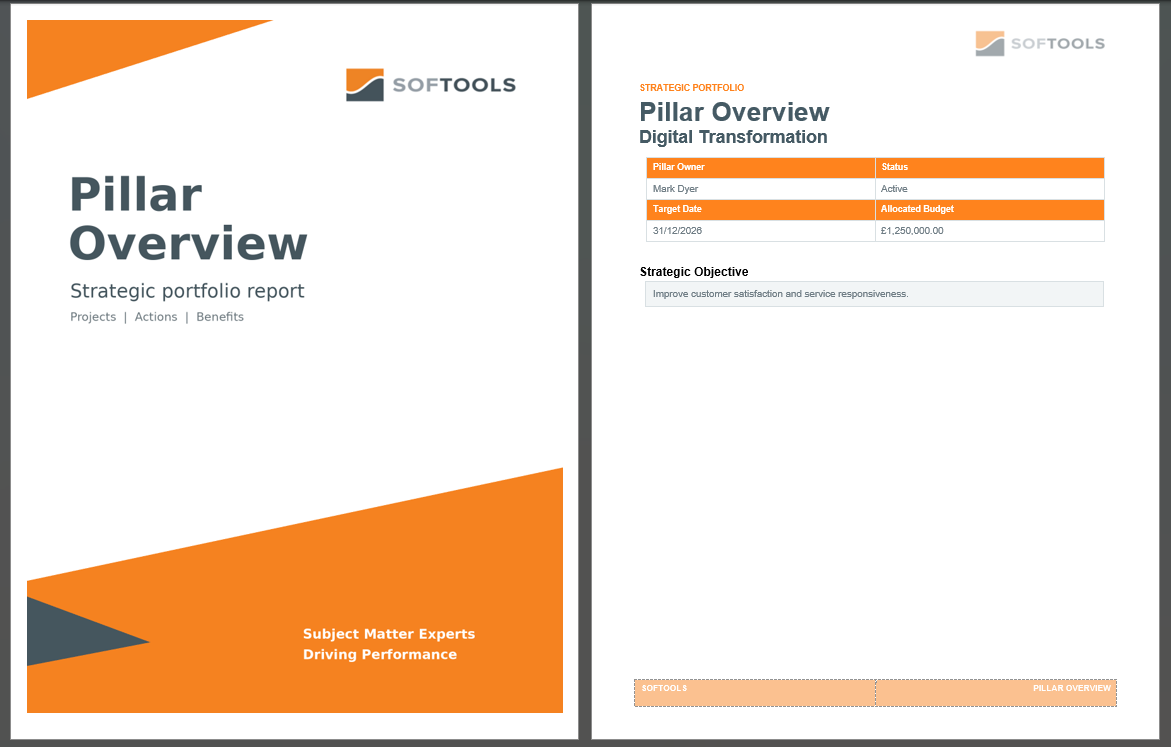
It then creates a separate Project report for each linked Project. Every Project page contains that Project's overview and linked Actions.
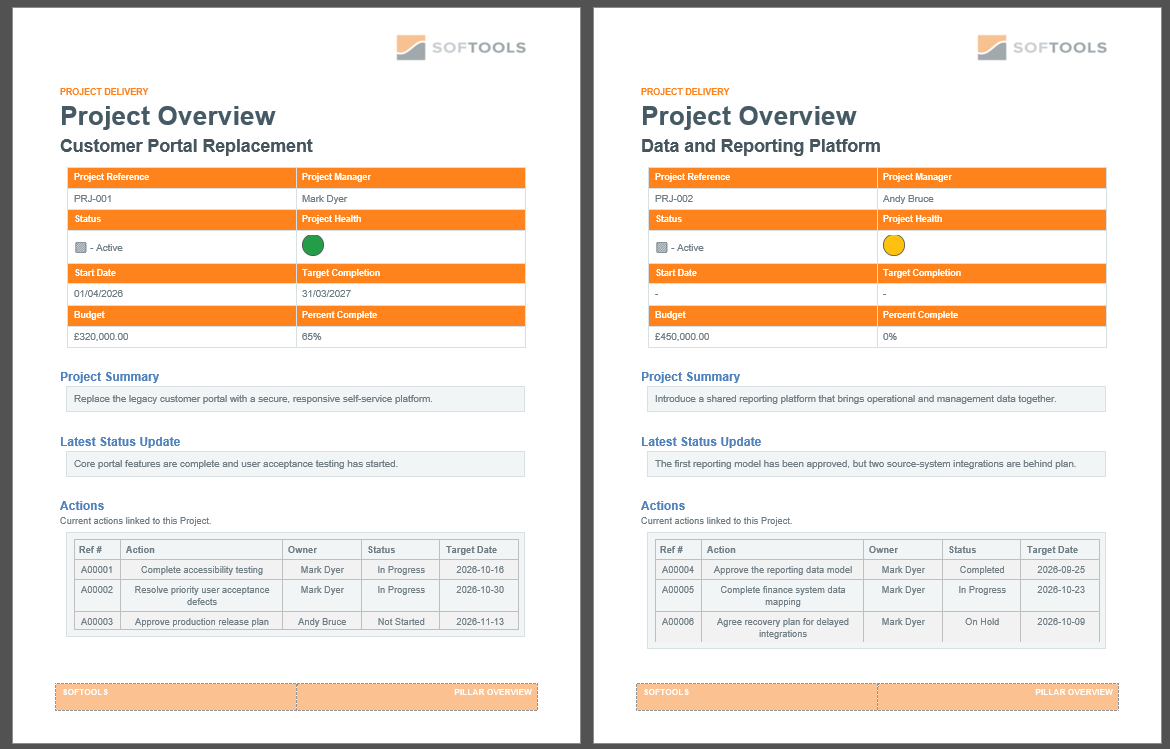
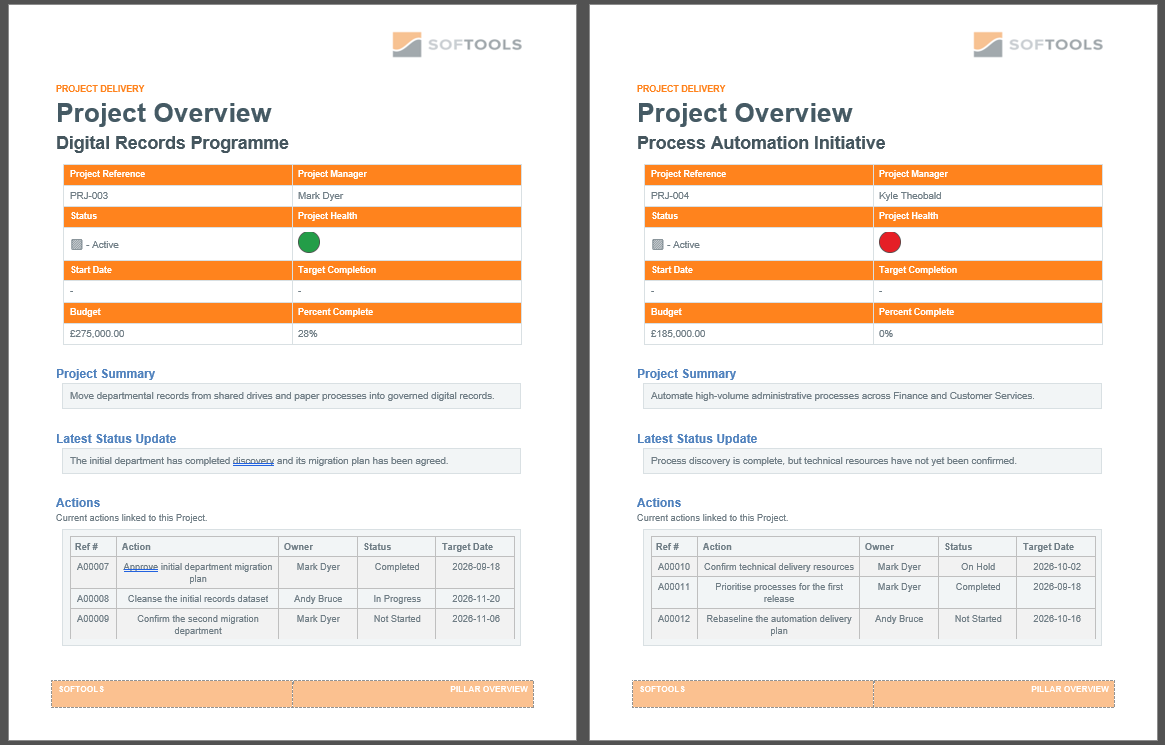
After the detailed Project pages, the report presents the Pillar-wide Actions by Status chart and the matching Digital Benefits.
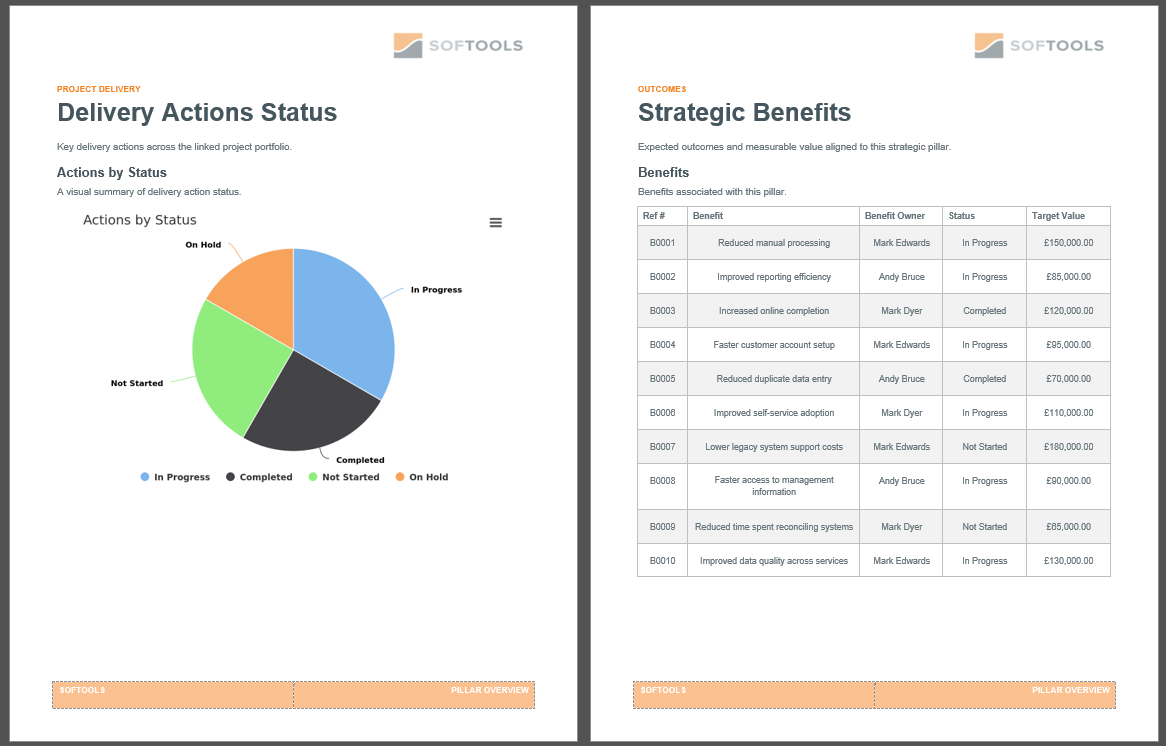
The output keeps Actions with their individual Projects, then closes with a consolidated progress chart and Benefits table.
Option 2: Consolidated sections across the Pillar
In the second design, Projects are presented together in one table. Actions from across those Projects are then combined into one Pillar-wide section, followed by matching Benefits.
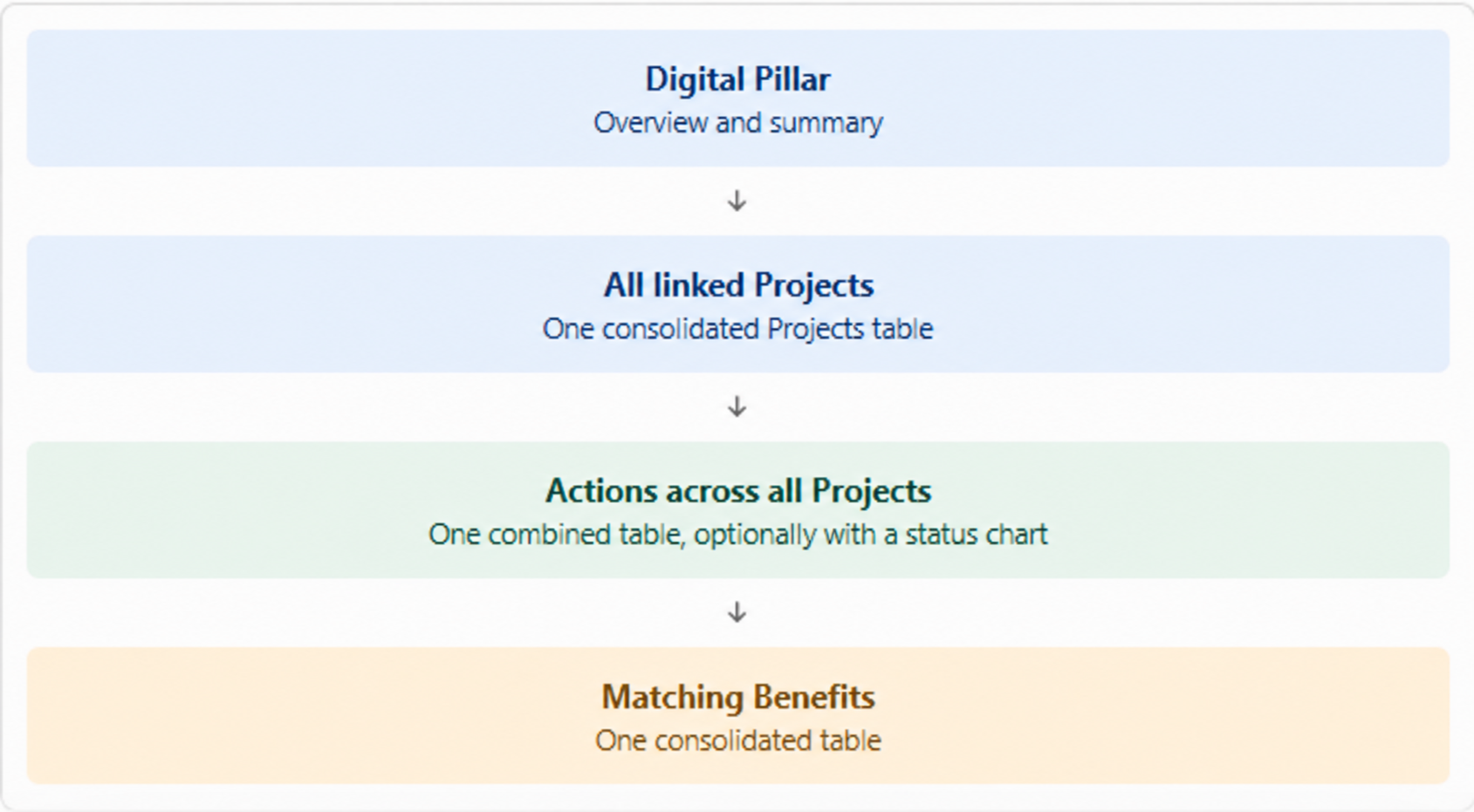
Projects, Actions and Benefits are presented as separate consolidated sections across the Pillar.
This approach keeps Projects, Actions and Benefits as separate consolidated sections in the Pillar template.
The template begins with the Pillar Fields and a Report for all Projects linked directly to it.
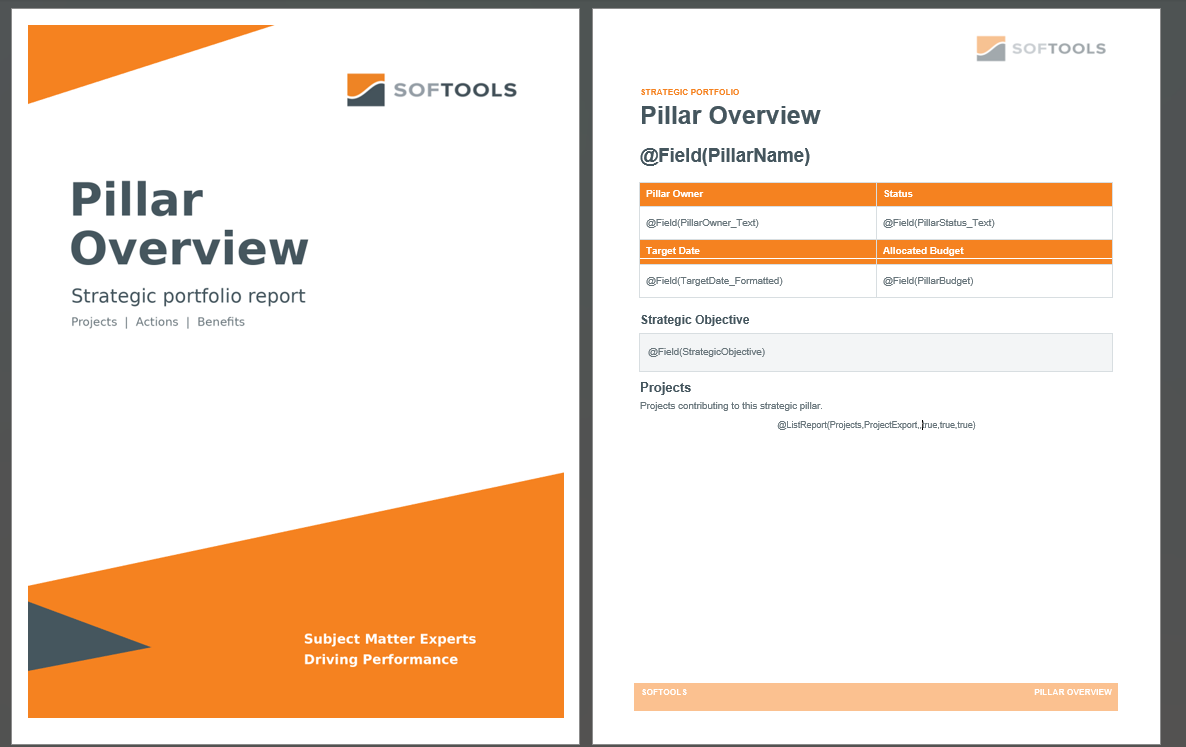
It then uses dynamically filtered Reports for the Actions across those Projects, an Actions by Status chart and the matching Benefits from the standalone Benefits App.
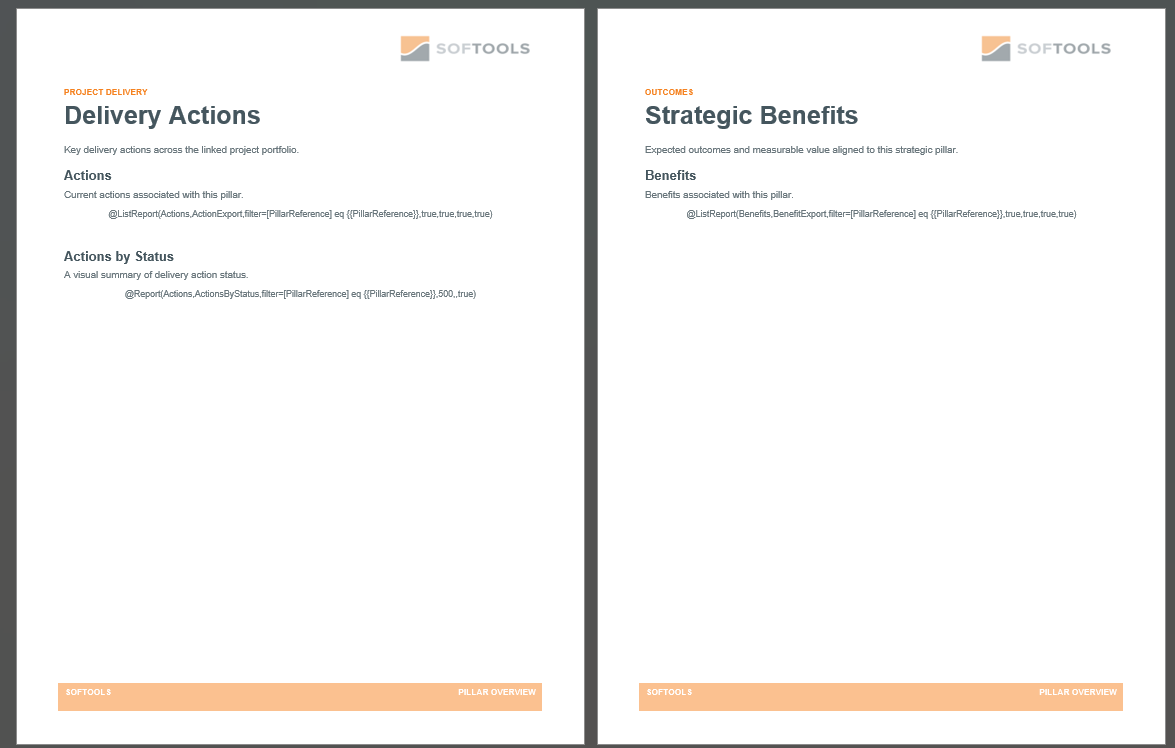
The template separates Projects, Actions and Benefits into Pillar-wide sections.
First, insert the Projects linked directly to the Pillar:
@ListReport(Projects,ProjectExport,,true,true,true)
Then insert one combined table of Actions from across all those Projects:
@ListReport(Actions,ActionExport,filter=[PillarReference] eq {{PillarReference}},true,true,true,true)
Finally, insert the matching Benefits using the same Benefits keyword shown in Option 1.
For Actions, the dynamic filter selects Records carrying the Digital Pillar Reference. Ignore Hierarchy allows the export to collect those Actions across the linked Projects rather than limiting the Report to Records linked directly beneath the Pillar.
This layout works well when readers need a Pillar-level view of all Projects, followed by Actions and Benefits across the whole Pillar.
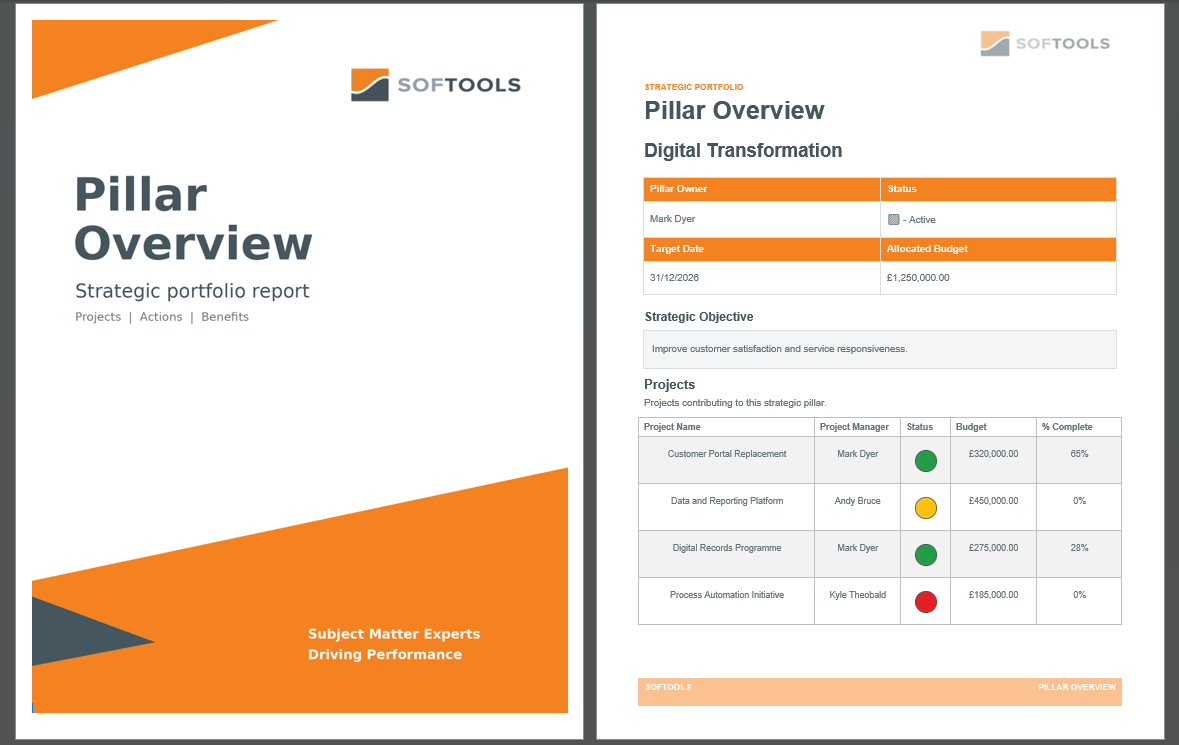
When the template is exported from the Digital Transformation Pillar, the finished report begins with the Pillar overview and its four linked Projects.
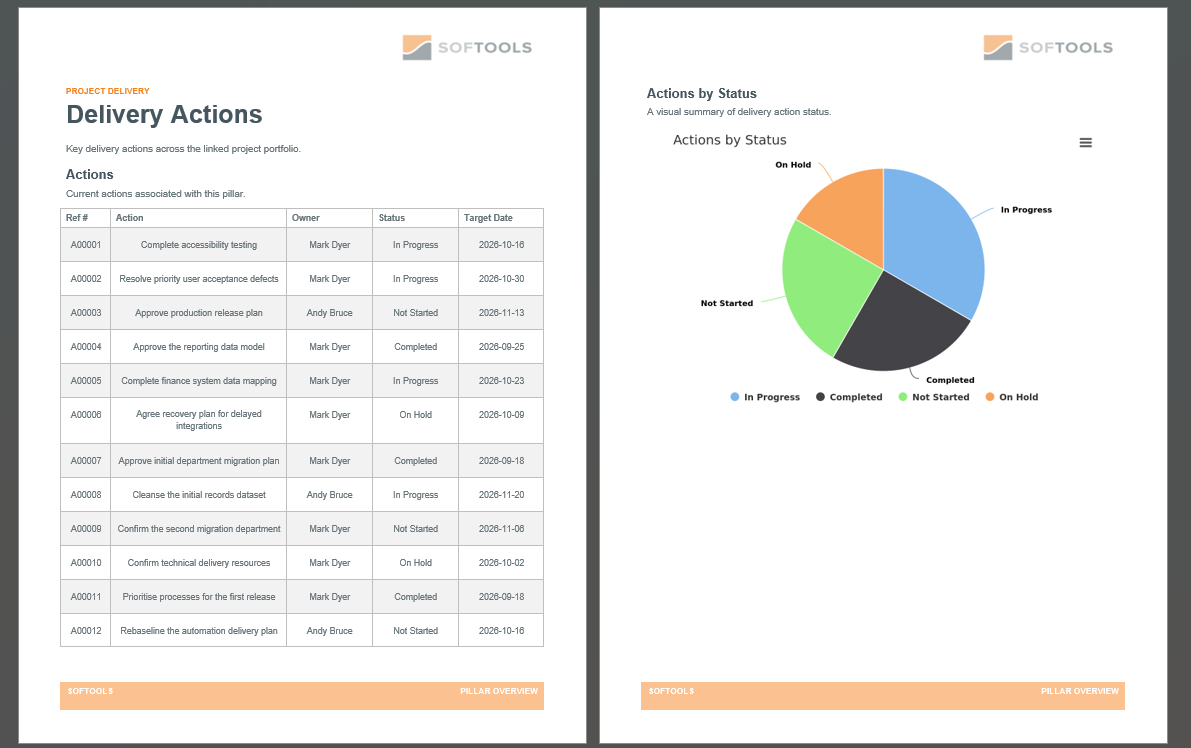
The Actions Report then brings together the Actions from across all four Projects. The chart summarises those same Actions by status.
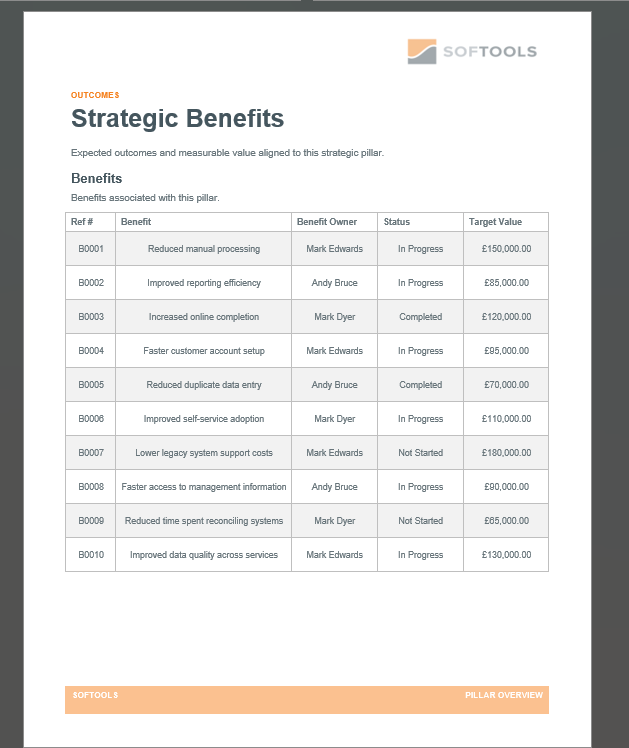
Finally, the Benefits Report contains only the Benefits carrying the DIGITAL Pillar Reference.
One export from the Digital Transformation Pillar produces a complete report containing its overview, linked Projects, Actions across those Projects and matching Benefits.
One template for every Pillar
Both options use values from the Pillar Record being exported rather than a hardcoded Pillar value.
Export the template from the Digital Pillar and the filters select Digital Actions and Benefits. Export the same template from another Pillar Record and the filters automatically select the matching information for that Pillar.
There is no need to create and maintain a separate Word template or Report with hardcoded filters for every Pillar.
The resulting Word report brings together information from multiple Apps in a consistent, reusable reporting pack.
The Export Template Reports guide explains the full configuration process, available keywords and Report options.
What information could you bring together from across your Apps in one Word report?
Please sign in to leave a comment.
Comments
0 comments