Ask Your AI Assistant Questions Using Your Softools Data

You may already be used to using Claude, ChatGPT, Copilot or another AI assistant to help answer questions, summarise information or work through ideas.
Now, Softools can be connected to that AI assistant too.
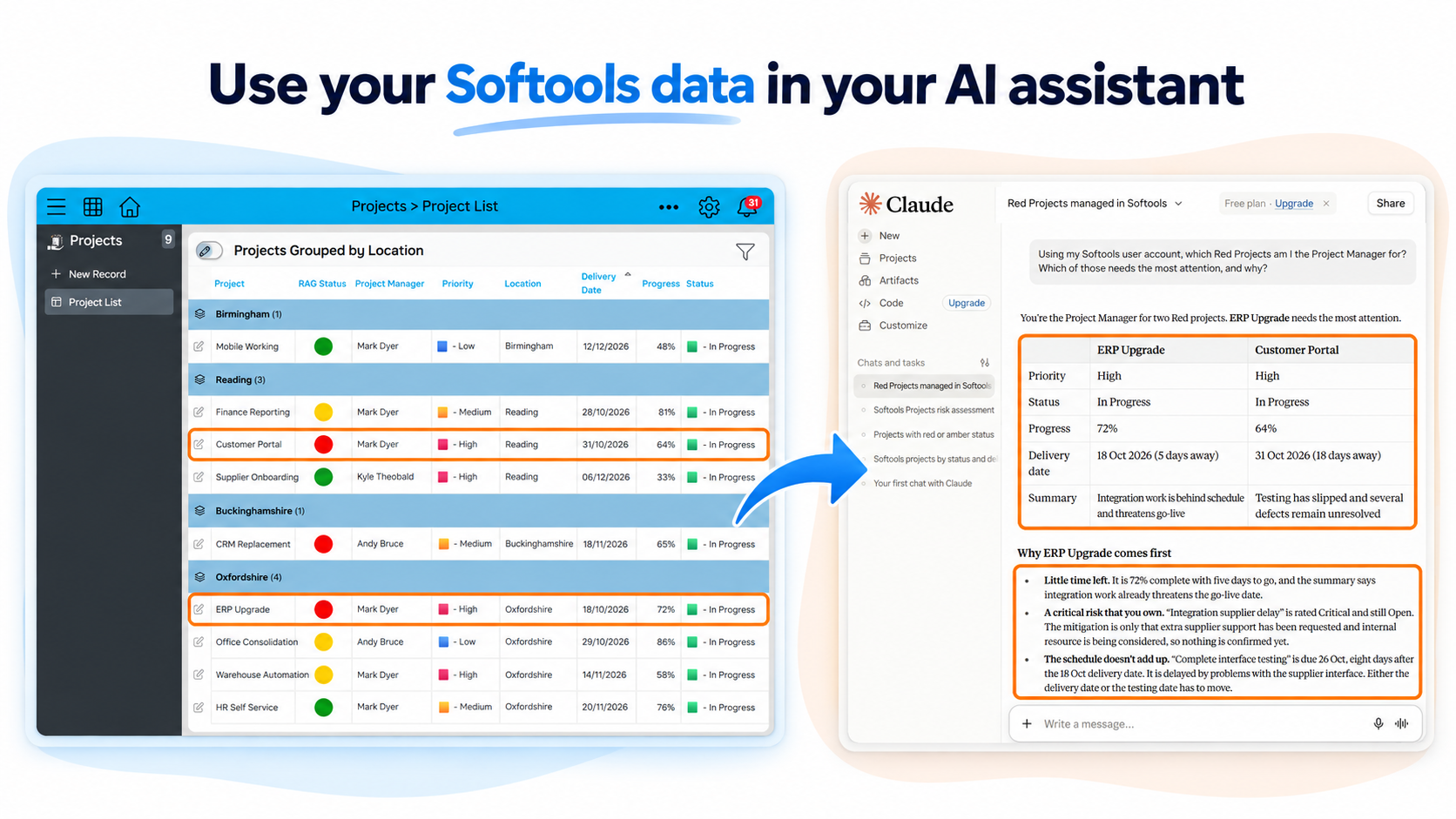
Once connected, you continue working in the AI assistant as normal. The difference is that, when you ask a question, it can also use the data available to you in your Softools Apps to help form its answer.
For example, without that connection you might first open Softools and think:
“Which App or report do I need to open to find this?”
With Softools connected to your AI assistant, you can instead start in the assistant and ask:
“What do I want to know?”
You could ask something like:
Which of my Projects needs the most attention, and why?
The assistant can use the relevant Softools data available to you — such as Projects, Actions and Risks — to help answer the question.
Softools makes this connection possible through MCP (Model Context Protocol). It is read-only and uses your existing Softools access, so the assistant can work with the data available to you without changing records.
In this walkthrough, we’ll use a Project Portfolio to show how this works in practice — from finding the Projects that need attention, to investigating Actions and Risks, analysing patterns, using supporting documents and jumping straight back into the relevant Softools records.
Start with the data you want the assistant to use
A simple way to make App data available through MCP is to start with a Table Report containing the fields you want the assistant to work with, then create a View from that Table.
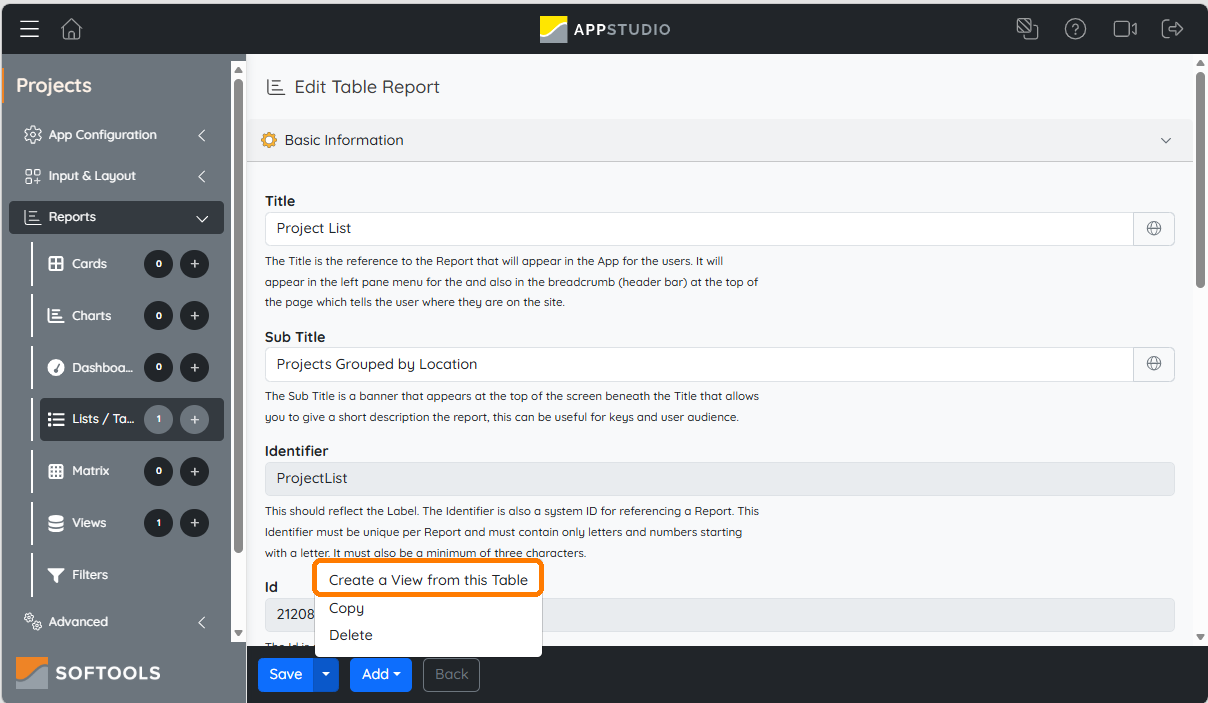
The View controls which fields are returned when the AI assistant queries the App.
Once the View is published, enable:
Expose this published View as an MCP tool
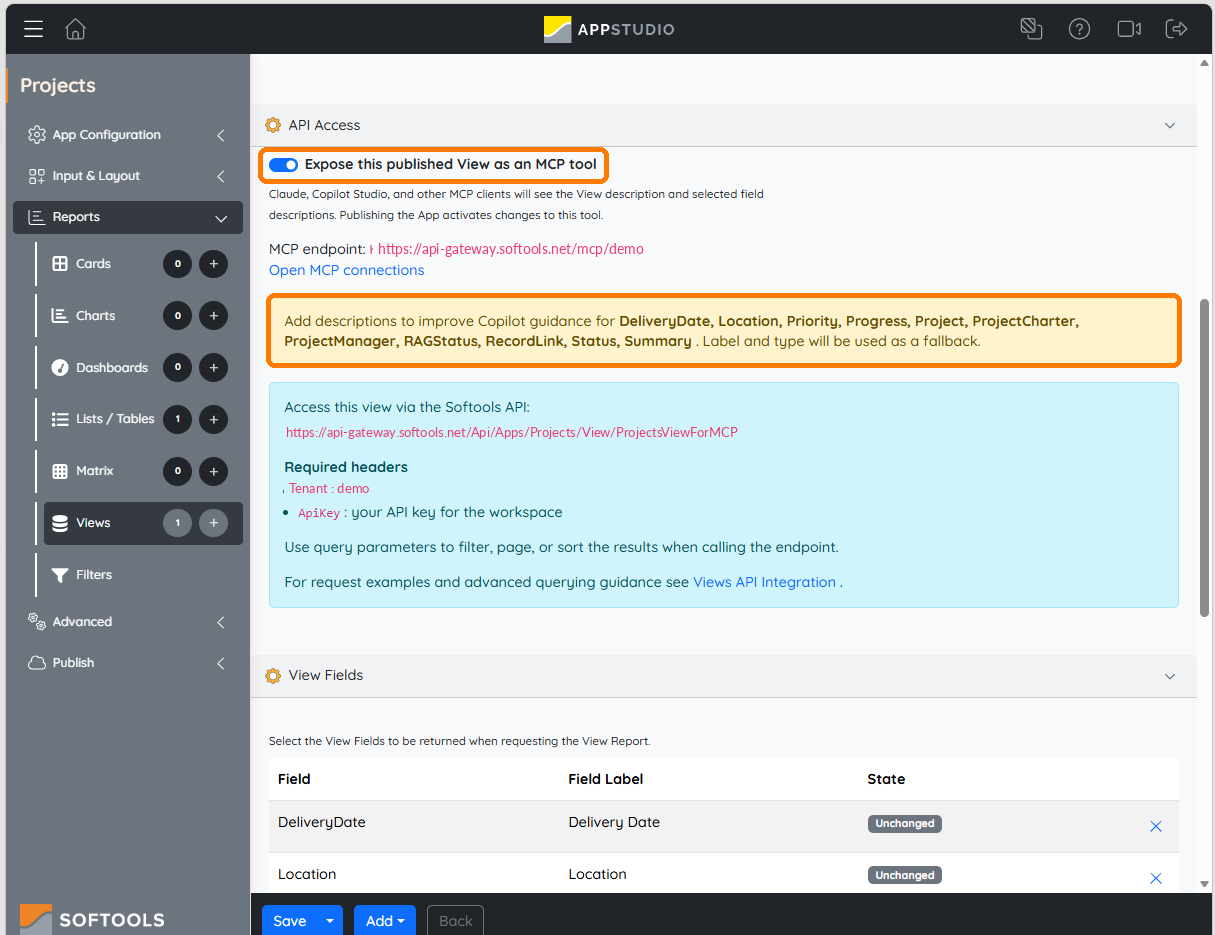
This is also a good time to review your Field descriptions.
Descriptions give the AI assistant useful business context that may not be obvious from the value alone.
For example, a RAG Status field might contain Red, Amber and Green, but the description can explain exactly what each status means in your organisation:
- Red = significant issues are threatening successful delivery and require immediate attention.
- Amber = there are issues or risks that may affect delivery and require active management.
- Green = delivery is progressing as planned with no significant issues requiring escalation.
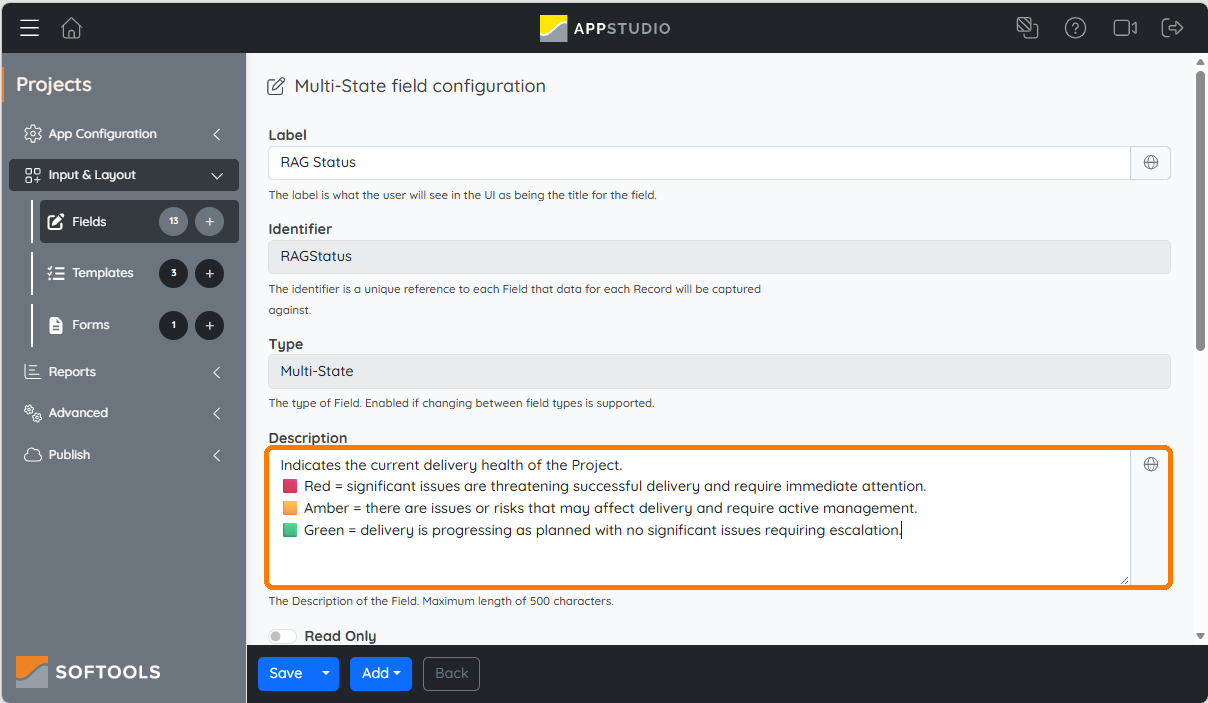
Descriptions are particularly useful where a value could otherwise be ambiguous — for example, a numeric Priority scale where the assistant needs to know whether 1 represents the highest or lowest priority.
For Person fields, it is useful to include both the underlying value and its _Text representation. The underlying value allows the assistant to reliably compare Person references — including against the connected Softools user — while _Text provides the readable person name to use in its response. In many cases, having both is ideal.
For child Apps such as Actions and Risks, include an explicit reference back to the parent Project in the MCP View. This allows the assistant to reliably associate child records with the correct Project rather than inferring the relationship from other fields.
For the full setup process, see the Softools support article on connecting AI assistants using MCP.
Connect your AI assistant
Once the MCP Views have been prepared, an Advanced App Builder approves the AI assistant that will be allowed to connect to the workspace.
In this example, we are using Claude.
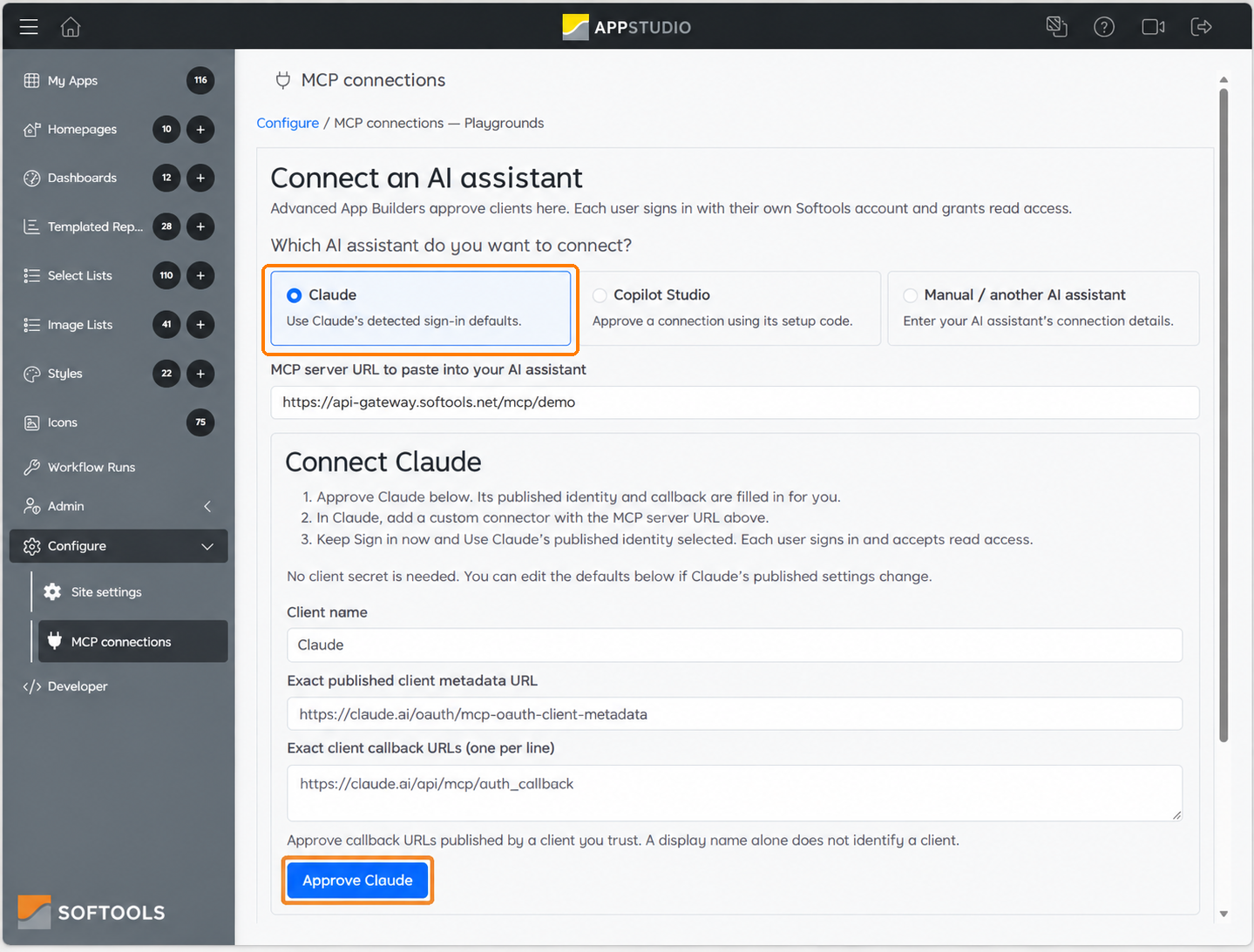
Softools provides the MCP server address for the workspace. Each user then adds Softools as a custom connector in their AI assistant.
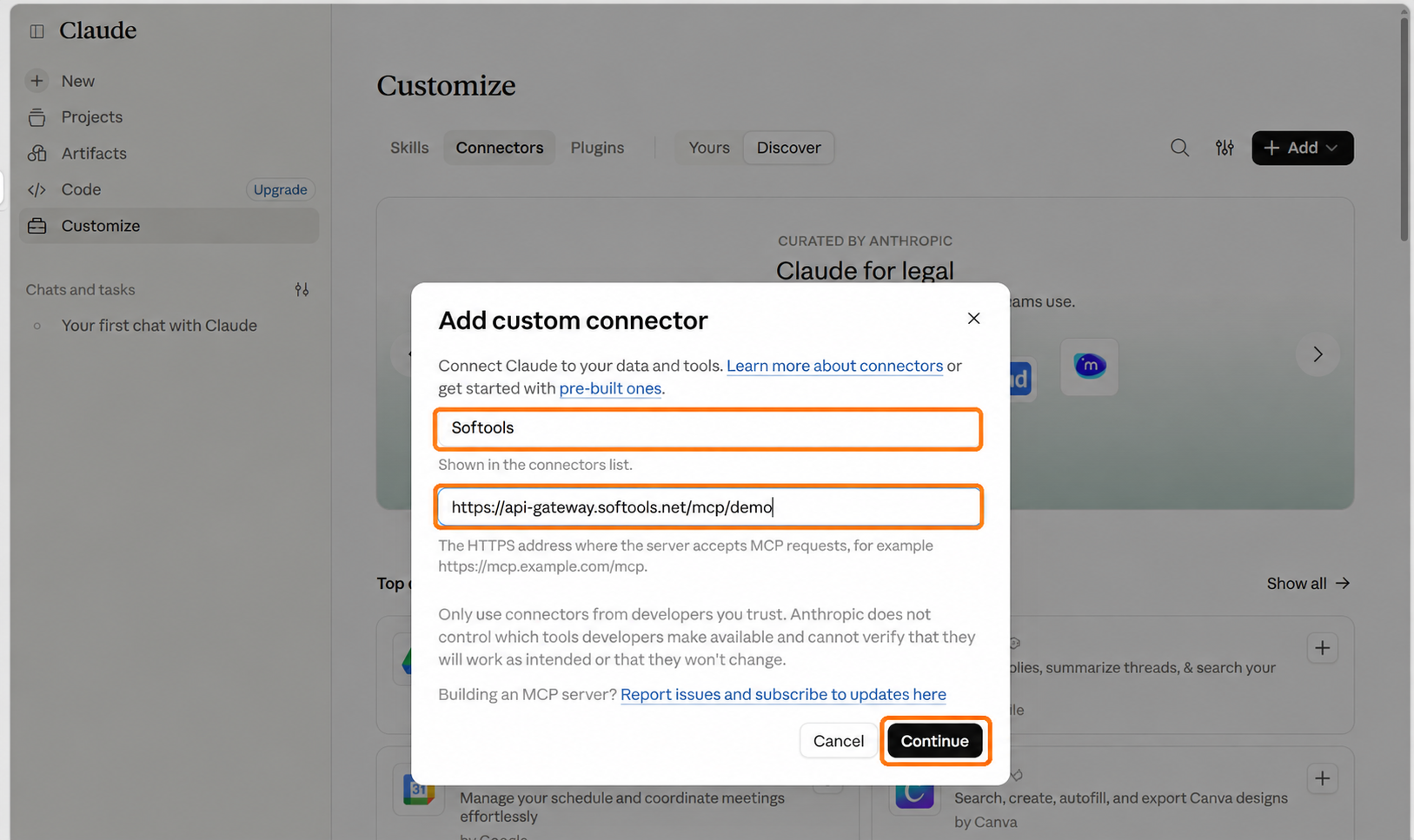
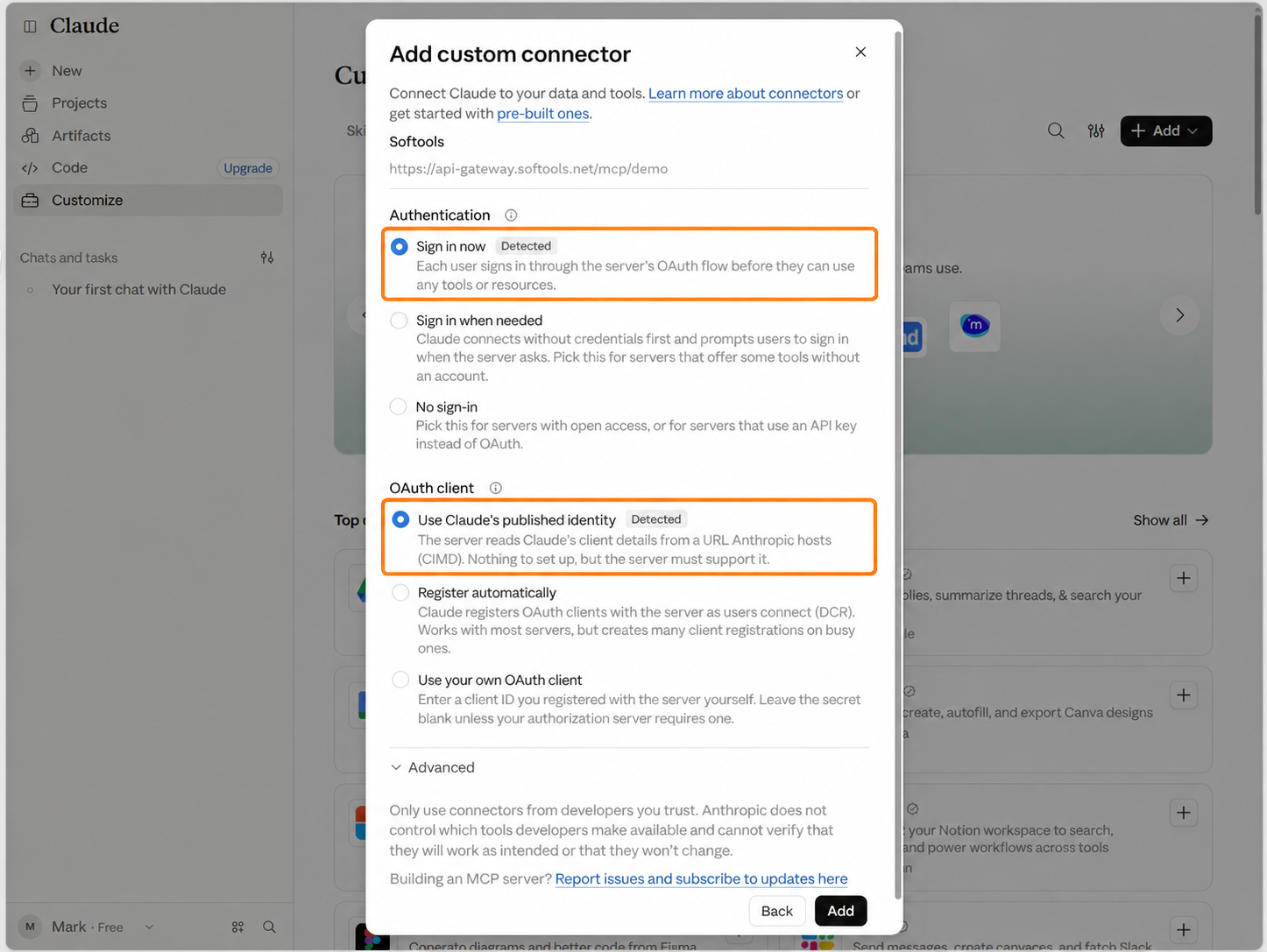
Claude detects the supported sign-in method and its published client identity.
The user signs in using their own Softools account and grants read access.
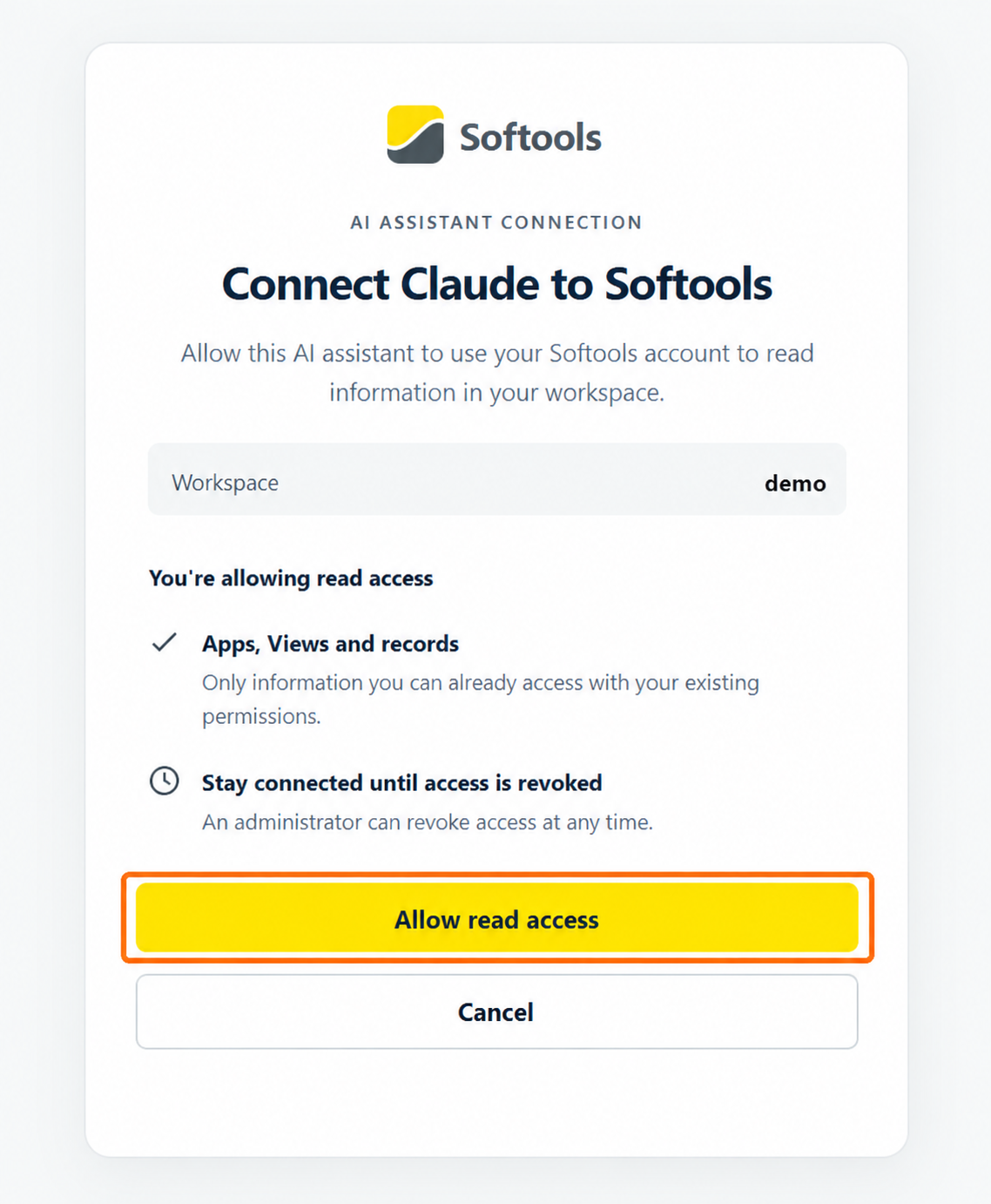
This is an important part of how the connection works: each user connects using their own Softools account, so the AI assistant works with the Apps, Views and records available through that user’s existing permissions.
Because the connection is read-only, the assistant can find, analyse and explain Softools data, while record changes continue to be made in Softools.
Once connected, the Softools tools appear in the AI assistant.
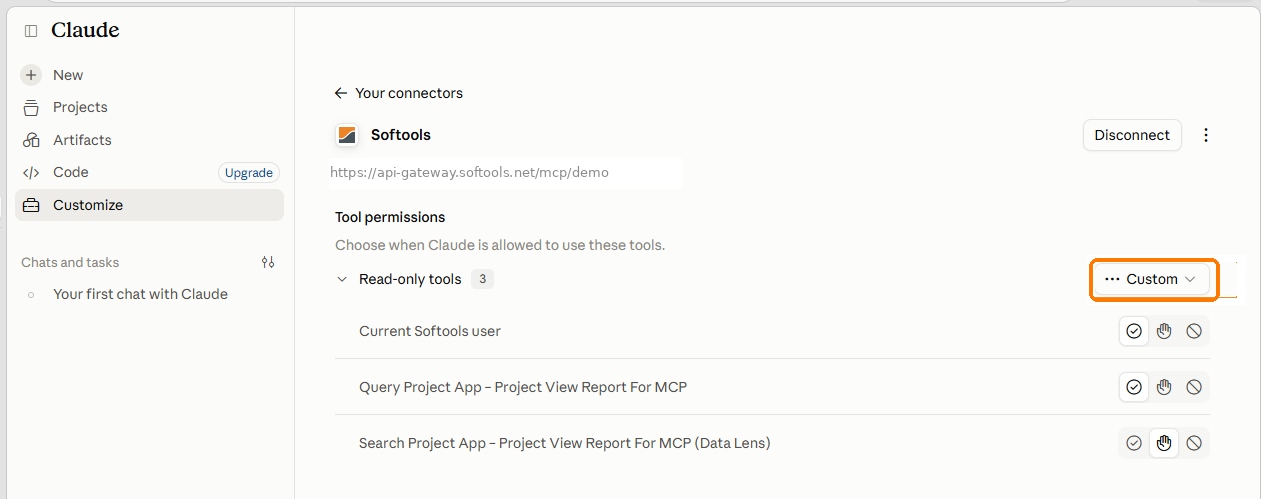
From there, the user can simply start asking questions.
Start with a business question
Our Projects App contains a wider portfolio across multiple Project Managers, locations and RAG statuses.
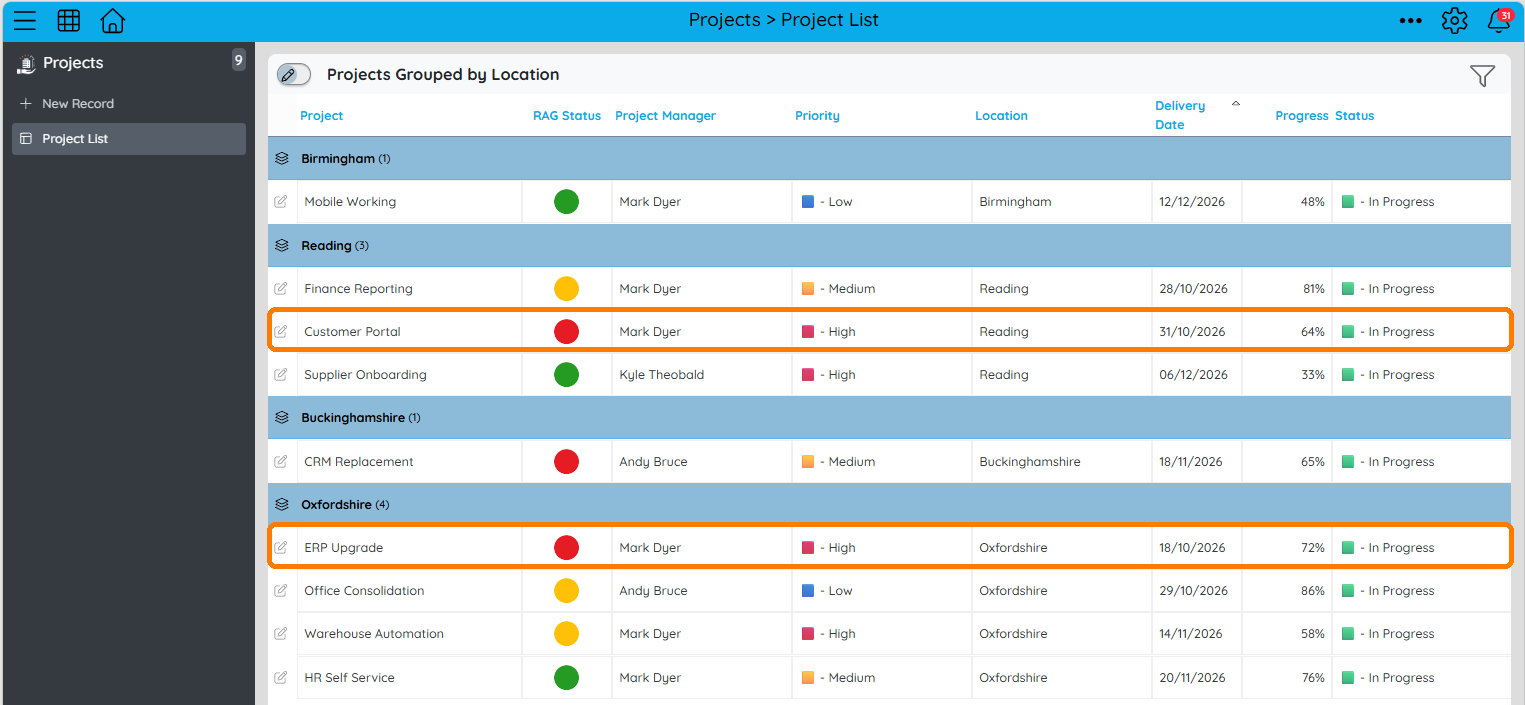
Rather than navigating through the portfolio manually, we can ask:
Using my Softools user account, which Red Projects am I the Project Manager for? Which of those needs the most attention, and why?
The assistant identifies the relevant Projects and compares them using the live data available through Softools.
In our example, it identifies ERP Upgrade and Customer Portal, then explains why ERP Upgrade needs the most attention.
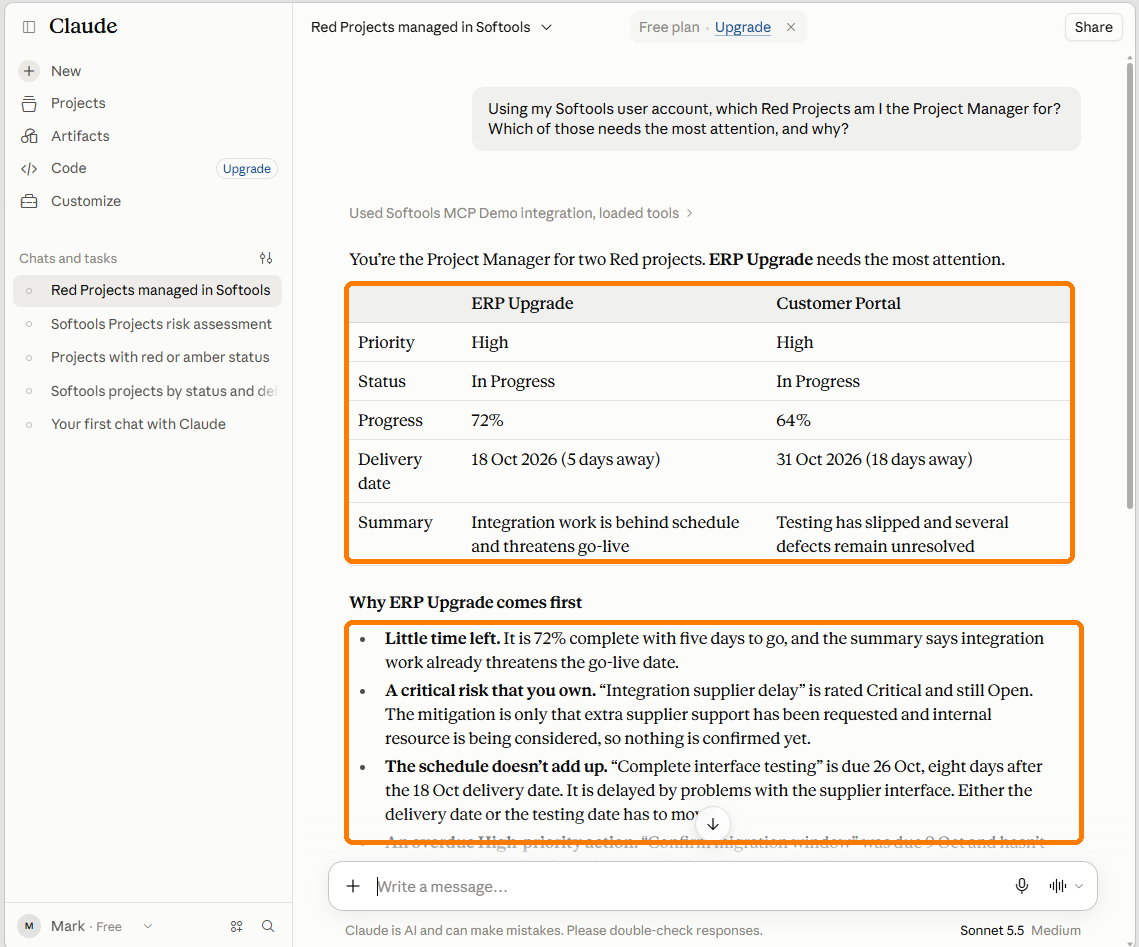
This already goes beyond a simple record lookup.
The assistant has used Project status, priority, delivery date, progress, Project summary and related child records to form a useful answer.
Drill into child records
In Softools we have linked Actions and Risks to our Project.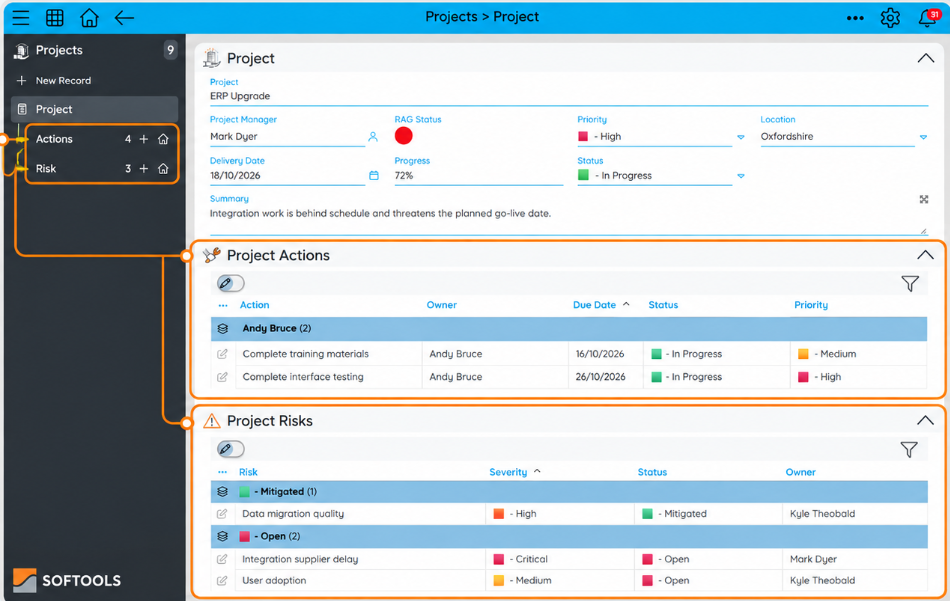
So, the conversation can then continue naturally in our AI Assistant. We ask:
Show me the overdue Actions for the Project you think is most urgent.
The assistant remembers that ERP Upgrade is the Project it identified and retrieves the related Actions.
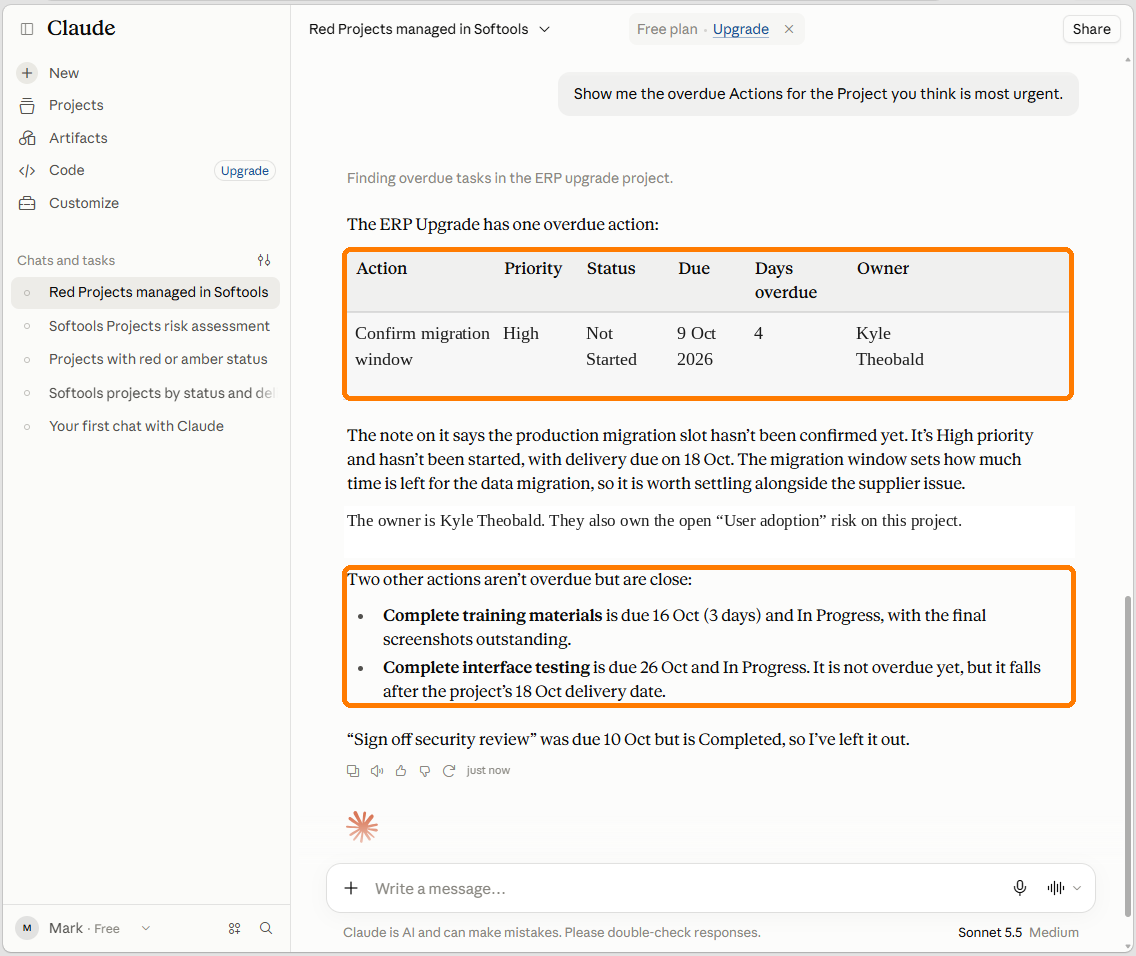
It correctly distinguishes between the genuinely overdue Action, Actions that are due soon and completed Actions that do not need attention.
We can then ask:
What open Risks does that Project have, and which of them are most significant?
The assistant retrieves the related Risks and explains which ones matter most.
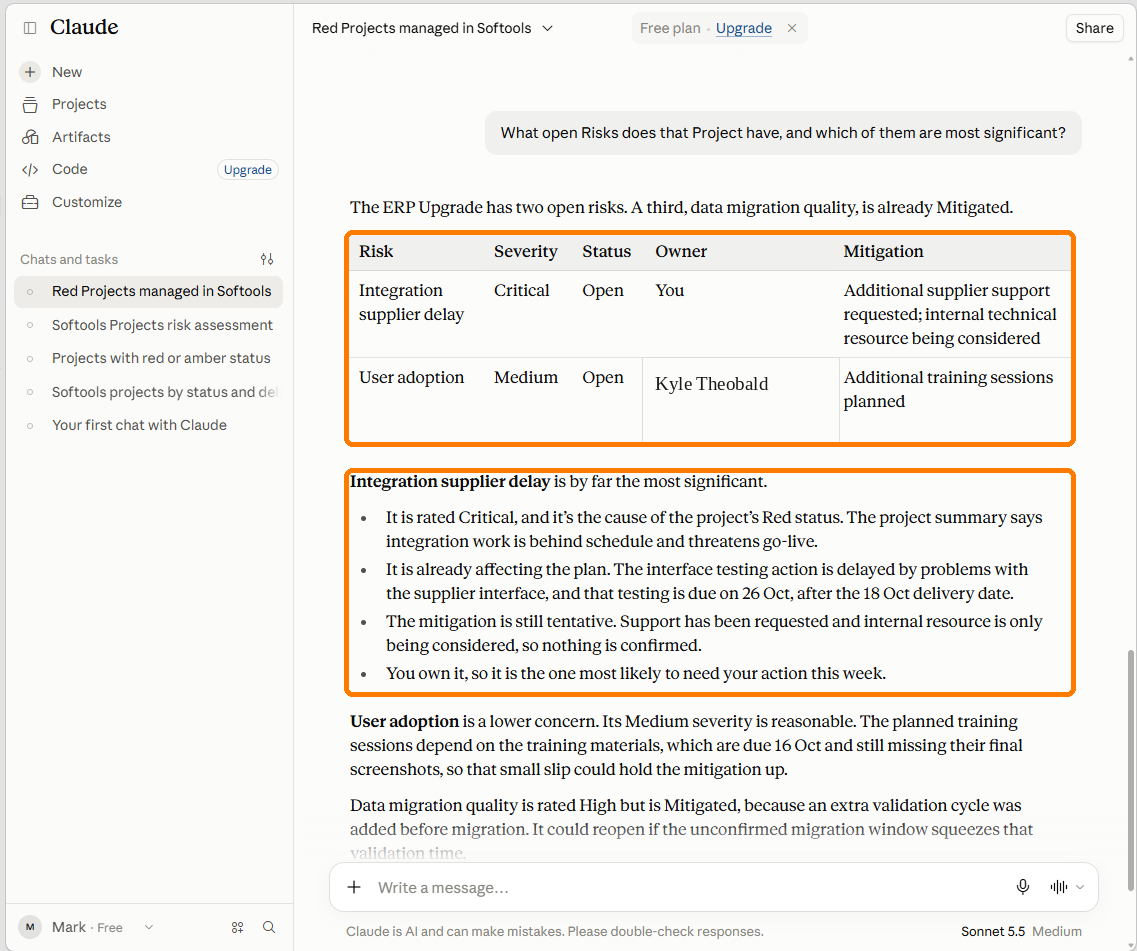
In this example, it identifies Integration supplier delay as the most significant because it is Critical, still Open, directly linked to the integration delay and only partially mitigated.
This is where MCP becomes more useful than simply returning records: the assistant can interpret the relationships between the data and explain what matters.
Bring in data from a separate App
So far, the assistant has moved from a Project into its child Actions and Risks. But the conversation does not have to follow an App hierarchy. It can also bring in relevant data from completely separate Apps.
The Resources App in this example is completely separate from Projects.
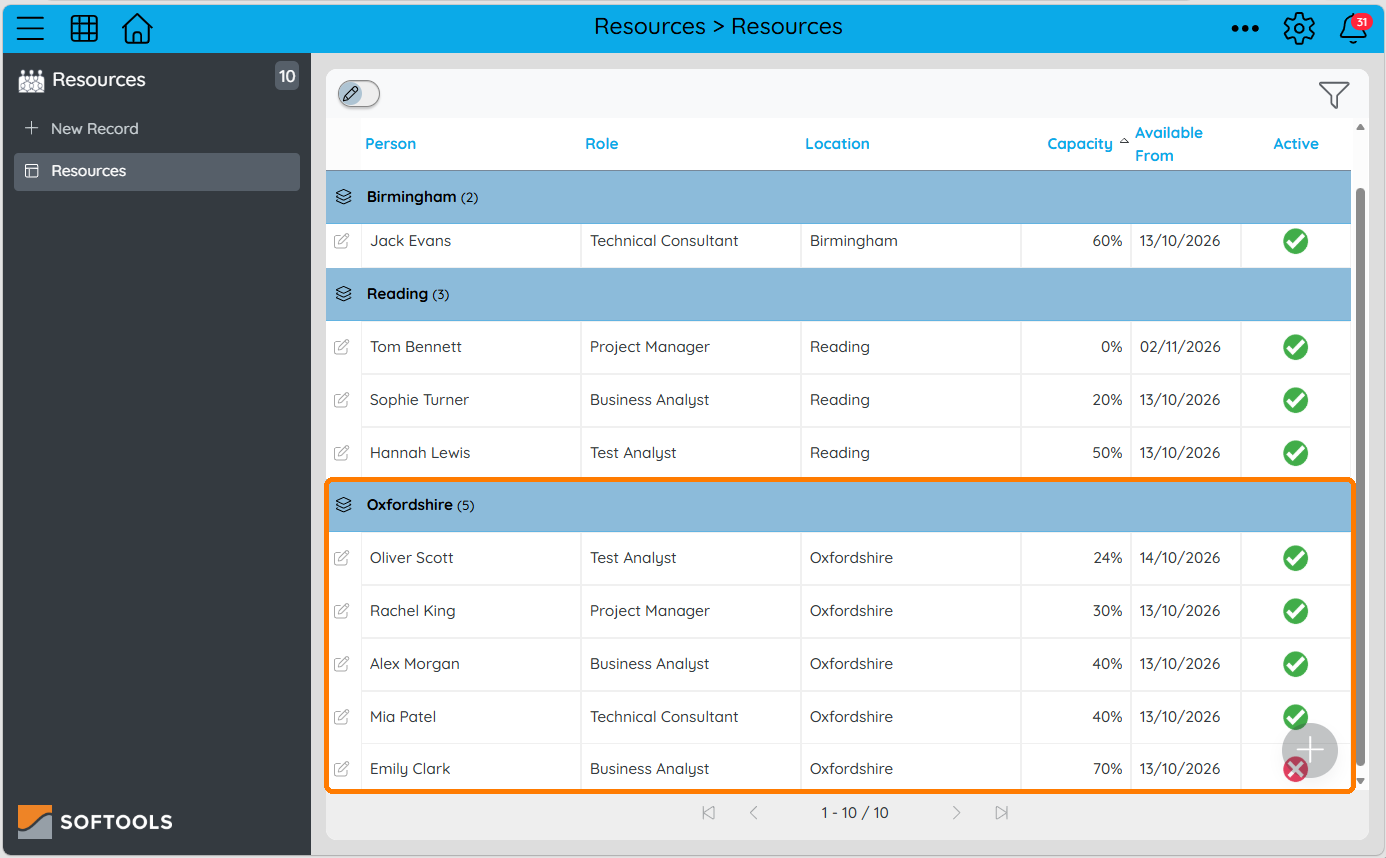
After identifying the problem with ERP Upgrade, we can ask:
Do we have anyone local with capacity and the right skills who could help get this Project back on track?
The assistant queries the standalone Resources App and matches people against the issues it has already identified.
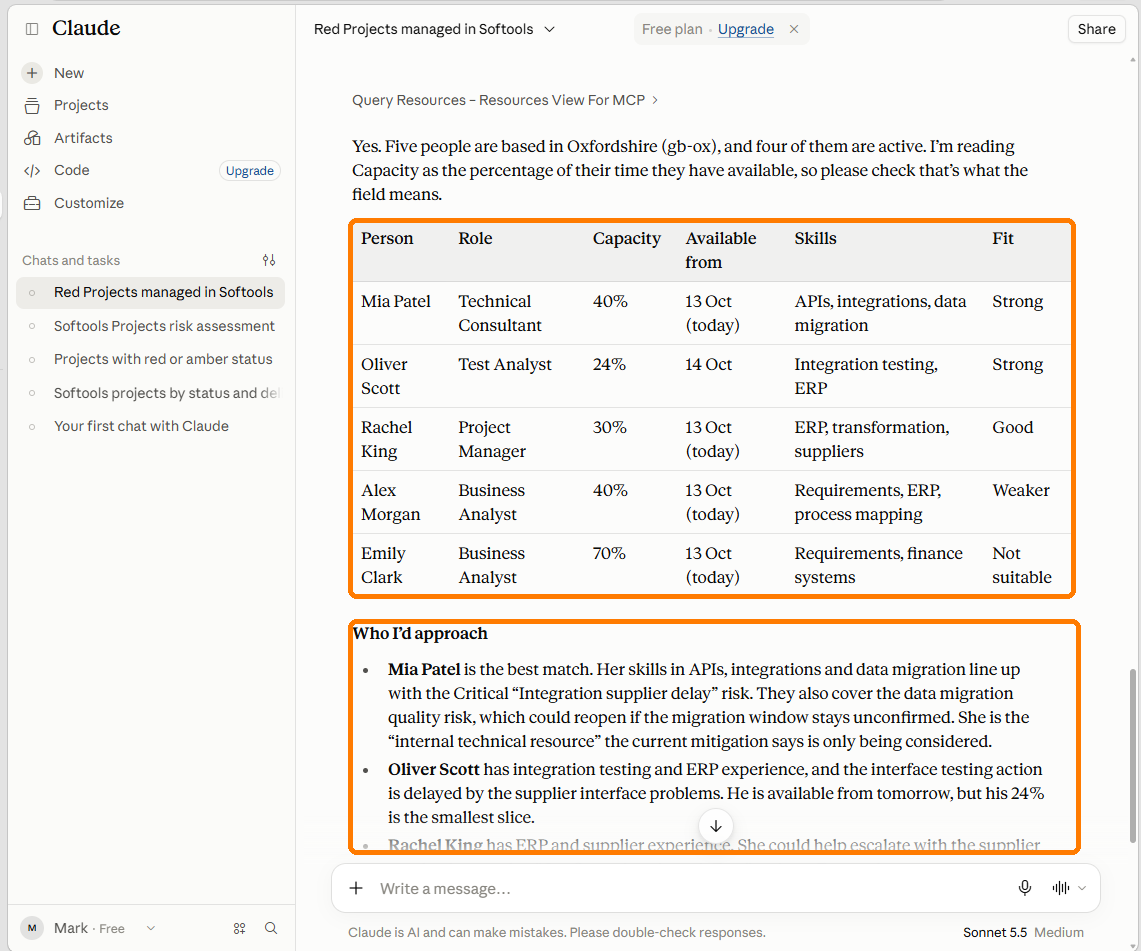
It recommends people whose skills actually match the problem — for example integration, ERP testing or supplier-management experience — rather than simply listing everyone with available capacity.
It also recognises that a Resource marked inactive should not be recommended.
This demonstrates something important:
The assistant can combine data from different Softools Apps to help answer a broader business question.
Analyse the bigger picture with Data Lens
Standard MCP queries are useful when the assistant needs to retrieve specific records.
For example:
- find my Red Projects
- show the Actions for this Project
- return the open Risks
Data Lens adds a more analytical way to work with the data.
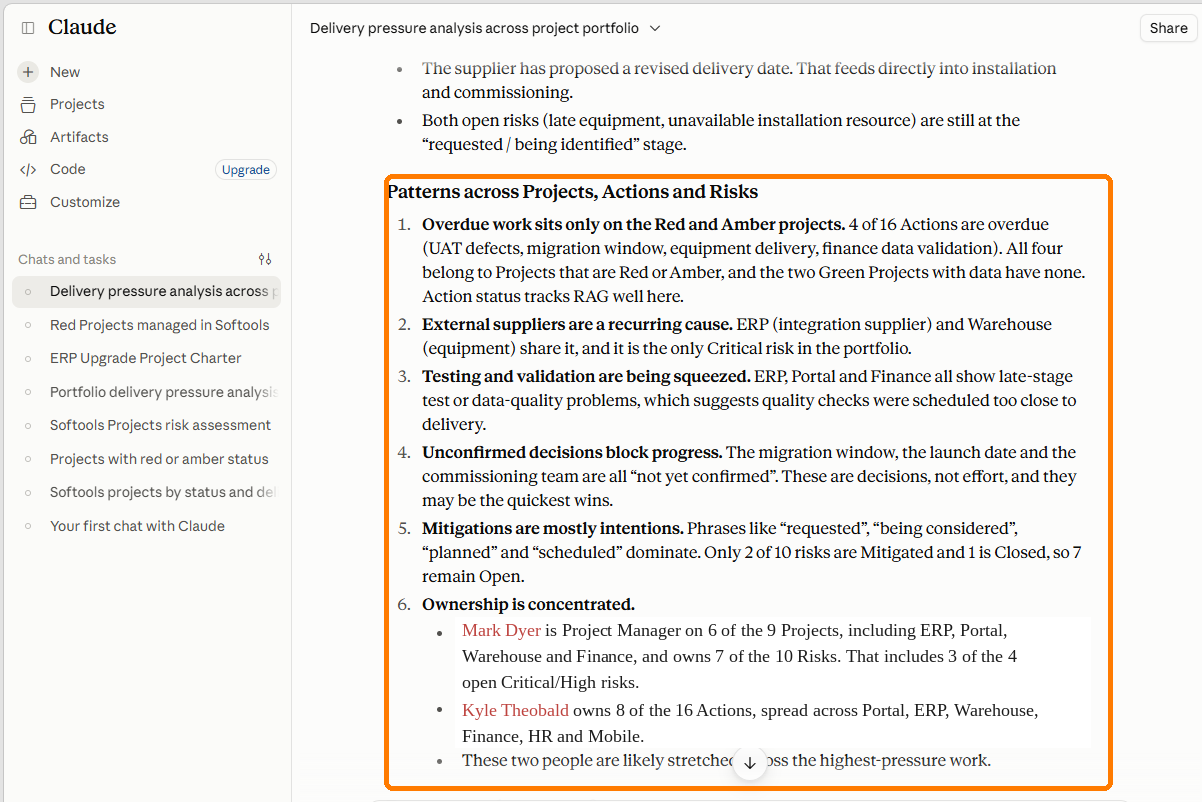
It allows the assistant to search a relevant set of records and identify patterns across them.
For example:
Using my Softools data, analyse delivery pressure across the Project portfolio. Which Projects need the most attention, what are the main issues behind them, and are there any patterns across Projects, Actions and Risks?
The response can move beyond individual records and identify portfolio-level priorities.
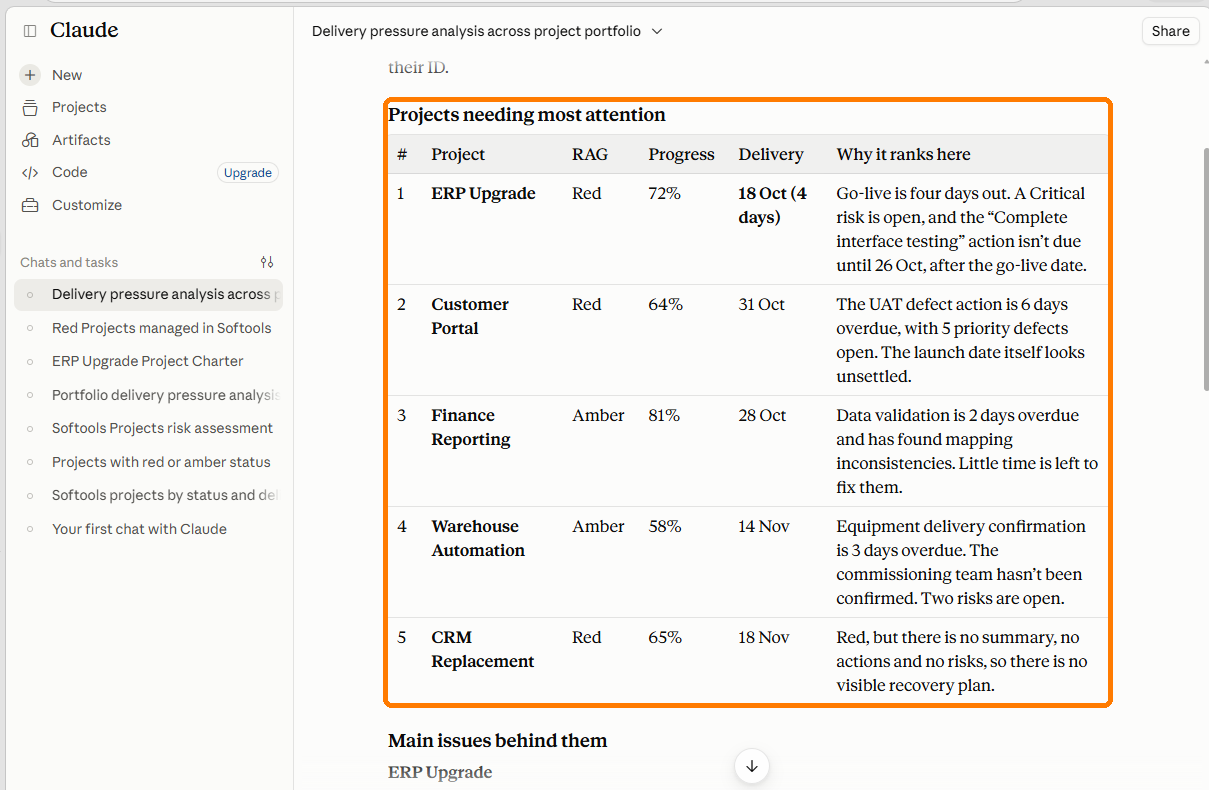
It can then highlight patterns across the records, such as overdue work being concentrated on Red and Amber Projects, supplier dependency recurring across Projects, testing and validation becoming late-stage pressure points, and ownership being concentrated across a small number of people.
The difference is simple:
Query: retrieve the specific records needed to answer the question.
Data Lens: search across a relevant set of records to identify patterns, themes and concentrations.
Each Data Lens search returns up to 40 records, so it works best for targeted analysis rather than attempting to analyse an unlimited dataset in one search.
Use documents alongside live Softools data
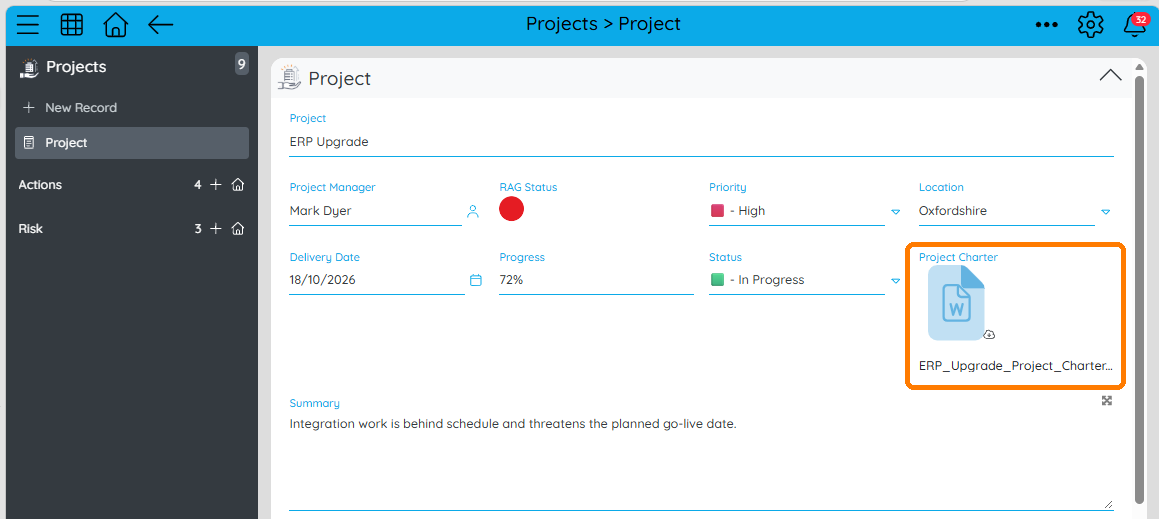
Document fields can also be included in an MCP-enabled View.
In this example, the ERP Upgrade Project includes a Project Charter setting out its objectives, milestones, dependencies and go-live criteria.
We can ask:
Give me the Project Charter link for the ERP Upgrade Project.
The assistant can return a temporary Softools link to the document.
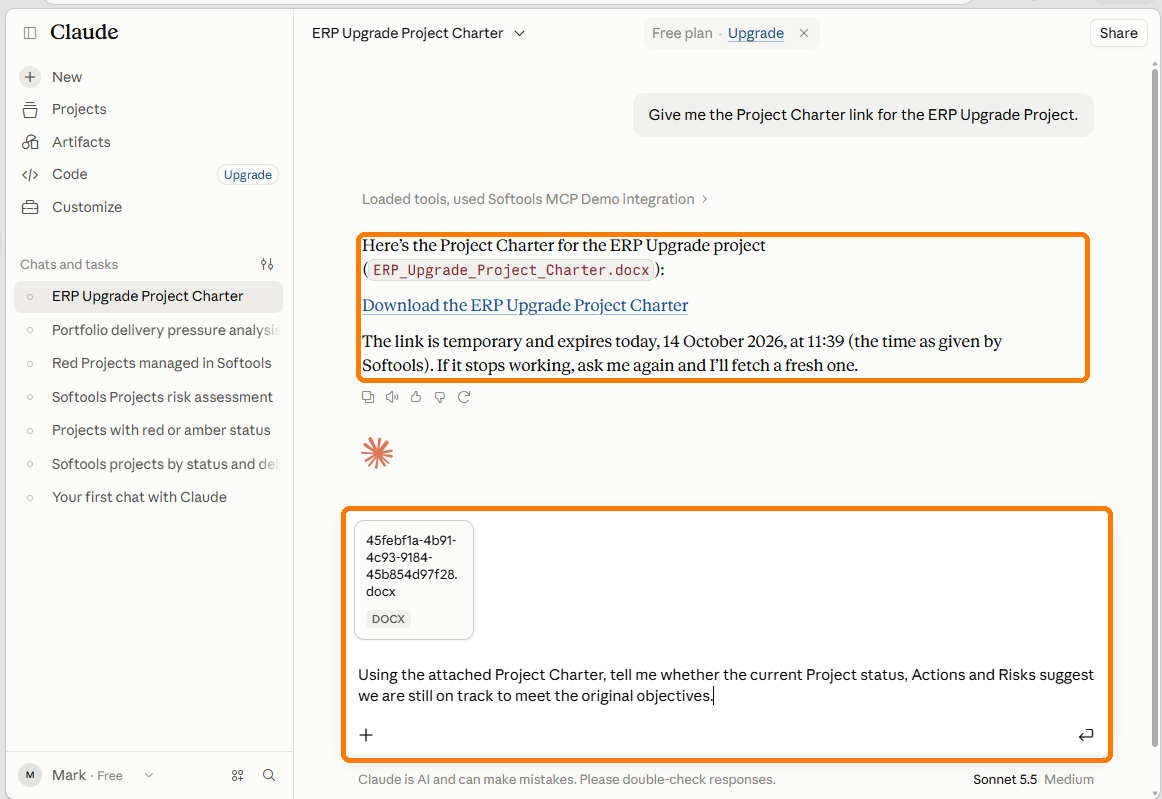
If the AI assistant is not configured to trust the Softools document-storage domain, the document can be downloaded and uploaded into the conversation.
We can then ask:
Using the attached Project Charter, tell me whether the current Project status, Actions and Risks suggest we are still on track to meet the original objectives.
The assistant compares the original commitments in the Charter with the current live data from Softools.
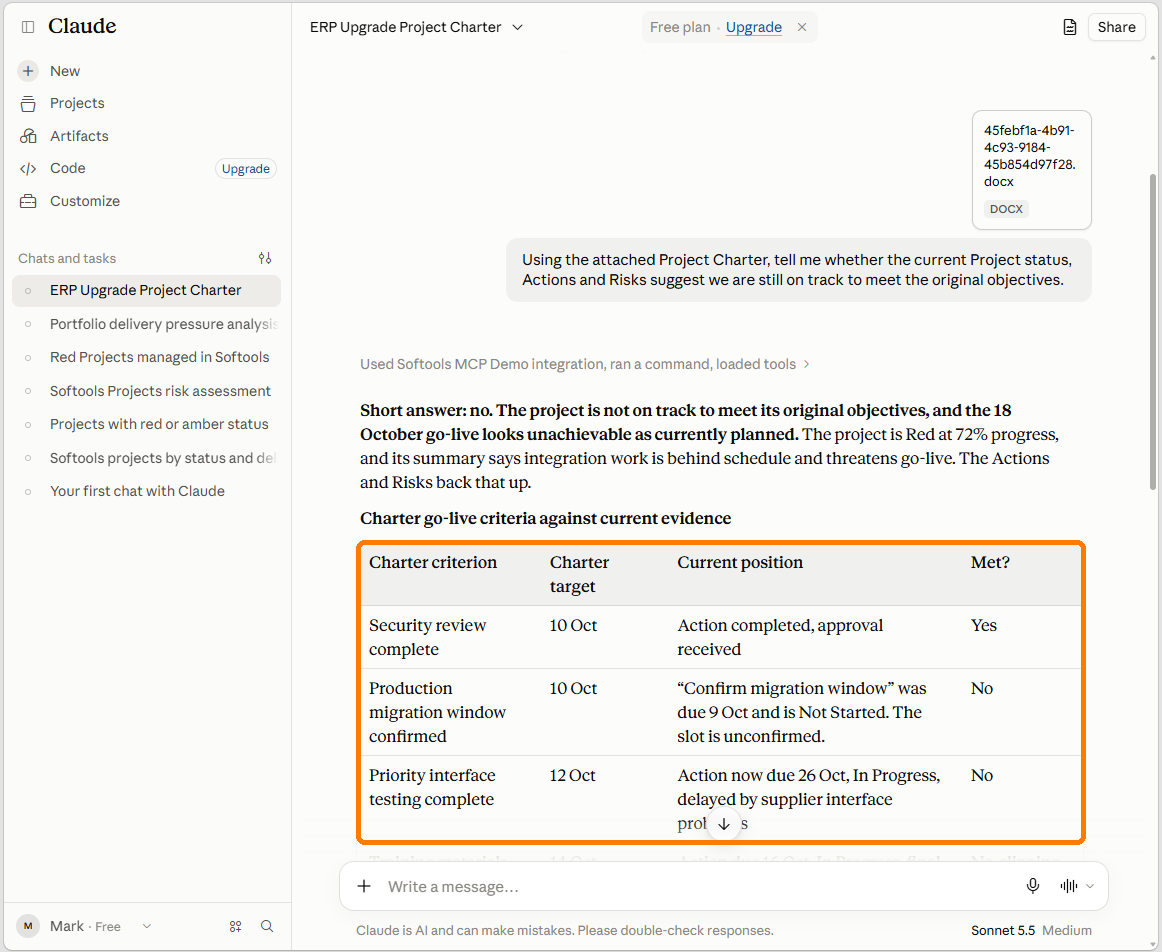
In our example, it identifies that several original go-live conditions are no longer being met, including the migration window, interface testing and the open Critical Risk.
This is particularly useful because it combines unstructured document content with structured Softools records.
Note: Whether the AI assistant can open the temporary document link directly depends on its security settings. If the Softools storage domain has not been approved, download the document from the returned link and upload it to the conversation. Organisation-managed AI accounts may allow an administrator to trust the Softools storage domain and remove this extra step.
Jump straight back into Softools
The conversation does not have to end with an answer.
If an MCP-enabled View includes a Record Link field, the assistant can return clickable links to the exact Softools records it identifies.
A simple URL field can build the link from the App ID and Record ID:
'https://demo.on.softools.net/Projects/' + id()
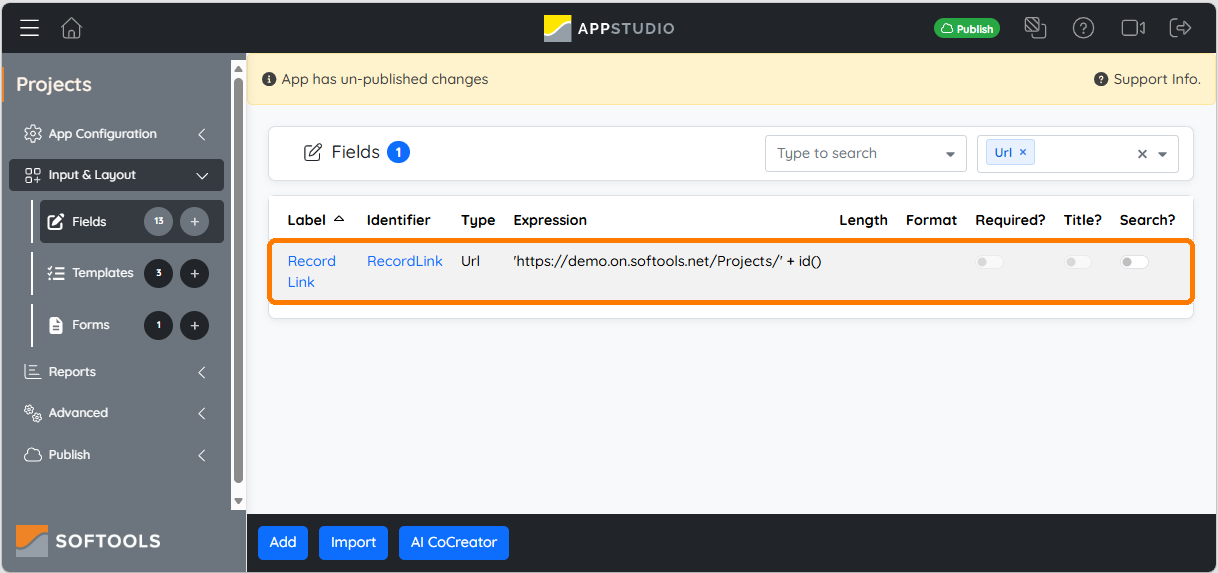
Then include that Record Link field in the MCP-enabled View.
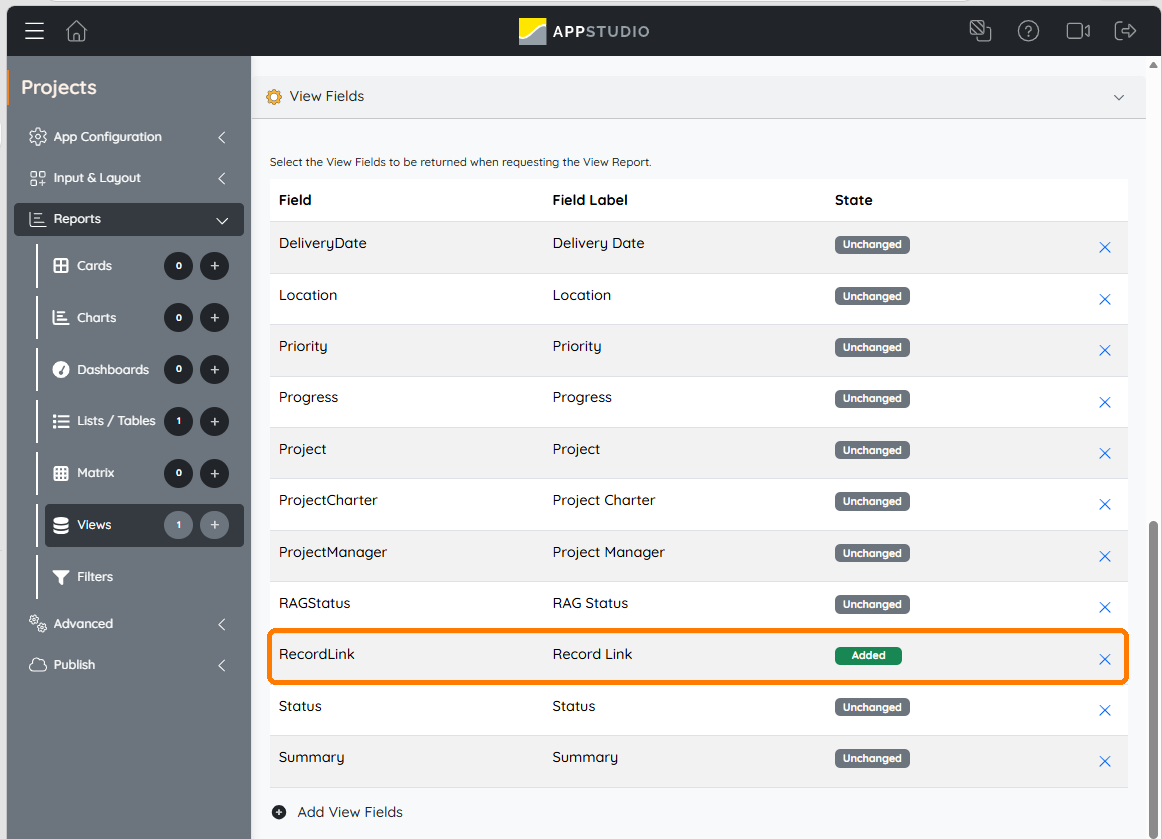
You can then ask:
Give me direct links to the ERP Upgrade Project and the Actions and Risks you think I should review first.
The assistant returns links to the Project, the Critical Risk and the Actions it thinks need attention.
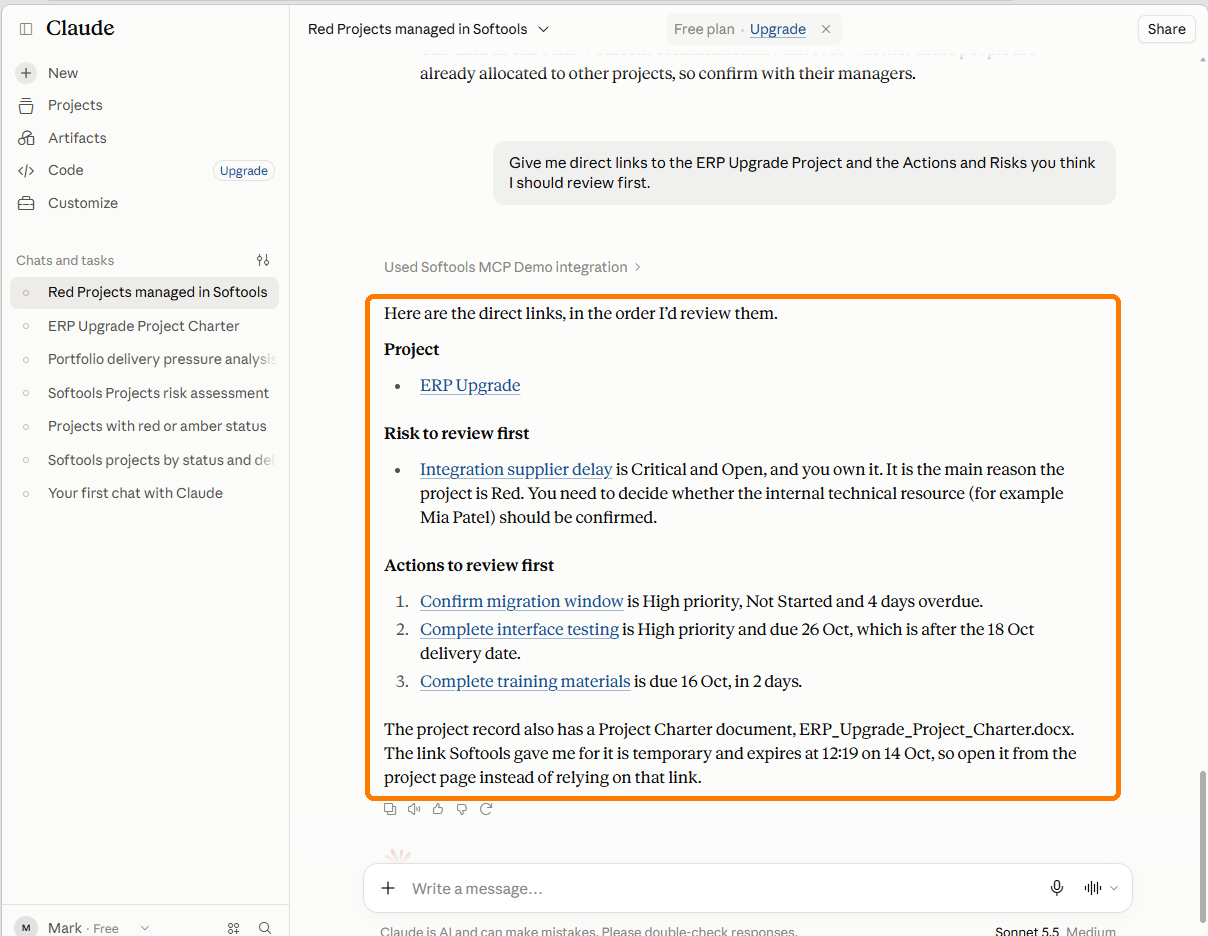
This creates a simple workflow:
Ask → Investigate → Analyse → Open
The assistant helps you understand what needs attention, then takes you directly back to the relevant Softools record.
Tip: An AI assistant may be able to infer the standard Softools record URL pattern from an App ID and Record ID. However, including an explicit Record Link field in the MCP View removes ambiguity and gives the assistant a reliable URL to return.
For App Builders: what makes a good MCP View?
The quality of the AI response depends on the data and context made available through the View.
A few simple choices can make a big difference:
- Include the fields the assistant needs to answer the intended questions.
- Add useful Field descriptions, especially where values could otherwise be ambiguous.
- For Person fields, include both the underlying value and its
_Textrepresentation. - Include explicit parent references in child Apps such as Actions and Risks.
- Include document fields where supporting documents may add useful context.
- Include a Record Link field where you want dependable deep links back into Softools.
- Use Data Lens Views for targeted analysis and broader pattern-finding.
- Remember that each Data Lens search returns up to 40 records.
- Keep the View focused on the information the assistant actually needs.
A different way to work with your Apps
MCP does not replace Apps, reports or workflows.
Softools remains the place where records are managed and processes are controlled.
What MCP adds is another way to work with the information already held there.
Without the connection, you might open Softools and work through the Apps and reports you need to answer a question.
With Softools connected to your AI assistant, you can instead start with the business question itself and let the assistant use the relevant Softools data to help answer it.
Please sign in to leave a comment.
Comments
0 comments