Add Confirmation Messages to Action Buttons Before They Run

Help Users understand the consequences before they proceed.
A button labelled Send, Submit or Remove tells Users what they can do. A confirmation Message can explain what happens next, giving them an opportunity to check their decision before proceeding.
The Action Field’s confirmation Message is particularly useful when sending information, moving work to another stage or archiving Records. Here are three practical examples.
1. Explain what an email will send
In a Compliance Audit App, the Send Audit Report Action triggers a Workflow that emails the report to the Senior Compliance Manager.
The confirmation explains what will be shared, who receives it and what to check first:
This will email the audit report, including findings and outstanding actions, to the Senior Compliance Manager. Check that the audit is complete and the findings are ready to share before continuing.
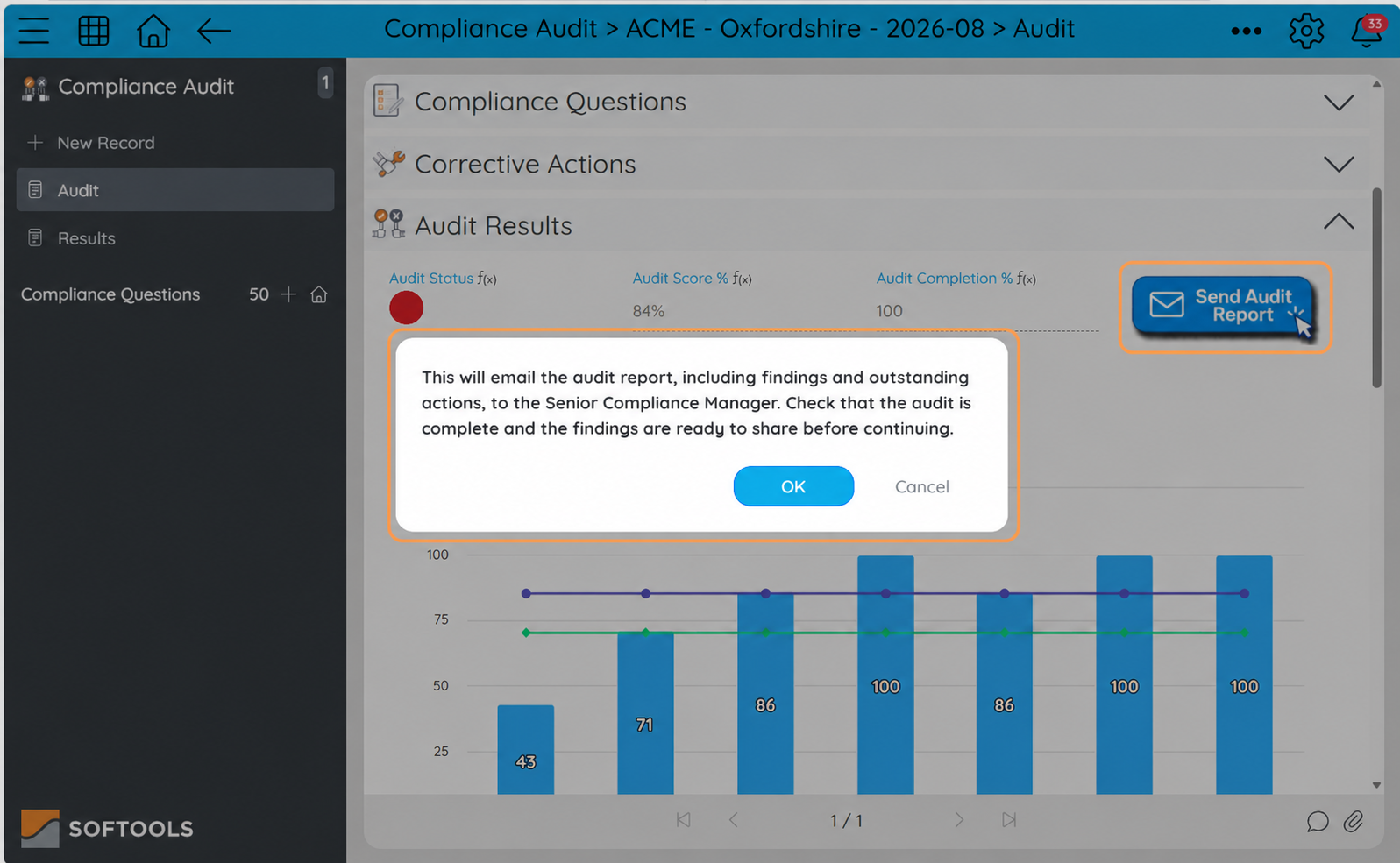
Explain what will be sent and who receives it before Users choose OK or Cancel.
Selecting OK proceeds with the configured Action. Selecting Cancel closes the Message without running it.
2. Give Users a checkpoint before submitting
In a Support Tickets App, a Submit Request Action sends a feature request to the App Support team and moves it to Awaiting Review.
The confirmation gives Users a final opportunity to check their information:
This will submit your feature request to the App Support team and move it to Awaiting Review. Check the support category, issue title and description before continuing.
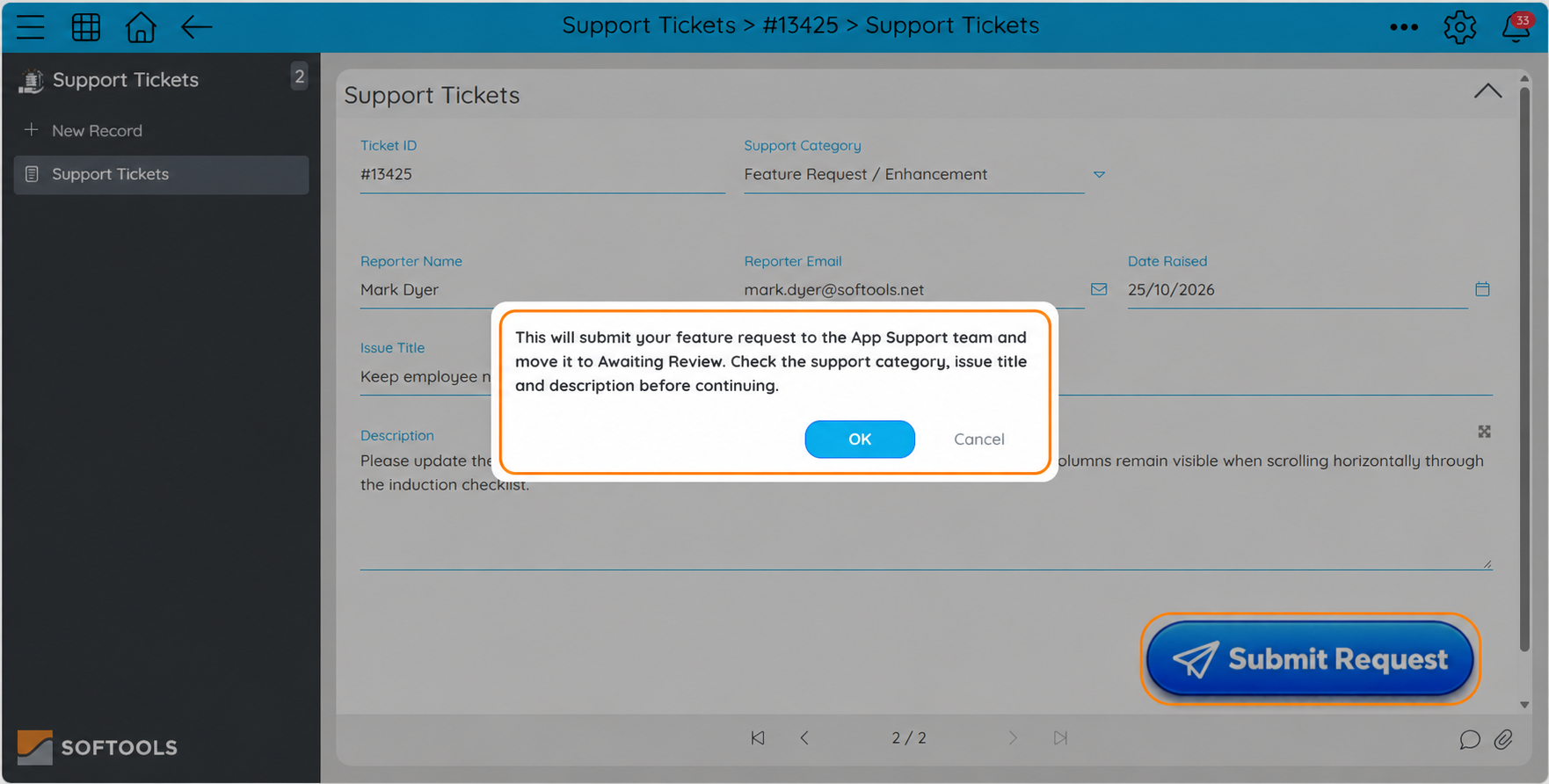
Explain the next stage and highlight the Fields Users should check before submitting.
Adapt the checks to your process. For a purchase request, these might be the amount and cost centre; for a project approval, they might be the scope, budget and delivery date.
The feature request shown is an internal App improvement using Softools’ existing Sticky Configuration to keep employee names visible in a Staff Register.
3. Explain the effect of removing a Record
Confirmation is also useful for Actions displayed on each row of a Table Report, where Users could accidentally click the wrong row.
In this Benefits App, the configured Remove? Action triggers a Workflow that archives the Benefit, removing it from the active Benefits list.
This will archive this Benefit and remove it from the active Benefits list. Check that you have selected the correct Benefit. Do you want to proceed?
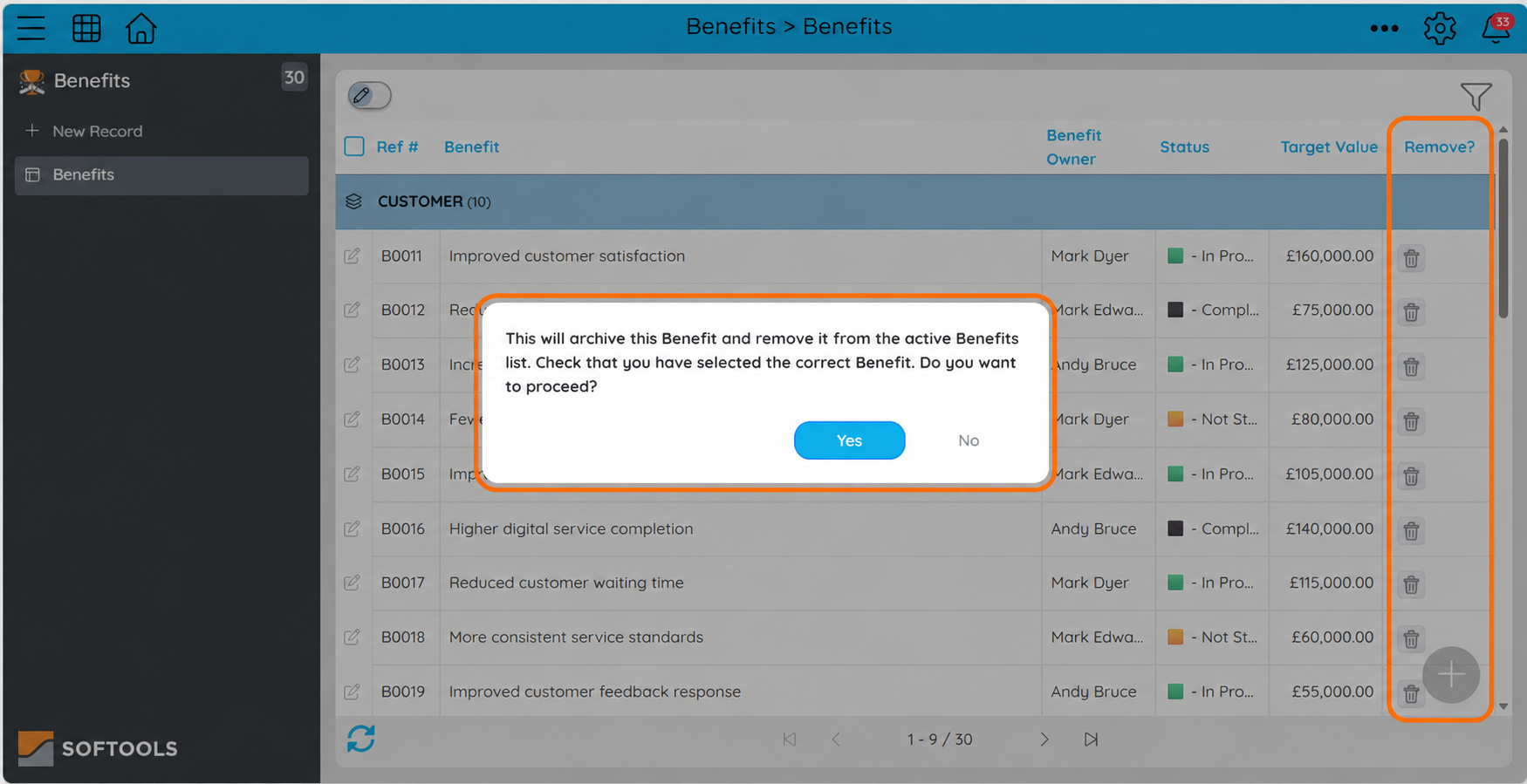
Offer an explicit Yes/No choice before archiving a Benefit from the Table Report.
Choosing Yes proceeds with the configured Action; No stops it.
This example uses a configured Action Field and Workflow. It does not modify the standard archive menu. The wording should match what your Workflow and Report filters actually do.
Configure your confirmation Message
In App Studio, open the relevant Action Field and find Confirmation Message Options:
-
Enable Show Confirm Message?
-
Enter the explanation in Message.
-
Select the Buttons to display.
-
Save the Field and publish the App changes.
-
Test both proceeding and stopping in Workspace.
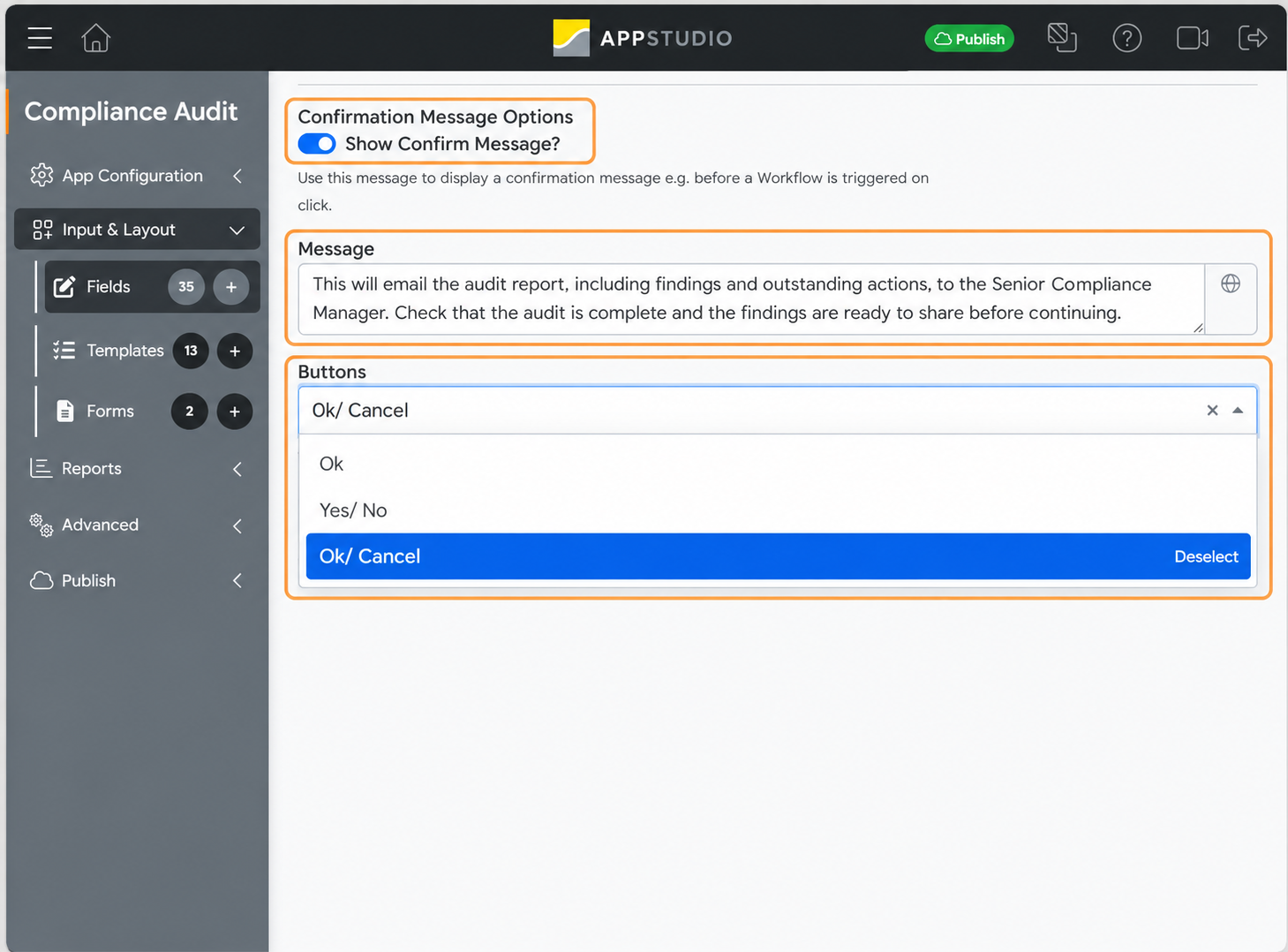
Enable the Message, enter clear wording and select the response options.
| Buttons | When to use |
|---|---|
| Ok | A Message the User acknowledges before proceeding. |
| Yes/No | A question the User can accept or decline. |
| Ok/Cancel | An explanation with a choice to proceed or cancel. |
Choose Yes/No or Ok/Cancel when Users need an explicit way to stop.
Make each confirmation useful
A helpful Message explains what will happen, who or what is affected and what to check first. A generic “Are you sure?” gives Users little information to support their decision.
Keep the wording short and use confirmations selectively for consequential Actions. Adding them to every routine click can make them easier to ignore.
The Message provides guidance; it does not validate the information or perform the operation. Configure required checks separately in the App or Workflow. Any Workflow trigger criteria must still be met.
See the Action Field support article for configuration guidance.
Please sign in to leave a comment.
Comments
0 comments