Cascading Reference Fields: Filter Selectable Values Based on Values in Other Fields

Follow a Company to Contact example to see how an earlier selection filters the records users can choose next.
When a user adds a customer enquiry, they need to record which Company it relates to and who to contact. With 120 Contacts across 20 Companies, searching through everyone adds effort and creates opportunities to select someone from the wrong Company.
Cascading Reference fields make the next selection more relevant. The user selects a Company, then Contact Search offers the Contact records associated with it.
Start with the Companies and Contacts
Our example uses three Apps: Companies, Contacts and Enquiries.
The Companies App holds one record for each organisation, including its name, Company Code, Sector and Location.
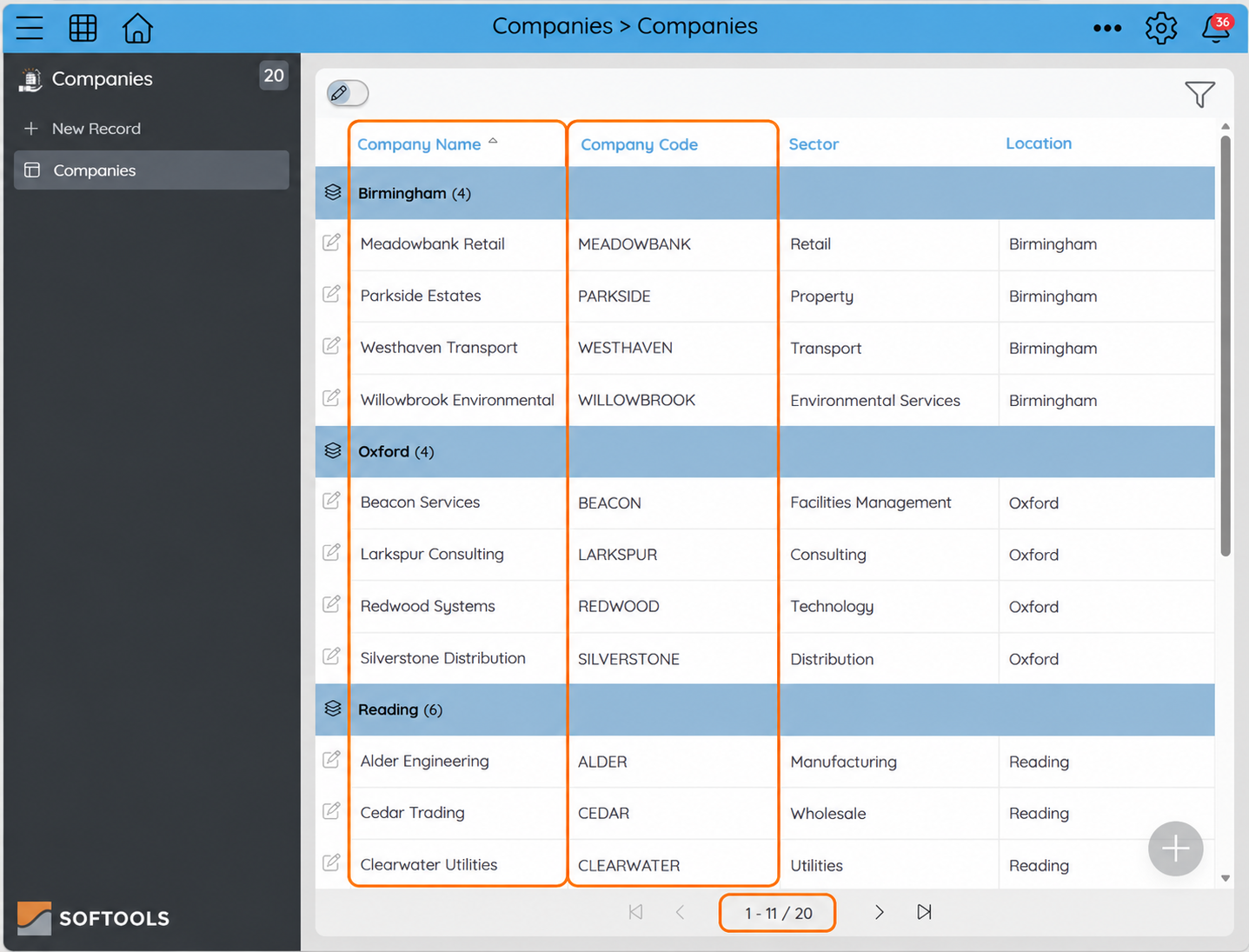
Each Company is an existing record that users can select when adding an Enquiry.
The Contacts App holds the people associated with those Companies. Each Contact has a name, job title, email address and Company Code. Contacts belonging to Alder Engineering carry ALDER; those belonging to Beacon Services carry BEACON.
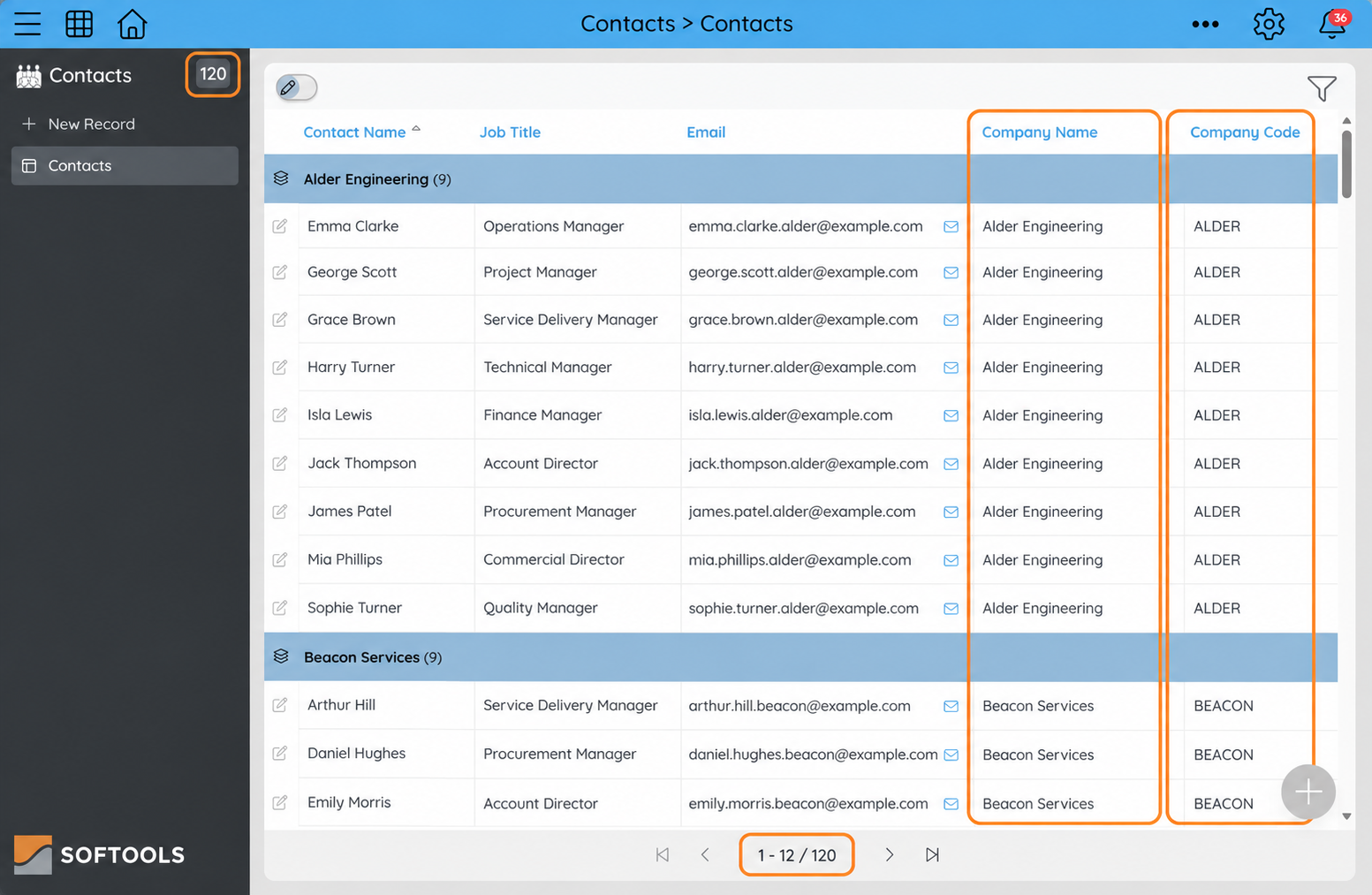
The Contacts App contains 120 people. Company Code identifies which Company each Contact belongs to.
The Enquiries App brings these records together. Users enter the request, select a Company and then select a relevant Contact.
Add an Enquiry
A user receives a request about planned maintenance support and adds an Enquiry. They enter Planned Maintenance Support as the title, set Status to New, and describe the request:
We are reviewing support for planned equipment and facilities maintenance. Arrange an initial discussion to confirm service coverage, response times and pricing before requesting a proposal.
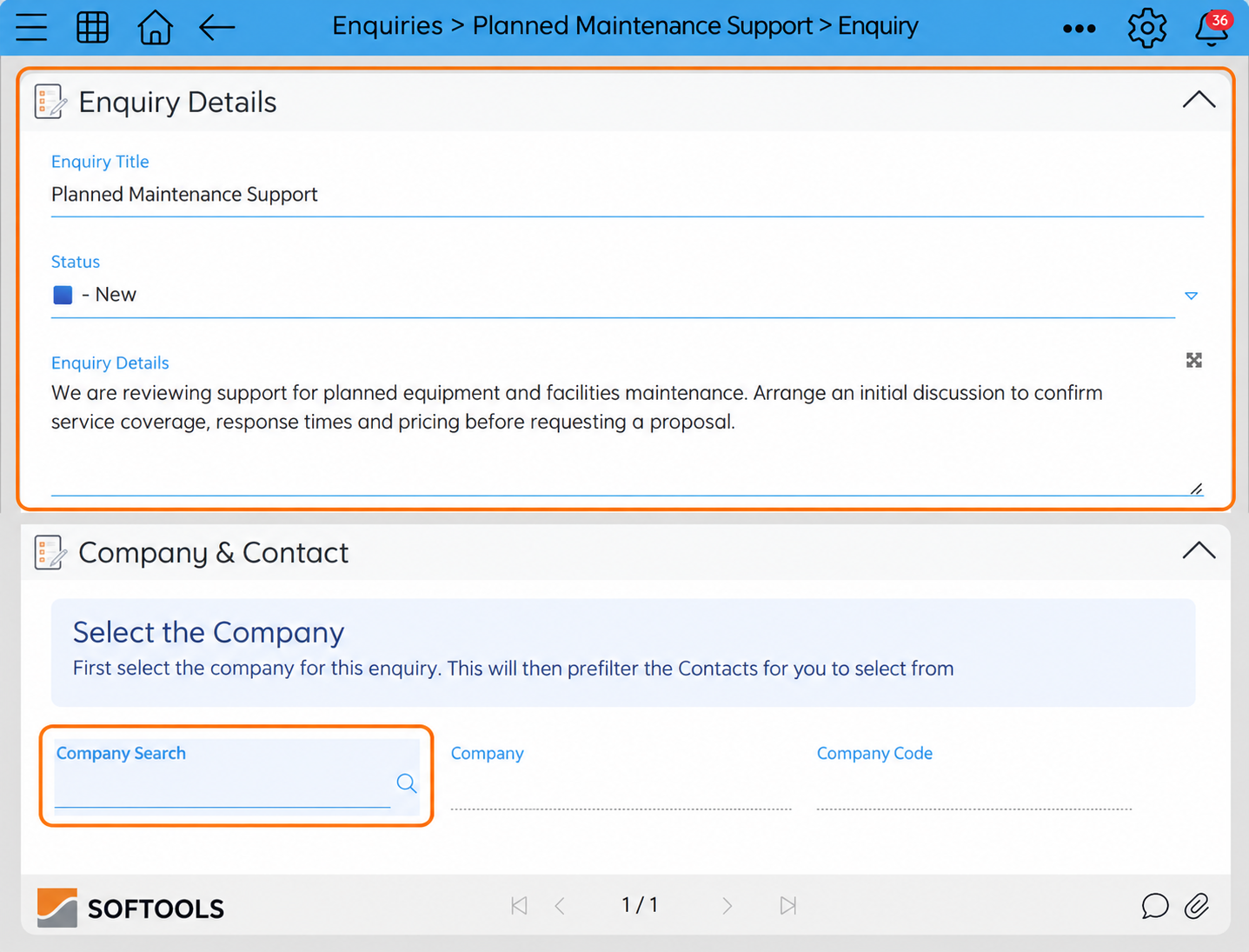
The user records the request, then moves on to selecting the Company and Contact.
In this example, an optional visibility Rule hides the Contact fields until a Company is selected, guiding the user through the sequence.
Select the Company record
The user opens Company Search, a Reference field connected to the Companies App. Its choices are existing Company records, with their supporting information available in the selection panel.
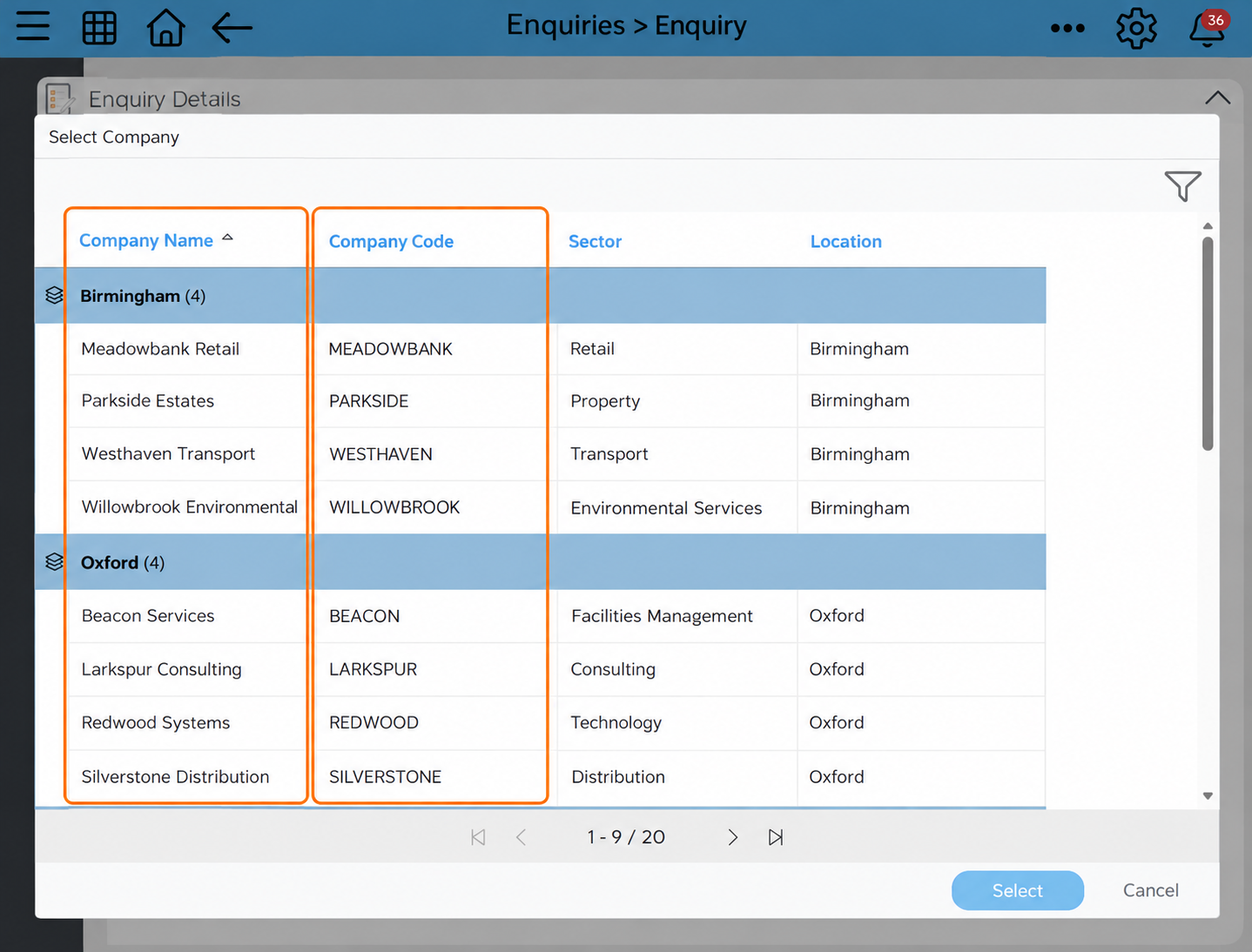
Company Search lets users choose an existing record from the Companies App.
The user selects Alder Engineering. Mappings populate Company with Alder Engineering and Company Code with ALDER. The Contact section is now available.
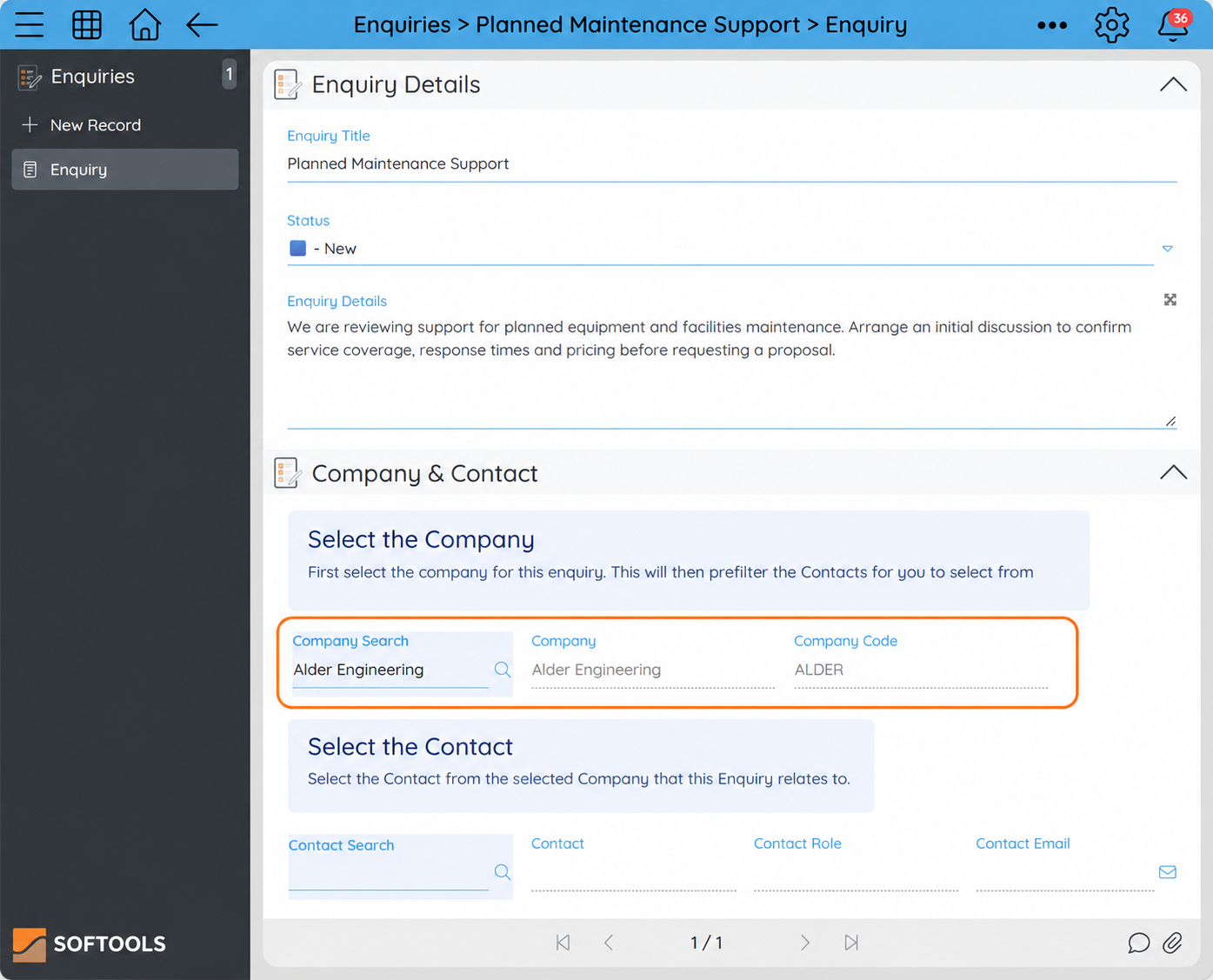
Selecting Alder Engineering copies its name and Company Code into the Enquiry.
The Reference field displays the selected record’s Title but stores its Softools record ID. Mappings copy the readable name and matching code into separate fields on the Enquiry. The Company Code supplies the value used to filter Contact Search.
Choose from that Company’s Contacts
The user opens Contact Search, a second Reference field connected to the Contacts App. Instead of all 120 Contacts, it offers Alder Engineering’s nine Contacts.
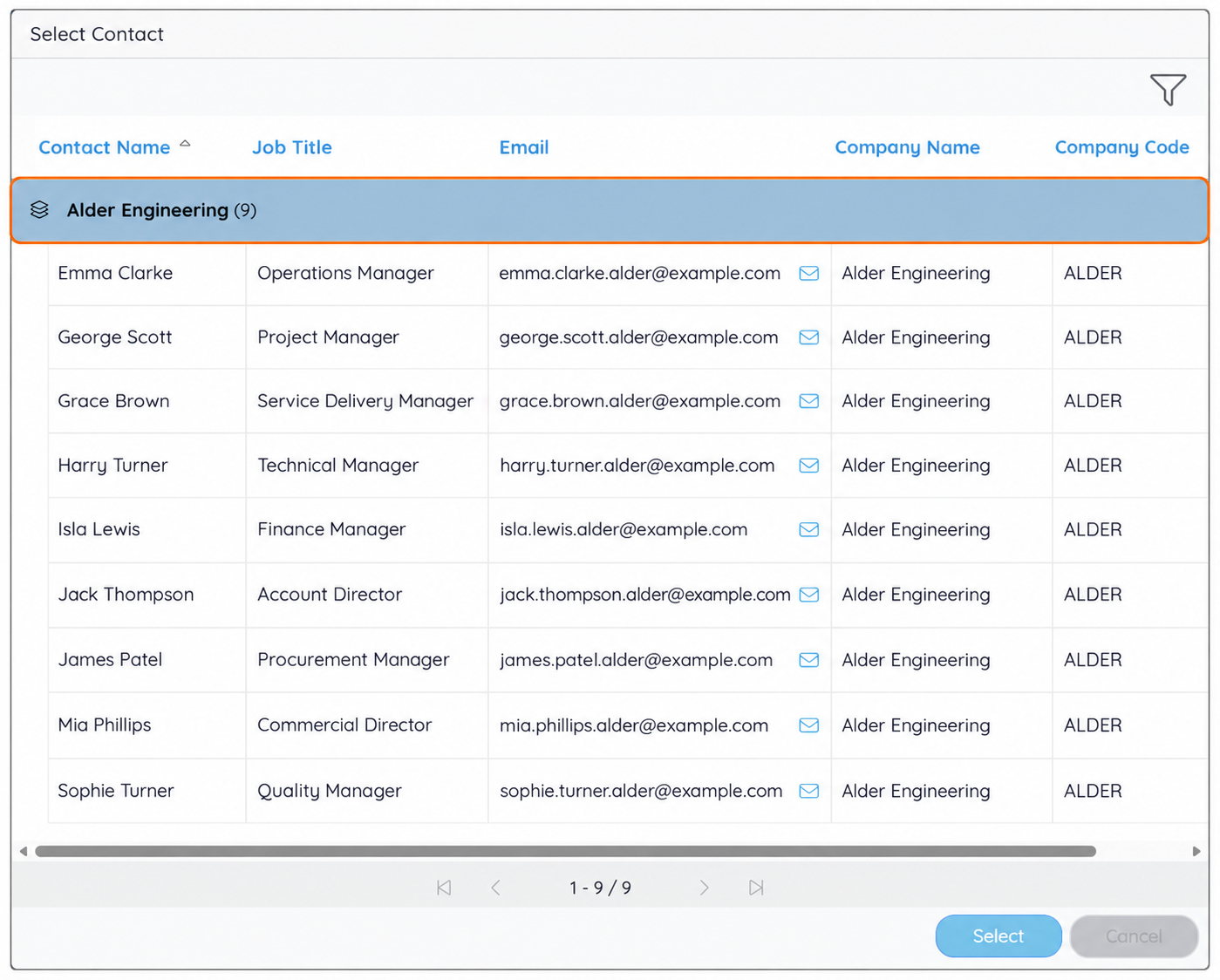
Only Contact records whose Company Code matches ALDER are offered for selection.
This is the cascading behaviour: a value populated by the Company selection determines which Contact records are available in the next Reference field. The user selects an existing Contact record from that filtered set.
Search or browse the relevant records
Users can choose from the inline dropdown or select More items to browse the configured report. The dropdown shows the Company matching filter. For comparison, with Beacon Services selected it offers Beacon’s Contacts.
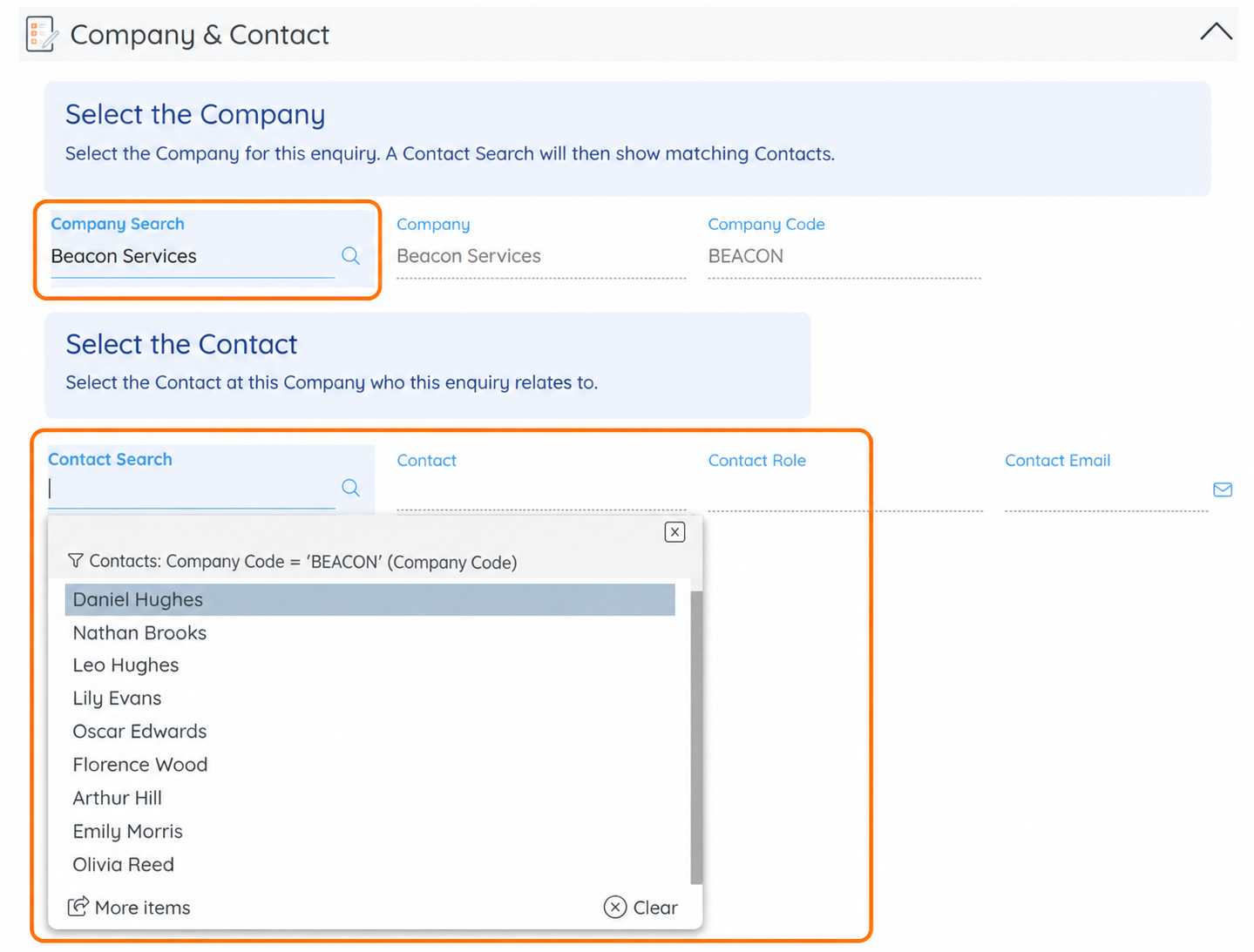
With Beacon selected, the inline dropdown offers Contacts matching the BEACON Company Code.
Typing a name narrows those choices further. With Beacon selected, typing “olivia” returns Olivia Reed.
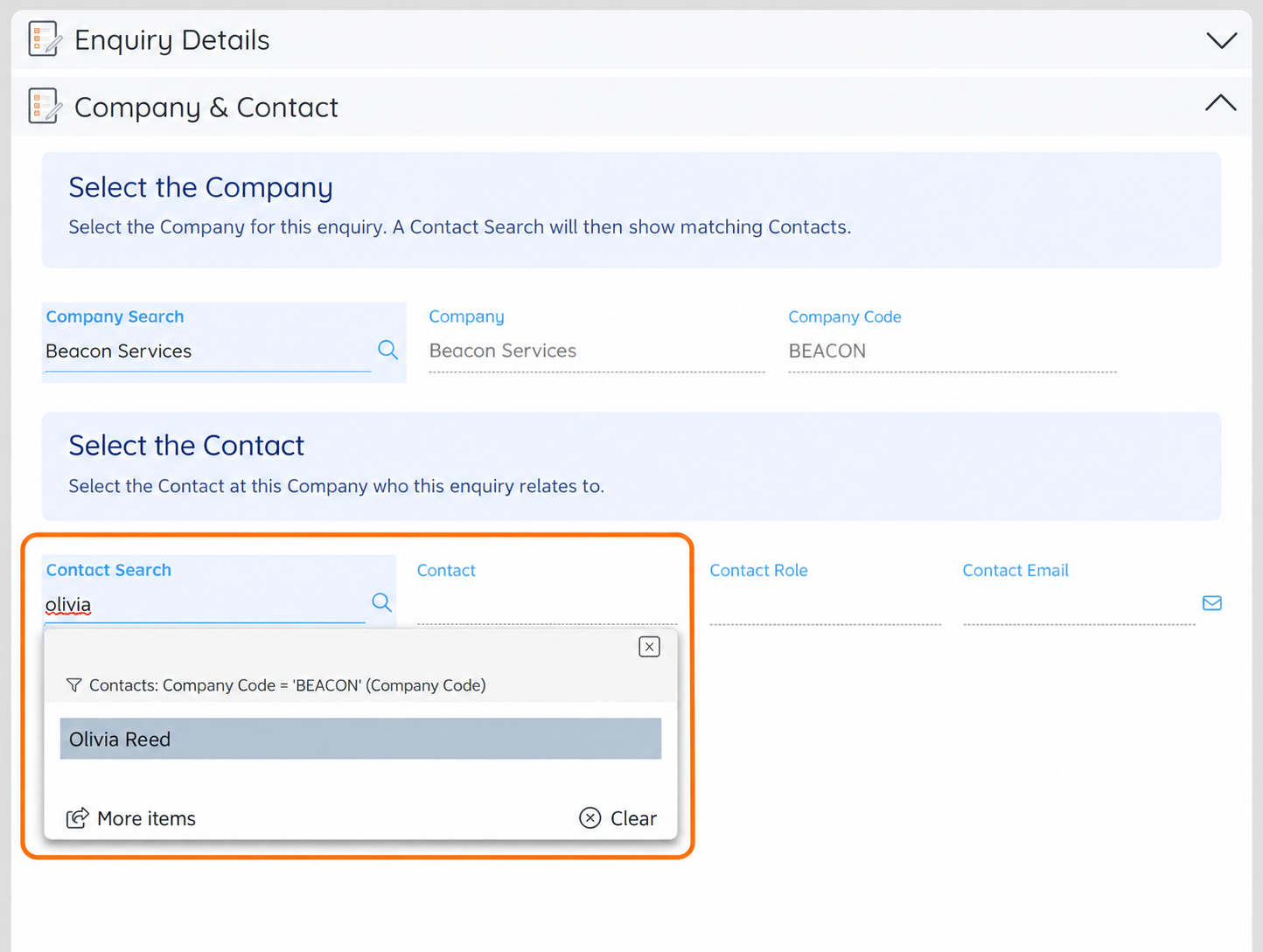
Type-ahead searches within the matching Company’s Contacts.
More items provides supporting details, including job titles and email addresses. Users can apply additional filters. Here, filtering Job Title to contain Manager reduces Beacon’s nine Contacts to seven.
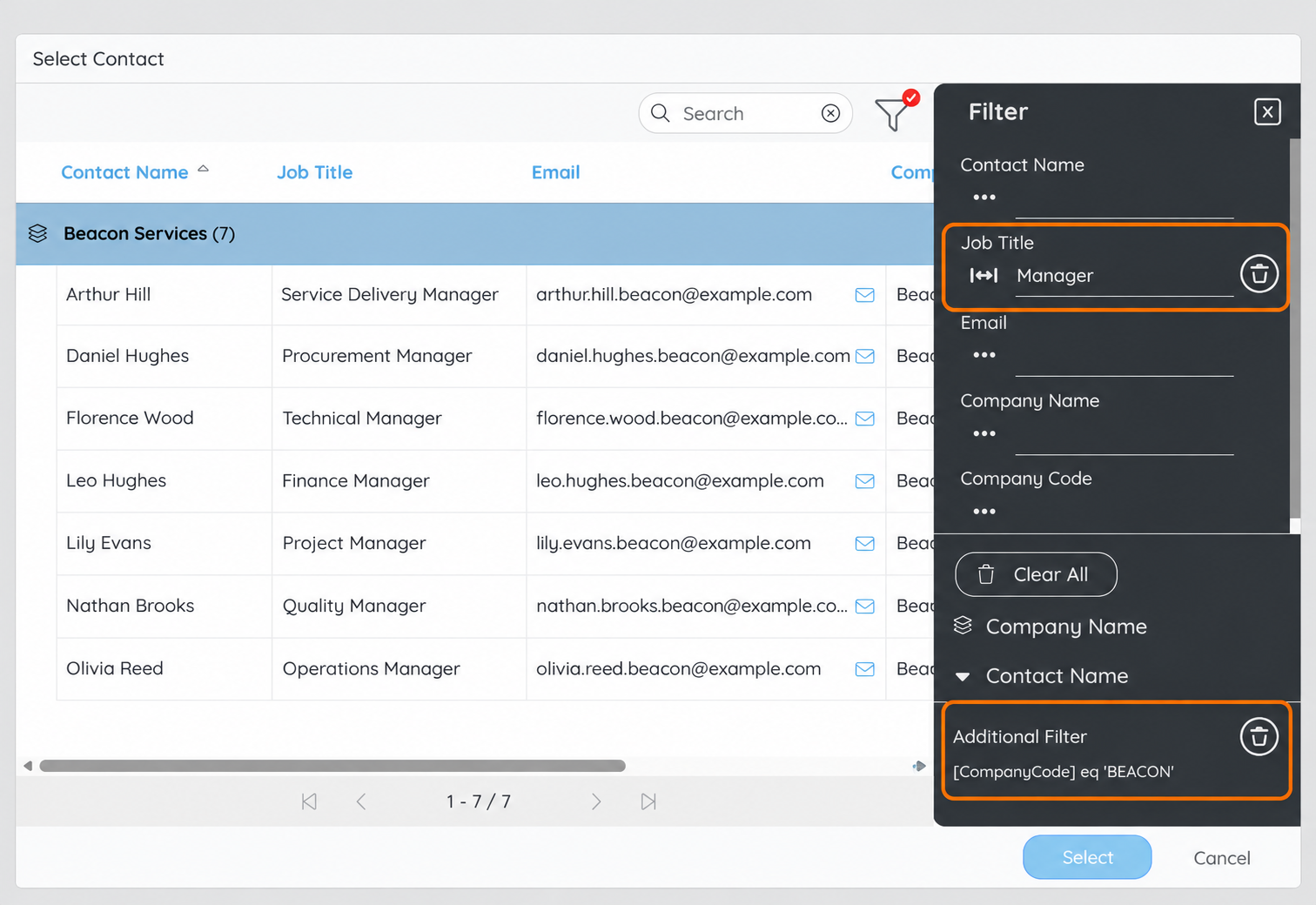
Further filtering narrows the choices while retaining the Company matching filter.
Populate the selected Contact’s details
Returning to the Alder Engineering enquiry, the user selects Grace Brown. Contact Search stores the selected Contact’s record ID, while mappings populate Contact, Contact Role and Contact Email.
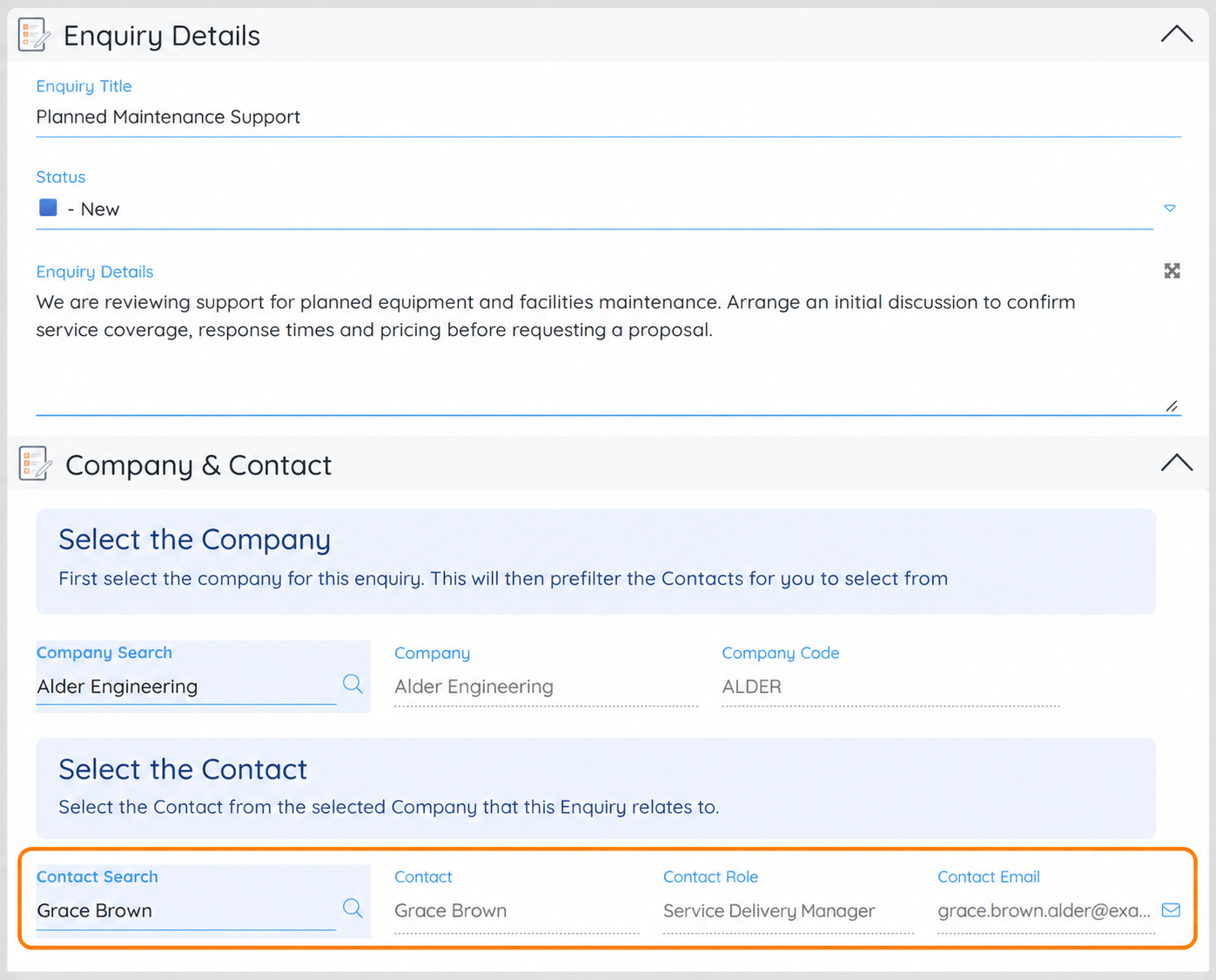
Selecting Grace Brown copies her name, role and email address into the Enquiry.
The user has recorded the request, the Company and the relevant Contact, without retyping information already held in the source Apps. They can review and save the Enquiry.
Handle a change of Company
If the user changes Company to Beacon Services, the mapped Company Code becomes BEACON and Contact Search offers Beacon’s nine Contacts.
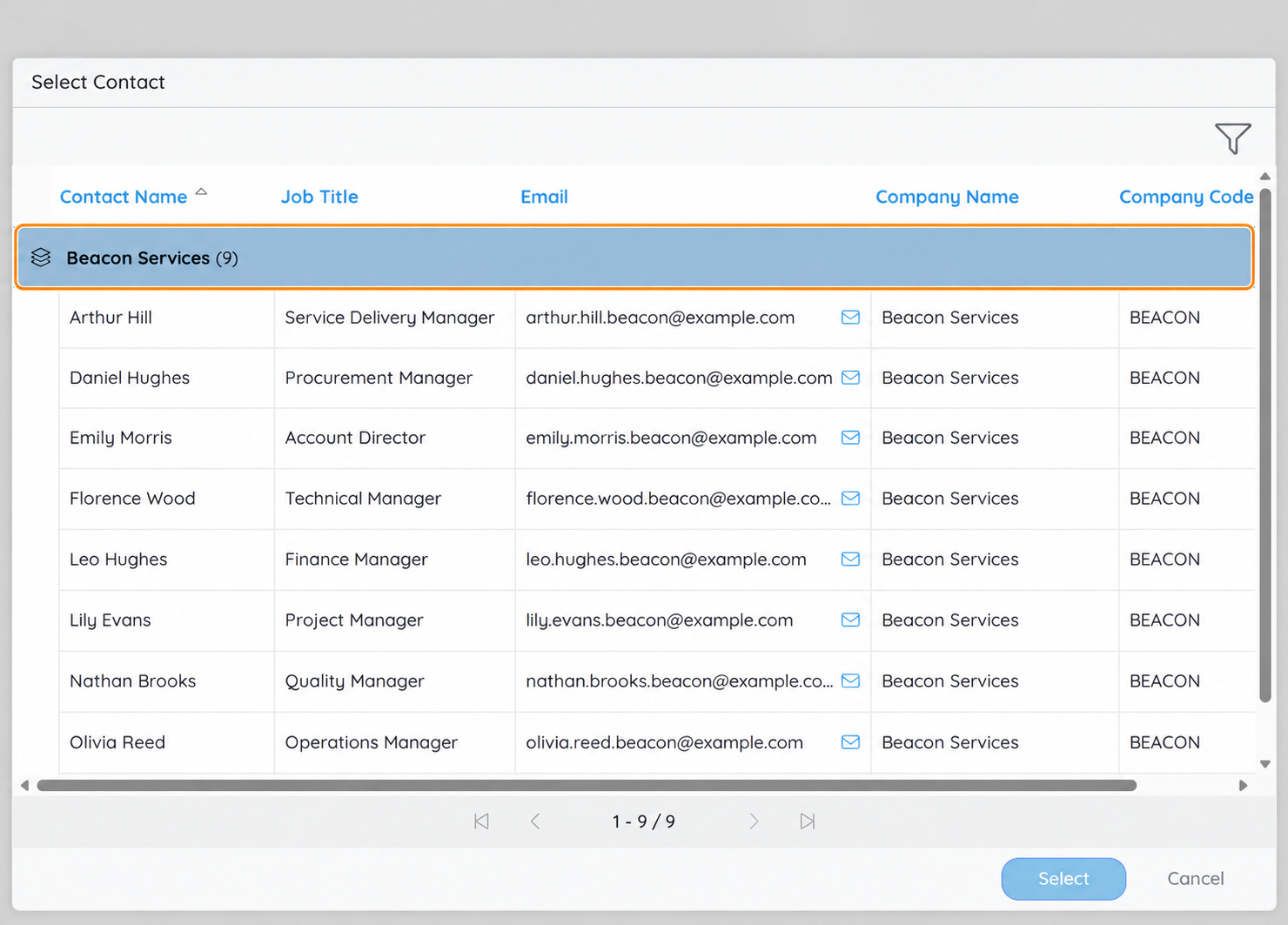
Changing Company changes the set of Contact records available for selection.
Matching does not automatically clear a Contact already selected or its mapped details. In this example, an additional workflow clears Contact Search, Contact, Contact Role and Contact Email when Company Code changes. The user then makes a fresh Contact selection.
Handle no matching Contacts
Cedar Trading has a Company record but no Contacts in this demonstration. Selecting Cedar and opening Contact Search displays “No records found”.
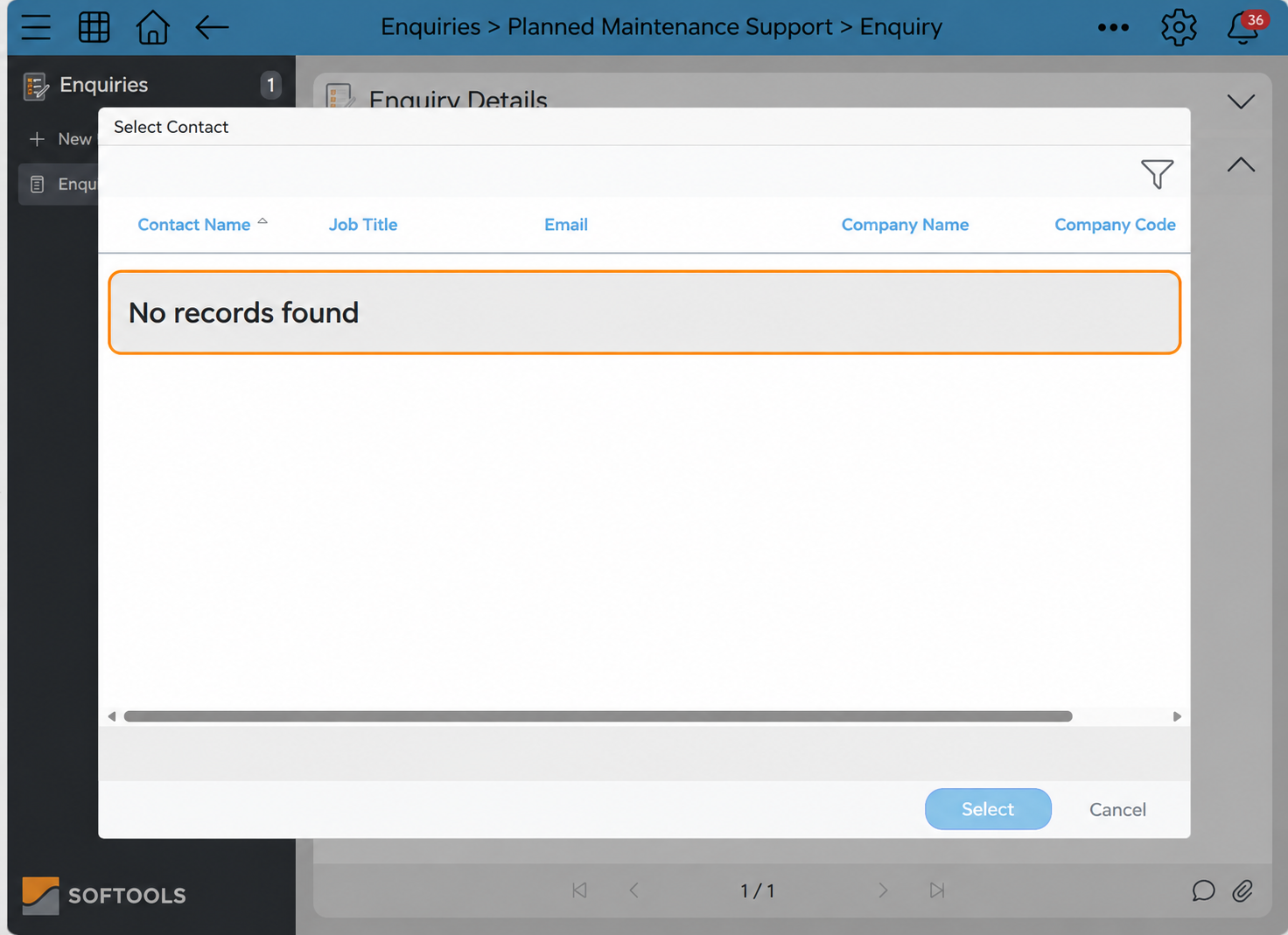
No Contact records match Cedar Trading’s Company Code, so none are offered.
Configure the matching and mappings
Configure Company Search to reference the Companies App and its Companies report, with these mappings:
Map these values from Companies into Enquiries:
- CompanyName → Company: copies the selected Company’s readable name.
- CompanyCode → CompanyCode: copies the code used to filter Contact Search.
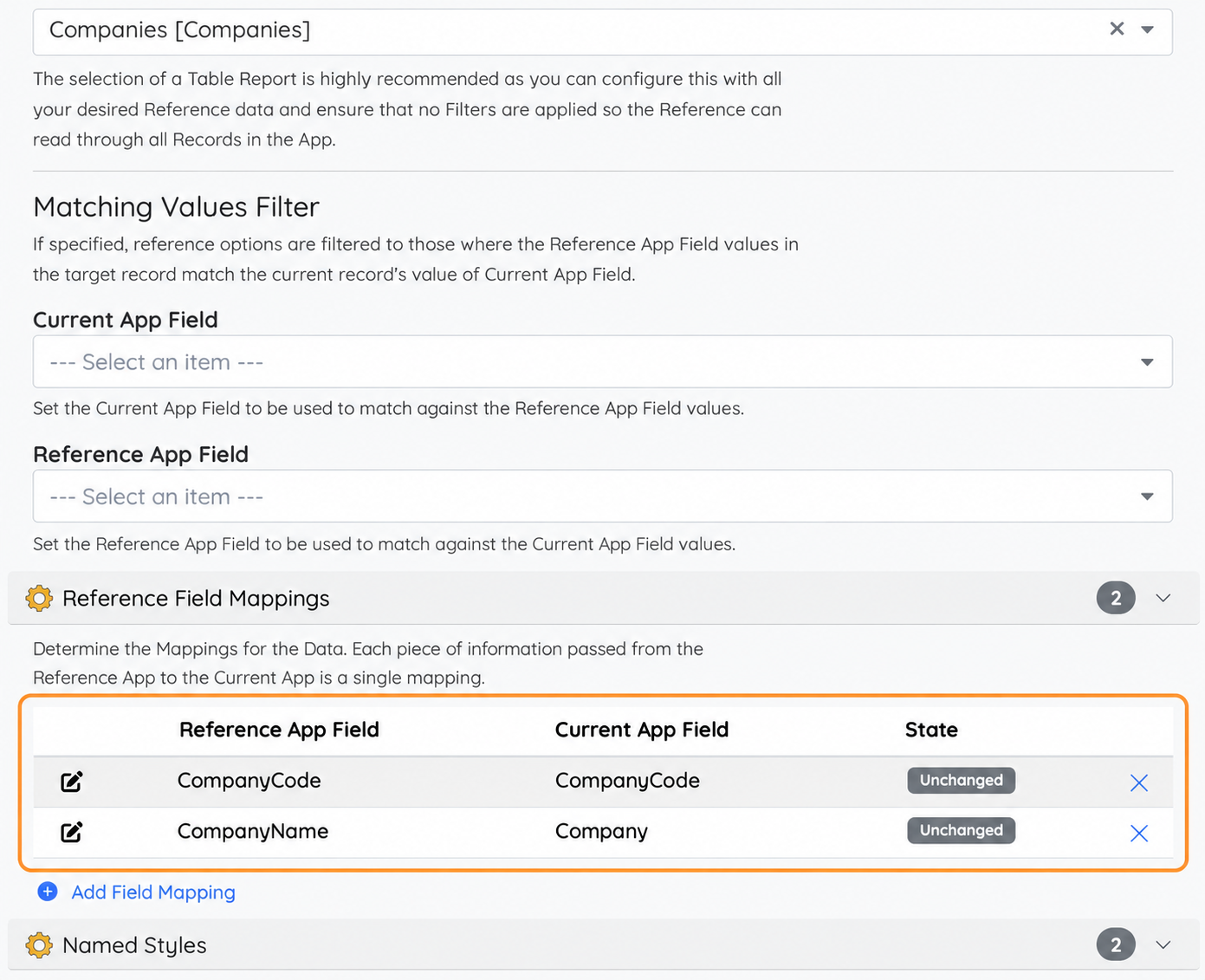
Company mappings copy the readable name and the code needed for Contact matching.
Configure Contact Search to reference the Contacts App and its Contacts report. Under Matching Values Filter, configure:
- Current App Field: Company Code in Enquiries.
- Reference App Field: Company Code in Contacts.
Both Company Code fields are Text in this example.
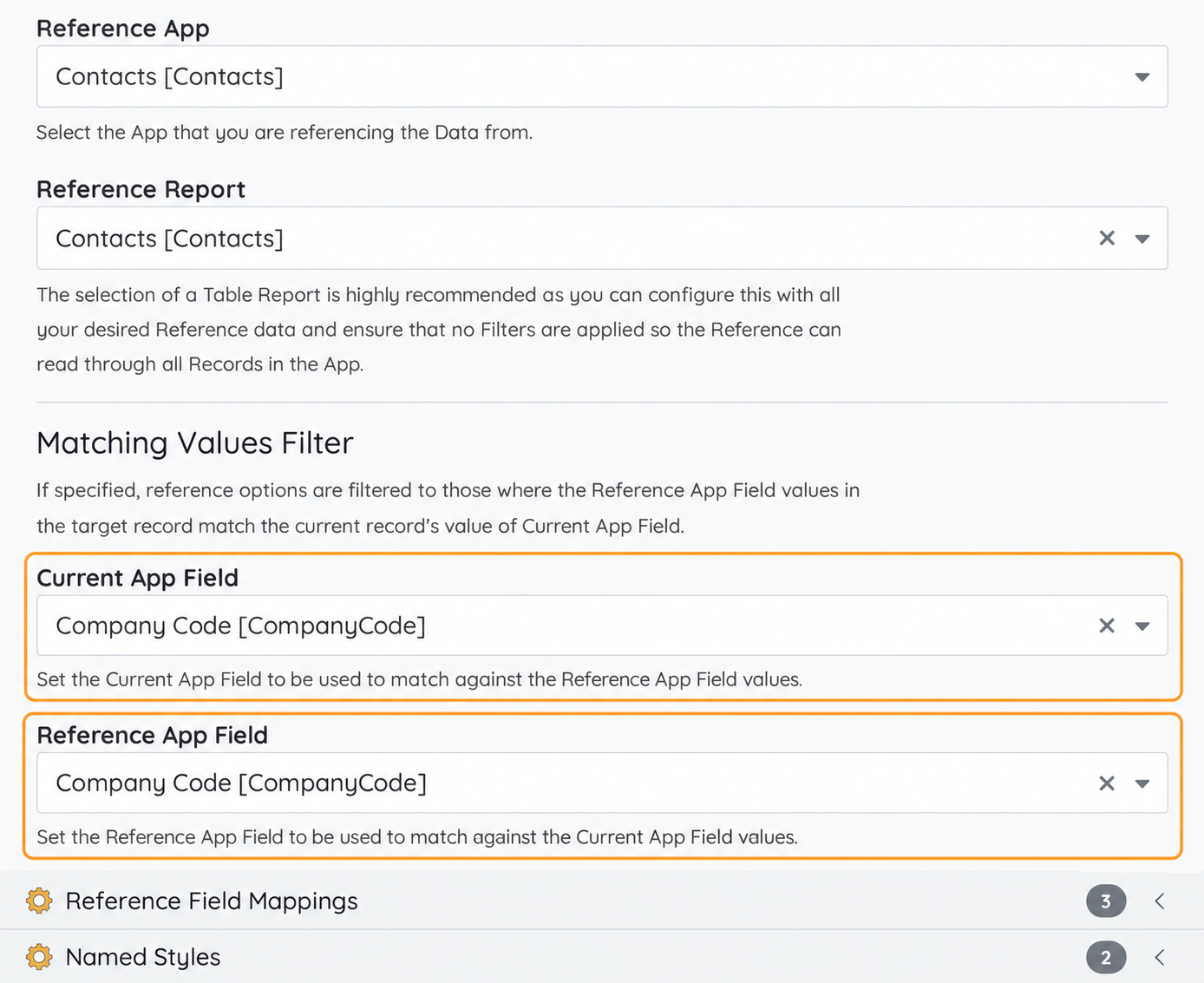
Match Company Code on the Enquiry against Company Code on the Contact records.
Add these Contact Search mappings:
Map these values from Contacts into Enquiries:
- ContactName → Contact: copies the selected Contact’s name.
- JobTitle → ContactRole: copies their job title.
- Email → ContactEmail: copies their email address.
Matching controls the available choices. Mappings copy information after selection.
Clear Contact information when Company Code changes
The demonstrated workflow uses a Field updated trigger, a following Filter referencing CompanyCode, and an Update field value action.
The Filter expression is:
[CompanyCode] <> 'Changed'The following Filter identifies CompanyCode as the field monitored by the trigger. 'Changed' is an arbitrary comparison value, not a special keyword. Choose a value that will never be a valid Company Code in your App.
Set ContactReference, Contact, ContactRole and ContactEmail to the empty string ''.
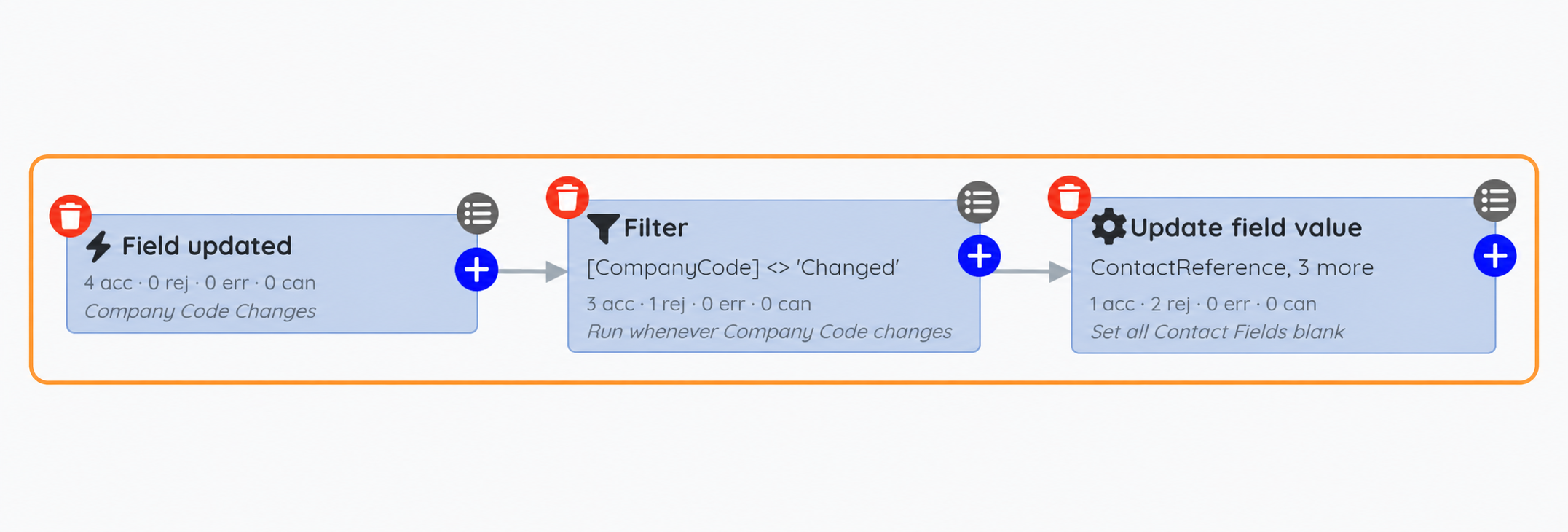
An additional workflow clears the previous Contact and its copied details when Company Code changes.
Optionally hide Contact fields until a Company is selected
The visibility Rule uses this filter with a Hidden action:
$filter=[CompanyReference] eq ''Its targets are Contact Search, the mapped Contact details and the Contact instruction Literal.
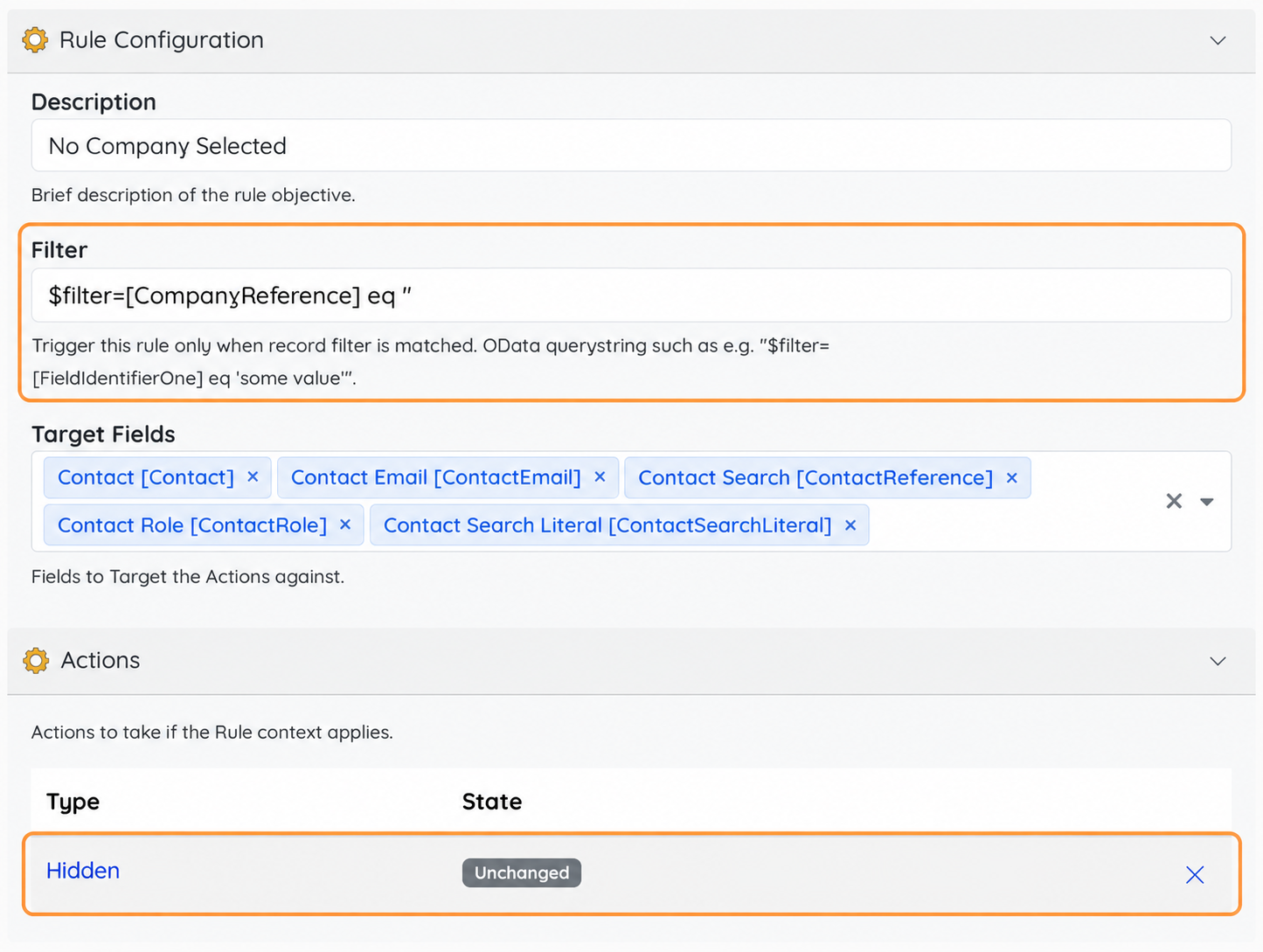
The optional Rule keeps Contact fields hidden while Company Search is blank.
Apply the same approach to other selections
The same pattern can help wherever users need to choose a record relevant to information already entered. For example:
Project → Action
On an issue record, a user could select a Project, then choose the Action the issue relates to. Matching Project Code on the current record against Project Code in the Actions App would narrow the available Actions to that Project.
Site → Asset
On a maintenance request, a user could select a Site, then choose an Asset at that Site. Matching by Site Code helps them find the correct equipment without searching across every location.
Product Category → Product
On an order enquiry, a user could select a Product Category, then choose a Product in that Category. Matching by Category Code narrows the available Product records. Mappings can then copy details such as the selected Product’s code or description.
Each example requires the relevant source records and matching fields to be configured. Where users can change the first selection, consider clearing the dependent selection and its mapped details, as demonstrated above.
Start by asking: what value has the user already provided that could make their next selection easier?
For the user adding an Enquiry, the result is straightforward: select the Company, choose from its Contacts, and bring across the information needed to follow up the request.
For field settings and configuration guidance, see the Reference Field support article.
Please sign in to leave a comment.
Comments
0 comments