Make Numbers Easier to Read with Number Formatting

Numbers are important, but how they're presented can make a big difference to how quickly users understand them.
Number Formatting options in Softools make it easy to give Numbers more context and improve the usability of your Apps.
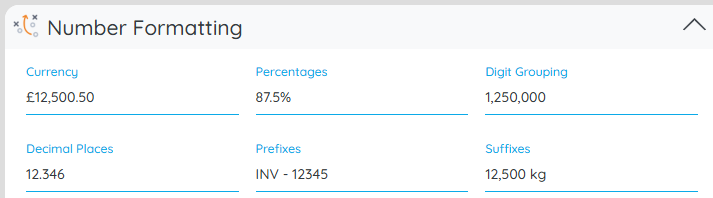
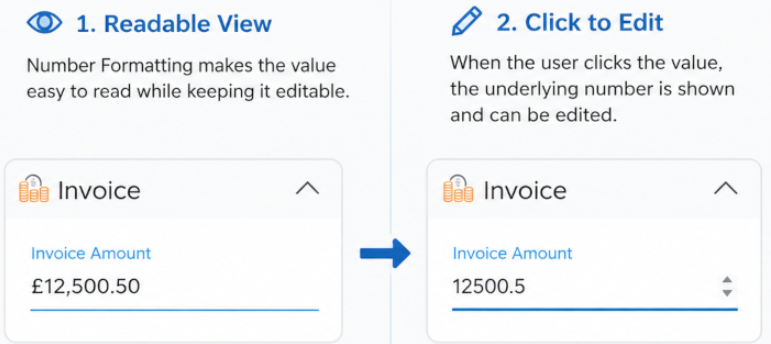
You can make Numbers more meaningful and readable, while still allowing users to Click to Edit.
A value can be displayed in the format that's most useful to the user and, when they need to change it, they can simply click the value and edit the Number.
📊 Especially useful in Table Reports
Number Formatting works particularly well when you're presenting lots of data in a Table Report.
Imagine a financial report showing:
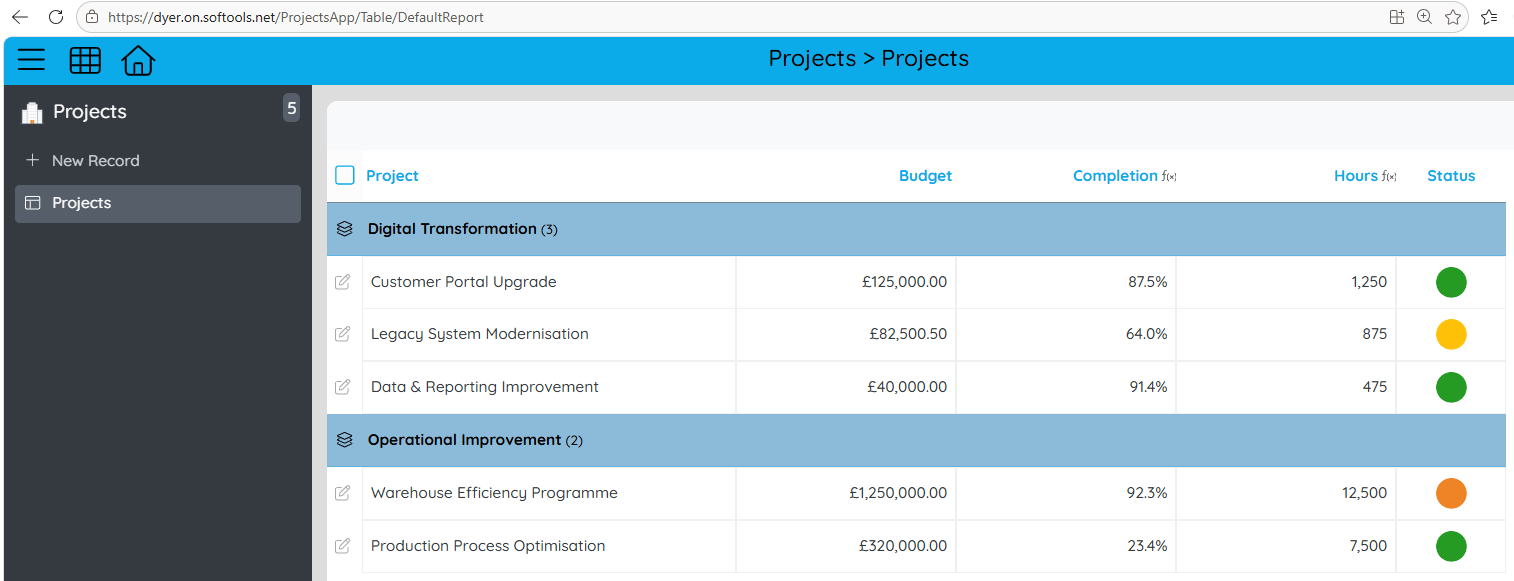
Rather than forcing users to interpret raw Numbers, formatting gives them immediate context.
And if a value needs changing, they can simply Click to Edit it.
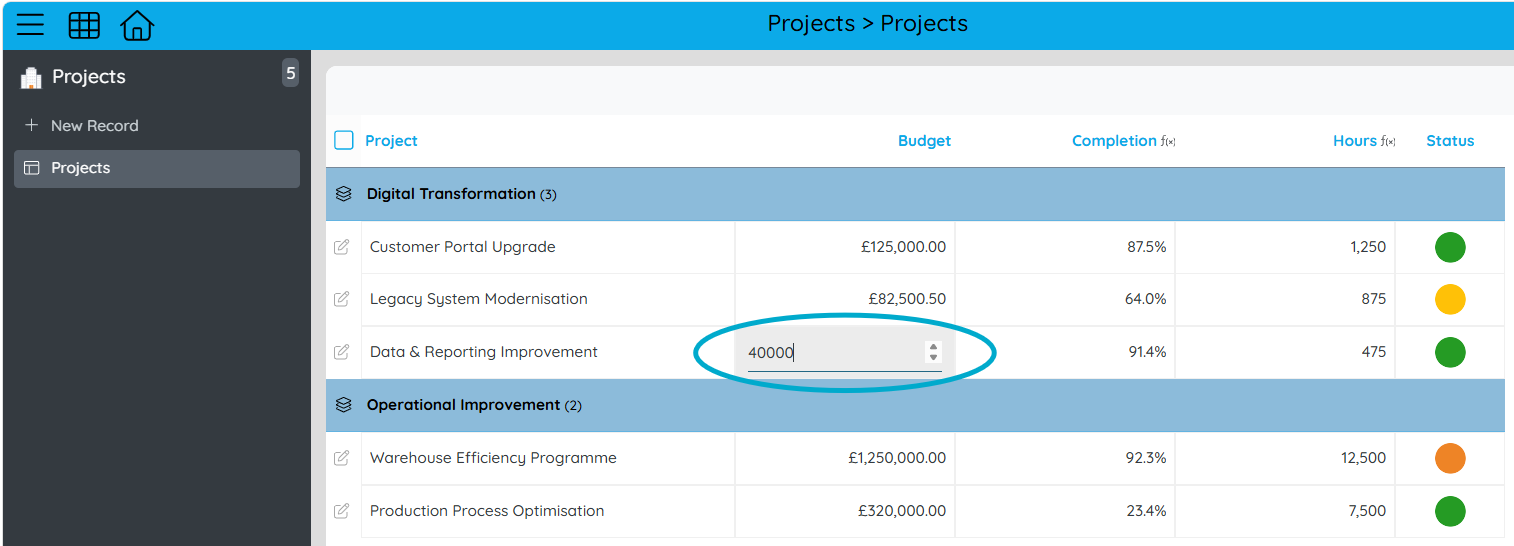
This makes Number Formatting particularly useful for operational Apps where users are working directly with data, rather than just viewing a static report.
💷 Add context to your numbers
Number Formatting gives you options such as:
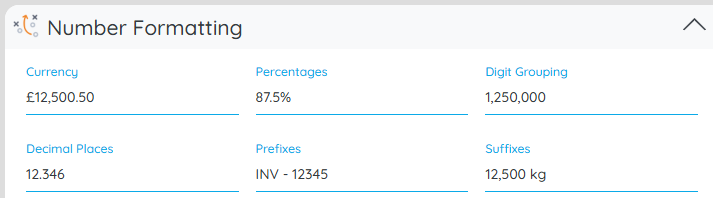
🔹 Currency — £12,500.50
🔹 Percentages — 87.5%
🔹 Digit grouping — 1,250,000
🔹 Decimal places — control how much precision users see
🔹 Prefixes — INV - 12345
🔹 Suffixes — 12,500 kg
In App Studio, open the 'Number Formatting' area on a Number Field to select the appropriate combination of properties.
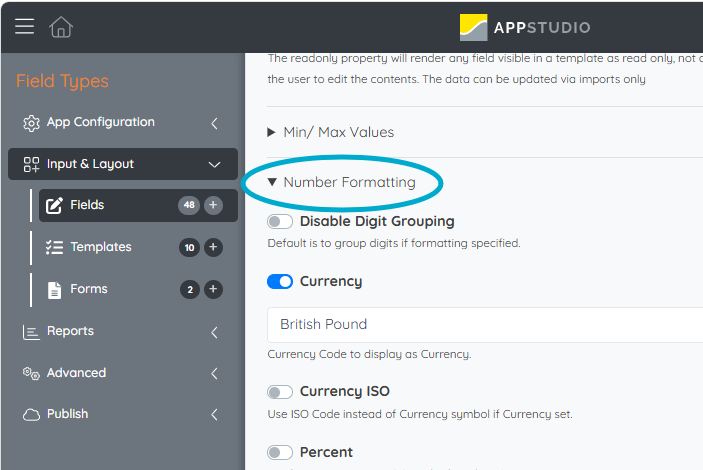
These small changes can turn a technically correct value into something much easier to understand at a glance.
📤 Use the same formatting beyond the screen
Number Formatting isn't limited to how the value appears in a Record or Report.
The configured formatting is also used by default when exporting Number fields to Word.
It can also be used in workflow emails with:
@Softools.FieldValue("Amount")and in workflow expressions using:
formatfield('Amount')Both can use the site's default language or a specific locale where required.
This means the same Number Formatting can be used across your App and its outputs without needing to create a separate formatted value just for an email or Word export.
🧠 But what about Format Strings?
Format Strings still have an important role, but they solve a slightly different problem.
Number Formatting controls how a Number is displayed, supports Click to Edit, and can be used in Word exports, workflow emails and workflow expressions.
Format Strings create a separate formatted text value using the _Formatted backing Field.

For example, adding a Format String to:
InvoiceAmountcreates:
InvoiceAmount_FormattedSet the Format String on the Field here:
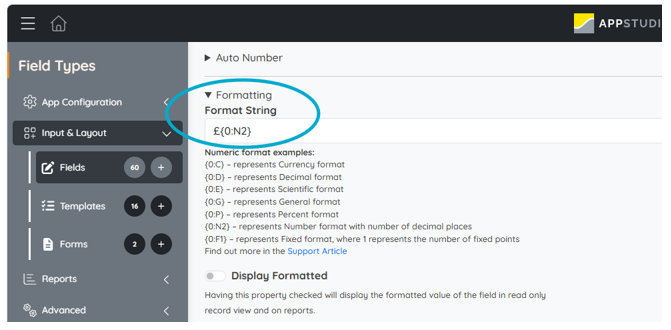
That separate _Formatted value can then be displayed elsewhere or used as part of an App expression.
🚀 And you can use both
Imagine an App used to raise an invoice.
When entering the invoice, the InvoiceAmount needs to be editable, but you also want it to be easy to read:
£12,500.50
Number Formatting gives you the readable currency value while still allowing the user to Click to Edit it.
Later in the Record, you might have an invoice summary Template where you want the Invoice Amount to be displayed as read-only. Rather than creating another Number Field, the Format String gives you an InvoiceAmount_Formatted value that can be displayed directly:
You could also use that formatted value as part of an App expression to add some context:
"Total invoice value: " + [InvoiceAmount_Formatted]giving the user:
Total invoice value: £12,500.50So in the same App:
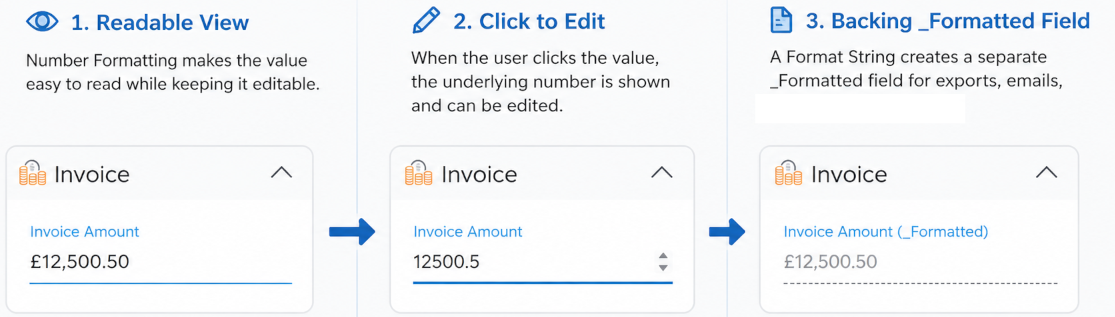
Number Formatting → gives the invoice amount a readable format while allowing users to Click to Edit
Format String → creates the separate _Formatted value for the read-only summary or use within an App expression
This is where using both becomes useful. The user can edit the Number where they need to, while the same value can be presented as formatted text elsewhere in the App.
💡 A simple way to remember it
Number Formatting = make the Number easy to read with Click to Edit, and use that formatting in supported outputs and automation.
Format String = create a separate formatted text value you can display or use elsewhere.
Use both = when you need an editable formatted Number in one place and a read-only or reusable formatted value somewhere else.
Small formatting changes can make a big difference to the usability of an App, particularly when users are working with large amounts of data in Table Reports.
👉 Try out Number Formatting options in your Apps and let us know how you're using them!
Please sign in to leave a comment.
Comments
0 comments