
Overview
Softools provides several ways to control how Number and Date/DateTime field values are formatted and displayed.
For Number fields, Number Formatting Properties control how the value is presented to users. Values can be formatted as currency, percentages or with digit grouping, while still allowing users to click the value to edit it.
Number Formatting is also used by default when exporting Number fields to Word and can be used in workflow emails and workflow expressions.
Format Strings create a separate _Formatted version of a Number or Date/DateTime field. This is useful when the formatted value needs to be used independently elsewhere in the App, such as in an expression or as a read-only value in another area of a Record or Report. For Date and DateTime fields, a Format String can also be used to provide the required formatting for Word exports.
Date and DateTime values can also be formatted directly when used in workflow emails.
For Number fields, Format Strings and Number Formatting Properties can also be used together. This is useful when a Number should use Number Formatting with Click to Edit, while also creating a separate _Formatted value for use elsewhere in the App, such as in an expression or as a read-only display in a Record or Report.
- Number Formatting
- Format Strings
- Formatting Number Fields with Format Strings
- Formatting Date and DateTime Fields
- Formatting Date and DateTime Values in Emails
- Using Number Formatting and Format Strings Together
- Common Use Cases
- When to Use Each Option
- Patching Existing Record Data
- Summary
Number Formatting
Number Formatting Properties control how a Number is presented to users.
For example, a value can be displayed as:
£12,345.60while still allowing the user to click the value to edit it.
Number Formatting options include:
Disable Digit Grouping, Currency, Percent, Min Decimal Places, Max Decimal Places, Prefix, Suffix
These options can be combined to provide the appropriate display for the value.
For example:
| Number Formatting | Example |
|---|---|
| Currency | £12,500.50 |
| Percent | 87.5% |
| Digit grouping | 1,250,000 |
| Prefix | INV - 12345 |
| Suffix | 12,500 kg |
Click to Edit
Number Formatting allows a Number to be displayed in a formatted way while still supporting Click to Edit.
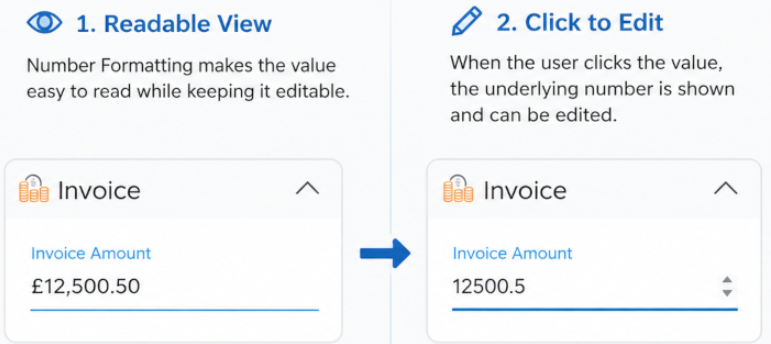
For example, a value may be displayed as:
£12,345.60 <--> 12345.60When the user clicks the value, they can edit the Number.
When they click away, the configured Number Formatting is displayed again.
This is particularly useful in Records and Table Reports where values need to be easy to read while still allowing users to update them.
Using Number Formatting in Word Exports
Number Formatting is used by default when exporting a Number field to Word.
For example, if an Amount field is configured to display as:
£12,500.50the same formatted value is used when the field is exported to Word.
There is no need to create a separate _Formatted field (Format String) simply to apply the configured Number Formatting to a Word export.
Using Number Formatting in Workflow Emails
Number Formatting can also be used when including a Number field in a workflow email.
Use:
@Softools.FieldValue("Amount")Automated output uses the site's default language for separators and currency placement.
A specific locale can be supplied when required:
@Softools.FieldValue(Amount, locale: 'en-GB')This is useful where the output needs to follow a particular regional format rather than the site's default.
Using Number Formatting in Workflow Expressions
Use formatfield() to apply the configured Number Formatting in a workflow expression.
formatfield('Amount')This uses the site's default language.
A specific locale can also be supplied:
formatfield('Amount', 'en-GB')Or the locale can be taken from another field:
formatfield('Amount', [LocaleField])This allows the formatting to be determined dynamically from the Record.
Format Strings
A Format String creates a separate formatted version of a Number or Date/DateTime field.
When a Format String is added, Softools creates a _Formatted backing field.
For example, if the Field Identifier is:
TotalValuethe formatted backing field is:
TotalValue_FormattedThe _Formatted field contains the value as text using the configured Format String.
Using the _Formatted Value
A _Formatted field is useful when the formatted version of a value needs to be available separately within the App.
For example, you may have an Amount field at the top of a Record that displays:
£12,500.50using Number Formatting and allows the user to Click to Edit.
Elsewhere in the Record, perhaps in a summary section, you may want to display the same formatted value as read-only.
Instead of creating a separate read-only Number field, you can display:
Amount_FormattedThe _Formatted value can also be used in App expressions.
For example:
"Total invoice value: " + [Amount_Formatted]could produce:
Total invoice value: £12,500.50This allows the formatted representation to be combined with other values or text within the App.
Displaying the Formatted Value
Enable Display Formatted to display the formatted version of a field in a Record.
When a Format String is used on its own, displaying the formatted value provides a read-only representation of the field.
The _Formatted backing field can also be selected directly when configuring Records, Templates and Reports.
This allows the original field and its formatted version to be used independently where required.
Formatting Number Fields with Format Strings
For standard Number formatting, such as currency, percentages, decimal places and digit grouping, Number Formatting Properties will normally be the appropriate option.
Format Strings remain useful when a separate _Formatted value or more customised formatting is required.
Standard Examples
For the Number:
384537.21356some common Format Strings are:
| Format String | Example Output | Description |
|---|---|---|
{0:N2} |
384,537.21 |
Number with digit grouping and 2 decimal places |
{0:F1} |
384537.2 |
Fixed format with 1 decimal place |
{0:E3} |
3.845E+005 |
Scientific notation with 3 decimal places |
{0:G2} |
Varies | General format |
{0:C} |
Currency value | Currency format |
{0:P1} |
Percentage value | Percentage with 1 decimal place |
Custom Number Formats
Fixed text can be included around the formatted value.
For example:
£{0:N2}pcould produce:
£384,537.21pThe {0:N2} section formats the Number and the remaining characters are displayed as text.
Positive, Negative and Zero Values
Custom formats can define different output for positive, negative and zero values.
For example:
{0:#,##0;(#,##0);0}uses sections in the order:
positive;negative;zeroFor example:
-
2000→2,000 -
-2000→(2,000) -
0→0
This is useful where Number Formatting Properties do not provide the level of customisation required.
Formatting Date and DateTime Fields
Format Strings can also be used with Date and DateTime fields.
Adding a Format String creates a _Formatted backing field containing the Date or DateTime as formatted text.
This formatted value can then be displayed or used elsewhere in the App. A Format String should also be used when a Date or DateTime needs to be exported to Word in a specific format.
For example, a Date stored as:
2026-09-15T00:00:00Zcould use a Format String to provide a more readable value such as:
15 September 2026for use in the Word export.
Standard Date Formats
Some common examples for the date 23 April 2017 are:
| Format String | Example Output | Description |
|---|---|---|
{0:d} |
4/23/2017 |
Short date |
{0:D} |
Sunday, April 23, 2017 |
Long date |
{0:M} |
April 23 |
Month and day |
{0:Y} |
April 2017 |
Month and year |
The output of culture-sensitive formats can vary depending on the applicable locale.
Custom Date Formats
Different formats are available for each Date component.
Year
-
y– year -
yy– two-digit year -
yyy,yyyyor more – minimum number of digits
Month
-
M– month number -
MM– month number with a leading zero -
MMM– abbreviated month name -
MMMM– full month name
Day
-
d– day number -
dd– day number with a leading zero -
ddd– abbreviated day name -
dddd– full day name
For example:
{0:dd-MM-yyyy}produces:
23-04-2017Static text can also be included:
Date is: {0:d MMM, yyyy}
Hours, Minutes and Seconds
DateTime formats can also include time.
Hour
-
h– 12-hour clock with a minimum of one digit -
hh– 12-hour clock with two digits -
H– 24-hour clock with a minimum of one digit -
HH– 24-hour clock with two digits
Minute
-
m– minutes with a minimum of one digit -
mm– minutes with two digits
Seconds
-
s– seconds with a minimum of one digit -
ss– seconds with two digits
For example:
{0:dd/MM/yyyy HH:mm}could produce:
23/04/2017 14:30
Formatting Date and DateTime Values in Emails
If a Date or DateTime only needs to be formatted when it is included in a workflow email, a Format String does not need to be added to the field.
The @Softools.FieldValue() email keyword can format the value directly.
For example:
@Softools.FieldValue(MyDateField, 'yyyy-MM-dd')formats the Date using the specified format.
A locale can also be specified:
@Softools.FieldValue(MyDateField, locale: 'en-GB')For example:
@Softools.FieldValue(ReviewDate, 'dddd, d MMMM yyyy')could produce:
Tuesday, 15 September 2026This is useful when:
- The formatted Date is only required in an email.
- Different emails need different Date formats or locales.
- A separate
_Formattedfield is not required elsewhere in the App.
Using Number Formatting and Format Strings Together
Number Formatting and a Format String can both be configured on the same Number field.
This is useful when the Number needs to be formatted with Click to Edit, but a separate formatted text value is also required elsewhere in the App.
For example, an InvoiceAmount field could use Number Formatting to display:
£12,500.50with Click to Edit.
A Format String could also create:
InvoiceAmount_FormattedThis could then be used in an App expression or displayed as a read-only value in a separate summary section of the Record.
The two options therefore serve different purposes:
- Number Formatting controls how the Number is displayed, including Click to Edit, and is available for supported automated output.
- Format Strings provide a separate formatted text value that can be used independently within the App.
Common Use Cases
The following examples show typical situations where field formatting can improve readability and help determine which formatting option to use.
Financial Values
A project has a Budget Number field containing:
12500.5Number Formatting Properties can be configured with:
- Currency:
British Pound - Min Decimal Places:
2 - Max Decimal Places:
2
The user sees:
£12,500.50and can Click to Edit the value.
The same Number Formatting is also available when the value is exported to Word or included in a workflow email, so a Format String is not required simply for those outputs.
A Format String can additionally be used if a separate Budget_Formatted value is needed elsewhere in the App, for example as a read-only value in a summary or as part of an App expression.
Friendly Dates
A DueDate Date field contains:
2026-09-15T00:00:00ZA Format String such as:
{0:ddd, d MMMM yyyy}can create a formatted value of:
Tue, 15 September 2026This is useful when the friendly Date needs to be available elsewhere in the App, such as in a Record, Report, Template or expression. The Format String is also required if the Date needs to be exported to Word using this formatting.
If the friendly format is only required in an email, the Date can instead be formatted directly:
@Softools.FieldValue(DueDate, 'ddd, d MMMM yyyy')
Audit Completion Percentage
An audit has a Completion Number field containing:
0.875Number Formatting can display this as:
87.5%by enabling Percent and setting the required decimal places.
This is particularly useful if users need to Click to Edit the percentage.
If Completion is calculated and only needs to be displayed as a read-only formatted value, a Format String could instead be used:
{0:P1}This also creates Completion_Formatted if the formatted percentage needs to be referenced separately elsewhere in the App.
Hours and Rates
A project contains a CostPerHour Number field containing:
75.5Number Formatting Properties could display:
£75.50while supporting Click to Edit.
The same formatting can then be used in Word exports, workflow emails and workflow expressions.
A Format String is only additionally required if a separate CostPerHour_Formatted text value is needed elsewhere in the App.
Large Numbers
A Budget Number field contains:
1250000Number Formatting can display:
1,250,000making the value easier to read while still supporting Click to Edit.
If a separate formatted text value is required elsewhere in the App, a Format String such as:
{0:N0}can create Budget_Formatted.
Reference Numbers and Identifiers
A Number field may sometimes need a fixed prefix or suffix for display.
For example, a field containing:
12345could use Number Formatting with a prefix to display:
INV-12345while still supporting Click to Edit.
If more customised formatting is required, a Format String can instead be used.
For example:
INV-{0:00000}can ensure the numeric part follows a specific pattern and creates a separate _Formatted value that can be used elsewhere in the App.
Negative Financial Values
For financial reports, negative values may be easier to interpret when displayed in brackets.
For example:
£{0:#,##0.00;(#,##0.00);£0.00}can display:
-
1250→£1,250.00 -
-1250→(£1,250.00) -
0→£0.00
This is an example where a Format String provides more customised formatting than the standard Number Formatting Properties.
It can be useful for budgets, financial reports, account balances and variance calculations.
Dates and Times
A LastUpdated DateTime field contains both a Date and time.
A Format String such as:
{0:dd/MM/yyyy HH:mm}can create a formatted value of:
17/08/2026 20:35This is useful for audit information, submission dates, approval timestamps and other Records where both the Date and time are important.
The _Formatted value can also be selected elsewhere in the App or used when the DateTime needs to be exported to Word in the same format.
Email-Specific Date Formatting
A ReviewDate field is normally displayed as a standard Date in the App, but an email needs a friendlier version.
The email can use:
@Softools.FieldValue(ReviewDate, 'dddd, d MMMM yyyy')to produce:
Tuesday, 18 August 2026This approach is preferable when the special formatting is only required for the email.
It also allows different emails to use different formats without creating additional _Formatted values.
Read-Only Financial Reporting
A calculated TotalValue Number field is used throughout an App, but a management Report should display it as currency.
If the formatted value only needs to be displayed as read-only, a Format String can create:
TotalValue_FormattedThe formatted field can then be selected in the Report and can also be referenced elsewhere in the App.
In this scenario, Number Formatting may not be required because users do not need to Click to Edit the value.
User-Editable Financial Values
A user enters an invoice amount into a Number field.
The App should display:
£12,500.00while allowing the user to Click to Edit the amount.
In this situation, Number Formatting Properties are appropriate.
The field can be configured with:
- Currency:
GBP - Min Decimal Places:
2 - Max Decimal Places:
2
The configured Number Formatting can also be used when the value is exported to Word, included in a workflow email or formatted in a workflow expression.
A Format String only needs to be added as well if a separate InvoiceAmount_Formatted value is required elsewhere in the App.
When to Use Each Option
Use Number Formatting when
You want to control how a Number is displayed with Click to Edit.
Number Formatting is also the appropriate option when you want the configured formatting to be used:
- In Word exports.
- In workflow emails using
@Softools.FieldValue(). - In workflow expressions using
formatfield().
Use it for standard formatting such as:
- Currency.
- Percentages.
- Digit grouping.
- Decimal places.
- Prefixes and suffixes.
Use a Format String when
You need a separate formatted version of the field as a _Formatted value.
This is useful when you want to:
- Use the formatted value in an App expression.
- Combine the formatted value with other text.
- Display the formatted value separately elsewhere in a Record or Report.
- Display a formatted value as read-only.
- Apply more customised Number formatting.
- Apply custom Date or DateTime formatting.
- Export a Date or DateTime to Word using a specific format.
Use Both when
A Number needs Click to Edit with Number Formatting, but you also need a separate formatted text value elsewhere in the App.
For example, an InvoiceAmount field could use Number Formatting for its editable display while InvoiceAmount_Formatted is displayed as a read-only value in a summary section or referenced in an App expression.
Format Dates Directly in Emails when
A Date or DateTime only needs to be formatted for a specific workflow email.
This avoids creating a _Formatted value and allows different emails to display the same Date or DateTime in different formats.
Patching Existing Record Data
Adding a Format String creates a _Formatted backing field.
The formatted value is populated when the original field value changes.
For newly created records this happens automatically. Existing records may need to be updated before the _Formatted value is populated.
Note: Take care not to trigger other workflow such as email notifications when patching data. If you are unsure then consult with the lead App Builder for the App.
If the field contains manually entered data:
- Export the data to a
.csvfile. - Remove all fields except the field that has the Format String.
- Re-import the data.
Updating the field value will populate the _Formatted value.
If the field is populated by an expression, you will need to trigger the expression to run. This could be through a recalc workflow node or editing values in other fields in the expression dependencies.
For example, if TotalValue is calculated using:
[Hours] * [CostPerHour]and you add a Format String to TotalValue, changing a value used by the expression will cause TotalValue to recalculate and populate TotalValue_Formatted.
Summary
Number Formatting controls how Number fields are displayed and supports Click to Edit. The configured formatting is also used by default in Word exports and can be used in workflow emails and workflow expressions.
Format Strings create a separate _Formatted value for Number and Date/DateTime fields. This is useful when the formatted value needs to be available independently elsewhere in the App, such as in an expression or as a read-only display. For Date and DateTime fields, Format Strings are also used when a specific format is required in a Word export.
Number Formatting and Format Strings can be used together when you need both Click to Edit with a formatted Number and a separate formatted text value.
Date and DateTime values can also be formatted directly in workflow emails when a separate _Formatted value is not required.
Comments
0 comments
Article is closed for comments.