
In this article we will look at some features which apply at a site wide level.
- Default Styles - Using named styles to set the default appearance of Fields
- Public Site - How to enable this if you have external users
- Email Templates - Creating default structure for the Workflow Send Email node
Default Styles
This area controls the default appearance of Fields in an App. You can create styles that can then be applied to either the Field Label, Field Text or whole Component.
Let's look at this using a sample custom style to apply to the site. We would like to see
- Field Labels in a larger font size
- Field Text with a faint background colour
- Field Labels and Field Text to have a bold font.
The result is an appearance like the below:
Step 1 - Create the Custom Styles
We create these as three styles. To see how the styles are created, please read the Styles support article.
Step 2 - Add Custom styles as Named Styles
Now that we have created these styles, we can apply them at the site level. Open the Configure folder in App Studio and locate the Named Styles section and click on '+ Add Named Style'.
This will pop open a modal where you can select the style and the Field element level it should apply to before clicking 'Ok' to add the named style
You can add one or more named styles here. We'd recommend that you add at most three.
- One named style that covers all component shared attributes
- One named style that applies specific Field Label attributes
- One named style that applies to Field Text specific attributes
Once you have added the named styles, click on save to confirm this as the default appearance for Fields on your site.
Public Site
Public site is typically used (and highly recommended!) when you are inviting external users to use your platform. Making a site public restricts the view of Users and Teams in Fields. This is particularly important for GDPR Compliance as the User Field type gives personal information including email addresses.
Note: It will also prevent this information being available in IndexedDB
To enable your Softools site as a public site, go to the configure folder in App Studio at the site level. Locate the Advanced Configuration section and then the Site Is Public toggle
When you enable this toggle, it then exposes an area where you can optionally add admin email domains which allows unrestricted use of User and Team Fields if the user has an email address that ends with that email domain.
Let's add a couple of Admin Email Domains so we can then see what affect this has.
We have added softools.net and acme.net as Admin Email Domains.
This means that the user account with the associated email address 'joe.bloggs@softools.net' is able to use Person and Team Fields and see all users on the site
However, if a user whose account email address does not match to an admin email domain, they will only see their user for selection in the person field. If another name has already been selected, then they will see the name, but it will appear as if that user does not exist by marking it that the User is missing or deleted.
If Jane Doe with email address jane.doe@another.com is accessing a Record, then they would see the following.
When the go to use the Field, they will only see their own account for selection thus protecting from visibility of who other users are and with that their email addresses.
Email Templates
This is an area to create email structures for common email formats that can then be used across multiple Apps. The concept is that you define a reusable HTML template once containing your header, footer, branding, and structure.
Each workflow then simply injects its specific content using the {body} placeholder.
Each template is uploaded to the Configure Folder in App Studio
Let's run through some structures. It is useful to create a custom template for components that should appear on all emails. The structure could be
- Company Logo
- "This is a system generated email"
- {body} (as written in each specific send email workflow node)
- Thanks, The Softools Team
For this we could use the html:
<body style="margin:0; padding:0; background-color:#f4f4f4; font-family:Arial, sans-serif;">

  <table width="100%" cellpadding="0" cellspacing="0" border="0" style="background-color:#f4f4f4; padding:20px 0;">
    <tr>
      <td align="center">

        <!-- Email Container -->
        <table width="600" cellpadding="0" cellspacing="0" border="0" style="background-color:#ffffff; padding:20px; border-radius:6px;">

          <!-- Logo -->
          <tr>
            <td align="center" style="padding-bottom:20px;">
              <img src="https://images.squarespace-cdn.com/content/v1/60e84e35fc14466f9494be26/7fedec5b-8139-4fc0-82f4-b4d869feda44/softools-orange.png?format=1500w"
                   alt="Softools Logo"
                   style="max-width:200px; height:auto; display:block;">
            </td>
          </tr>

          <!-- System Message -->
          <tr>
            <td style="font-size:14px; color:#777777; text-align:center; padding-bottom:20px;">
              This is a system generated email
            </td>
          </tr>

          <!-- Body Content -->
          <tr>
            <td style="font-size:16px; color:#333333; line-height:1.5;">
              {body}
            </td>
          </tr>

          <!-- Sign Off -->
          <tr>
            <td style="padding-top:30px; font-size:16px; color:#333333;">
              Thanks,<br>
              The Softools Team
            </td>
          </tr>

        </table>

      </td>
    </tr>
  </table>

</body>
Example Email Templates (Copy & Reuse)
Below are production-ready, Outlook-safe templates you can copy and adapt.
🌐 External / Customer Email
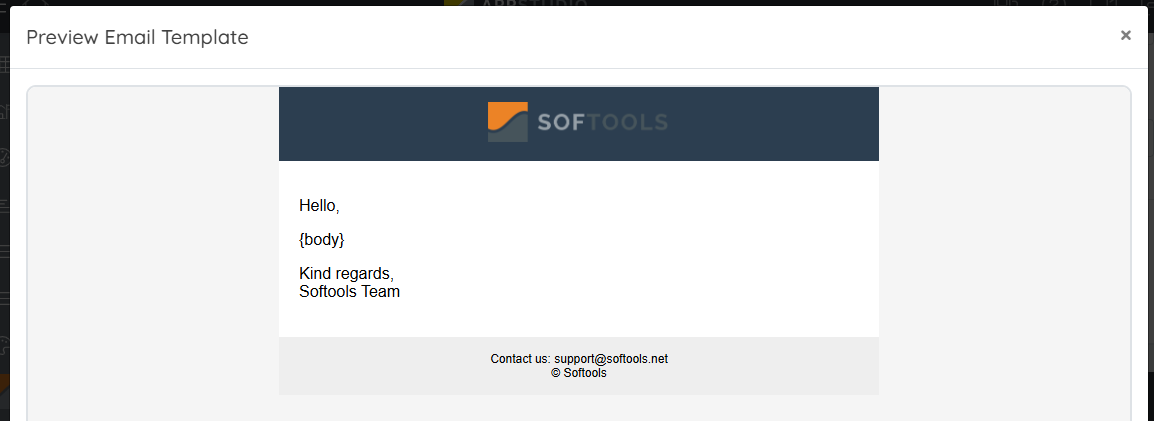
<html>
<body style="margin:0; padding:0; background-color:#f5f5f5;">
<table width="100%" cellpadding="0" cellspacing="0" border="0" bgcolor="#f5f5f5">
<tr><td align="center">
<table width="600" cellpadding="0" cellspacing="0" border="0" bgcolor="#ffffff" style="font-family:Arial, sans-serif;">
<tr>
<td align="center" bgcolor="#2c3e50" style="padding:15px;">
<img src="https://images.squarespace-cdn.com/content/v1/60e84e35fc14466f9494be26/7fedec5b-8139-4fc0-82f4-b4d869feda44/softools-orange.png?format=1500w" height="40">
</td>
</tr>
<tr>
<td style="padding:20px;">
<p>Hello,</p>
{body}
<p>Kind regards,<br>Softools Team</p>
</td>
</tr>
<tr>
<td align="center" bgcolor="#eeeeee" style="padding:15px; font-size:12px;">
Contact us: support@softools.net<br>© Softools
</td>
</tr>
</table>
</td></tr>
</table>
</body>
</html>🏢 Internal Email
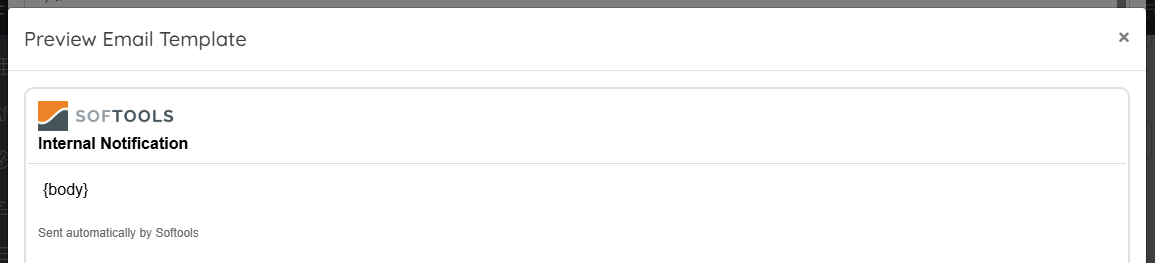
<html>
<body style="margin:0; padding:0;">
<table width="100%" style="font-family:Arial, sans-serif;">
<tr>
<td style="padding:10px; border-bottom:1px solid #ddd;">
<img src="https://images.squarespace-cdn.com/content/v1/60e84e35fc14466f9494be26/7fedec5b-8139-4fc0-82f4-b4d869feda44/softools-orange.png?format=1500w" height="30">
<br />
<strong> Internal Notification</strong>
</td>
</tr>

<tr><td style="padding:15px;">{body}</td></tr>

<tr>
<td style="padding:10px; font-size:12px; color:#666;">
Sent automatically by Softools
</td>
</tr>
</table>
</body>
</html>
⏰ Reminder Email
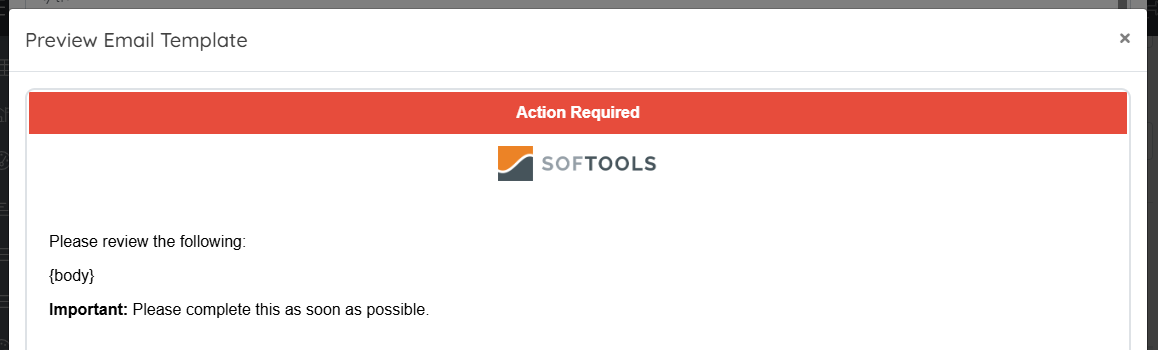
<html>
<body style="margin:0; padding:0;">
<table width="100%" style="font-family:Arial, sans-serif;">
<tr>
<td align="center" bgcolor="#e74c3c" style="color:#fff; padding:12px;">
<strong>Action Required</strong>
</td>
</tr>

<tr>
<td align="center" style="padding:10px;">
<img src="https://images.squarespace-cdn.com/content/v1/60e84e35fc14466f9494be26/7fedec5b-8139-4fc0-82f4-b4d869feda44/softools-orange.png?format=1500w" height="35">
</td>
</tr>

<tr>
<td style="padding:20px;">
<p>Please review the following:</p>
{body}
<p><strong>Important:</strong> Please complete this as soon as possible.</p>
</td>
</tr>
</table>
</body>
</html>
✅ Approval Email
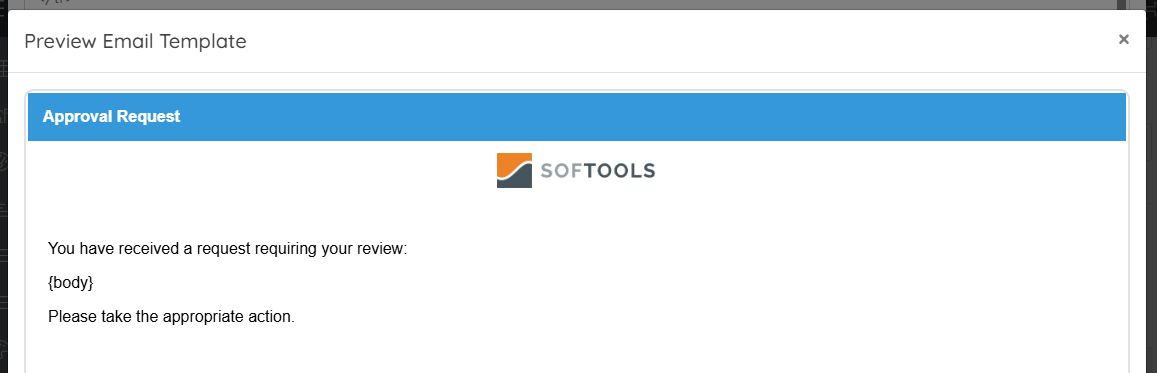
<html>
<body style="margin:0; padding:0;">
<table width="100%" style="font-family:Arial, sans-serif;">
<tr>
<td bgcolor="#3498db" style="color:#fff; padding:15px;">
<strong>Approval Request</strong>
</td>
</tr>

<tr>
<td align="center" style="padding:10px;">
<img src="https://images.squarespace-cdn.com/content/v1/60e84e35fc14466f9494be26/7fedec5b-8139-4fc0-82f4-b4d869feda44/softools-orange.png?format=1500w" height="35">
</td>
</tr>

<tr>
<td style="padding:20px;">
<p>You have received a request requiring your review:</p>
{body}
<p>Please take the appropriate action.</p>
</td>
</tr>
</table>
</body>
</html>
📜 Formal / Certification Email
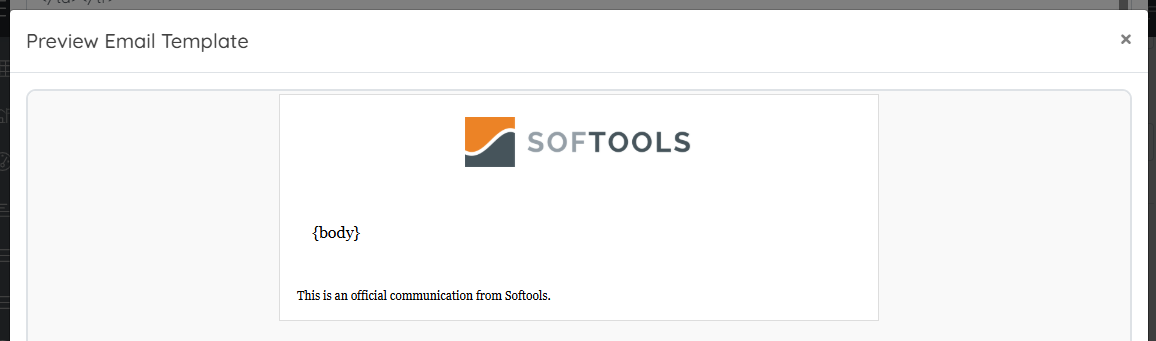
<html>
<body style="margin:0; padding:0; background:#f9f9f9;">
<table width="100%" bgcolor="#f9f9f9">
<tr><td align="center">

<table width="600" bgcolor="#ffffff" style="font-family:Georgia, serif; border:1px solid #ddd;">
<tr>
<td align="center" style="padding:20px;">
<img src="https://images.squarespace-cdn.com/content/v1/60e84e35fc14466f9494be26/7fedec5b-8139-4fc0-82f4-b4d869feda44/softools-orange.png?format=1500w" height="50">
</td>
</tr>

<tr><td style="padding:30px;">{body}</td></tr>

<tr>
<td style="padding:15px; font-size:12px;">
This is an official communication from Softools.
</td>
</tr>

</table>

</td></tr>
</table>
</body>
</html>
🔔 System Notification
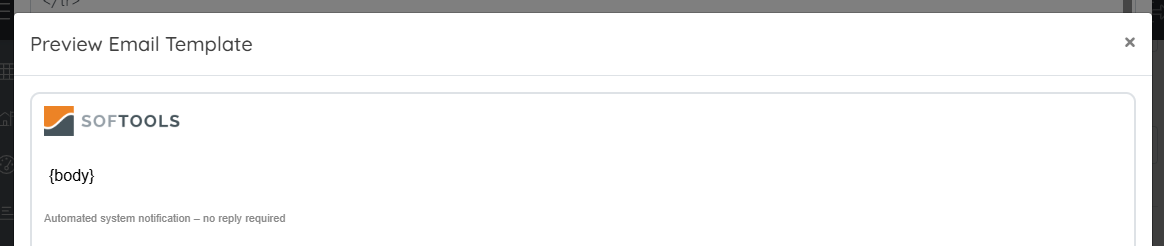
<html>
<body style="margin:0; padding:0;">
<table width="100%" style="font-family:Arial, sans-serif;">
<tr>
<td style="padding:10px;">
<img src="https://images.squarespace-cdn.com/content/v1/60e84e35fc14466f9494be26/7fedec5b-8139-4fc0-82f4-b4d869feda44/softools-orange.png?format=1500w" height="30">
</td>
</tr>

<tr><td style="padding:15px;">{body}</td></tr>

<tr>
<td style="padding:10px; font-size:11px; color:#888;">
Automated system notification – no reply required
</td>
</tr>
</table>
</body>
</html>
⚠️ Error / Exception Email
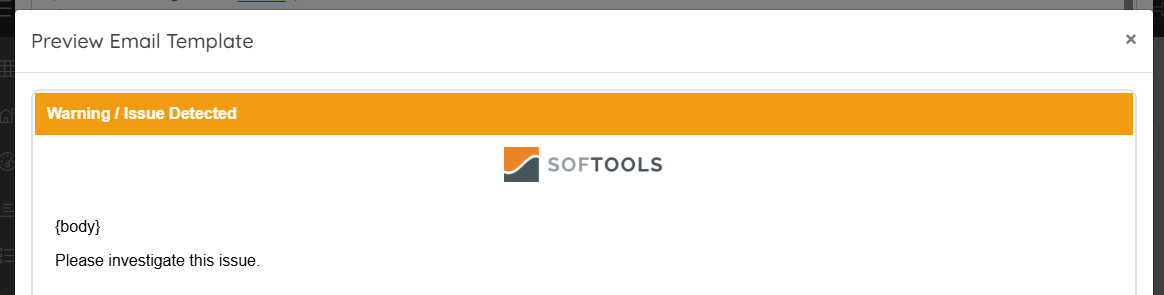
<html>
<body style="margin:0; padding:0;">
<table width="100%" style="font-family:Arial, sans-serif;">
<tr>
<td bgcolor="#f39c12" style="color:#fff; padding:12px;">
<strong>Warning / Issue Detected</strong>
</td>
</tr>

<tr>
<td align="center" style="padding:10px;">
<img src="https://images.squarespace-cdn.com/content/v1/60e84e35fc14466f9494be26/7fedec5b-8139-4fc0-82f4-b4d869feda44/softools-orange.png?format=1500w" height="35">
</td>
</tr>

<tr>
<td style="padding:20px;">
{body}
<p>Please investigate this issue.</p>
</td>
</tr>
</table>
</body>
</html>
🎨 Multi-Brand Template
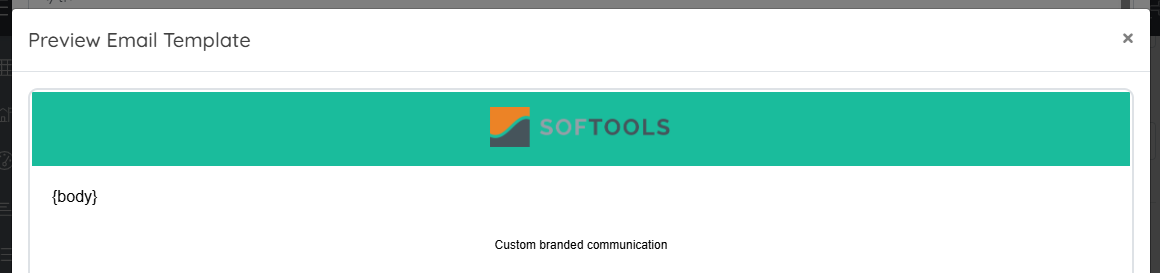
<html>
<body style="margin:0; padding:0;">
<table width="100%" style="font-family:Arial, sans-serif;">
<tr>
<td align="center" bgcolor="#1abc9c" style="padding:15px;">
<img src="https://images.squarespace-cdn.com/content/v1/60e84e35fc14466f9494be26/7fedec5b-8139-4fc0-82f4-b4d869feda44/softools-orange.png?format=1500w" height="40">
</td>
</tr>

<tr><td style="padding:20px;">{body}</td></tr>

<tr>
<td align="center" style="padding:10px; font-size:12px;">
Custom branded communication
</td>
</tr>
</table>
</body>
</html>
Comments
0 comments
Article is closed for comments.